
Custom playing cards
Teach how to create your Personalized Playing Cards.
Start working by creating a new file (File>New) with 1280×1024 px and 72 dpi.
Using the Rectangle Tool (U), try to represent the background of the picture to be.
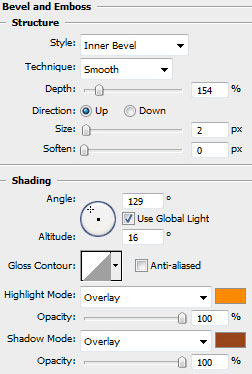
Select the next demonstrated parameters by making a mouse click on the processed layer on the layers’ panel: Blending Options>Bevel and Emboss

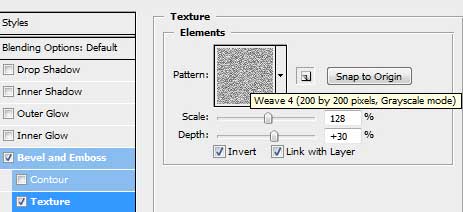
Blending Options>Bevel and Emboss (Texture) the texture out of the set Texture fill 2
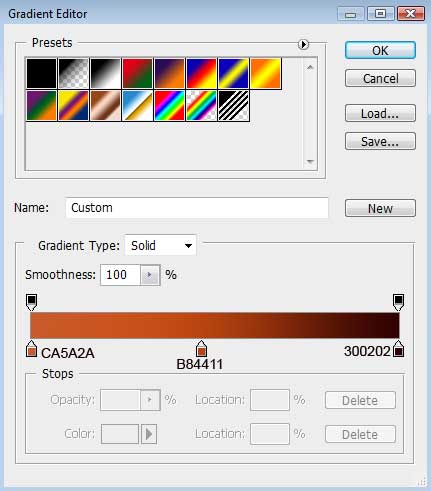
Blending Options>Gradient Overlay
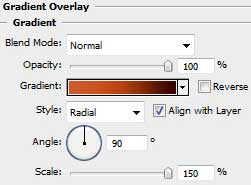
Gradient’s parameters:

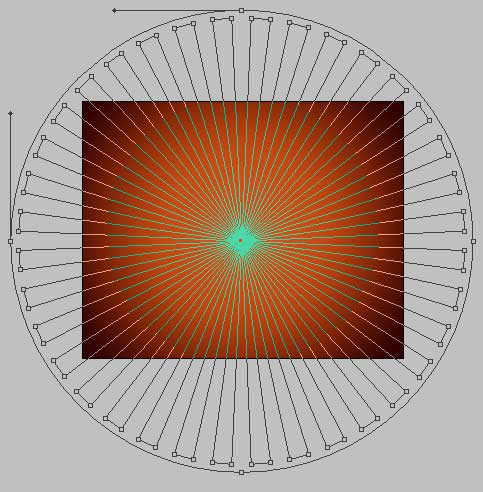
Using the Custom Shape Tool (U), represent the rays shown below. Mark out the inside tops with the Convert Point Tool, press CTRL+T, then choose Maintain aspect ratio option and compress them uniformly on the same point on the central part of the picture.
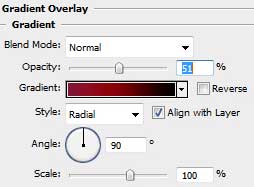
The layer’s parameters: Fill 0%
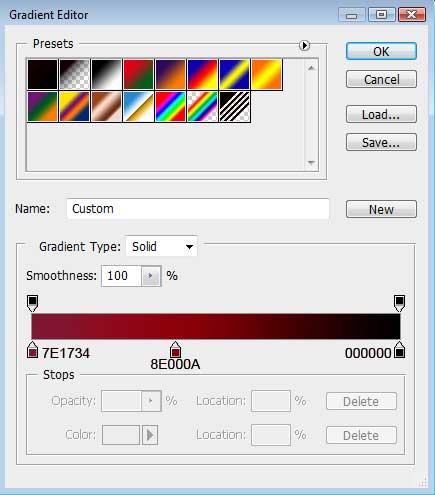
Blending Options>Gradient Overlay
Gradient’s parameters:

Comments