
Harley Davidson Motorcycle Wallpaper
This tutorial will show you the process of creating a colorful motorcycle walllpaper in Photoshop from scratch.
Start working by creating a new file (File>New) with 1280×1024 px and 72 dpi. Select after that the Paint Bucket Tool (G) to fill up the new file with black color.

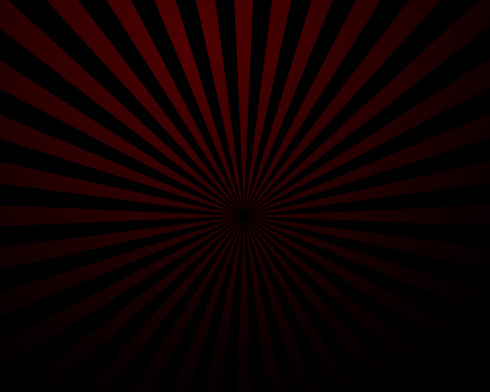
Using the Custom Shape Tool (U), try to represent the rays coming out of the central part of the picture.
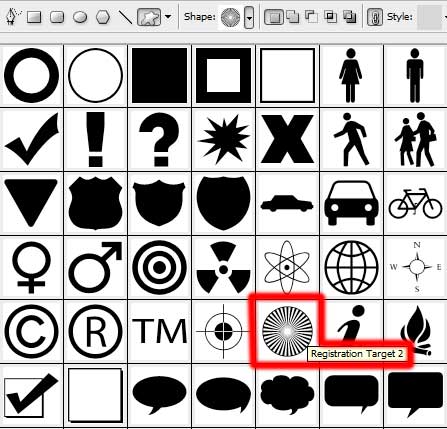
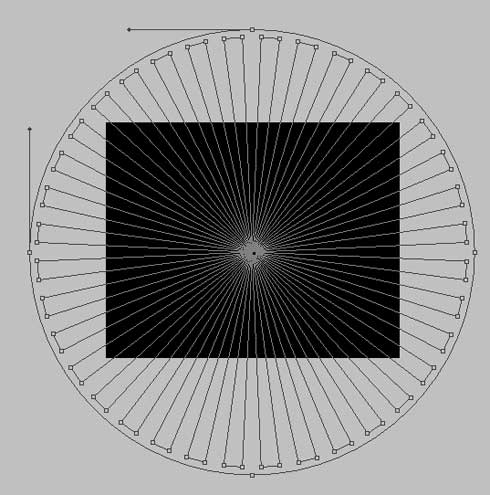
Mark out the inside figure’s points, applying the Convert Point Tool (press SHIFT button), press CTRL+E and then press Maintain aspect ratio, getting together them uniformly in the central point.

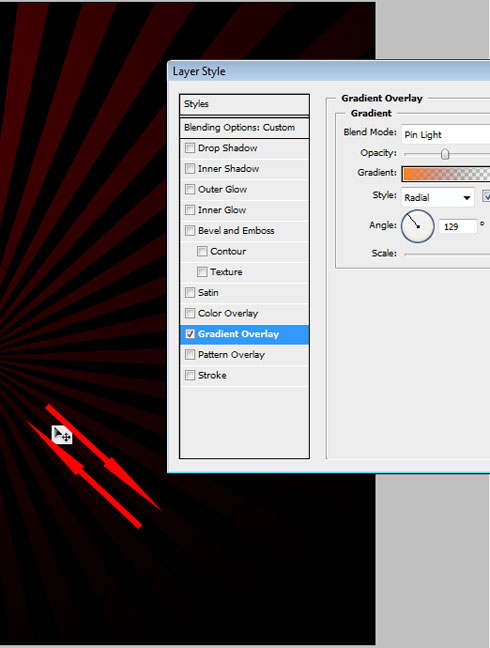
Set the next demonstrated parameter by making a mouse click on the processed layer on the Layers Palette. Opacity 70%, Fill 0%
Blending Options>Gradient Overlay
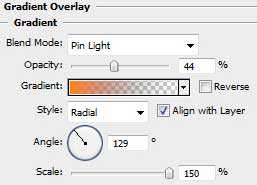
Gradient’s parameters:
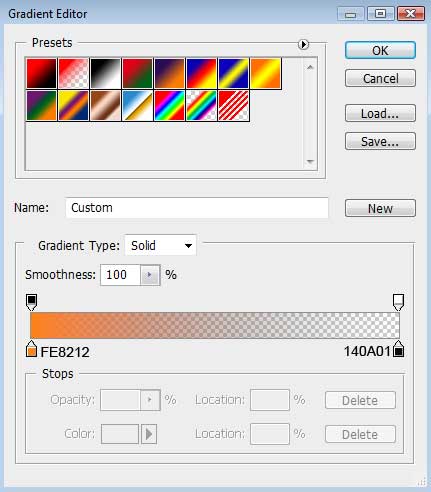
While adjusting the gradient’s window, it’s necessary to move the pointer diagonally to get the necessary opacity.
Download out of Internet a picture having a motorbike pictured on it.
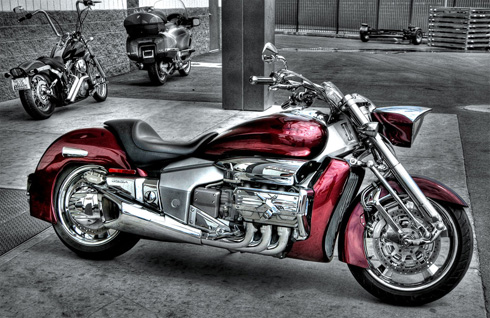
Cut out the motorbike and insert it on the picture. Its placement may be corrected by selecting the Free Transform solution.
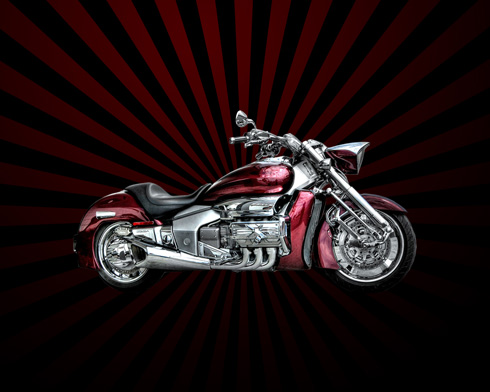
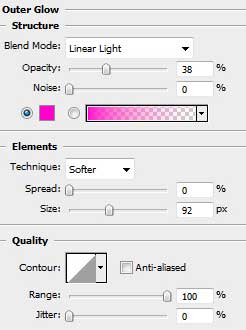
The layer’s parameters: Blending Options>Outer Glow
Blending Options>Inner Glow 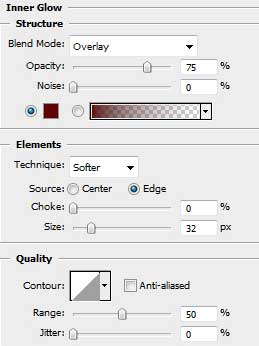
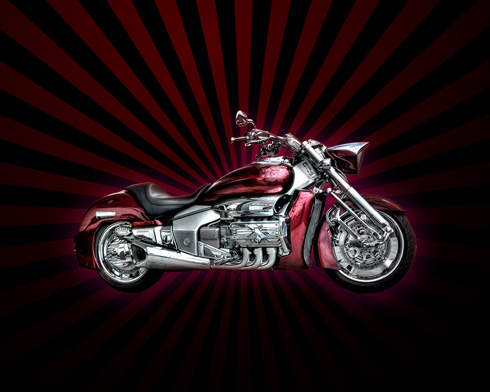
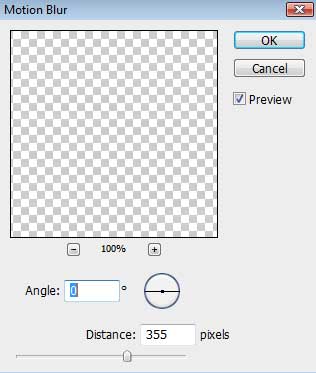
Make a copy of the layer containing the motorbike and create a new layer above the first one. Then we need to put together the new layer and the copy’s one (press Ctrl button to mark out the appropriate layers and press then Ctrl+E). Place the new layer we’ve got under the motorbike’s layer (on the layer’s palette). We need also to select the next options for the new layer: Filter>Blur>Motion blur
Page: 1 2
Comments