Categories

Partners
  • Website Templates

  • Design Feeds

  • Adobe Photoshop Tutorials

  • Website Templates, WordPress Themes

  • Website Templates

  • Flash Web Sites

  • Photoshop Templates

  • Photo Contests

  • Photo Tips
  • Search


    Advanced Search


    Partner Links
  • Adobe Photoshop Tutorials

  • Free Stock Photos and Images


  • Website Templates

    Summer breeze wallpaper
    Published  06/16/2008 | Designing
       
    Summer breeze wallpaper - part 1


    This tutorial shows you how to design summer wallpaper.

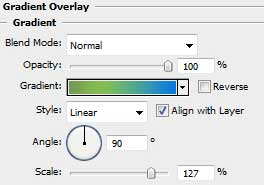
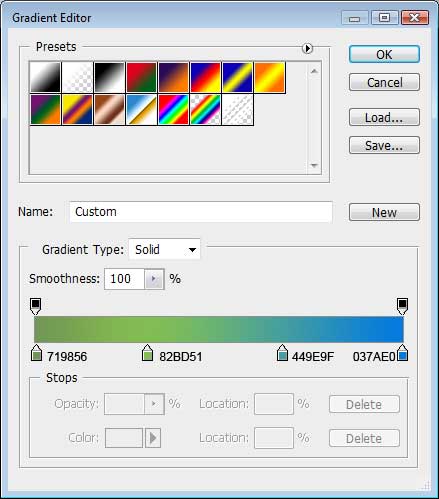
    In this case firstly it’s necessary to create a new file (File>New) with 1280x1024 px and 72 dpi. Select after that the Rectangle Tool (U) to stretch down the rectangle, applying for it the parameters demonstrated below. Blending Options>Gradient Overlay
    Create Summer breeze wallpaper in Photoshop CS3 

    Create Summer breeze wallpaper in Photoshop CS3

    We need to get the same image from below.

    Create Summer breeze wallpaper in Photoshop CS3 

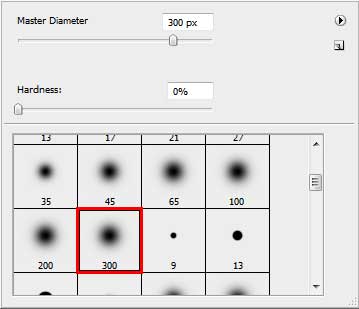
    Create a new layer on which we shall apply the Brush Tool (B) with the Opacity of 40% to represent a patch of white color.

    Create Summer breeze wallpaper in Photoshop CS3 


    Create Summer breeze wallpaper in Photoshop CS3

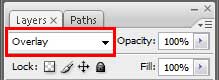
    Give the parameters for the new layer, indicated in the Layers’ Palette.
    Blending Mode - Overlay 

    Create Summer breeze wallpaper in Photoshop CS3

    We’ll get the next demonstrated picture:

    Create Summer breeze wallpaper in Photoshop CS3

    Using the Pen Tool (P), try to draw a kind of wave from the next picture, having the color #BBD772
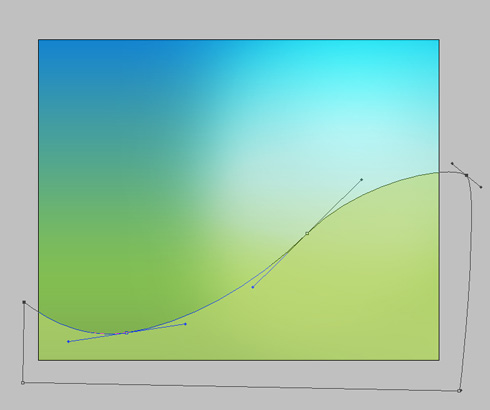
    Create Summer breeze wallpaper in Photoshop CS3

    Select for this layer the next parameters:
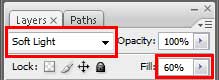
    Create Summer breeze wallpaper in Photoshop CS3

    This way the wave blends nice into our background.

    Create Summer breeze wallpaper in Photoshop CS3

    Create Summer breeze wallpaper in Photoshop CS3 Summer breeze wallpaper
    This tutorial shows you how to design summer wallpaper.