Categories

Partners
  • Website Templates

  • Design Feeds

  • Adobe Photoshop Tutorials

  • Website Templates, WordPress Themes

  • Website Templates

  • Flash Web Sites

  • Photoshop Templates

  • Photo Contests

  • Photo Tips
  • Search


    Advanced Search


    Partner Links
  • Adobe Photoshop Tutorials

  • Free Stock Photos and Images


  • Website Templates

     »  Adobe Home  »  Adobe Photoshop  »  Photo Editing  »  The Orange Sky
    The Orange Sky
    Published  06/23/2008 | Photo Editing
       
    The Orange Sky - part 2


    Using Smudge Tool, we make some branches smoother.

    Create Orange Sky Illustration in Photoshop CS3

    Let's make the background softer. We will copy the layer with the background, and we will apply filter Blur – Gaussian Blur to a copy.

    Create Orange Sky Illustration in Photoshop CS3

    We have to reduce Opacity of the layer up to 50 %. Now distant trees do not look more precisely, than near to us.

    Create Orange Sky Illustration in Photoshop CS3

    Let's add on the sky some shining stars. I used a simple brush of white color, changing the size with 1 up to 4 pixels. Do not overdo, all should be accurate and with taste.

    Create Orange Sky Illustration in Photoshop CS3

    Now we make the duplicate of a layer with stars, and we will apply to it filter Gaussian Blur.

    Create Orange Sky Illustration in Photoshop CS3

    Let's find a suitable texture of clouds (http://resurgere.deviantart.com), and we’ll copy it on a new layer. It will add beauty to our sky; will make it more perfect and more interesting. We will put such the size, that the texture would lie down exactly a top of a firmament.

    Create Orange Sky Illustration in Photoshop CS3

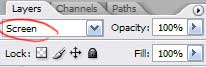
    We change Blending Mode of a layer on Soft Light.

    Create Orange Sky Illustration in Photoshop CS3 

    Create Orange Sky Illustration in Photoshop CS3

    By means of Eraser Tool and Smudge Tool we will correct the area at mountains where the texture terminates.

    Create Orange Sky Illustration in Photoshop CS3

    Let's make little bit more fine boughs on the tree. We draw them by means of an ordinary brush, the size of 2-3 pixels.

    Create Orange Sky Illustration in Photoshop CS3

    We change color on brightly yellow (almost white) and we will draw petals. Some petals in flight to the ground, others are on a tree.

    Create Orange Sky Illustration in Photoshop CS3

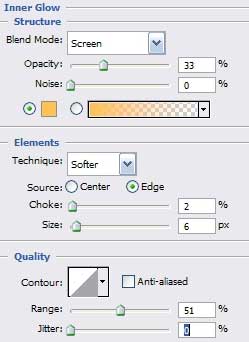
    For the further work we have to save the collage in a format jpg, and to open it by Photoshop. In menu Image - Adjustments - Brightness/Contrasts we will put adjustments, as on picture

    Create Orange Sky Illustration in Photoshop CS3

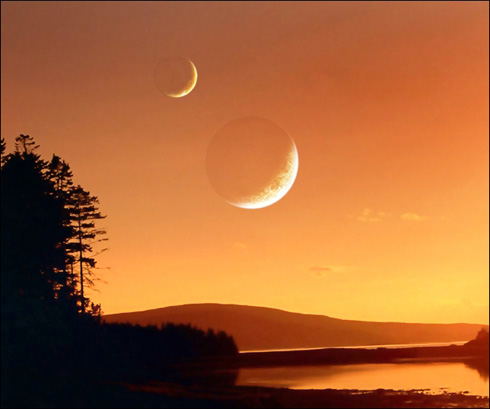
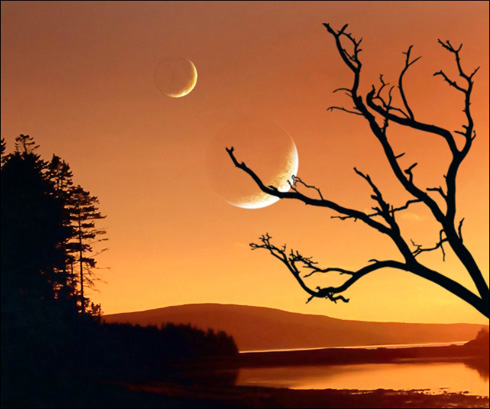
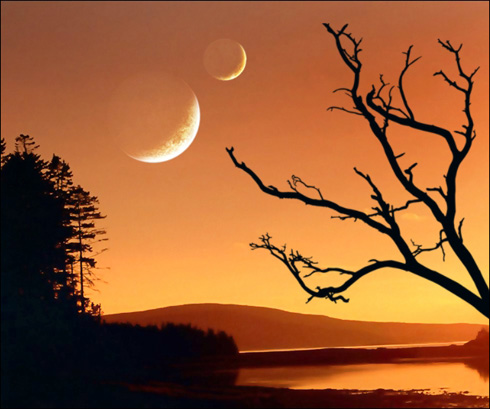
    We put last touches. By Dodge Tool (Midtones, 100 %) we will clarify the area of planets on which rays of light fall.

    Create Orange Sky Illustration in Photoshop CS3

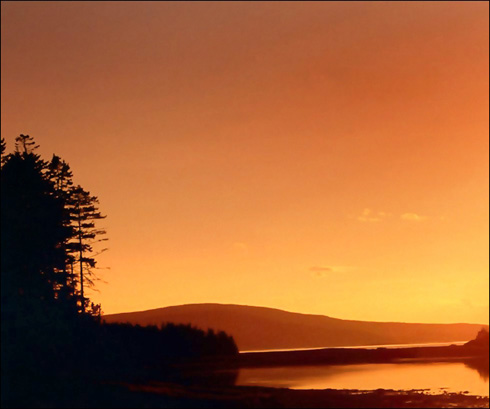
    By means of Burn Tool (Midtones, 50%) we will black out the top part of a firmament.
    Create Orange Sky Illustration in Photoshop CS3

    We choose Dodge tool (the same adjustments), and clarify horizon.

    Create Orange Sky Illustration in Photoshop CS3

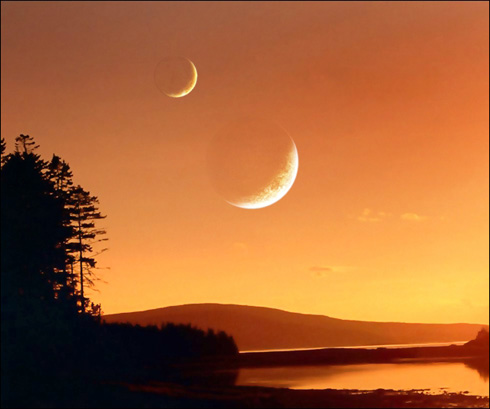
    Well, that's all. The collage is ready. Don’t afraid to experiment. I hope, you have learned something useful to yourselves.

    View full size here.

    Create Orange Sky Illustration in Photoshop CS3 The Orange Sky
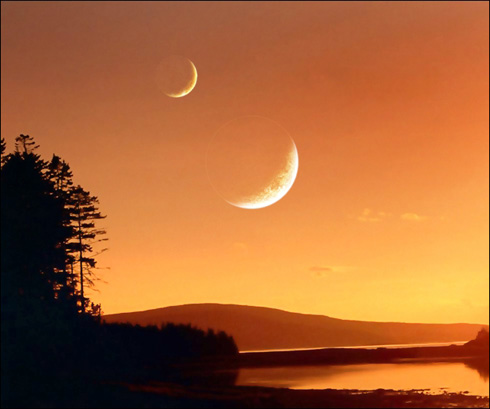
    This lesson will explain to you in all details the process of creation of a collage. By means of simple actions we will create a fantastic landscape from several simple pictures.