Categories

Partners
 
  • Photoshop Templates

  • Website Templates

  • Web Templates

  • Flash Web Sites

  • WordPress Templates

  • Free Ringtones

  • Free Stock Photos and Images

  • Photoshop

  • St. Louis LASIK | LASIK info

  • Load Cells

  • osCommerce Templates

  • Web Hosting


  • Website Templates
    Search


    Advanced Search


     »  Home  »  Adobe Photoshop  »  Designing  »  Sound system design
    Sound system design
    Published  07/3/2008 | Designing
       
    Sound system design - part 1


    In this tutorial we will learn how to create a cool music design. We will use vector shapes and layer styles use vector shapes and layer styles.

    Create a new file (File>New), having 1280x1024 px and 72 dpi

    Applying the Rectangle Tool (U), try to make the background of the picture to be.

    Create Sound System Design Wallpaper in Photoshop CS3

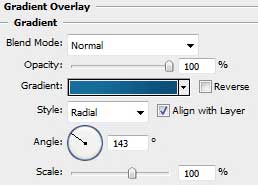
    Set the next demonstrated parameters by making a mouse click on the layer we work with on the layers’ palette. Blending Options>Gradient Overlay

    Create Sound System Design Wallpaper in Photoshop CS3

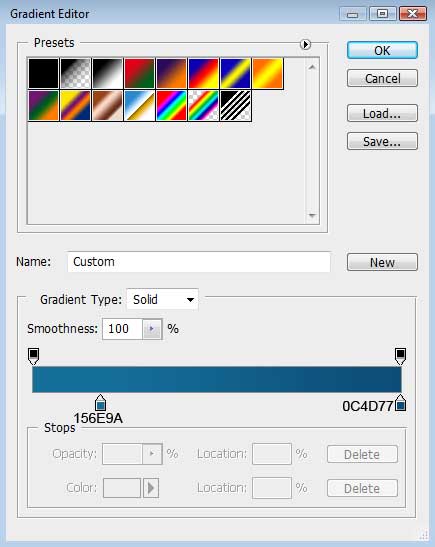
    Gradient’s parameters:

    Create Sound System Design Wallpaper in Photoshop CS3 

    Create Sound System Design Wallpaper in Photoshop CS3

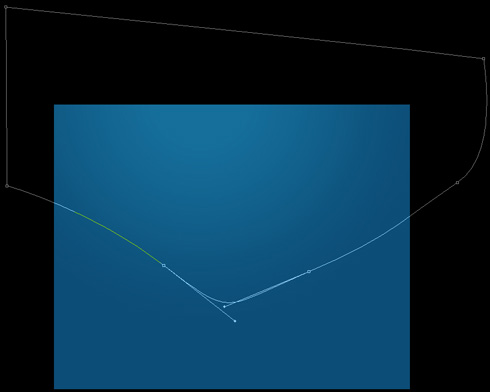
    Let’s represent a ribbon. In this case we need to select the Pen Tool (P) and the Convert Point Tool for making the appropriate corrections on the element’s shape.
    Create Sound System Design Wallpaper in Photoshop CS3

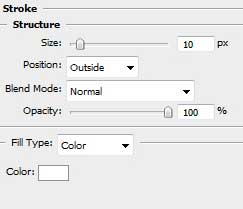
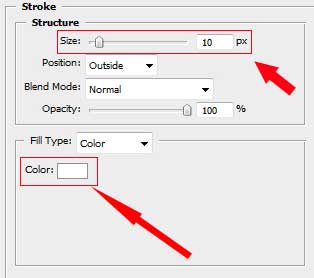
    The layer’s parameters: Blending Options>Stroke
    Create Sound System Design Wallpaper in Photoshop CS3 

    Create Sound System Design Wallpaper in Photoshop CS3

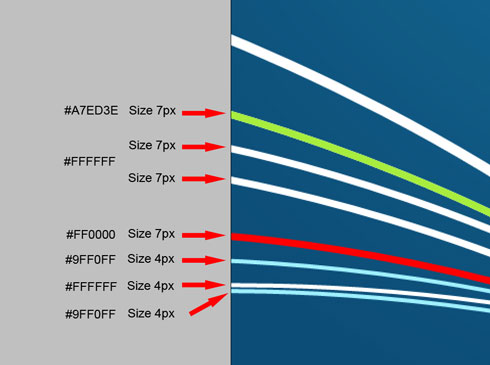
    Next we shall make eight copies of the last made layer and select the Free Transform option to turn over the copies, changing also the parameter Blending Options>Stroke for the copies.
    Create Sound System Design Wallpaper in Photoshop CS3 

    Create Sound System Design Wallpaper in Photoshop CS3 

    Create Sound System Design Wallpaper in Photoshop CS3

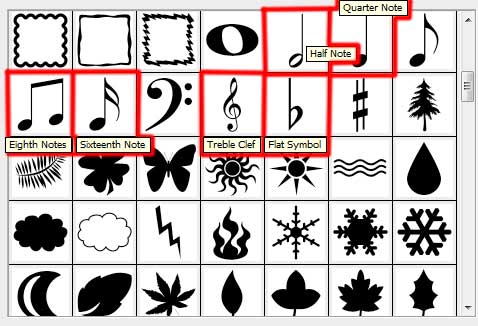
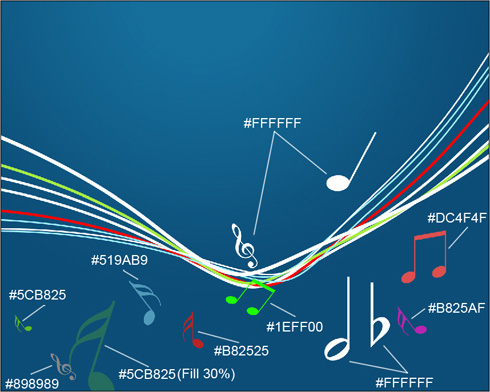
    Using the Custom Shape Tool (U), let’s represent the musical symbols on the picture. Their sizes and inclining angle may be changed with Free Transform selection.
    Create Sound System Design Wallpaper in Photoshop CS3 

    Create Sound System Design Wallpaper in Photoshop CS3

    Select the same tool to insert several more circles.
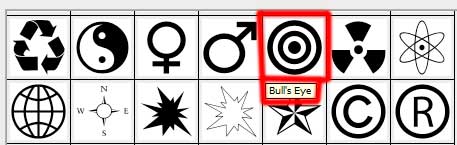
    Create Sound System Design Wallpaper in Photoshop CS3

    Create Sound System Design Wallpaper in Photoshop CS3 Sound system design
    In this tutorial we will learn how to create a cool music design. We will use vector shapes and layer styles use vector shapes and layer styles.


    PSDTUTS+ Photoshop Tutorials and More