Create Weaved Effect from a Photo

July 15th, 2008 by ART-D Posted in Adobe Photoshop, Photo Editing

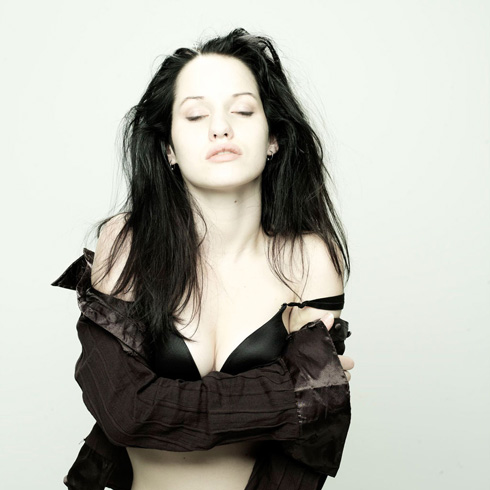
Create a new layer on which we should use a standard brush (Brush Tool (B)) to represent alternative disordered strokes over the girl’s image. The brushes have black color and the new layer should be placed lower than the girl’s layer on the layers’ palette.

Interesting photo effect to make your photos look modern in Photoshop CS3 

Interesting photo effect to make your photos look modern in Photoshop CS3

Press Alt button and make a mouse click between the girl’s layer and the layer containing the black strokes (on the layers’ palette), continuing stroking the girl’s image.

Interesting photo effect to make your photos look modern in Photoshop CS3 

Interesting photo effect to make your photos look modern in Photoshop CS3

Make a mouse click on the girl’s layer on the bottom part of the layers’ palette on Add a Mask option and then select a standard brush of black color to erase the unnecessary parts of the same strokes.

Interesting photo effect to make your photos look modern in Photoshop CS3 

Interesting photo effect to make your photos look modern in Photoshop CS3

Create a new layer again, applying on it a standard brush of 1 px and hardness 100%, of white color to draw strokes around the girl’s image:

Interesting photo effect to make your photos look modern in Photoshop CS3

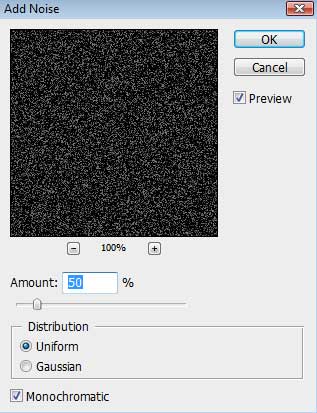
Set for the layer containing the white strokes the next option: Filter>Blur>Motion Blur
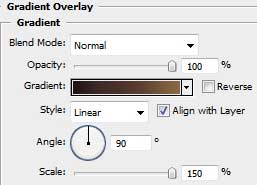
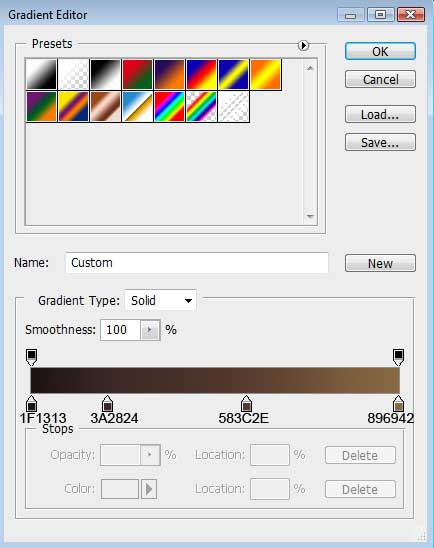
Select also for the same layer the next indicated parameters: Fill 30%

Interesting photo effect to make your photos look modern in Photoshop CS3 

Interesting photo effect to make your photos look modern in Photoshop CS3

Create another new layer on which we shall apply the next setting: Filter>Render>Clouds

Interesting photo effect to make your photos look modern in Photoshop CS3

Set for the same layer the parameters from below: Fill 70%
Blending mode-Color Dodge

Interesting photo effect to make your photos look modern in Photoshop CS3

Make a mouse click on the same layer on the bottom part of the layers’ palette on Add a Mask selection and then choose the usual standard brush of black color to clean out the upper half of the picture.

Interesting photo effect to make your photos look modern in Photoshop CS3 

Interesting photo effect to make your photos look modern in Photoshop CS3

The picture is finished!

View full size here.

  •  

  •    
  •  


Post Pages: 1 2

  • Areli

    26/10/2009

    A M A Z I N G!!

    Very creative, gratz.

  • fahimeh

    15/02/2010

    very nice and useful tutorial .
    very thanks for that .

  • Super Venom

    02/03/2010

    Beautiful piece and amazingly looks easy to do. Many Thanks

  • sim1kinu

    11/03/2010

    will you PLEASE explain how to make the girl weaved better…this makes no sense

  • Gagcorpse

    13/09/2010

    Tutorial? I can see only tha girl! xD

  • Mike

    15/09/2010

    Nice Tutorial!

  • korndogg

    18/11/2010

    scroll to near the bottom where you’ll find a little link twards page two… very good tut.

  • langreo

    06/04/2011

    I tried it, but unless you explain more the details it was not very amicable to work I did not get results close to the final. B minus

  • Emanuele

    07/07/2011

    THANK YOU!!!!!

    THIS IS MY WORK:

    http://i289.photobucket.com/albums/ll201/emanuelemix/SCRATCHED.jpg

  • Mnd TechnõBøy

    04/08/2011

    Hello , Please Anyone Who KNow How to Do This Tutorial Add Me On FaceBook http://www.facebook.com/demaj.mnd

    Im Linking To Much THis Tutorial But Im Stuck To The Page 2 , When NeeD To PainT The Girl .

    Plz Anyone Who Can Help Me Add Me .! Thank’s .

  • rodrigo

    23/11/2011

    you must have made ​​a mistake, the tutorial is incomplete

  • rodrigo

    23/11/2011

    sorry, did not see the other side …!