Categories

Partners
  • Website Templates

  • Design Feeds

  • Adobe Photoshop Tutorials

  • Website Templates, WordPress Themes

  • Website Templates

  • Flash Web Sites

  • Photoshop Templates

  • Photo Contests

  • Photo Tips
  • Search


    Advanced Search


    Partner Links
  • Adobe Photoshop Tutorials

  • Free Stock Photos and Images


  • Website Templates

    Create Weaved Effect from a Photo
    Published  07/15/2008 | Photo Editing
       
    Create Weaved Effect from a Photo - part 2


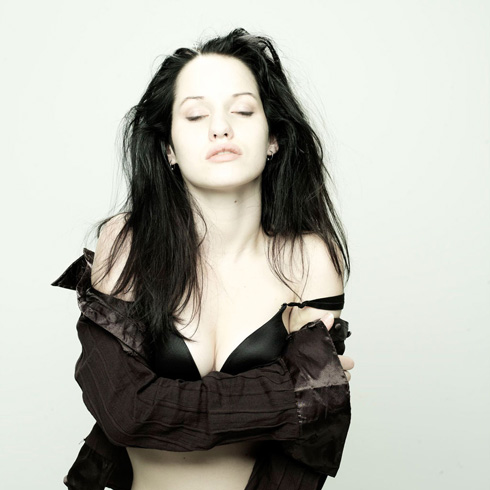
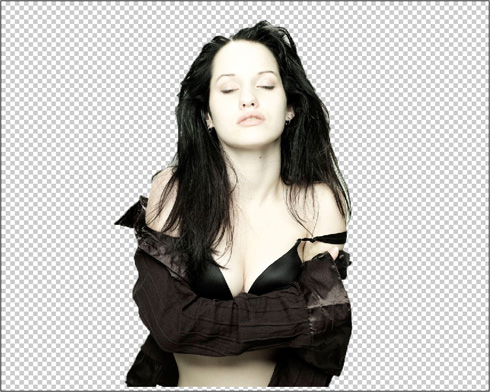
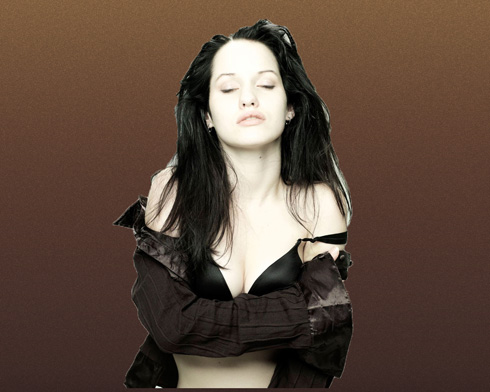
    Create a new layer on which we should use a standard brush (Brush Tool (B)) to represent alternative disordered strokes over the girl’s image. The brushes have black color and the new layer should be placed lower than the girl’s layer on the layers’ palette.

    Interesting photo effect to make your photos look modern in Photoshop CS3 

    Interesting photo effect to make your photos look modern in Photoshop CS3

    Press Alt button and make a mouse click between the girl’s layer and the layer containing the black strokes (on the layers’ palette), continuing stroking the girl’s image.

    Interesting photo effect to make your photos look modern in Photoshop CS3 

    Interesting photo effect to make your photos look modern in Photoshop CS3

    Make a mouse click on the girl’s layer on the bottom part of the layers’ palette on Add a Mask option and then select a standard brush of black color to erase the unnecessary parts of the same strokes.

    Interesting photo effect to make your photos look modern in Photoshop CS3 

    Interesting photo effect to make your photos look modern in Photoshop CS3

    Create a new layer again, applying on it a standard brush of 1 px and hardness 100%, of white color to draw strokes around the girl’s image:

    Interesting photo effect to make your photos look modern in Photoshop CS3

    Set for the layer containing the white strokes the next option: Filter>Blur>Motion Blur
    Select also for the same layer the next indicated parameters: Fill 30%

    Interesting photo effect to make your photos look modern in Photoshop CS3 

    Interesting photo effect to make your photos look modern in Photoshop CS3

    Create another new layer on which we shall apply the next setting: Filter>Render>Clouds

    Interesting photo effect to make your photos look modern in Photoshop CS3

    Set for the same layer the parameters from below: Fill 70%
    Blending mode-Color Dodge

    Interesting photo effect to make your photos look modern in Photoshop CS3

    Make a mouse click on the same layer on the bottom part of the layers’ palette on Add a Mask selection and then choose the usual standard brush of black color to clean out the upper half of the picture.

    Interesting photo effect to make your photos look modern in Photoshop CS3 

    Interesting photo effect to make your photos look modern in Photoshop CS3

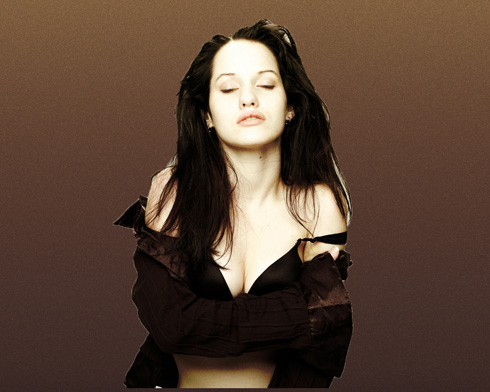
    The picture is finished!

    View full size here.

    Interesting photo effect to make your photos look modern in Photoshop CS3 Create Weaved Effect from a Photo
    Add this interesting photo effect to make your photos look modern.