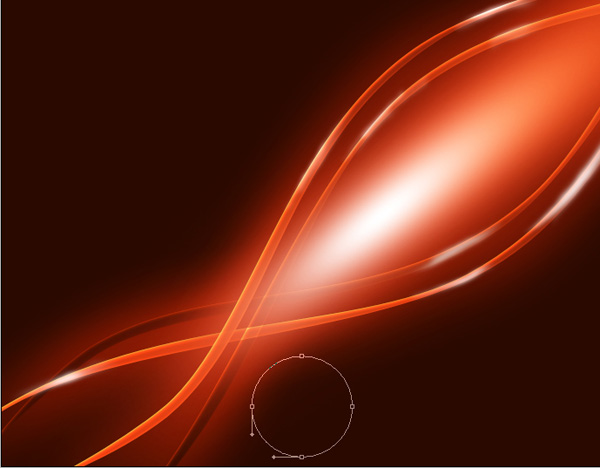
Cool abstract background

August 12th, 2008 by ART-D Posted in Adobe Photoshop, Designing

Being able to create effects from elsewhere is a great way to learn Adobe Photoshop. Here I will take you through the steps used to create abstract background from bubbles and waves.

Create a new file (File>New) of 1280×1024 px and 72 dpi which must be painted with the Paint Bucket Tool (G) and the color #2A0900

Create cool abstract background in Photoshop CS3

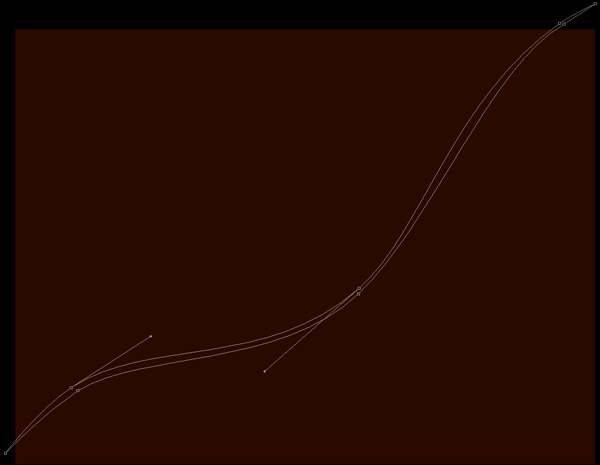
Next select the Pen Tool (P) to represent a wavy line which shape may be corrected with the Convert Point Tool.

Create cool abstract background in Photoshop CS3

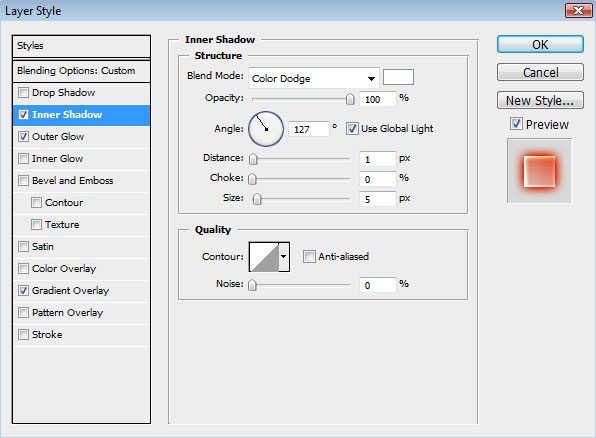
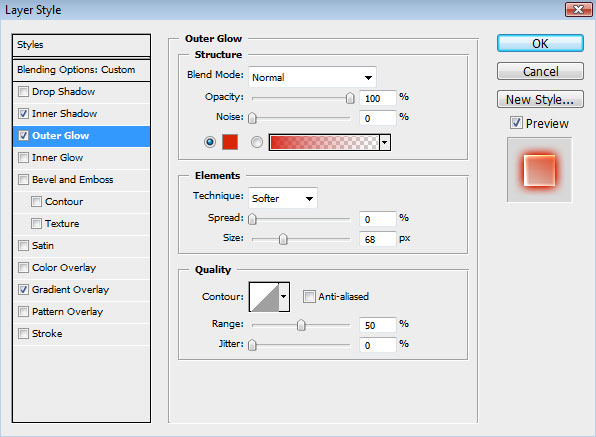
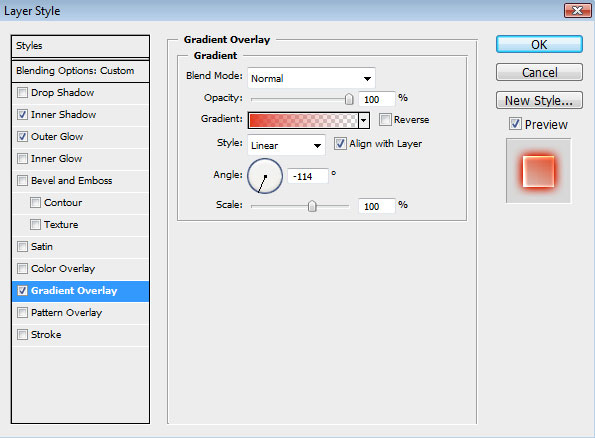
Set the next parameters for the last made layer by making a mouse click on this layer on the layers’ palette.
Fill 0%
Blending Options>Inner Shadow


Create cool abstract background in Photoshop CS3

Blending Options>Outer Glow

Create cool abstract background in Photoshop CS3

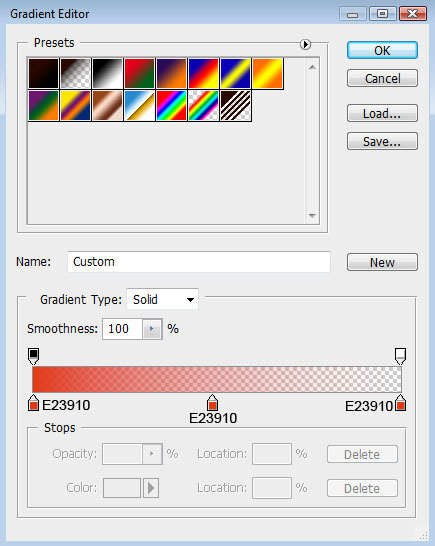
Blending Options>Gradient Overlay

Create cool abstract background in Photoshop CS3

Gradient’s parameters:

Create cool abstract background in Photoshop CS3 

Create cool abstract background in Photoshop CS3

Make a copy of the line’s layer and choose Free Transform option to turn the line’s copy horizontally, placing it the same way demonstrated below.

Create cool abstract background in Photoshop CS3

Getting the necessary result is possible if combine both wavy lines in a group (press Ctrl button to mark out the necessary layers and hold on the left mouse’s button to move down the marked layers on Create a new group option).
Make a copy of this group. Turn this copy over, applying the Free Transform option and placing it the same way shown below.

Create cool abstract background in Photoshop CS3

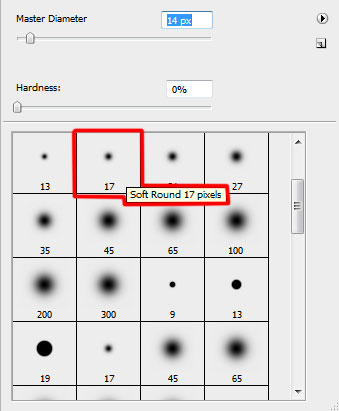
Create a new layer again and use on it the Brush Tool (B) with the Opacity of 50% to draw several highlights of white color on these lines.

Create cool abstract background in Photoshop CS3 

Create cool abstract background in Photoshop CS3

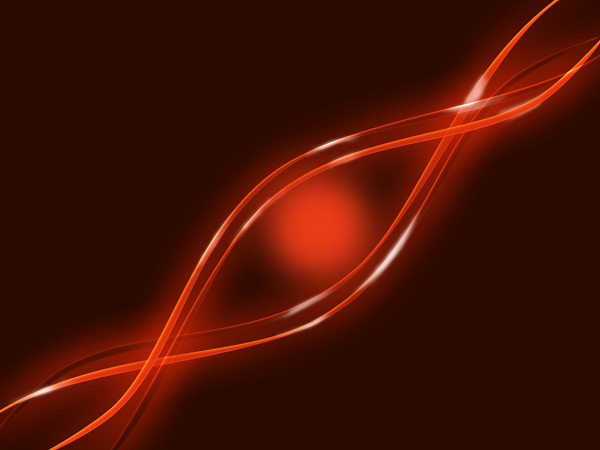
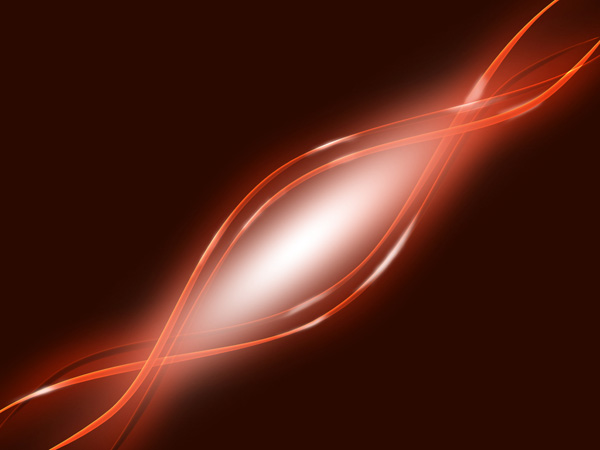
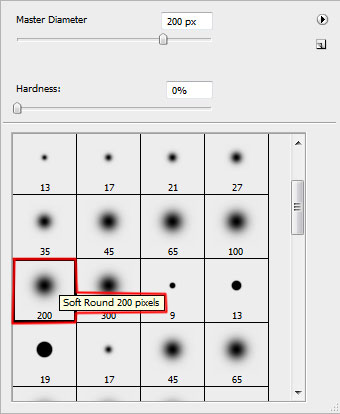
Create another new layer (Create new layer) where we shall apply the same Brush Tool (B) to represent several spots on the central part of the picture.
Create cool abstract background in Photoshop CS3

Post Pages: 1 2 3

  • Jack

    27/08/2009

    You’ve forgotten/skipped some important steps; you should really review this tutorial and fix it.

  • george

    04/09/2009

    i dont get the 2nd step.

    Set the next parameters for the last made layer by making a mouse click on this layer on the layers’ palette.
    Fill 0%
    Blending Options>Inner Shadow

  • Alex

    23/09/2009

    I am also having the same issue as george. I cannot figure out how to apply the effects to the object I just created with the pen.

  • Natalia

    07/10/2009

    I just wanted to tell you that your art work is AMAZING. I was literally struggling trying to figure out how to do a wavy background for my future web site. I learned AP on my own, so I have a lot of gaps to fill in still and I have to be honest I spent quite some time trying to follow your tutorials. However I never gave up and MADE it.

    I am soooo glad I found your tutorials.Thank you for sharing your skills with us!

  • chrissi

    10/10/2009

    Im having the same trouble as alex and george i cannot apply the effects made to the line….i need help please.

  • dexlessin

    22/10/2009

    For people having trouble with step #2, all you have to do, is in the layers pallet, where all the layers are (1 at the moment) u have to unlock it, by double clicking it, and renaming it, then in the same place you now can change options, put fill to 0% and so on. hope that helped

  • Svenn

    04/11/2009

    For those of you struggling with the pentool part. Simply fill the path with some random color..then follow the steps further by setting fill to 0 etc…

  • abby

    14/11/2009

    Amazing effect loved it!

  • salimsalah

    17/11/2009

    this is it. wow

  • Neiri de Fatima

    27/11/2009

    Seu tutorial é maravilhoso, magnífico.
    Sou iniciante, mas sei reconhecer o que é belo.
    Pelos comentários acima nem vou tentar fazê-lo. É muito profissional.
    Continue criando. Você é gênio.

    Parabéns.

  • majid & ebi

    10/12/2009

    you shake me,this is very very interesting.
    bloody nice tutorials.

  • Hakkeem

    07/01/2010

    this is Wonderful i like it

  • hashim

    18/01/2010

    awesome effect……

  • Beautee Paul

    07/02/2010

    Amazing effect. Loved it. Thanx

  • Dwayne

    19/02/2010

    I loved the tutorial.I don’t have the hang of using the pen tool yet so my lines were thicker than yours but I will continue to practice with it.One thing the example had these bubbles as well.How do you do those?Is it in another tutorial?

  • Sasi

    12/03/2010

    Its Amazing ya!

  • Maxxium

    25/03/2010

    my god i dont get this

  • rosa

    09/04/2010

    WOW!!!!!!!! these images are so cool!

  • Jofar

    15/04/2010

    I am a newbie to Photoshop and I was trying to follow your tutorial, which is great.

    I managed to create the wavvy line(s) but I got stuck on the steps after creating the lines. I did follow the other steps but the effects were applied to the shape itself and not the line(s).

    I also tried to fill the path as mentioned but when ever I tried to use the “Paint Bucket Tool”, it fill the entire background (including the original shape/stage). I have tried this a couple of times but have been very unsuccessful.

    Can someone please help me.

  • andrea

    15/04/2010

    this tutorial would be great if the steps were complete! its driving me crazy, and i would love to complete it because it looks really nice. i’m very frustrated :-( would you please repost the tutorials with the exact complete steps? or email them to me? thank you

  • Me

    01/05/2010

    You really need to revise this tutorial -
    Add things like:
    1. When to add a new layer, everytime you add one - Assumption is the mother of all mistakes, so dont assume we know what you are doing when we try and go along step by step.
    2. When to add fill, especially when you deal with your shapes.
    3. Several of the steps you include are not duplicable when using your exact settings, corrections and adjustments had to be made along the way - not minor ones either.
    etc…
    Aside from that, great design!

  • sinju

    22/05/2010

    thank you

  • madu

    17/06/2010

    This is simple and nice one

  • Accounting Teacher

    06/07/2010

    Very beautful effect

  • Strainger

    17/08/2010

    Outstanding, Awesome, Excellent, Beautyful, Amazing, Breath-taking, unbelievable but true….choose yours, but they all count for this tut!

    Thanks man!

  • Anonimus

    01/09/2010

    Nice, this will be my new deesktop background