
Colorful Abstract DNA background via Custom shapes in Adobe Photoshop CS3
Today, I’m going to show you how to create colorful abstract DNA background via Custom shapes in Adobe Photoshop CS3. Layered PSD file included. Let’s get started!
Final Image Preview

Start working by creating a new document (Ctrl+N) in Adobe Photoshop with the size 1280px by 1024px (RGB color mode) at a resolution of 72 pixels/inch. Use the Paint Bucket Tool (G) to fill with #2A0900 color the new background layer.

Choose the Pen Tool (P), set the drawing mode on Shape Layers in Options bar and draw the wavy line as shown.


Set Fill to 24% for this layer and click on Add a layer style icon from bottom part of the Layers panel to Inner Shadow.
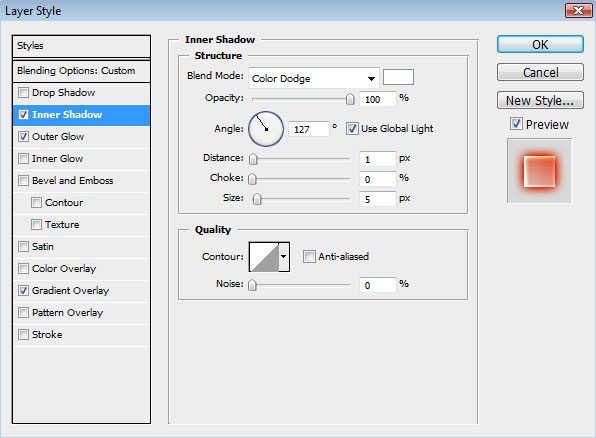
Add Outer Glow:
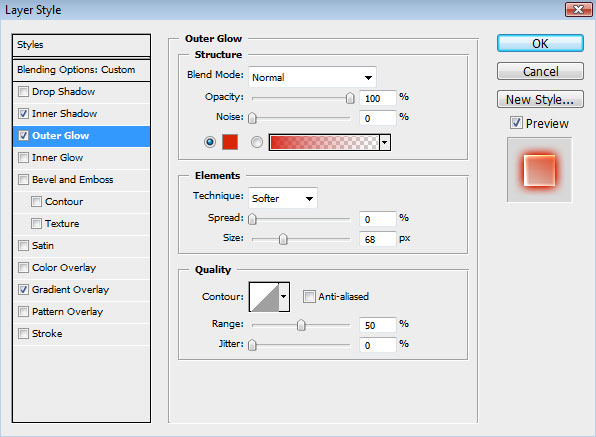
Apply Gradient Overlay:
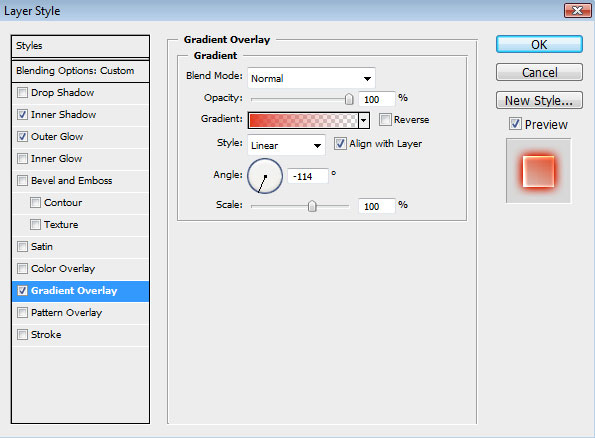
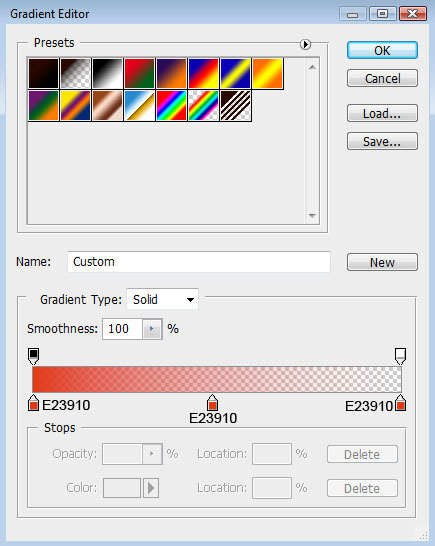
Click in the color bar to open the Gradient Editor and set the color stops as shown. Click OK to close the Gradient Editor dialog box.
We’ve got the next result:

Make a copy of the line’s layer and choose Free Transform (Ctrl+T) command to turn the line’s copy horizontally, placing it the same way demonstrated below.

Combine in a group all the wavy line layers (press CTRL button to select the necessary layers and hold on the left mouse’s button while dragging the selected layers on Create a new group icon from bottom part of the Layers panel). Make a copy of this group. Turn this copy over, applying the Free Transform (Ctrl+T) command and placing it the same way shown below.

Create a new layer and select the Soft Round brush from Brush Tool (B), set Opacity to 50% in Options bar.
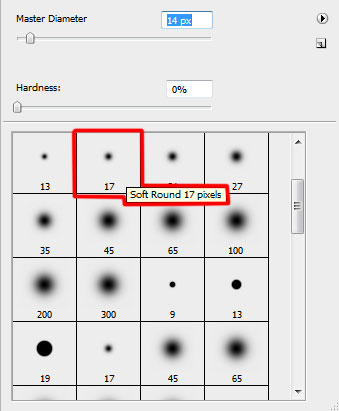
Use this brush to draw several highlights of white color on these lines.

Create another new layer (Create new layer) where we shall apply the same brush to represent several spots on the central part of the picture.
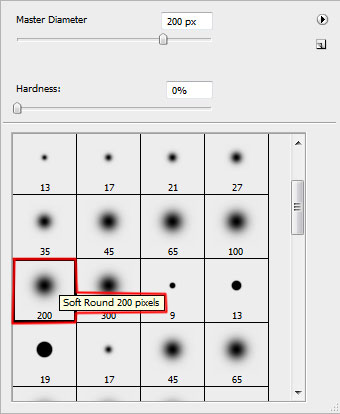
We’ve got the next result:

Using the Free Transform (Ctrl+T) command, try to stretch out the spot horizontally and turn it over the same way shown next picture.

Use the same method described above to represent a white spot.

Set the Blending mode for this layer to Overlay.

Make a copy of the layer containing the white spot and select Free Transform (Ctrl+T) command to make the copy smaller and change the Blending mode to Normal.

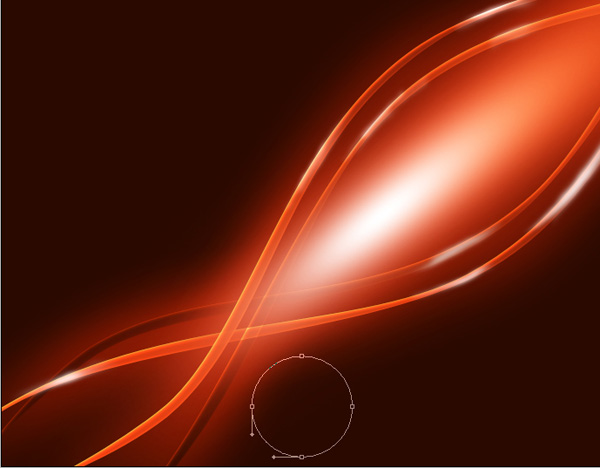
Next we have to choose the Ellipse Tool (U) and represent the primary layer of a DNA molecule to be later.
Page: 1 2
Comments