Aurora Borealis – North-South Polar Lights

August 25th, 2008 by ART-D Posted in Adobe Photoshop, Designing

Applying the Eraser Tool (E) with the Opacity of 10-15%, try to clean out the picture’s edges and its bottom part.

Create Aurora Borealis - North South Polar Lights Wallpaper in Photoshop CS3

Next insert the corresponding text using Qlassik Medium and Futura Light fonts.

Create Aurora Borealis - North South Polar Lights Wallpaper in Photoshop CS3

Set the next demands for the text, there is marked with red color the sizes of the top and lowest text’s lines.

Create Aurora Borealis - North South Polar Lights Wallpaper in Photoshop CS3

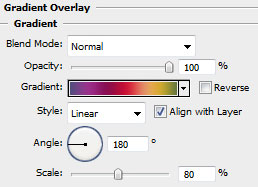
Set the gradient for the text, choosing the Blending Options>Gradient Overlay

Create Aurora Borealis - North South Polar Lights Wallpaper in Photoshop CS3

Gradient Editor

Create Aurora Borealis - North South Polar Lights Wallpaper in Photoshop CS3

We must get the same thing from below:

Create Aurora Borealis - North South Polar Lights Wallpaper in Photoshop CS3

Make a copy of the made text, applying for the lowest copy the next option Filter>Blur>Motion Blur. Set the next adjustments: Angle: 90 and Distance: 70 for getting the same picture from below:

Create Aurora Borealis - North South Polar Lights Wallpaper in Photoshop CS3

Now we have to draw a rectangle of black color, choosing the Rectangle Tool (U). You may see it below of white color, just to be visible for you.

Create Aurora Borealis - North South Polar Lights Wallpaper in Photoshop CS3

Select Blending mode-Soft Light

Create Aurora Borealis - North South Polar Lights Wallpaper in Photoshop CS3

Create Aurora Borealis - North South Polar Lights Wallpaper in Photoshop CS3

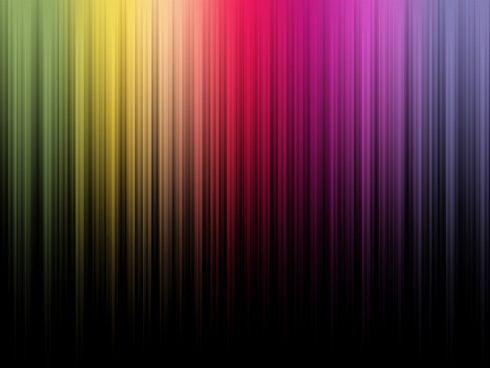
Finished!

View full size here.

  •  

  •    
  •  


Post Pages: 1 2

  • Smashing Themes

    18/08/2009

    This is exactly the tutorial I was searching for, thanks a lot man.

  • spr0sse

    22/08/2009

    omg…the result looks brilliant!
    thank you so much for sharing!

  • Vikas Kadam

    28/08/2009

    I want the tutorial cds or books where can i get it

  • Benyamin

    21/10/2009

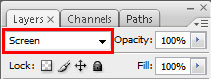
    why the scrren wont work? from what i know from PS screen wont work on white or did i do something wrong

  • Jules.p

    12/11/2009

    For me, the Screen doesn’t work, i don’t know if it’s me but it’s really frustrated.

    Anyway, amazing result! Good job!

  • Jules.p

    12/11/2009

    I mean “frustrating”, sorry…

  • vistor

    18/11/2009

    the screen doesnt work

  • Vicky

    29/01/2010

    I do not get the last bit at all. I’m a bit confused.

  • Bdube30

    08/02/2010

    for the gradient, dont use the gradient overlay option, take the gradient tool, and on a new layer, make your gradient, and put the layer in screen mode.

    With this way to do, i sucess to finish the tutorial.

  • SOS

    28/03/2010

    i can’t get the black background which same like the tutorial even i use the gradient tool. now my background color is white. anyone help

  • henry

    29/03/2010

    for me screen doesntw work..better try mutliply
    but any thax for sharing.. it help me alot

  • Raul

    13/04/2010

    worked for me thanks :)

  • haylwey

    29/04/2010

    this tutorial sucks

  • ieueiouseiouesq

    02/05/2010

    This was awesome, thanks.

  • miriam

    25/05/2010

    don’t do gradient filter just do regular gradient on top layer, don’t merge and do overlay on top layer works a charm
    thanks for the tutorial brill

  • Rusiru

    09/06/2010

    hi sum place i cant understand but its very good disign

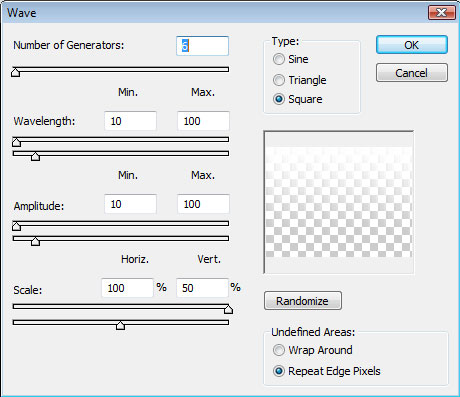
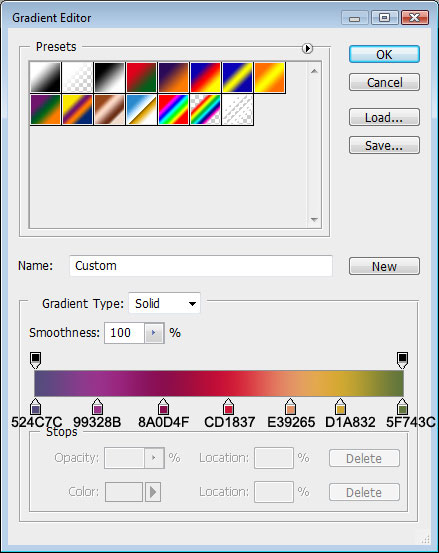
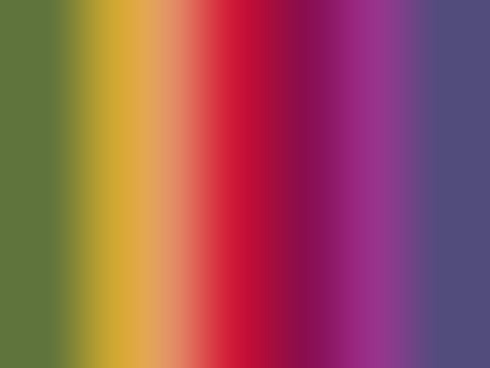
    ( Using the Rectangle Tool (U), try to stretch out the rectangle on the whole canvas. Next select on this layer Blending Options>Gradient Overlay, by making a click on this layer on the layer’s palette and choose the appropriate selections.)

    this one i cant understand

  • Rainbow Guy

    02/11/2010

    I recommend using “Color” layer style for the final color gradient layer when using more vibrant colors. :3

  • Rainbow Guy

    02/11/2010

    Or Linear\Color burn* layer styles.

  • Rob

    10/04/2012

    doesn’t get this step right:
    “On this stage, we have to press Alt button while making a mouse click between the gradient’s layers and the layer containing the rays. In this case the layers should be put over.
    After that, mark out both layers on the layers’ palette and press Ctrl+E to Merge Down.
    Then make a copy of the new layer we’ve got (Ctrl+J) and stretch out the copy up to the lowest edge of the canvas, applying the Free Transform option.
    This option may be selected, by pressing Ctrl+T.
    Set the Blending mode-Screen for the stretched copy on the layers’ palette”

    Got mac. Any help someone? =)