Design studio – web page layout

September 5th, 2008 by ART-D Posted in Adobe Photoshop, Web Layout

Create a professional design studio layout with easy and detailed instructions.

Final Image Preview

Create a professional design studio layout in Photoshop CS3

For the beginning create a new file (File>New) of 850×912 px and 72 dpi. Applying the Paint Bucket Tool (G), fill the new file with some color – #191E24

Create a professional design studio layout in Photoshop CS3

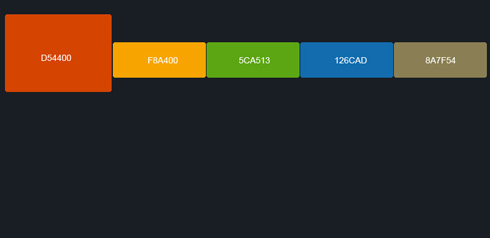
Create a new layer where must use the Rectangular Marquee Tool (M) to represent several rectangle elements, colored with those codes indicated below (create for each element new layer).

Create a professional design studio layout in Photoshop CS3

Using the Eraser Tool (E), erase off 3 px out of each rectangle’s corners, as it is shown below. This way we can round up their corners.

Create a professional design studio layout in Photoshop CS3

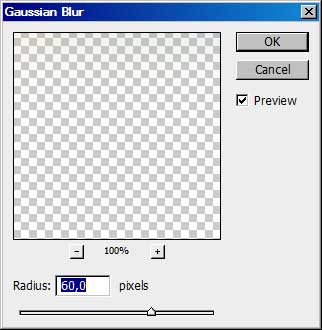
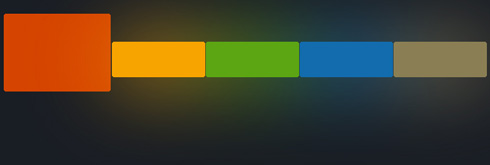
Make a copy of the last 4 layers (Ctrl+J), put the duplicated layers in a single layer using Merge Down (Ctrl+E), move this layer under layers with rectangle elements in Layers Palette and apply the effects of the next filter’s selection: Filter>Blur>Gaussian Blur

Create a professional design studio layout in Photoshop CS3

You must get the same thing from below:
Create a professional design studio layout in Photoshop CS3

Get back to the rectangle elements, choosing for each of them the next parameters of Blending Options>Bevel and Emboss (make a mouse click on the layer we work with on the layers’ palette).
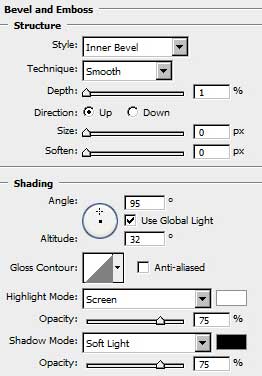
Create a professional design studio layout in Photoshop CS3

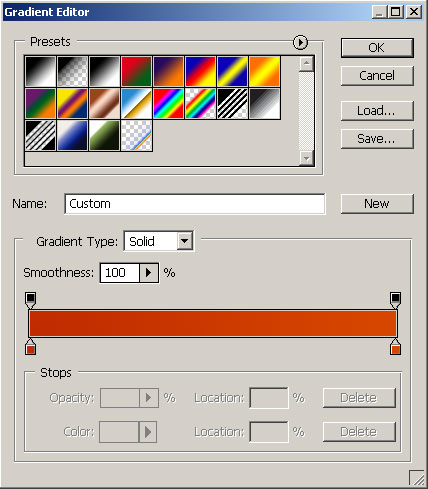
Next you may see the gradient’s parameters, each of the elements getting its own color.
Blending Options>Gradient Overlay
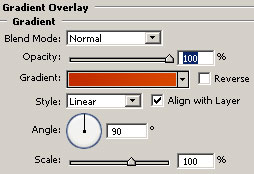
Create a professional design studio layout in Photoshop CS3

Gradient Editor

Create a professional design studio layout in Photoshop CS3

You may see demonstrated below the gradients for each rectangle element.
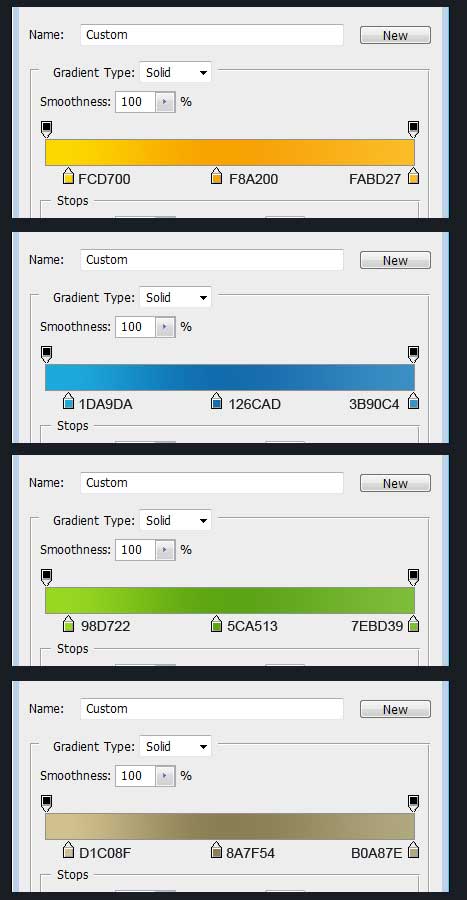
Create a professional design studio layout in Photoshop CS3

On this stage you must get the thing from below:

Create a professional design studio layout in Photoshop CS3

Now select again the Rectangular Marquee Tool (M) and represent on a new layer four other rectangles as the picture from below shows it. Fill the new elements with white color, applying the Paint Bucket Tool (G). The Opacity is of 20%.

Create a professional design studio layout in Photoshop CS3

Now it’s time to choose another instrument – the Pen Tool (P) to draw a line like below:
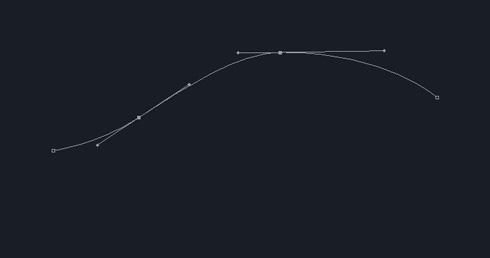
Create a professional design studio layout in Photoshop CS3

Next select the brush’s presets and set the parameters from below:
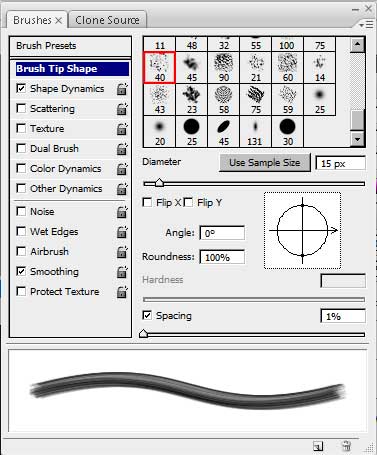
Create a professional design studio layout in Photoshop CS3

  •  

  •    
  •  


Post Pages: 1 2 3

  • charitrajain

    12/12/2009

    good tutorial but i struck when you draw line from pentool
    because when i draw it appear in fill not like you . plzz help me.

  • car lock out

    06/01/2010

    The banner was really good.

  • Bloque

    07/01/2010

    I´ve got the very same problem as charitrajain…I stuck on this matter for about 30 minutes and cant find how to create the sharp edges…thanks for help

  • eloleon

    21/04/2010

    To charitrajain and Bloque: when you select Pen Tool in the top menu you have 3 icons: a square with little dots in each corner, square with pen inside and just square. By default, first option is selected. Just select second option so You will have stroke without fill

  • fereshteh

    24/05/2010

    our site is pretty good.

  • Joe

    28/05/2010

    Nice tutorial, I stuck with the pen tool part but at the end I did it. Thanks a learned a lot :D

  • Ravi

    29/06/2010

    The pentool trick is nice. the one part the guy missed was to show that you will have to turn on “simulate pressure” in the stroke path dialog box………that will get the edges sharp.
    the tutorial is actually very nice. ty! :)

  • sergio

    10/08/2010

    Hi, where I get the brush?

  • Rebach

    18/08/2010

    Buen Tuto…

  • Babatundeh

    19/09/2010

    i still dont get the sharp edges even after selecting simulate pressure…anyone knows why?

  • Carlos Rivera

    22/09/2010

    Excelente tutorial, Dios bendiga tu paciencia que te de muchos conocimientos mas para compartir.

  • Rasheed

    16/10/2010

    sorry i was stuck at two point “filter>bur>Gussie blur and from pen toll point i could not make that image. could you help me please!

  • ABINASH

    10/01/2011

    very useful and so glad to get the help like this .thank you very much!

  • Jon

    16/02/2011

    I was confused on how to make the lines after you do the simulate pressure with the pen line. I got past the rainbow part, but after than, your tutorial says to make some lines “Without Blending Options”. How do you do that?

  • Sharon W

    04/05/2011

    Nice, I love the bright colors.

  • JUNZMHINE

    06/07/2011

    pls give me a link for basic tutorials or send thru email benel18@yahoo.com. thanks really appreciate it
    :)