Categories

Partners
 
  • Photoshop Templates

  • Website Templates

  • Web Templates

  • Flash Web Sites

  • WordPress Templates

  • Free Ringtones

  • Free Stock Photos and Images

  • Photoshop

  • St. Louis LASIK | LASIK info

  • Load Cells

  • osCommerce Templates

  • Web Hosting


  • Website Templates
    Search


    Advanced Search


     »  Home  »  Adobe Photoshop  »  Designing  »  Galactic nebula
    Galactic nebula
    Published  09/11/2008 | Designing
       
    Galactic nebula - part 1


    Download PSD source (Tutorial ID 3005)!

    This tutorial will teach you the very basics of space art. You will learn to create stars, space and galactic nebula.

    Create a new file (File>New) of 1280x1024 px and 72 dpi. Select then the Paint Bucket Tool (G) to fill the new file with black color.

    learn how to create stars, space and galactic nebula in Photoshop CS3

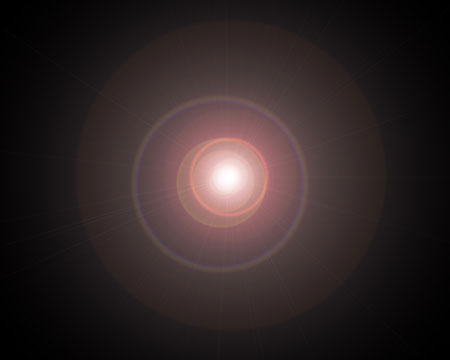
    Make a copy of this earlier made layer (Ctrl+J) and apply on it the Filter>Render>Lens Flare. Set the next parameters demonstrated below:
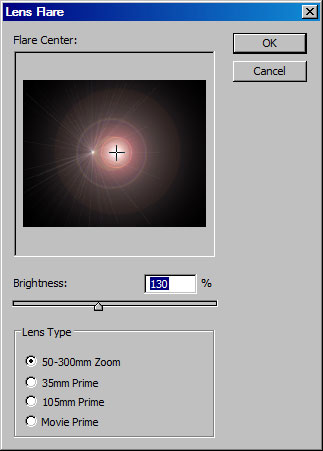
    learn how to create stars, space and galactic nebula in Photoshop CS3

    We’ll get the same thing from next image:

    learn how to create stars, space and galactic nebula in Photoshop CS3

    Choosing the Free Transform selection (Ctrl+T), it’s possible to get narrow this layer as in the next picture it is demonstrated.
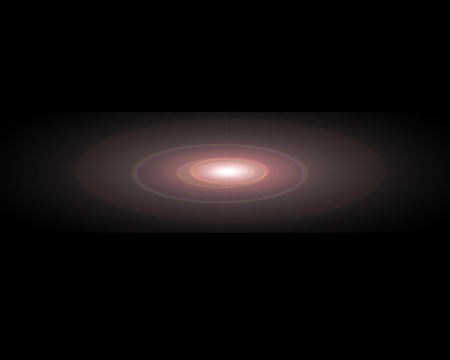
    learn how to create stars, space and galactic nebula in Photoshop CS3

    Make a copy of this layer and turn it over. Set the next Blending Mode options for the layer:
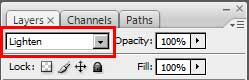
    learn how to create stars, space and galactic nebula in Photoshop CS3

    We’ll get a kind of element like the next one.
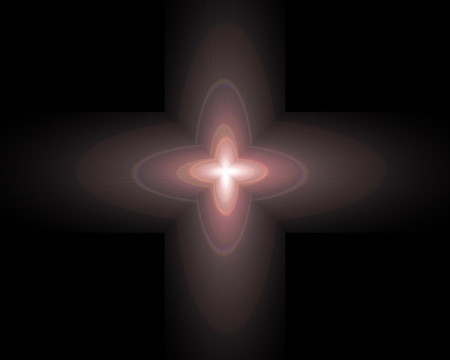
    learn how to create stars, space and galactic nebula in Photoshop CS3

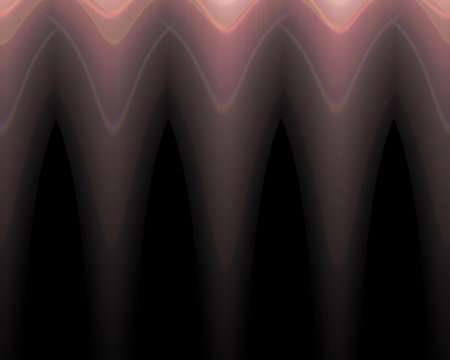
    Put together both layers and set for them the Filter>Distort>Polar Coordinates. Set also the next parameters introduced in the table:
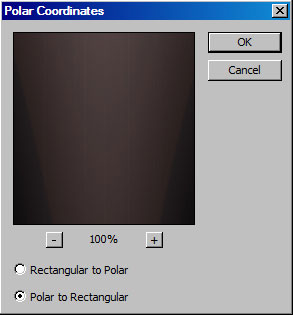
    learn how to create stars, space and galactic nebula in Photoshop CS3

    We’ll get an ornament like this one:

    learn how to create stars, space and galactic nebula in Photoshop CS3

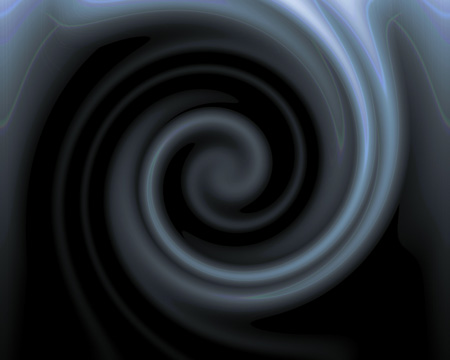
    Next we’ll use one more filter’s option: Filter>Distort>Twirl, having the next parameters for it:
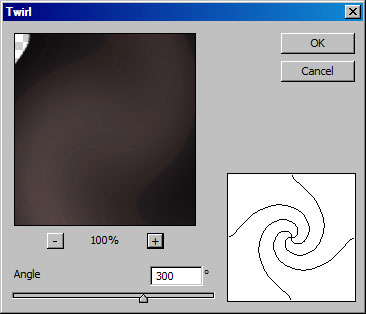
    learn how to create stars, space and galactic nebula in Photoshop CS3

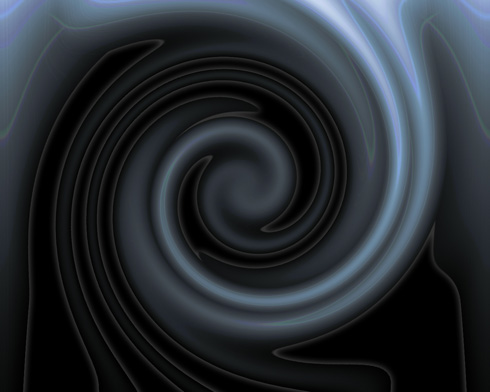
    This is the picture we should get. Then we need to press Ctrl+F.
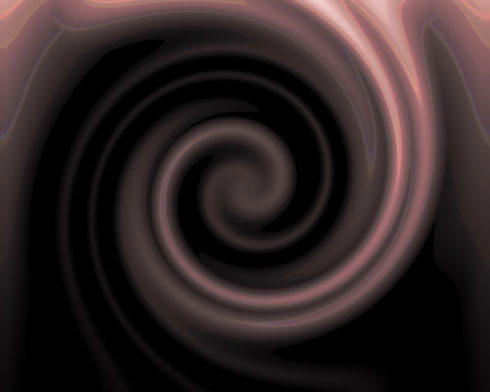
    learn how to create stars, space and galactic nebula in Photoshop CS3

    Change the color for the new layer we’ve got, applying Ctrl+U. Set the next values for the Hue/Saturation option.
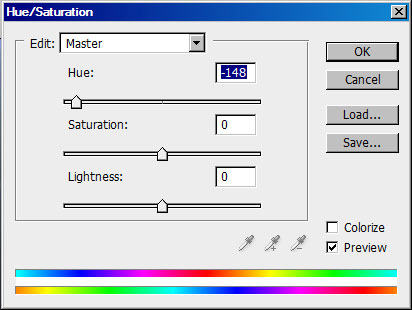
    learn how to create stars, space and galactic nebula in Photoshop CS3

    We’ll get the next color:

    learn how to create stars, space and galactic nebula in Photoshop CS3

    Select for this layer Blending Options>Outer Glow. The menu may be selected by making a mouse click on the layer we need on the layers’ palette.
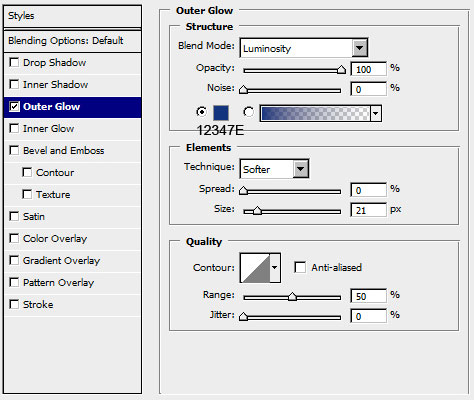
    learn how to create stars, space and galactic nebula in Photoshop CS3

    Try to get this picture:

    learn how to create stars, space and galactic nebula in Photoshop CS3

    learn how to create stars, space and galactic nebula in Photoshop CS3 Galactic nebula
    This tutorial will teach you the very basics of space art. You will learn to create stars, space and galactic nebula.


    PSDTUTS+ Photoshop Tutorials and More