RSS button

September 18th, 2008 by ART-D Posted in Adobe Photoshop, Designing

Now we’ve got the picture that is shown below:

Create RSS button in Photoshop CS3

Take the Ellipse Tool (U) and try to make a black circle placing it the same way you may see below:

Create RSS button in Photoshop CS3

Set the transparency level demonstrated next table:

Create RSS button in Photoshop CS3

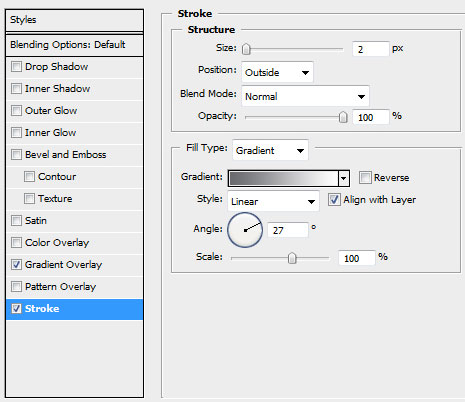
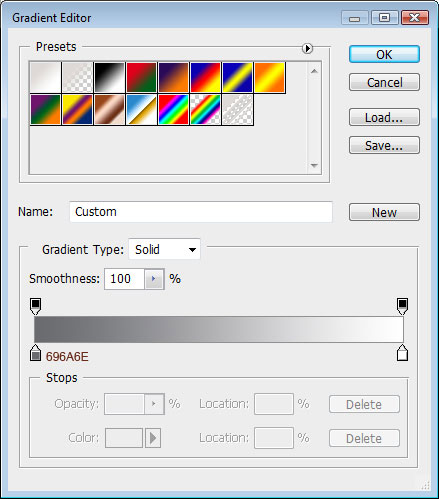
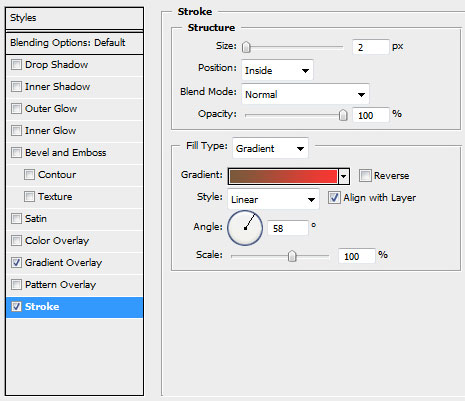
Select also Blending Options>Stroke.

Create RSS button in Photoshop CS3

… and we’ve got the next circle:

Create RSS button in Photoshop CS3

This way it’s possible to represent the rest of the elements, demonstrated on the next picture:

Create RSS button in Photoshop CS3

Mark out all the layers on the layers’ palette containing the circles, putting them all together into a single one (Ctrl+E). After that we’ll select the Rectangular Marquee Tool (M) to erase the unnecessary elements as it is demonstrated below:

Create RSS button in Photoshop CS3

Make a copy of the orange rectangle (Ctrl+J) to insert a highlight there. Make the copy smaller a little (Ctrl+T) and finally move off and make some corrections the element’s tops, applying the Pen Tool (P).

Create RSS button in Photoshop CS3

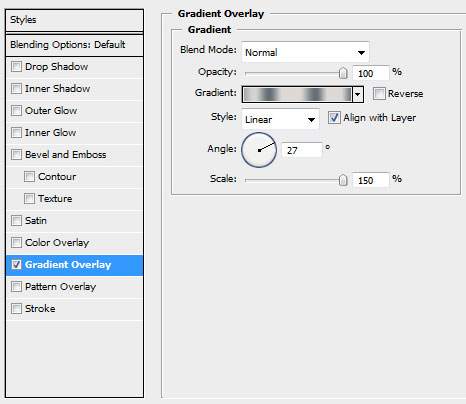
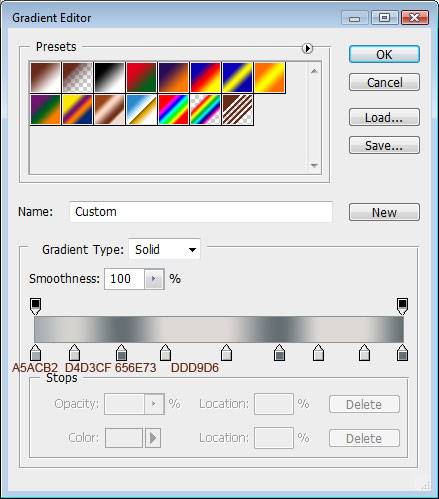
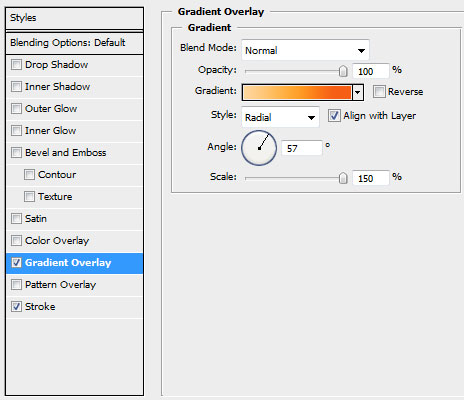
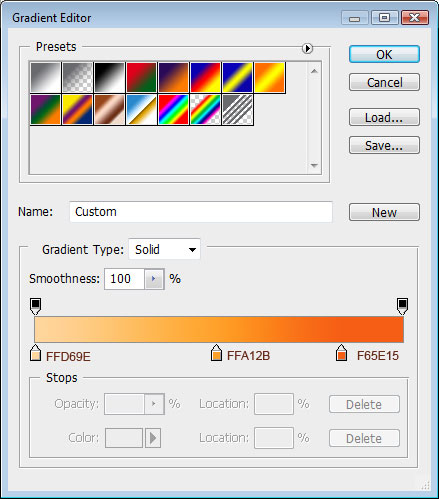
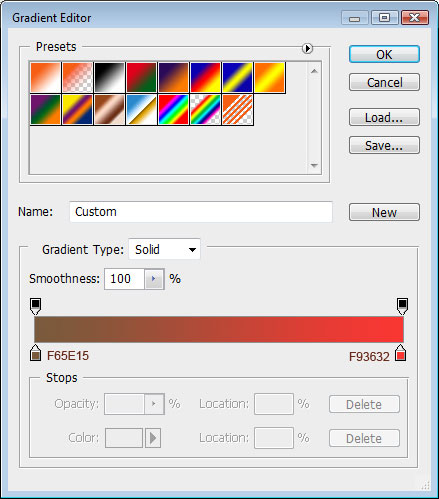
Fill 0% on the layers’ panel, giving the next properties for the layer Blending Options>Gradient Overlay:

Create RSS button in Photoshop CS3

Gradient

Create RSS button in Photoshop CS3

It’s the picture you’ll get:

Create RSS button in Photoshop CS3

Insert now the necessary text:

Create RSS button in Photoshop CS3

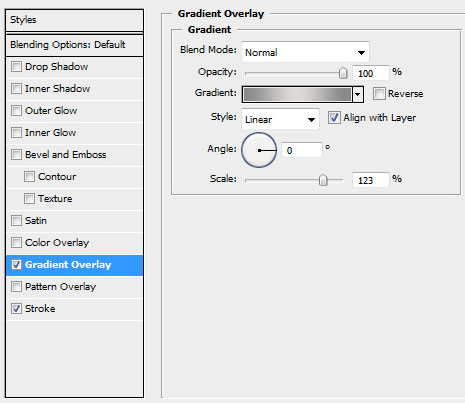
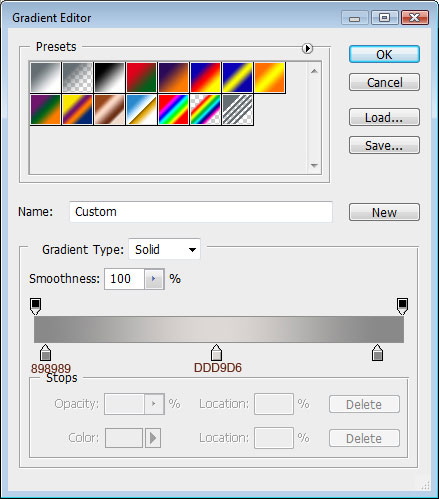
Give the appropriate gradient to the text:

Create RSS button in Photoshop CS3

Follow the next demonstrated text’s parameters:

Create RSS button in Photoshop CS3

Now we’ll represent one more rectangle for the highlight, having the next parameters Blending Options>Inner Glow:

Create RSS button in Photoshop CS3


Create RSS button in Photoshop CS3

The RSS button is finished!

View full size here.

  •  

  •    
  •  


Post Pages: 1 2

  • Maxi

    25/01/2010

    Very cool thx

  • Joh

    30/09/2010

    Good job!

  • Marlowe

    05/01/2011

    Very nice tutorial indeed!

  • waseem chand

    29/11/2011

    I like this.will try this night.