Categories

Partners
 
  • Photoshop Templates

  • Website Templates

  • Web Templates

  • Flash Web Sites

  • WordPress Templates

  • Free Ringtones

  • Free Stock Photos and Images

  • Photoshop

  • St. Louis LASIK | LASIK info

  • Load Cells

  • osCommerce Templates

  • Web Hosting


  • Website Templates
    Search


    Advanced Search


     »  Home  »  Adobe Photoshop  »  Designing  »  RSS button
    RSS button
    Published  09/18/2008 | Designing
       
    RSS button - part 2


    Now we've got the picture that is shown below:

    Create RSS button in Photoshop CS3

    Take the Ellipse Tool (U) and try to make a black circle placing it the same way you may see below:

    Create RSS button in Photoshop CS3

    Set the transparency level demonstrated next table:

    Create RSS button in Photoshop CS3

    Select also Blending Options>Stroke.

    Create RSS button in Photoshop CS3

    … and we've got the next circle:

    Create RSS button in Photoshop CS3

    This way it's possible to represent the rest of the elements, demonstrated on the next picture:

    Create RSS button in Photoshop CS3

    Mark out all the layers on the layers' palette containing the circles, putting them all together into a single one (Ctrl+E). After that we'll select the Rectangular Marquee Tool (M) to erase the unnecessary elements as it is demonstrated below:

    Create RSS button in Photoshop CS3

    Make a copy of the orange rectangle (Ctrl+J) to insert a highlight there. Make the copy smaller a little (Ctrl+T) and finally move off and make some corrections the element's tops, applying the Pen Tool (P).

    Create RSS button in Photoshop CS3

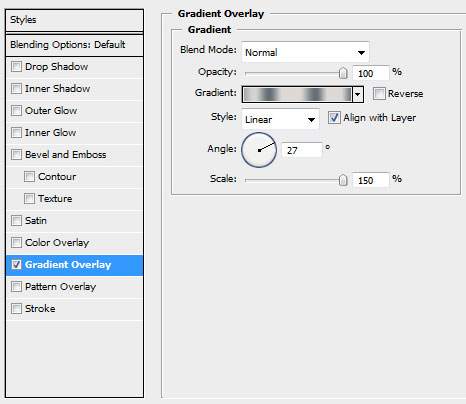
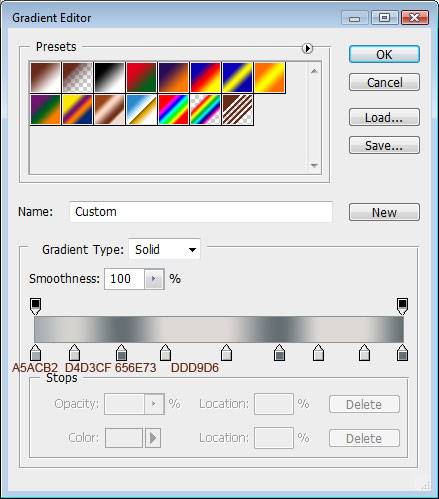
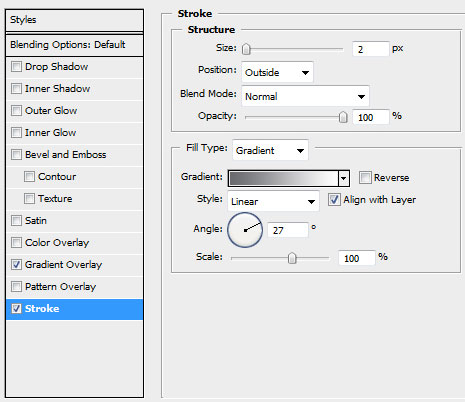
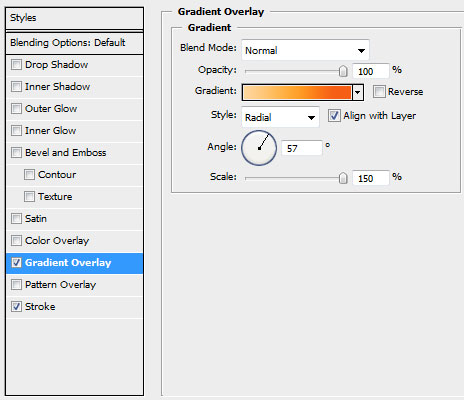
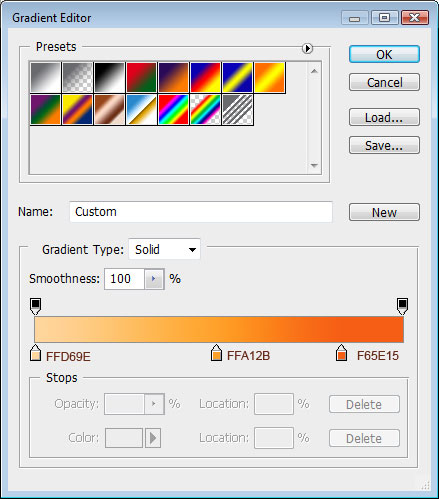
    Fill 0% on the layers' panel, giving the next properties for the layer Blending Options>Gradient Overlay:

    Create RSS button in Photoshop CS3

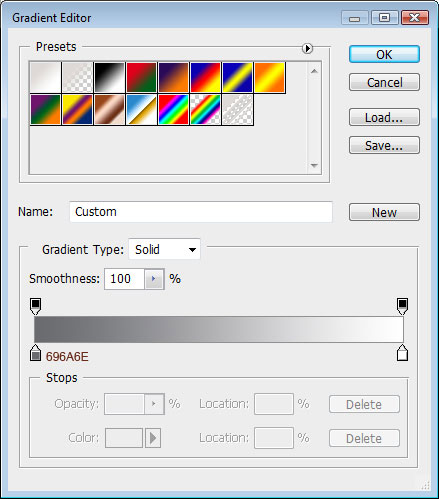
    Gradient

    Create RSS button in Photoshop CS3

    It's the picture you'll get:

    Create RSS button in Photoshop CS3

    Insert now the necessary text:

    Create RSS button in Photoshop CS3

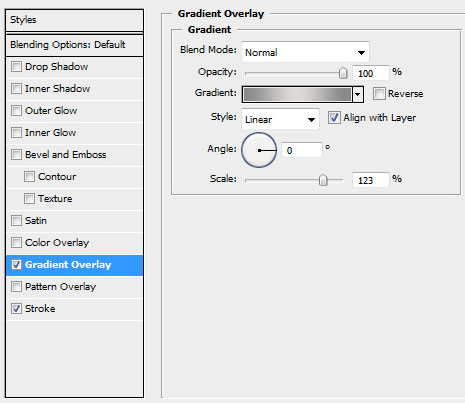
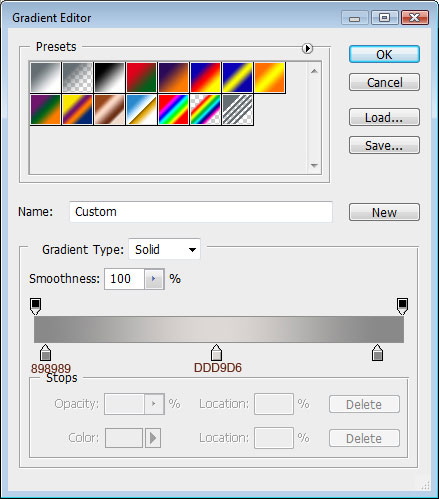
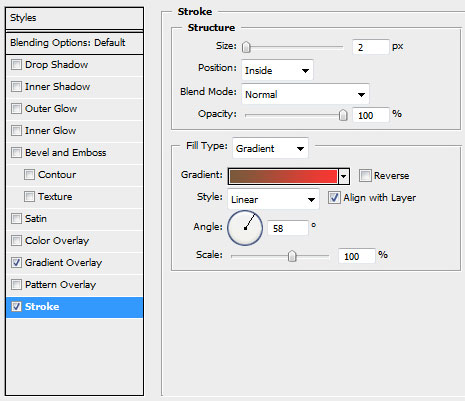
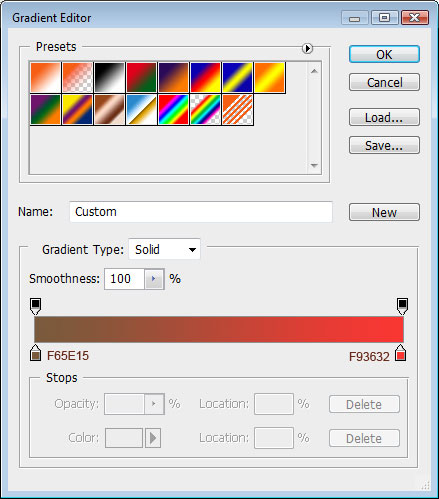
    Give the appropriate gradient to the text:

    Create RSS button in Photoshop CS3

    Follow the next demonstrated text's parameters:

    Create RSS button in Photoshop CS3

    Now we'll represent one more rectangle for the highlight, having the next parameters Blending Options>Inner Glow:

    Create RSS button in Photoshop CS3


    Create RSS button in Photoshop CS3

    The RSS button is finished!

    View full size here.

    Create RSS button in Photoshop CS3 RSS button
    In this lesson I'll teach you how to represent a RSS button


    PSDTUTS+ Photoshop Tutorials and More