
CD Burner
Create a new file (File>New) of 1280×1024 px and 72 dpi, which must be painted in #F9C559 color with the Paint Bucket Tool (G).

Next we’ll create another file of 140×140 px and 500 dpi on which we’ll draw a black ring, applying the Ellipse Tool (U). Firstly try to make the outside borders of the ring and after that cut out its middle part, pressing on Alt button.
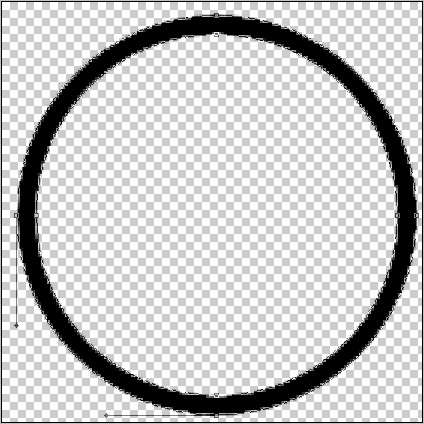
Save this brush: Edit>Define Brush Preset.
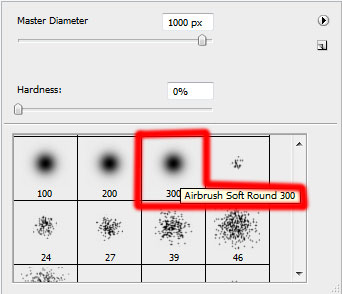
Create a new layer, using on it the brush made earlier (the brush may be found in the end, in the standard set).
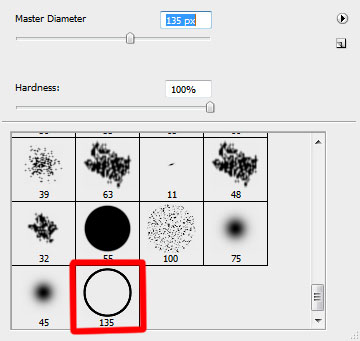

Set the parameters for this brush. Press the option in the Brushes submenu on the right side.
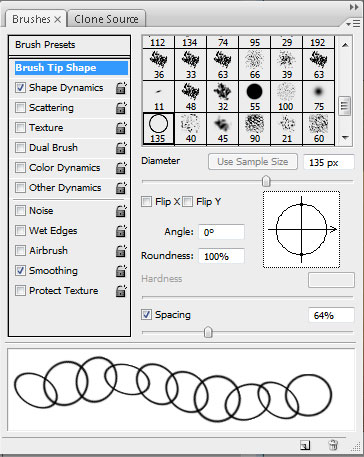
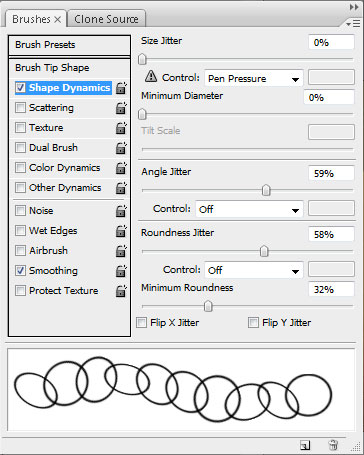
Represent the background of the picture to be, applying the brush with the chosen earlier parameters. Its color is #CC9040
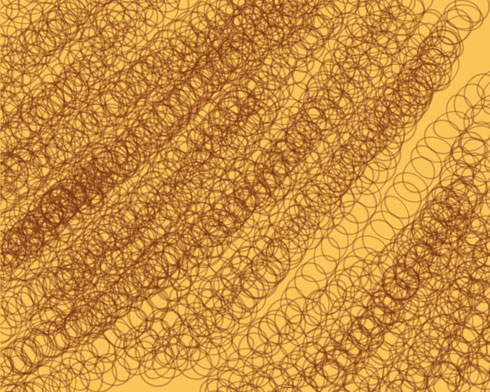
Set the next indicated parameters by making a click on this layer on the layers’ panel: Fill 40%
Blending mode-Linear Dodge 
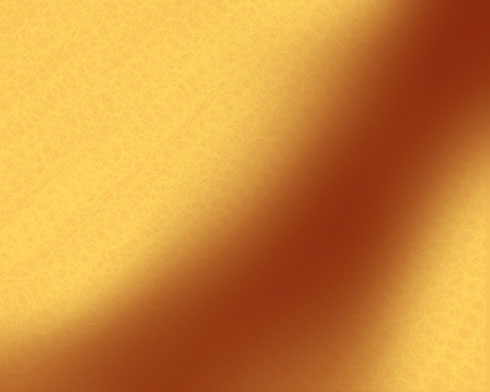
On the next new layer (Create new layer) we’ll choose again the Brush Tool (B) to draw a diagonal line, which color is #821F06
Insert now on the picture your CD (I will use CD template created by Inonomas).
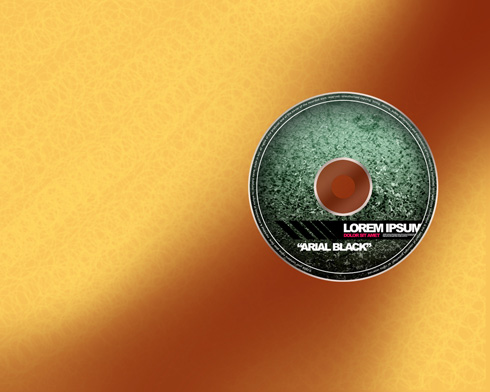
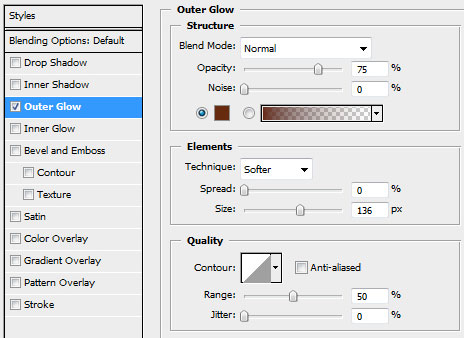
The disk’s layer has the parameters shown below: Blending Options>Outer Glow
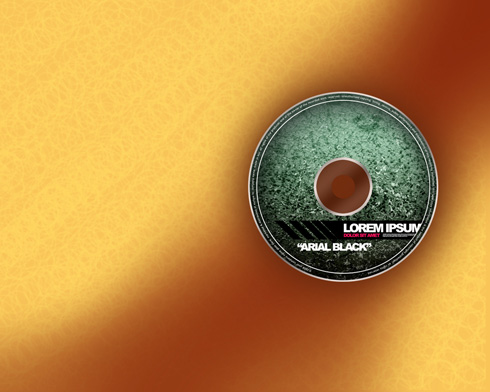
Using the standard brush, try to dark out the background situated lower than the CD itself. The color is #1E0C04. This layer should be placed lower than the layer containing the disk.
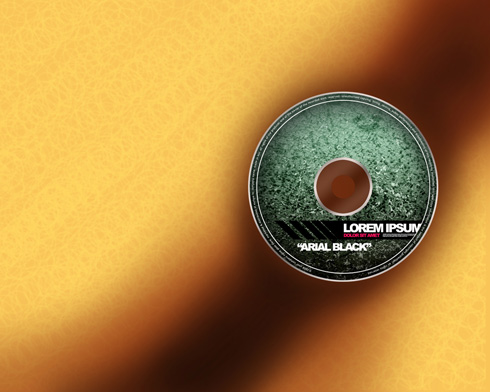
The layer’s parameters: Fill 60%
Blending mode-Darker Color 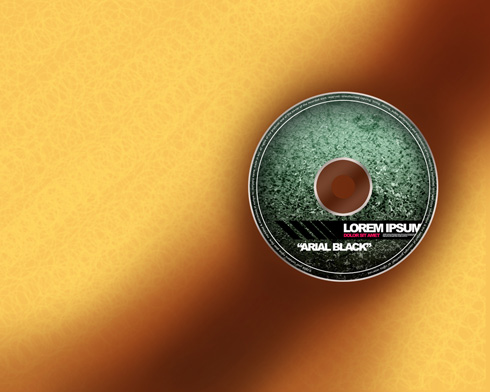
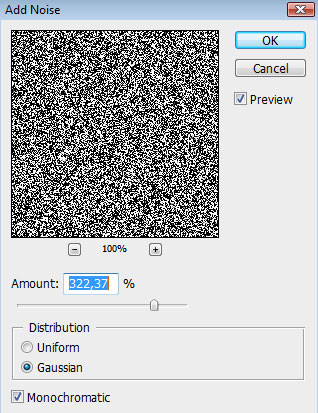
Create a new layer on which we’ll use the Paint Bucket Tool (G) to fill the new layer with black color. Choose after that this filter’s option: Filter>Noise>Add noise. This layer must be also placed lower than the CD’s layer:
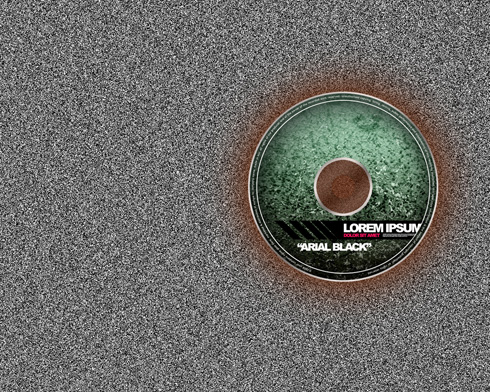
The layer’s parameters: Fill 20%
Blending mode-Soft light 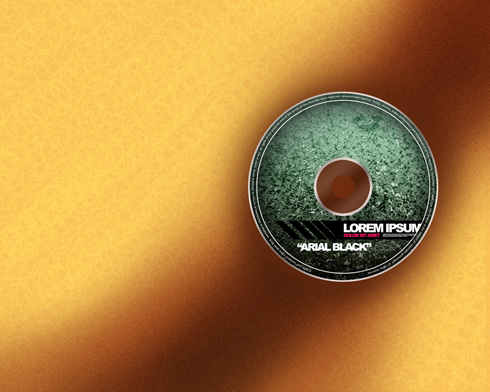
Next we’ll represent a lot of musical notes, using for this operation the Custom Shape Tool (U) and the color #FEFF6F
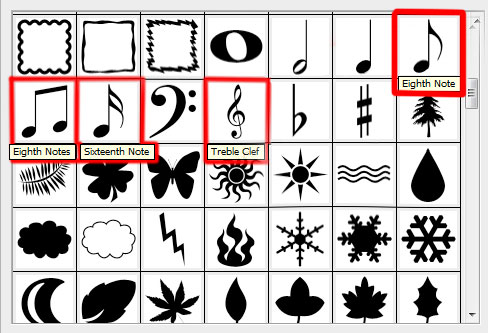
Turn around the notes, using the Free Transform selection. Place also these notes’ layers lower than the layer containing the CD.
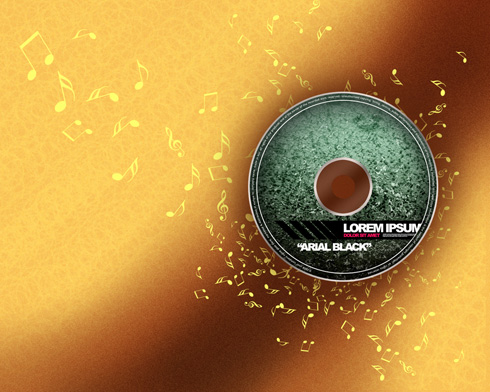
Next we must Merge down all the layers containing the musical notes into a single one. In this case we have to press Ctrl button for marking the necessary layers and after that press Ctrl+E. For the last obtained layer we have to choose the next demonstrated parameters: Opacity 81%, Blending mode- Overlay
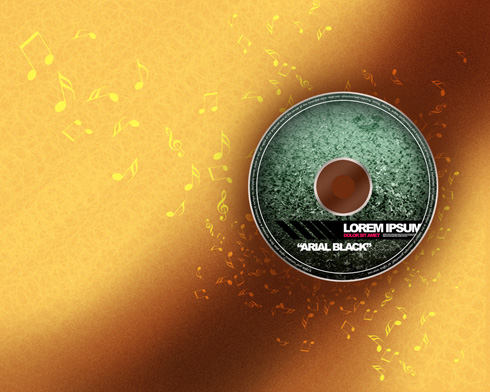
Make a copy of the last made layer:
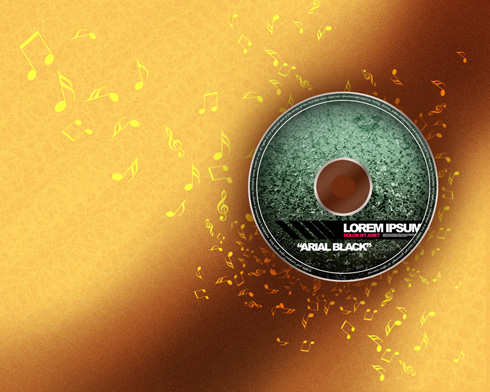
Mark out the layer containing the CD and make a click on the next options, situated on the bottom part of the layers’ panel: Create new fill or adjustment layer>Channel Mixer
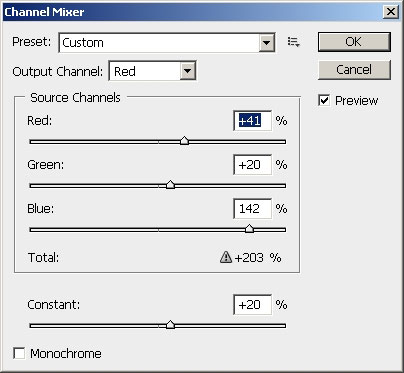
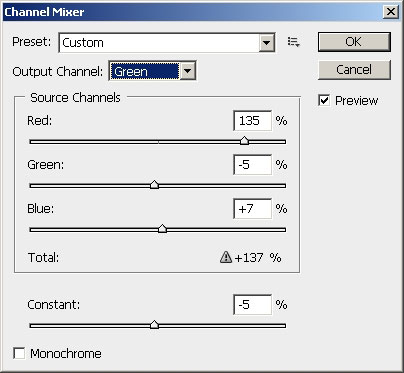
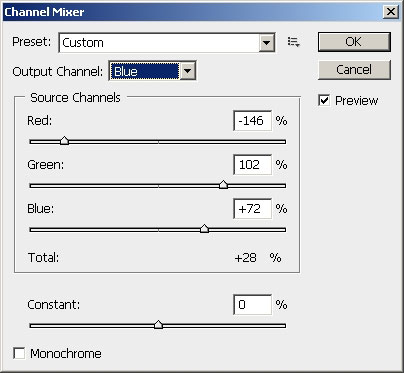
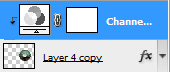
Press Alt button and make a mouse click between the Channel Mixer layers and the layer containing the CD (on the layers’ panel).
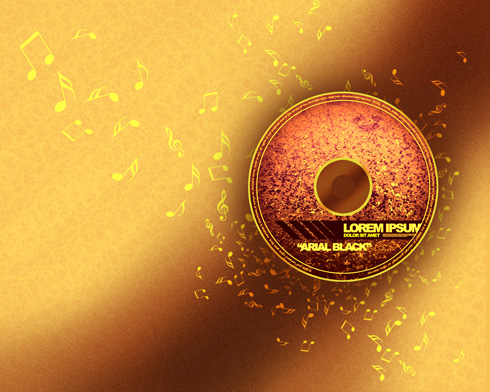
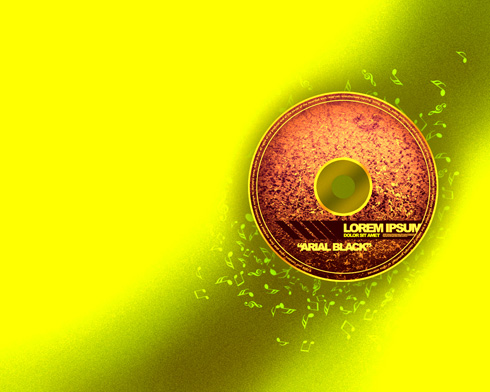
The final result!
View full size here.

Comments