
Merry Christmas Tree
Learn how to create your own Christmas tree wallpaper with these tutorial.
Final Image Preview

For the beginning create a new file (File>New) of 1280×1024 px and 72 dpi. The background should be painted with black color, applying the Paint Bucket Tool (G).

Using the Pen Tool (P), try to get a fir tree’s image out of a line.

Select the next Blending Options by making a mouse click on the layer on the layers’ palette.

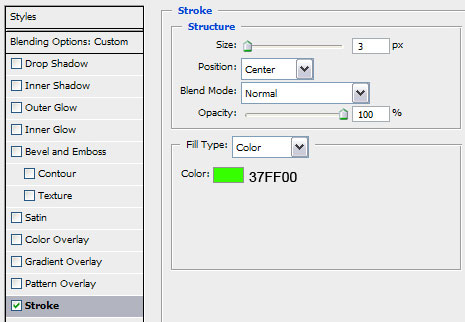
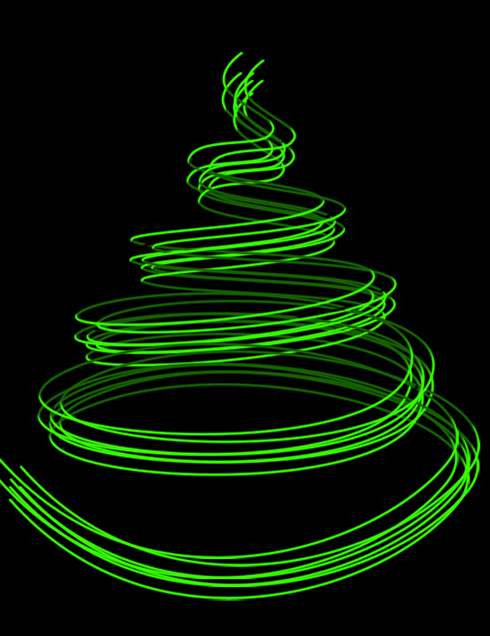
Next try to rasterize this layer. Then try to create a new layer near the previous one and mark them both out (press Ctrl + click on the layer), put the layers together (Ctrl+E). The unnecessary elements should be erased with the Eraser Tool (E). You’ll get the next thing.

Select now the Burn Tool (O) to dark out several fragments of this line, giving it also some volume.

Make a copy of this layer (Ctrl+J).

Next we’ll erase the dark line on the intersected lines, getting the effect of this line being situated behind the other.

Make several copies of the lines and displace them a little.
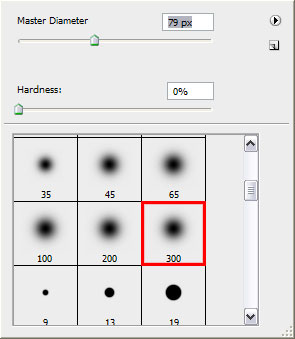
Next select the Brush Tool (B) out of the next table:
Create a new layer on which must be pictured a kind of smoke line, having the color #EDFE87 and the Opacity of 10%.

Create a new layer and represent with the Rectangular Marquee Tool (M) a rectangle figure, colored with #4BCE2A

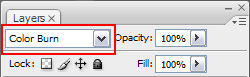
Change on this layer the Blending Mode with that one from below:
Our fir tree became more saturate.

Make a copy of the layer containing the smoke and situate it on the very top of the layers.

Now select the Brush mode (B) and its parameters on the top panel:

Set everything the same way demonstrated below:
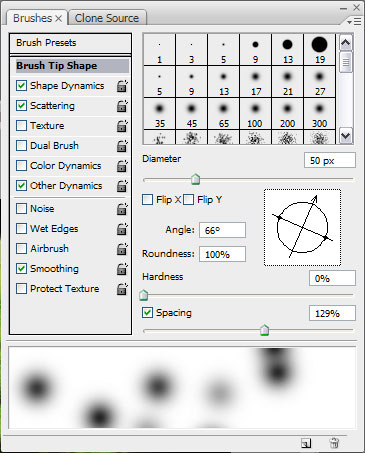
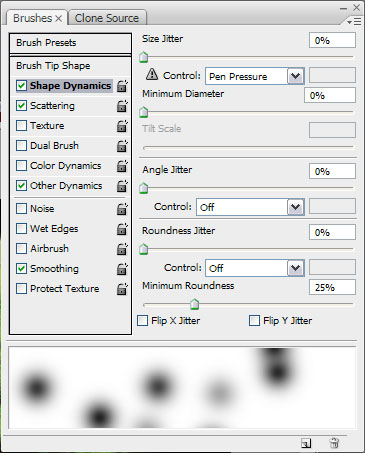
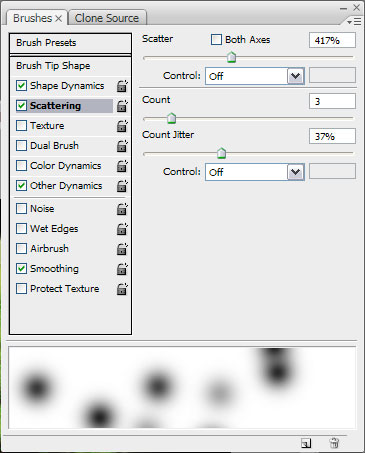
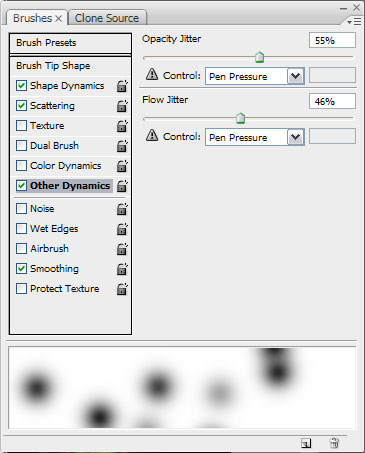
Create a new layer and represent several illuminated spots with the same color we’ve pictured the smoke. Set for this layer the Blending mode – Overlay.

Repeat the same operation on a new layer again, changing this time the Blending mode on Normal and choosing a smaller size for the brush.

Repeat once again this operation, choosing even smaller brush than the previous time. Next situate on our picture the star selected out of the Custom Shape Tool (U), named 5 point star. The color’s code is #F6FF9F

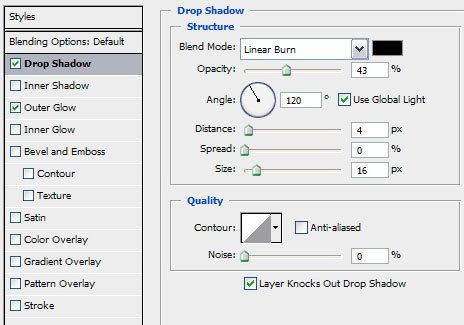
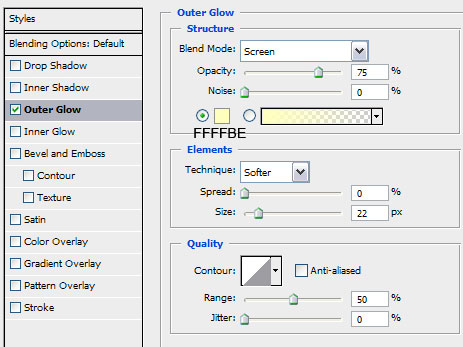
Select for the star the Blending Options with the next indicated parameters:
Our fir tree is finished!
View full size here.

Comments