
Christmas ornament balls
In just a few simple steps, we will learn how to create nice ornaments for Christmas themed graphics and designs.
Final Image Preview

For the beginning create a new file (File>New) of 1280×1024 px and 72 dpi. Select after that the Paint Bucket Tool (G) and give the new file the color #7EC21D

Next select the Rectangle Tool (U) and represent several vertical lines that will form the wallpapers. The color’s code is #008C7F

Next choose the Custom Shape Tool (U) and pick up a fir tree’s figure:

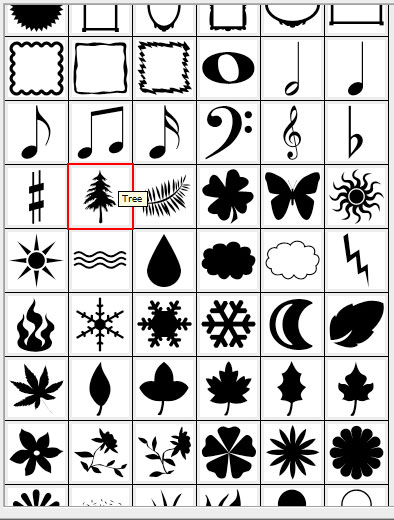
Place them on the basic picture by copying them firstly (Ctrl+J) as it is represented below, selecting the color of the lines.

Place them also on the lines, choosing the color of the background this way getting the wallpapers we want:

Next take the Ellipse Tool (U) and draw three circles of the same sizes, later becoming nice fir tree’s balls:

Set the next Blending Options>Drop Shadow for the very top circle by making a mouse click on its layer on the layers’ panel:
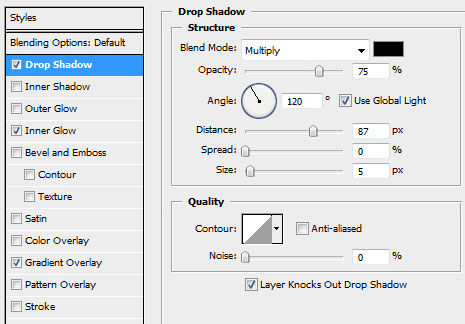
Follow all the settings from below:
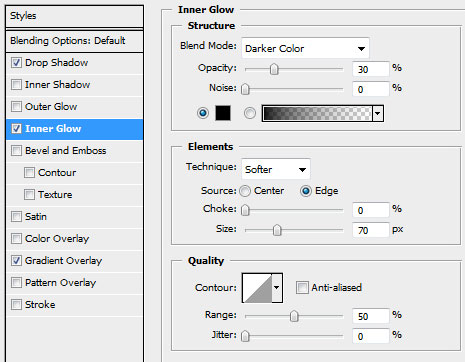
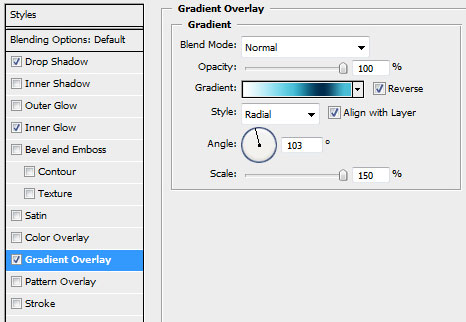
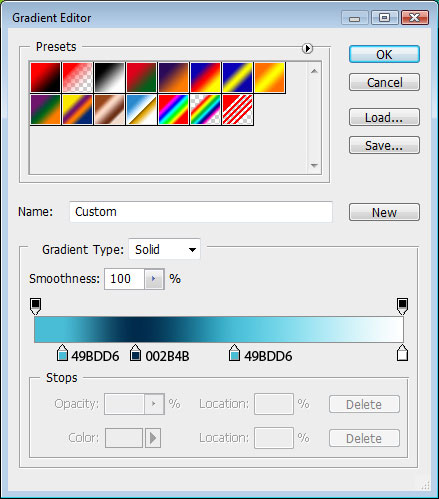
We’ve got finally a ball:

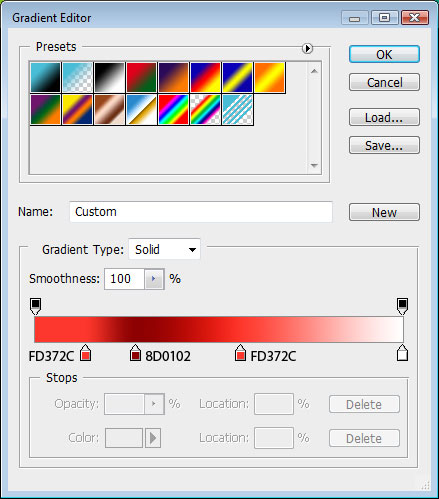
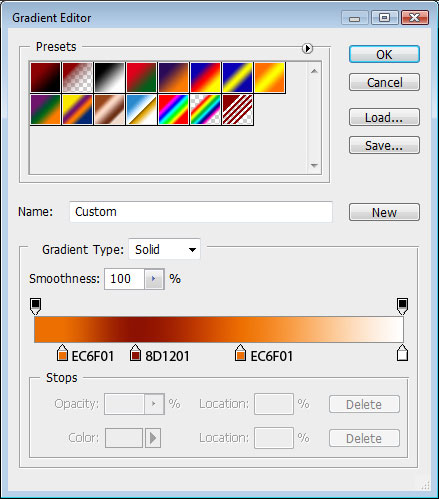
Do the same operations with those two circles too, but change their gradients. The rest of the settings are the same with the first one:
You should get the same thing from below:

Page: 1 2
Comments