Wordpress theme web design

April 1st, 2009 by ART-D Posted in Adobe Photoshop, Web Layout

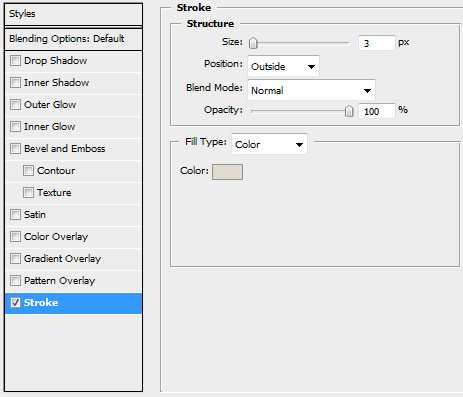
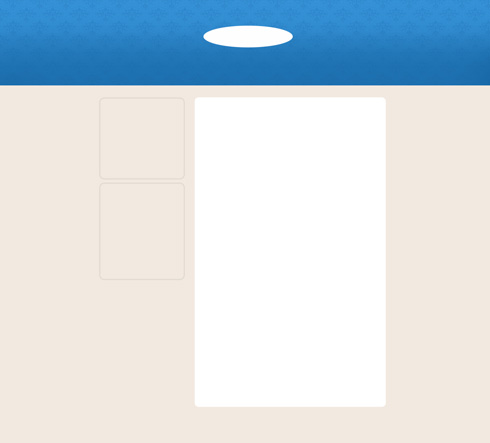
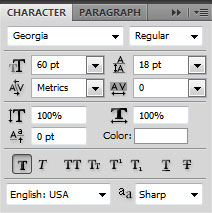
Insert next the appropriate text on the drawn element:

Learn how to create a clean and simple wordpress design in Photoshop CS4

Learn how to create a clean and simple wordpress design in Photoshop CS4

Write the button’s title:

Learn how to create a clean and simple wordpress design in Photoshop CS4

Learn how to create a clean and simple wordpress design in Photoshop CS4

Insert the section’s title on the central part of the panel, the same way you may see below:

Learn how to create a clean and simple wordpress design in Photoshop CS4

Learn how to create a clean and simple wordpress design in Photoshop CS4

Insert the earlier edited pictures we want to have on the site.

Learn how to create a clean and simple wordpress design in Photoshop CS4

Fill the section with the appropriate text:

Learn how to create a clean and simple wordpress design in Photoshop CS4

Learn how to create a clean and simple wordpress design in Photoshop CS4

Let’s represent a link under everything we did till now:

Learn how to create a clean and simple wordpress design in Photoshop CS4

Learn how to create a clean and simple wordpress design in Photoshop CS4

Using the Custom Shape Tool (U), it’s possible to represent an indicator near the made link:

Learn how to create a clean and simple wordpress design in Photoshop CS4

Learn how to create a clean and simple wordpress design in Photoshop CS4

Next we’ll represent again a pattern, creating firstly a new file of 6×6 px and 72 dpi. The applied instrument in this case is the Pencil Tool (B) (brush of 1 px) and the color #CDC7BB.

Learn how to create a clean and simple wordpress design in Photoshop CS4

Save it!
Edit>Define Pattern
Select on this stage the Rectangle Tool (U) to draw a dividing line:

Learn how to create a clean and simple wordpress design in Photoshop CS4

The layer’s parameters: Fill 0%, Blending Options>Pattern Overlay

Learn how to create a clean and simple wordpress design in Photoshop CS4

Learn how to create a clean and simple wordpress design in Photoshop CS4

Represent next the content of the second section under the dividing line, leaving a small space. The title of the section, the basic text and the link should be represented with the same writing type we did for the first section on the central panel:

Learn how to create a clean and simple wordpress design in Photoshop CS4

Make a copy of the layer containing the dividing line and then apply the Free Transform option to situate the copy in a way as to divide the central panel on three smaller sections: Insert the title and the appropriate text on the third section:

Learn how to create a clean and simple wordpress design in Photoshop CS4

Under the third section’s link we’ll place the page’s marking:

Learn how to create a clean and simple wordpress design in Photoshop CS4

Learn how to create a clean and simple wordpress design in Photoshop CS4

Represent an icon on the left side of the sections’ titles. Begin working by creating the primary layer and then select the Rounded Rectangle Tool (U) with a radius of 3 px and the color #2381BE

Learn how to create a clean and simple wordpress design in Photoshop CS4

Using the Custom Shape Tool (U), we’ll represent several pointers, applying the color #F2E9E0

Learn how to create a clean and simple wordpress design in Photoshop CS4

Learn how to create a clean and simple wordpress design in Photoshop CS4

Learn how to create a clean and simple wordpress design in Photoshop CS4

Getting the necessary result is possible if combine in a group all the layers composing the section’s indicator (press Ctrl button to mark out all the layers we need and then hold on the left mouse’s button while taking down the marked layers on Create a new group option). Make four copies of the group and select after that the Free Transform option to situate the copies as it is indicated below:

Learn how to create a clean and simple wordpress design in Photoshop CS4

On the bottom part of the site’s page we’ll represent a site’s footer, choosing for this operation the Rounded Rectangle Tool (U) with a radius of 10 px and the color #2393D5.

Learn how to create a clean and simple wordpress design in Photoshop CS4

Learn how to create a clean and simple wordpress design in Photoshop CS4

Make a copy of that layer we’ve used it on the very beginning as a pattern for the site’s header. Select after that the Free Transform option to minimize the copy and place it above the layer on the bottom part of the site.

Learn how to create a clean and simple wordpress design in Photoshop CS4

Press Alt button and make a mouse click between the texture’s layer and the layer on the bottom part of the site’s page. Select the next shown parameters for the layer: Blending mode-Difference

Learn how to create a clean and simple wordpress design in Photoshop CS4

Finished!

View full size here.

Post Pages: 1 2 3

  • Marc Shaw

    15/10/2009

    Hey, I read a lot of blogs on a daily basis and for the most part, people lack substance but, I just wanted to make a quick comment to say GREAT blog!…..I”ll be checking in on a regularly now….Keep up the good work! :)

    - Marc Shaw