Glamour model

April 30th, 2009 by ART-D Posted in Adobe Photoshop, Designing

In this Photoshop tutorial you will learn a neat grungy photo effect using a variety of Photoshop brushes and image adjustments.

Final Image Preview
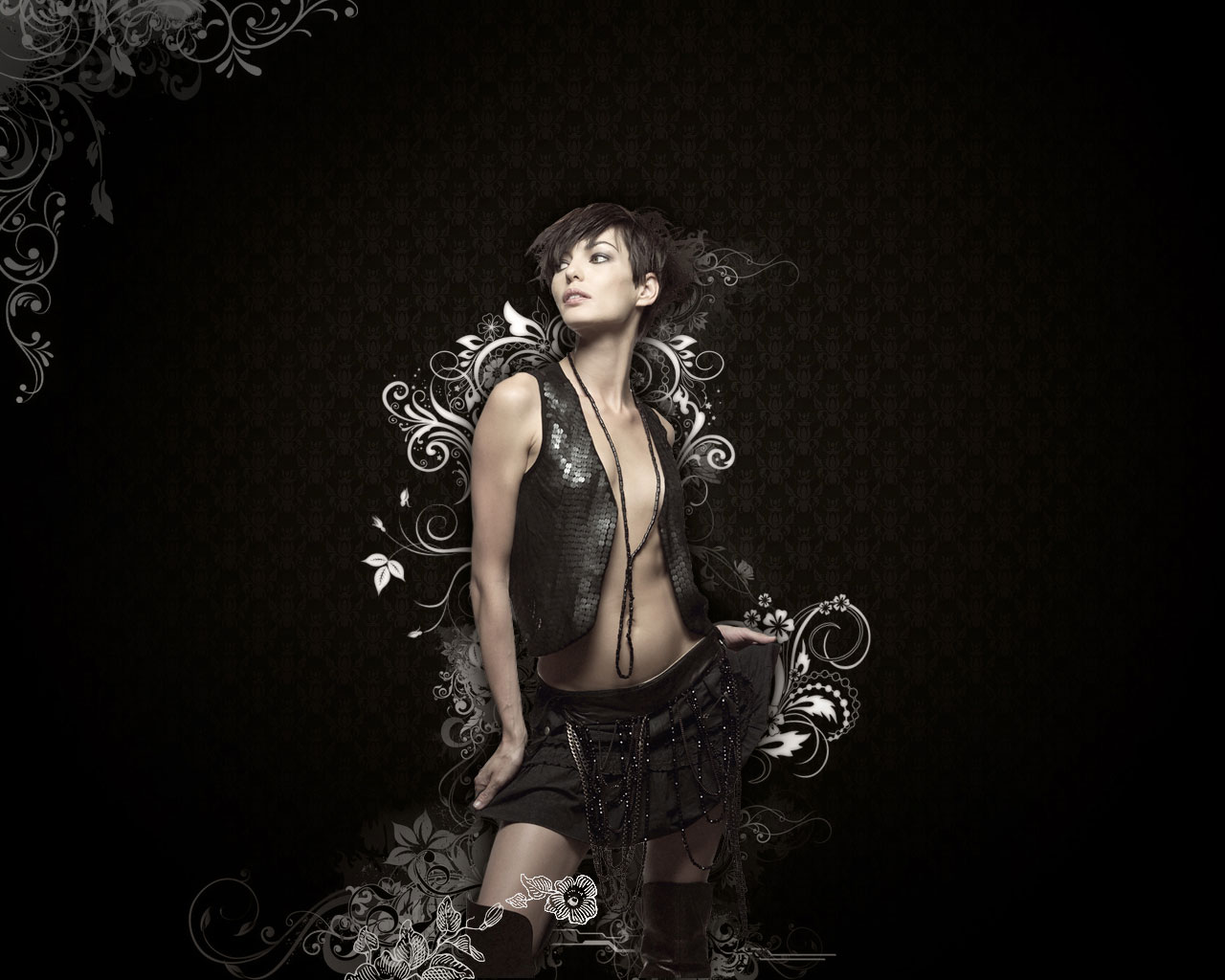
Create grungy photo effect using a variety of Photoshop brushes and image adjustments

Begin by creating a new file of 1280x1024px/72dpi which must be fill with the Paint Bucket Tool (G) to give the background layer black color.

Create grungy photo effect using a variety of Photoshop brushes and image adjustments

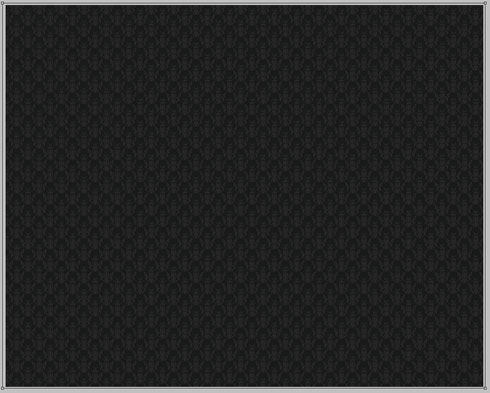
Continue representing the background by using the next demonstrated pattern:

Create grungy photo effect using a variety of Photoshop brushes and image adjustments

Edit>Define Pattern
Then we’ll create a new layer and set for it the next shown styles by making a mouse click on this layer on the layers’ panel:
Blending Options>Pattern Overlay (choose here the earlier saved texture)
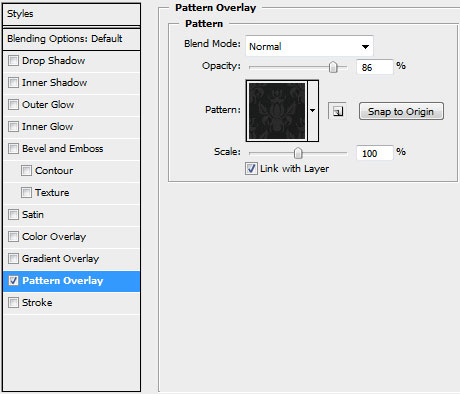

Create grungy photo effect using a variety of Photoshop brushes and image adjustments

Create grungy photo effect using a variety of Photoshop brushes and image adjustments

Make darker the picture’s edges by using the Rectangle Tool (U).
Create grungy photo effect using a variety of Photoshop brushes and image adjustments

The layer’s styles: Fill 0%, Blending Options>Gradient Overlay
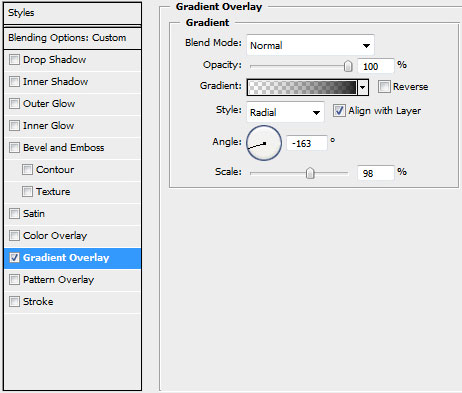
Create grungy photo effect using a variety of Photoshop brushes and image adjustments

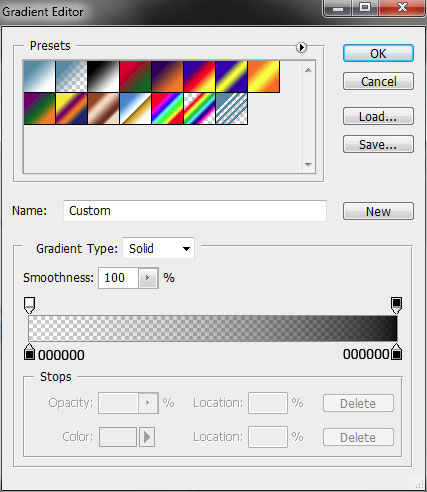
Gradient Editor:

Create grungy photo effect using a variety of Photoshop brushes and image adjustments

Create grungy photo effect using a variety of Photoshop brushes and image adjustments

Find a stock photo with a model represented on it, I used this photo from deviantart. I would like to thank the author of this photo :
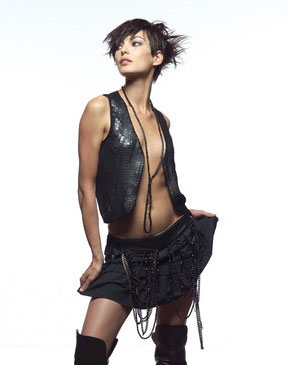
Create grungy photo effect using a variety of Photoshop brushes and image adjustments

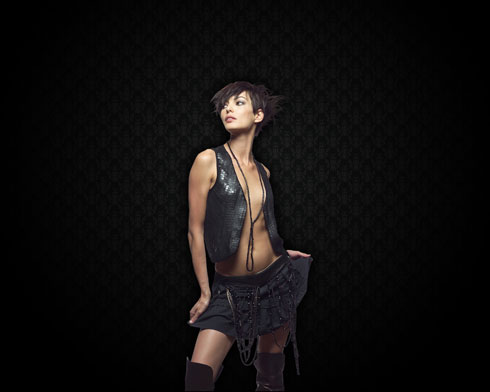
Cut the model and insert it on new layer:
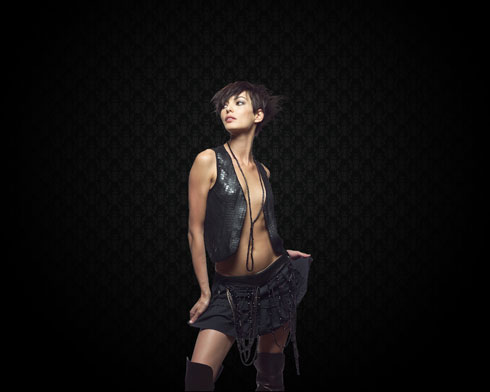
Create grungy photo effect using a variety of Photoshop brushes and image adjustments

Set the next demonstrated styles for the girl’s layer: Blending Options>Outer Glow
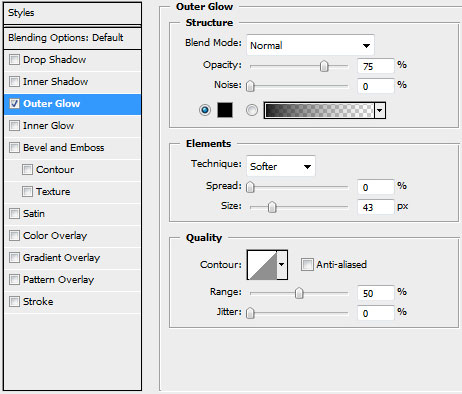
Create grungy photo effect using a variety of Photoshop brushes and image adjustments

Create grungy photo effect using a variety of Photoshop brushes and image adjustments

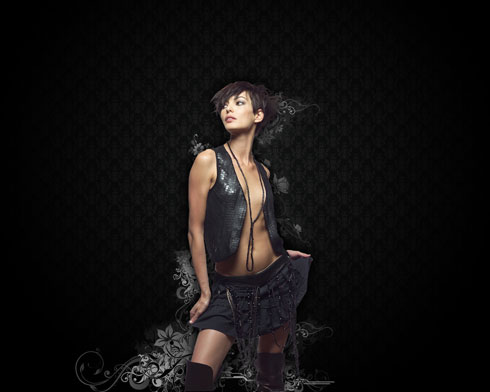
Download several sets of ready to use brushes for Adobe Photoshop, named Vector_Flower_Brushes_by_Yasny_chan, Japanese_Foliage, Foliage_VOL_2_brushes_set_by_solenero73. Create a new layer and use here the brushes out of the set Vector_Flower_Brushes_by_Yasny_chan.
They have white color and Opacity of 50%. The layer containing the brushes should be placed lower than the girl’s layer (on the layers’ panel).
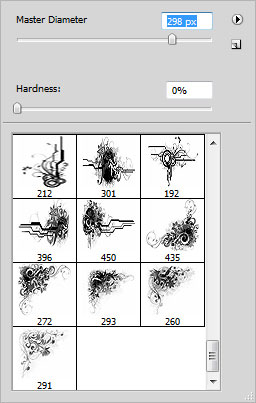
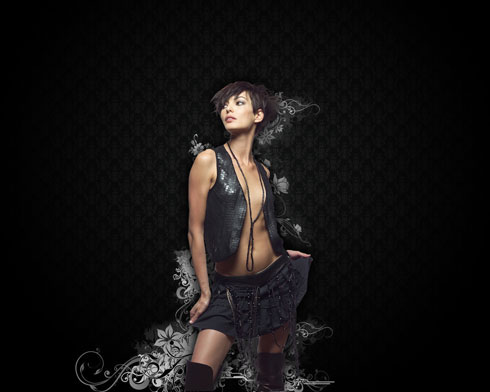
Create grungy photo effect using a variety of Photoshop brushes and image adjustments

Create grungy photo effect using a variety of Photoshop brushes and image adjustments

Select the next indicated styles for the brushes’ layer: Blending Options>Inner Glow
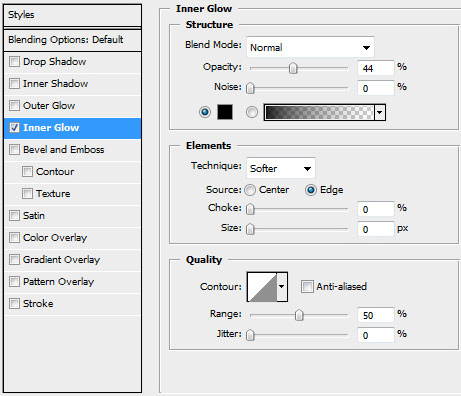
Create grungy photo effect using a variety of Photoshop brushes and image adjustments

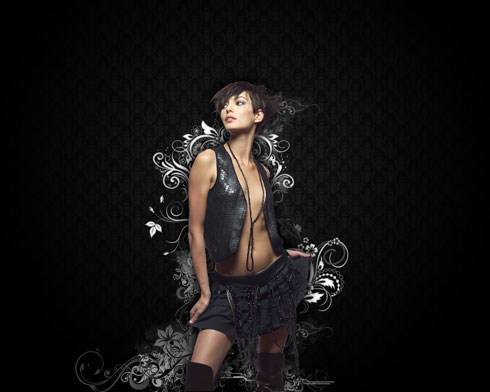
Create grungy photo effect using a variety of Photoshop brushes and image adjustmentsOn the next new layer we’ll choose the brushes out of the set, named Japanese_Foliage, the brushes having white color. This layer should be placed also lower than the girl’s layer, but above the previous layer containing the brushes:
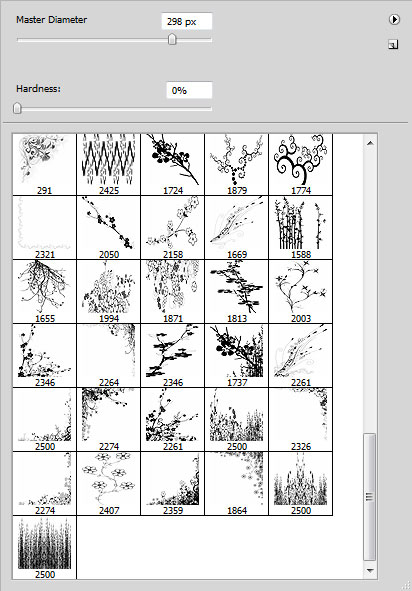
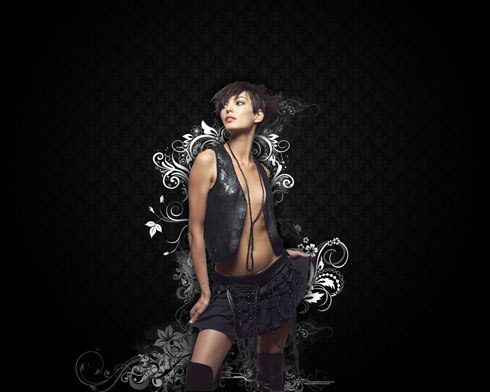
Create grungy photo effect using a variety of Photoshop brushes and image adjustments

Create grungy photo effect using a variety of Photoshop brushes and image adjustments

Set the next indicated styles for the last created layer: Blending Options>Inner Glow
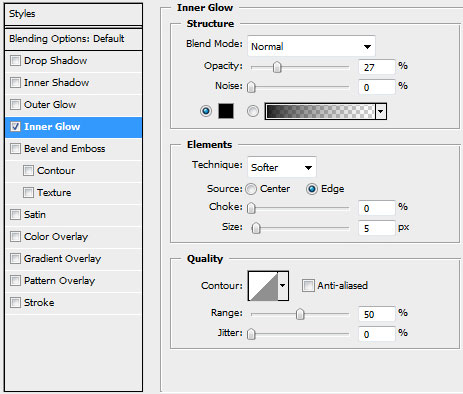
Create grungy photo effect using a variety of Photoshop brushes and image adjustments

Create grungy photo effect using a variety of Photoshop brushes and image adjustments

On the next new layer (Create new layer) we’ll select the brushes out of the set entitled Foliage_VOL_2_brushes_set_by_solenero73. The brushes have white color.
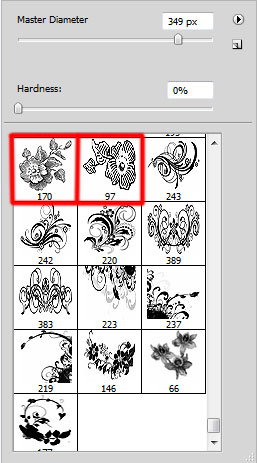
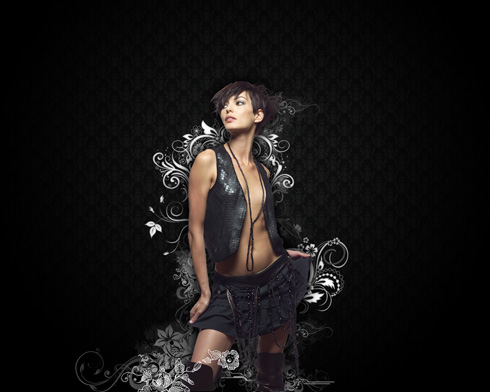
Create grungy photo effect using a variety of Photoshop brushes and image adjustments

Create grungy photo effect using a variety of Photoshop brushes and image adjustments

Next we’ll create a new layer and use here the brushes out of the above mentioned set (Foliage_VOL_2_brushes_set_by_solenero73). The brushes have the next indicated colors: #666666 and the white one:
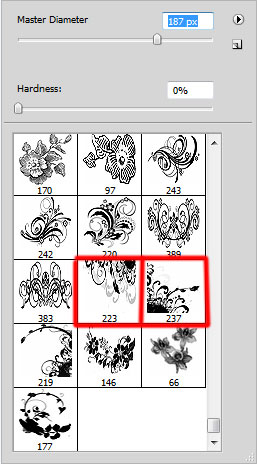
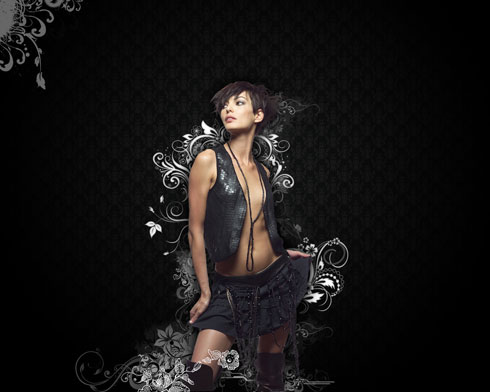
Create grungy photo effect using a variety of Photoshop brushes and image adjustments

Create grungy photo effect using a variety of Photoshop brushes and image adjustments

Create grungy photo effect using a variety of Photoshop brushes and image adjustments

Insert one more ornament, choosing one more brush out of the set Foliage_VOL_2_brushes_set_by_solenero73.
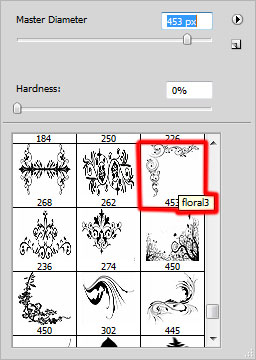
Create grungy photo effect using a variety of Photoshop brushes and image adjustments

The brush has white color:

Create grungy photo effect using a variety of Photoshop brushes and image adjustments

Make a mouse click on the bottom part of the layers’ panel on the next selection: Create new fill or adjustment layer > Black&White
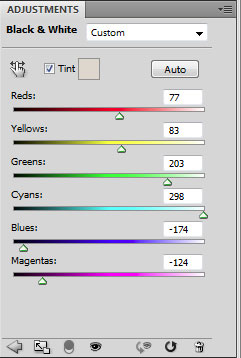
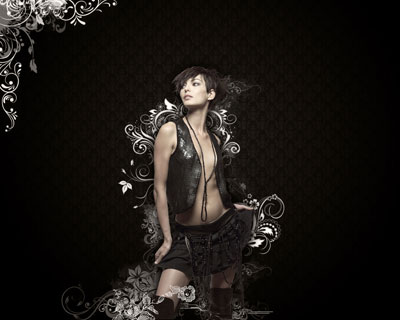
Create grungy photo effect using a variety of Photoshop brushes and image adjustments

Create grungy photo effect using a variety of Photoshop brushes and image adjustments

On the next new layer we’ll apply a standard brush of black color with the Opacity of 30% to obscure a little the ornament’s zone and the girl’s one:
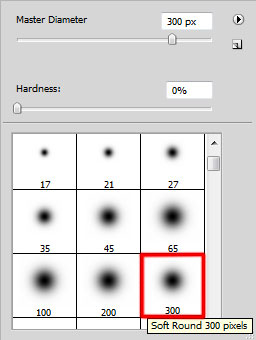
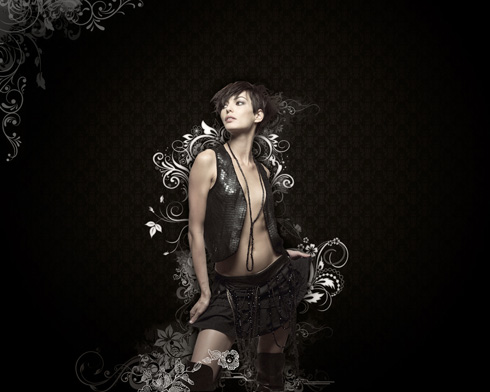
Create grungy photo effect using a variety of Photoshop brushes and image adjustments

Create grungy photo effect using a variety of Photoshop brushes and image adjustments

The final result!

View full size here.
  •  

  •    
  •  


Tags: , , , , ,

  • moe king

    09/09/2009

    outstanding

  • STEVE PERRY

    18/12/2009

    SIDEBOOB!

  • Stark

    01/02/2010

    Great tut thx !

  • March

    01/04/2010

    Cool and easy. Thank you!

  • moises

    01/04/2010

    Oye men muchas gracias bueno y aqui te dejo mis resultados XD http://img37.imageshack.us/img37/2020/fullbodyv.png

  • theone

    03/05/2010

    Thank you so much, this tut is well explained easy to follow with great results.

  • ganesh

    10/05/2010

    hi,
    simple, and up to mark result for the follower,
    thanks so much, will be anxiously waiting for the next work

    ganesh

  • oldschoolcat

    05/07/2010

    Here’s something I did with the tutorial
    [IMG]http://i50.tinypic.com/2w50rgg.jpg[/IMG]

  • apple

    26/09/2010

    very simple and very beautiful style

  • Chuck Canic

    26/10/2010

    Where i can download this texture?

  • dzwebs

    30/01/2011

    Thank you this is a very nice. This is just what I was looking for

  • crys

    18/08/2011

    thx man,this is awesome! i need this tutorial,thx again,ur a great person for making the tutorial!

Now we can provide you an exam engine that will load you iseb certification and 642-637 dumps exam samples,we also serves you by providing our high quality 642-481 dumps,HP0-Y30 and 70-620 lab practice solutions.