Graphic Design Studio Web Layout
June 17th, 2009 by ART-D Posted in Adobe Photoshop, Web Layout
insert the Close indicator: 

Make a copy of the last made layer and choose Free Transform option to place the copy the same way as below: 

The styles for the copy’s layer: Blending Options>Inner Shadow 

Now we’ll represent the button of the menu on the site’s header, above the sections’ panel. In this case we’ll apply the Rounded Rectangle Tool (U) (radius of 20 px) 
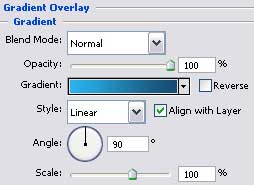
The layer’s styles: Blending Options>Gradient Overlay 
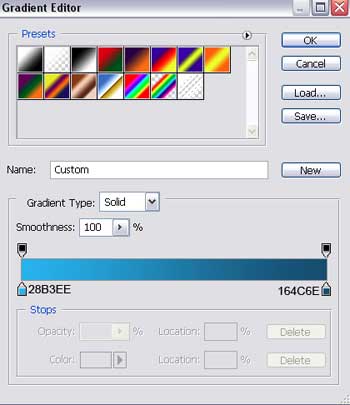
Gradient’s parameters: 
Make three copies of the last made layer containing the button and select again Free Transform option to place the copies as it is shown below: 
Next we need to add the titles for the menu’s buttons situated on the site’s header: 

Select the same styles for the layers containing the buttons’ titles: Blending Options>Drop Shadow 

The last step includes inserting the site’s name (used font): 

The layer’s styles: Blending Options>Drop Shadow 
Blending Options>Inner Glow 
Blending Options>Gradient Overlay 
Gradient’s parameters: 

Finished!
View full size here.


rahul kmar tailor
06.17.09
good tutorial
clippingimages
06.17.09
WoW
Awesome tutorials. Thanks for sharing this nice post.