
The Guitar – Grunge Poster

June 22nd, 2009 by ART-D Posted in Adobe Photoshop, Photo Editing

Quick and easy way to create a grunge style collage from your favorites photos.

Final Image Preview
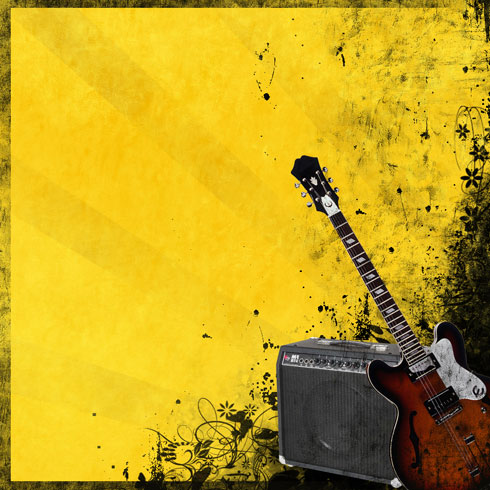
Create a grunge style collage in Adobe Photoshop CS4

Create a new file (File>New) of 1000x1000px/72dpi. Using the Paint Bucket Tool (G), give the new background layer this color – #FBD21E

Create a grunge style collage in Adobe Photoshop CS4

Using the Pen Tool (P), try to represent several rays, giving them the color #D4AB1B

Create a grunge style collage in Adobe Photoshop CS4

Create a new layer which must be painted with the Paint Bucket Tool (G) and the color #FBD222. Make a mouse click on Add a Mask selection on the same layer on the bottom part of the layers’ panel, applying the next option: Filter>Render>Clouds.

Create a grunge style collage in Adobe Photoshop CS4

Make a copy of the recently made layer and apply on the layers’ mask this option: Filter>Sharpen>Unsharp mask

Create a grunge style collage in Adobe Photoshop CS4

Create a grunge style collage in Adobe Photoshop CS4

Download a set of ready to use brushes for Adobe Photoshop, entitled: D_Grungeset1, Grunge_and_Texture_Brushes_2_by_AiSac, TB_grunge003, thb-grunge-brushes, 512x512_BigBrushes#38_by creamuts
Create a new layer and select for it the brush, named thb-grunge-brushes of black color.

Create a grunge style collage in Adobe Photoshop CS4

Create a grunge style collage in Adobe Photoshop CS4

On the new layer (Create new layer) we’ll apply the brush of the above mentioned set, named thb-grunge-brushes, having the color #FFF200 (Opacity 20%)

Create a grunge style collage in Adobe Photoshop CS4

Create a grunge style collage in Adobe Photoshop CS4

On the next new layer we’ll apply again the thb-grunge-brushes of black color and Opacity of 20%.

Create a grunge style collage in Adobe Photoshop CS4

Create a grunge style collage in Adobe Photoshop CS4

Next we’ll create a new layer which must be processed with the brushes, named 512x512_BigBrushes#38_by creamuts. Their color is black. The brush must be turned over with Free Transform option:

Create a grunge style collage in Adobe Photoshop CS4

Create a grunge style collage in Adobe Photoshop CS4

Create a new layer again and apply the brushes out of the earlier used set, 512x512_BigBrushes#38_by creamuts, having black color.

Create a grunge style collage in Adobe Photoshop CS4

Create a grunge style collage in Adobe Photoshop CS4

  •  

  •    
  •  


Post Pages: 1 2

  • missy115

    23/09/2009

    That was neat but what version of photoshop are you using cuz i cant seem to do it correctly though i followed every inch of your directions. ^^

  • Biju Subhash

    03/11/2009

    Great Tutorial
    Thank you for sharing :D

  • beast2175

    18/11/2009

    Good Tutorial……….as a beginner in photoshop i got idea how to make cool designs. \,,/

  • psmaniac

    05/04/2010

    very clear instructions..
    any1 cud get thru dis n create a masterpiece :-)

  • Alaska

    05/06/2010

    Thank you very much ^^

  • Mandy

    21/06/2010

    What is really the very good explanation!
    Ultra affection…… I am begin studies photoshop, alight`s this homepage ,after looking, thought that helps to me to be very big ,ultra haapy.I discovered that i am lucky!
    Thanks your share. Hoped that your homepage more manages is better……

  • David Lynam

    18/08/2010

    Great tutorial! I have developed a site dedicated to collage and mixed media art. There is some cool stuff on there. You can check it out at http://www.kohlage.com.

  • Sumit

    06/10/2010

    Hey!!

    Somebody please tell me where would I get these color codes and how to fill color in the rays formed in the step 2. Please tell in detail.

  • ululf01

    21/02/2013

    I thank you for sharing this tutorial