
Magic and special light effects
July 3rd, 2009 by ART-D Posted in Adobe Photoshop, Designing
This tutorial will teach you to create amazing “magic” green color effects using some simple methods. It will greatly beautify every fantasy-style work.
Final Image Preview

Create a new file (File>New) of 1920x1200px/72dpi. Select then the Paint Bucket Tool (G) to paint into black the new background layer.

Select now the Rectangle Tool (U) to continue representing the background:


Set the next demonstrated styles for the last made layer by clicking on it on the layers’ panel: Fill 0%, Blending Options>Gradient Overlay

Gradient’s parameters:


Create a new layer which must be processed with a standard brush of white color to include on the picture several spots and lines as you may see on the next picture:


Select the next indicated option Filter>Blur>Radial blur (2 times)


Using Free Transform option, press Maintain aspect ratio to resize uniformly the rounded lines:

Select the next styles for the layer containing the rounded lines: Blending Options>Color Overlay


In the next step we’ll use Freeware fractal flame editor for Windows – Apophysis to generate the fractal. Install the program and choose out of the list the next demonstrated picture:
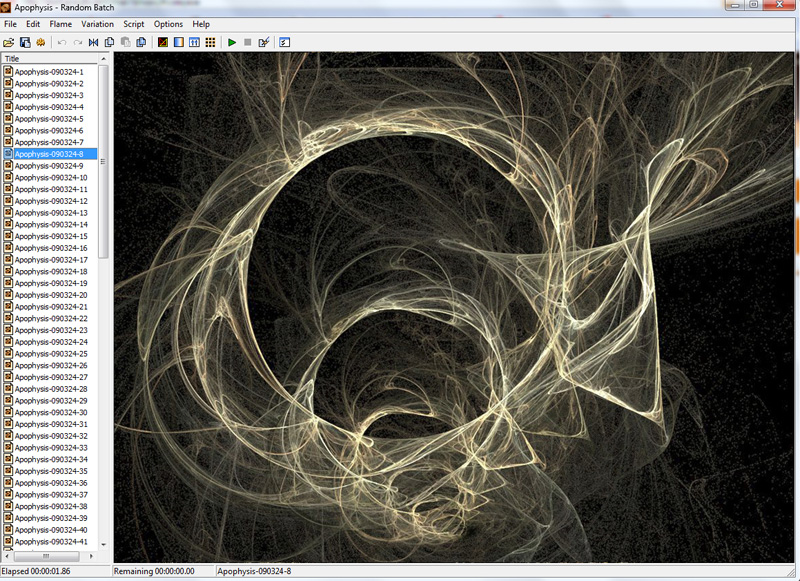
Import CTRL+X and add the saved picture to a new layer:

Tags: artwork, brushes, design, fantasy, light-effect, magic


Z
09/09/2009
Whoah! Loved it. Very, very useful tut!
Xmike
10/09/2009
i really enjoyed ur tutorial and i had to make it… and yes very simple way to do it… nice
mickeblue
27/01/2010
very nice tut… made a great wallpaper base on this :thumbsup:
Daniel
01/03/2010
This was very and and easy. Thanks a lot.
Antonym
16/05/2010
Very nice tutorial. I tried, but only got until the sphere. I have problems with my ellipse tool. It just won’t look like yours (with the squares to edit). How did you do this?
Could someone please help me?
My E-Mail Address is fafardh@hotmail.de
ramu
30/07/2010
very nice tutorial.makes thing very extrordinarily real
xenon touchstone
30/08/2010
Very useful tut,(especially for introducing me to Apophysis, thanks. : )
dude2
18/09/2010
how do you go on to the next part of the tuttorial
Charm
20/01/2011
thanks so much..i’m now so inspired to create my own…thanks
IT Conseltant
29/06/2011
Thanks Admin this is very nice and good tuotrial. Thanks Alot
Christian
02/08/2011
Great tutorial.. I was getting ready to try it for myself following your steps and the Apophysis photo you used is not available in the list when I downloaded the program, though.
Is there a way I can find and download that graphic used???
Milja
24/01/2012
Yeah, i have problems with importing flames from Apophysis into photoshop……if anyone can help please let me know.
Beginner
19/07/2012
What kind of program is Apophysis? When Ctrl + X it says cannot renderer. I cannot find the correct example either.
ululf01
21/02/2013
Very good article!
nice tutorial and well illustrated!