Magic and special light effects
July 3rd, 2009 by ART-D Posted in Adobe Photoshop, Designing
Click on the same layer on the bottom part of the layers’ panel on Add a Mask option; use a standard brush of black color to clean out the unnecessary parts of the fractal, choosing also the next shown styles: Blending mode-Color Dodge

Now we’ll represent a sphere with the Ellipse Tool (U).

The layer’s styles: Blending Options>Inner Glow

Blending Options>Gradient Overlay

Gradient’s parameters:


Using the same tool, try to insert a highlight on the made sphere.

The layer’s parameters: Fill 0%, Blending Options>Gradient Overlay

Gradient’s parameters:


For the best result we need to combine in a group all the layers composing the sphere and the highlight (press Ctrl button for marking the appropriate layers and then press the left mouse’s button to take the marked layers on Create a new group selection) The group we’ve got must be copied and made smaller with Free Transform option.

Next step includes rasterizing the group’s copy (mark out the group and press CTRL+E). Now we’ll make a lateral highlight, applying the Ellipse Tool (U).

The layer’s parameters: Fill 0%, Blending Options>Gradient Overlay

Gradient’s parameters:


Tags: artwork, brushes, design, fantasy, light-effect, magic


Z
09/09/2009
Whoah! Loved it. Very, very useful tut!
Xmike
10/09/2009
i really enjoyed ur tutorial and i had to make it… and yes very simple way to do it… nice
mickeblue
27/01/2010
very nice tut… made a great wallpaper base on this :thumbsup:
Daniel
01/03/2010
This was very and and easy. Thanks a lot.
Antonym
16/05/2010
Very nice tutorial. I tried, but only got until the sphere. I have problems with my ellipse tool. It just won’t look like yours (with the squares to edit). How did you do this?
Could someone please help me?
My E-Mail Address is fafardh@hotmail.de
ramu
30/07/2010
very nice tutorial.makes thing very extrordinarily real
xenon touchstone
30/08/2010
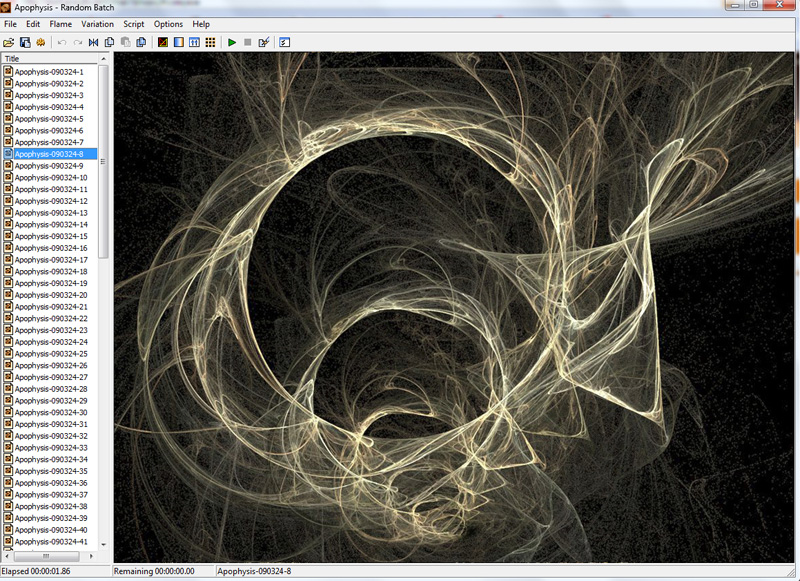
Very useful tut,(especially for introducing me to Apophysis, thanks. : )
dude2
18/09/2010
how do you go on to the next part of the tuttorial
Charm
20/01/2011
thanks so much..i’m now so inspired to create my own…thanks
IT Conseltant
29/06/2011
Thanks Admin this is very nice and good tuotrial. Thanks Alot
Christian
02/08/2011
Great tutorial.. I was getting ready to try it for myself following your steps and the Apophysis photo you used is not available in the list when I downloaded the program, though.
Is there a way I can find and download that graphic used???
Milja
24/01/2012
Yeah, i have problems with importing flames from Apophysis into photoshop……if anyone can help please let me know.