Design grunge wordpress theme

July 28th, 2009 by ART-D Posted in Adobe Photoshop, Web Layout

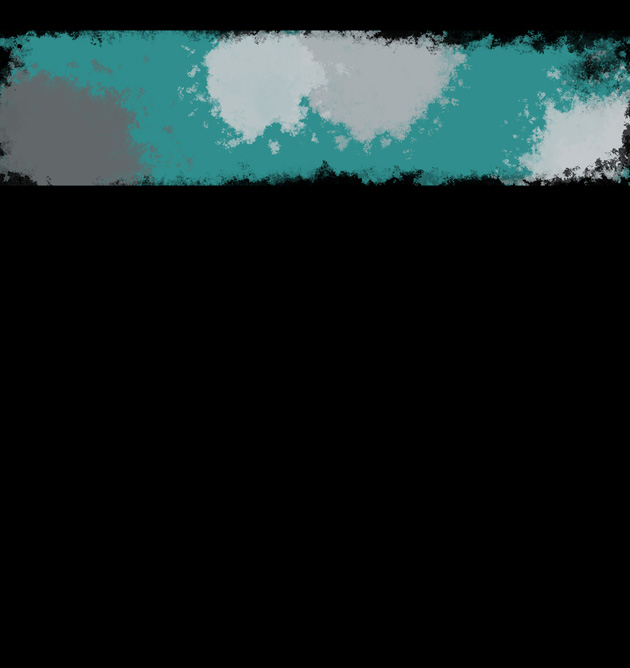
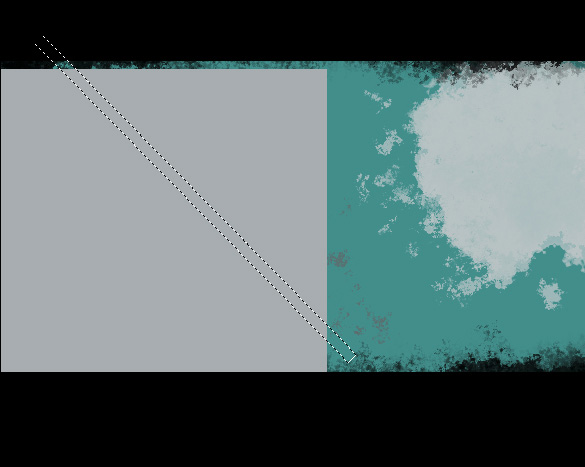
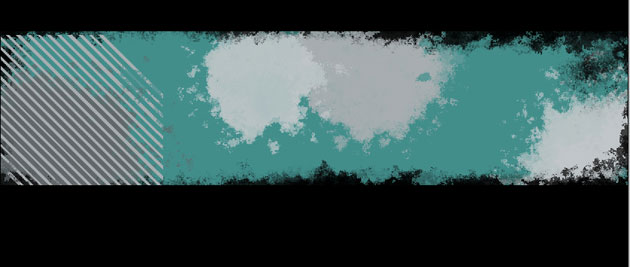
Make two copies of the layer containing the title and the text. Using the Free Transform option, place the copy’s layers the same way demonstrated below:

Design grunge wordpress theme in Adobe Photoshop CS4

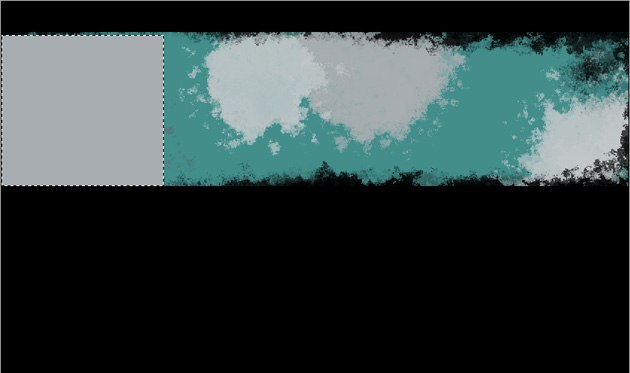
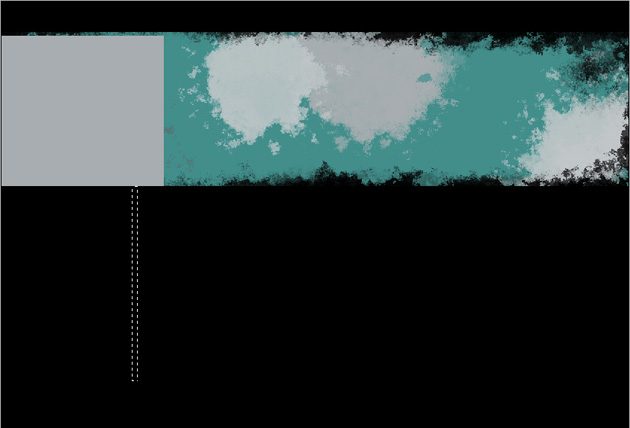
Under the section’s text, on its left side we’ll represent a button with the Rectangle Tool (U). The layer’s color in this case is #262626

Design grunge wordpress theme in Adobe Photoshop CS4

The layer’s styles: Blending Options>Inner Glow

Design grunge wordpress theme in Adobe Photoshop CS4

Design grunge wordpress theme in Adobe Photoshop CS4

Make two copies of the layer containing the last made button. Choose then Free Transform option and place the copies as it is demonstrated below. One copy should be left without any changes (place it under the lowest section), but the second copy should be placed on the central part, changing its color on #D40610.
Blending Options>Inner Glow

Design grunge wordpress theme in Adobe Photoshop CS4

Design grunge wordpress theme in Adobe Photoshop CS4

Insert the title on the made button:

Design grunge wordpress theme in Adobe Photoshop CS4

The layer’s styles: Blending Options>Drop Shadow

Design grunge wordpress theme in Adobe Photoshop CS4

Design grunge wordpress theme in Adobe Photoshop CS4

Make two copies of the layer containing the button’s title and apply Free Transform selection to place the copy’s layers the same way as it is on the picture:

Design grunge wordpress theme in Adobe Photoshop CS4

Insert the comment you want on the button’s right side:

Design grunge wordpress theme in Adobe Photoshop CS4

12 Comments

Design grunge wordpress theme in Adobe Photoshop CS4

Posted by

Design grunge wordpress theme in Adobe Photoshop CS4

admin

Design grunge wordpress theme in Adobe Photoshop CS4

Make two copies of the layer containing the comment’s text and choose again the Free Transform option to place them the same way indicated below:

Design grunge wordpress theme in Adobe Photoshop CS4

Insert one more section on the right top part of the panel containing the sections:

Design grunge wordpress theme in Adobe Photoshop CS4

the title for the section:

Design grunge wordpress theme in Adobe Photoshop CS4

the section’s text:

Design grunge wordpress theme in Adobe Photoshop CS4

Next we have to insert the categories’ section under the recently made section:

Design grunge wordpress theme in Adobe Photoshop CS4

the title for the section:

Design grunge wordpress theme in Adobe Photoshop CS4

the titles for the categories:

Design grunge wordpress theme in Adobe Photoshop CS4

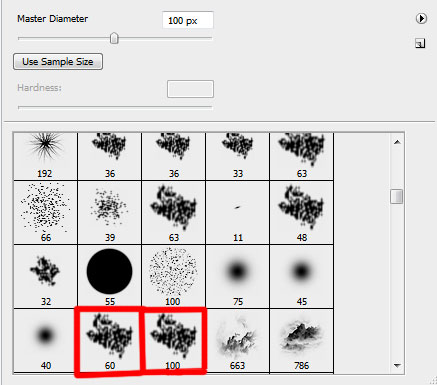
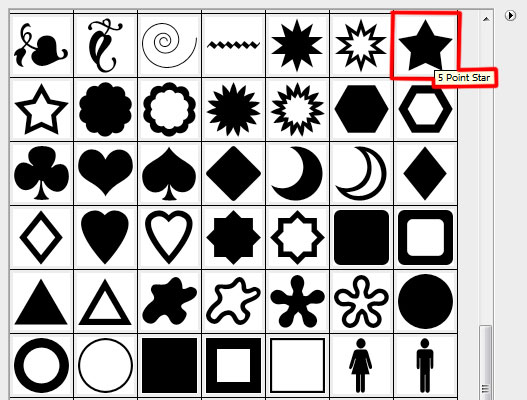
Next we have to set the Brush Tool (B) in the menu of the Brushes tools’ panel:

Design grunge wordpress theme in Adobe Photoshop CS4

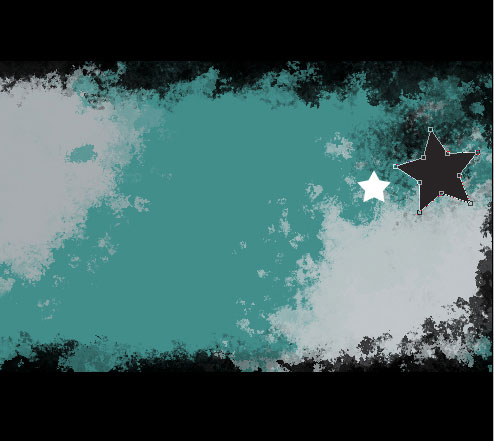
Create a new layer and apply the set brush and the color #AFB57B. Apply the brush between the categories’ titles, then change the brush’s color with #E7E9D7 and paint the category’s title on the left and right sides.

Design grunge wordpress theme in Adobe Photoshop CS4

Make four copies of the layer with the dividing line and choose again the Free Transform option to place the copies the same way demonstrated below:

Design grunge wordpress theme in Adobe Photoshop CS4

Design grunge wordpress theme in Adobe Photoshop CS4

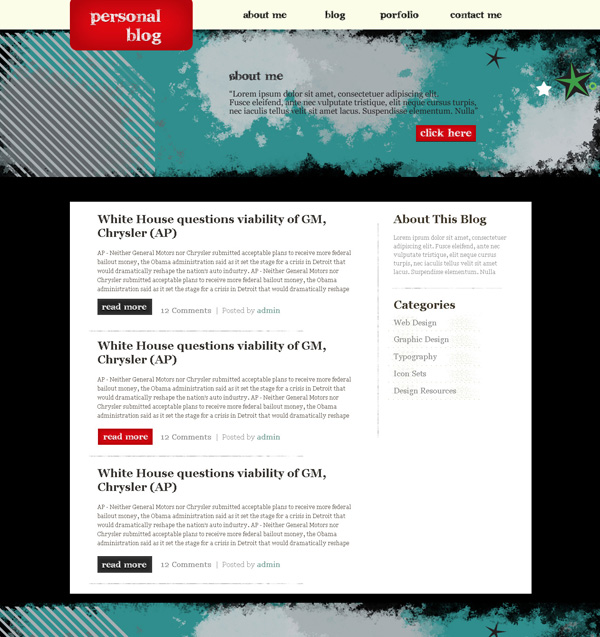
The final result!

View full size here.

Post Pages: 1 2 3 4

Tags: , , , , ,

  • ejakulasi dini

    03/09/2009

    thanks for the tutorial and tips.

  • migraine solution

    19/09/2009

    Nice content indeed! i will visit as often as i can.

    cheers

  • DennisVega

    30/09/2009

    Generally I do not post on blogs, but I would like to say that this post really forced me to do so, Excellent post!

  • Tnelson

    01/10/2009

    Hey, I found your blog in a new directory of blogs. I dont know how your blog came up, must have been a typo, anyway cool blog, I bookmarked you. :)

  • JimmyBean

    01/10/2009

    I don’t know If I said it already but …Excellent site, keep up the good work. I read a lot of blogs on a daily basis and for the most part, people lack substance but, I just wanted to make a quick comment to say I’m glad I found your blog. Thanks, :)

    A definite great read..Jim Bean

  • JoseP

    08/11/2009

    Lo meximo, una persona con mucho talento

    Saludos desde Mexico

    ——————————————————–

    The Best! u have talent! very much

    Regards

  • Goose Meinffe

    21/12/2009

    Awesome! Now where is the WordPress tutorial to convert this PS file to a proper CSS theme?

  • vinyl wood flooring

    23/02/2010

    Thanks brother was very nice of page

  • Webdesign Mannheim

    15/07/2010

    Thanks for the great ideas