
Girl Photo Manipulation

July 31st, 2009 by ART-D Posted in Adobe Photoshop, Photo Editing

In this tutorial I will teach you how to make a beautiful design from just a photo.

Final Image Preview

Make a beautiful design from just a photo in Adobe Photoshop CS4

Create a new file (File>New) of 1920x1200px/72 dpi. Using the Paint Bucket Tool (G), fill the background with black color.

Make a beautiful design from just a photo in Adobe Photoshop CS4

Let’s represent a separate file (File>New) of 1000x1000px/72 dpi.

Make a beautiful design from just a photo in Adobe Photoshop CS4

Using the Gradient Tool (G), try to represent a light passage the same way demonstrated below:
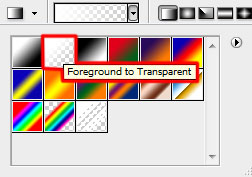
Make a beautiful design from just a photo in Adobe Photoshop CS4

Make a beautiful design from just a photo in Adobe Photoshop CS4

Select on the same layer Filter>Distort>Wave
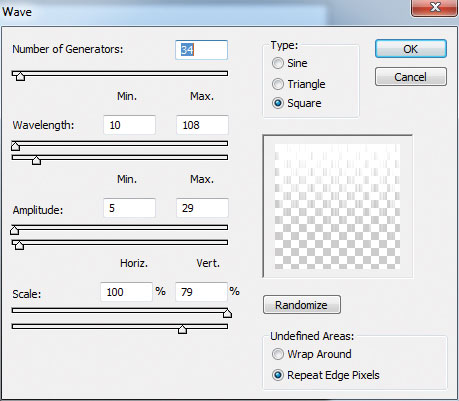
Make a beautiful design from just a photo in Adobe Photoshop CS4

Make a beautiful design from just a photo in Adobe Photoshop CS4

Apply on the same layer the next option: Filter>Distort>Polar Coordinates
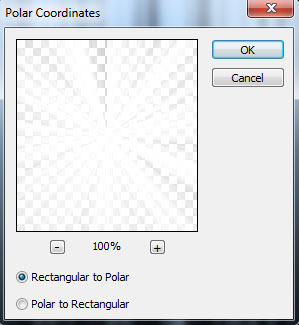
Make a beautiful design from just a photo in Adobe Photoshop CS4

Make a beautiful design from just a photo in Adobe Photoshop CS4

Put the rays’ bunch on the first created file:
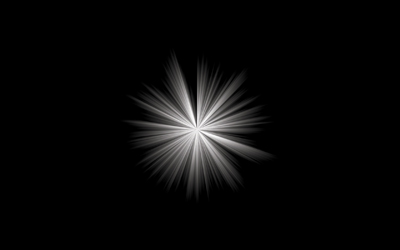
Make a beautiful design from just a photo in Adobe Photoshop CS4

Using the Free Transform option, enlarge a little and stretch out the bunch.
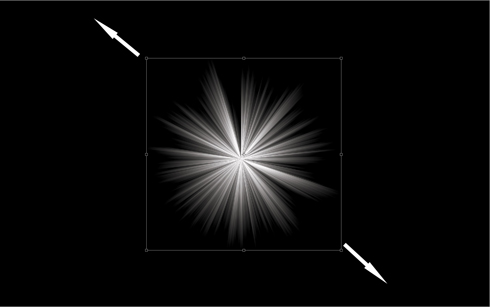
Make a beautiful design from just a photo in Adobe Photoshop CS4

Make a beautiful design from just a photo in Adobe Photoshop CS4

Click on the same layer on the bottom part of the layers’ panel on Add a Mask option and select the Rectangular Marquee Tool (M) to mark out the zone the same way as it is shown on the picture. Using a standard brush of black color, try to clean out the zone with the marking.
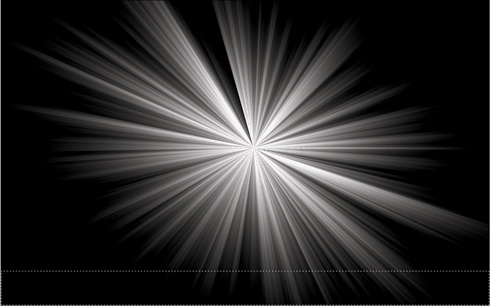
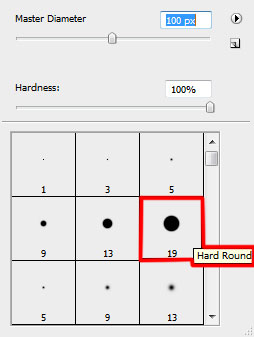
Make a beautiful design from just a photo in Adobe Photoshop CS4

Make a beautiful design from just a photo in Adobe Photoshop CS4

Make a beautiful design from just a photo in Adobe Photoshop CS4

Make a copy of the layer containing the rays’ bunch. Move of the mask from the layer’s copy and move the copy’s layer downwards, applying Free Transform

Make a beautiful design from just a photo in Adobe Photoshop CS4

Insert the mask on the copy’s layer the same way we did earlier for the layer with the rays’ bunch. Using the Rectangular Marquee Tool (M) and the Brush Tool (B), mark out the zone the same way from below, cleaning it out with the brush of black color.
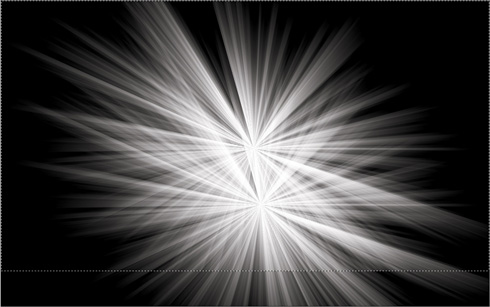
Make a beautiful design from just a photo in Adobe Photoshop CS4

Make a beautiful design from just a photo in Adobe Photoshop CS4

Set the same parameters for both layers of the rays’ bunch: Blending mode-Overlay

Make a beautiful design from just a photo in Adobe Photoshop CS4

  •  

  •    
  •  


Post Pages: 1 2 3

Tags: , , , , , ,

  • Teodoro Salvatierra

    20/08/2009

    Thanks for this tutorial, i’ve learned a lot. :) Thanks

  • cronix

    20/08/2009

    how did u get those lines to fade out in teh end ? it doesnt seem to work when i try it other than that very nice tut :)

  • khalilzip

    20/09/2009

    Thanks For This Tutorial

  • Amro

    28/09/2009

    waaaaw. It’s amazing tutorial. I hope u add new tutorials like this. nice job and thanks again

  • Daniboy

    28/09/2009

    Hmm, nice idea and I managed to assemble everything required. But the instructions were not that easy to understand, especially at the beginning with the layers.

  • Tom

    03/11/2009

    I can’t get the gradient tool to go from black to transparent, it just stays black, help?

  • Dorienne

    23/11/2009

    Very nice tut :) Learned a lot, though it took me a lot of time to do the layer because I didn’t understand them immediately :/ If they were easier it would have been a relief to most of the users trying to do it :) Especially for ones like me, a beginner.
    Also it took me a long time to figure out that the mode used was CYMK not RGB….

  • King

    07/01/2010

    Thanks for the tut. I can’t seem to get the blend-option overlay right.
    When I change the layers from normal to overlay .. everything turns black. Am I doing it wrong?

  • robson

    04/05/2010

    Fixe!!!

  • Mattias

    12/10/2010

    Excellent stuff, thanks! ;)

  • Poul

    23/01/2011

    Cool! Thanks for sharing
