
Fashion women photo effects
In this Photoshop tutorial we will use some photo manipulation techniques to create beautiful women wallpaper. We will use some filters, blending modes and textures.
Final Image Preview
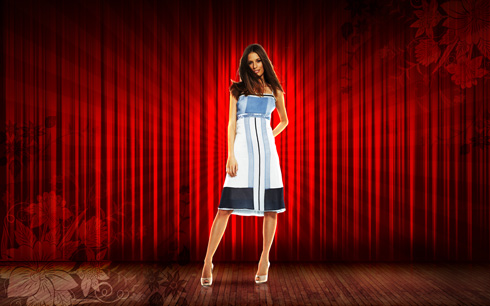
Start working by creating a new file (File>New) of 1920x1200px/72 dpi. Next we’ll apply the Paint Bucket Tool (G) to give the new background layer color #470000.

Download the texture of wood planks from CGtextures.
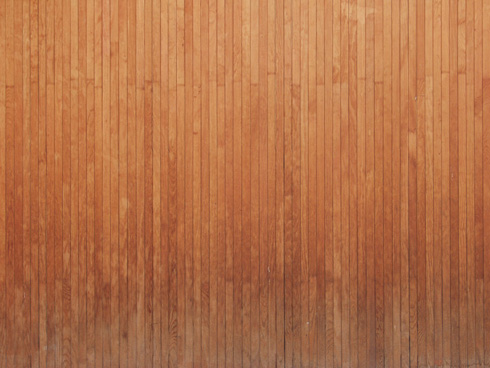

Add the downloaded texture to the new layer. Using Free Transform option, put it the way it is shown on the picture:
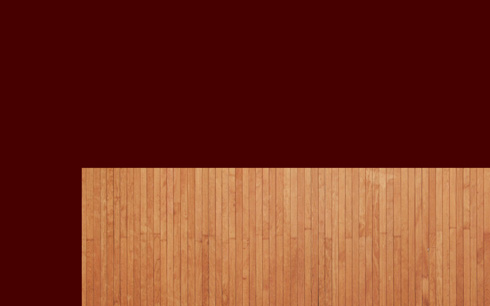
Make a copy of the texture’s layer and move the copy to the left side (using Free Transform option)
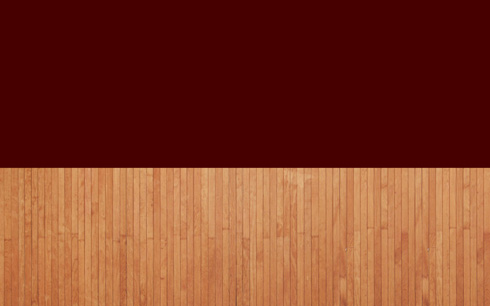
Put together both layers of the texture (holding on CTRL button, mark out the layers and then press CTRL+E). Using Free Transform option, try to represent the effect of the perspective.
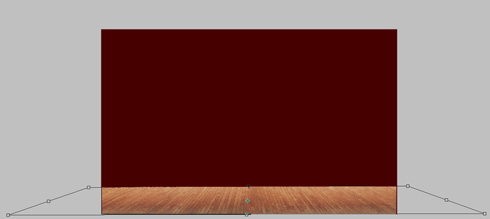
Set the next styles by making a mouse click on this layer on the layers’ panel.
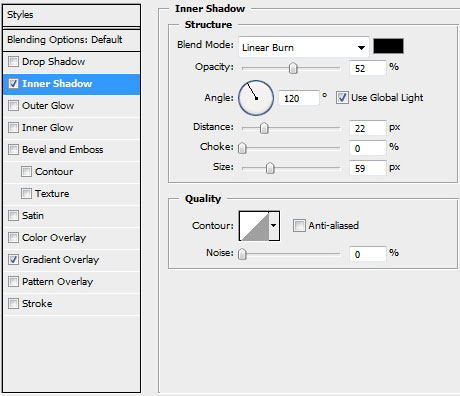
Blending Options>Inner Shadow
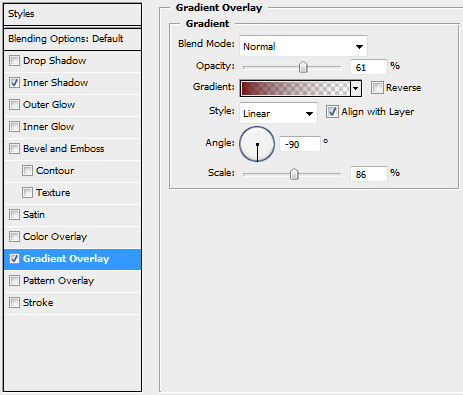
Blending Options>Gradient Overlay
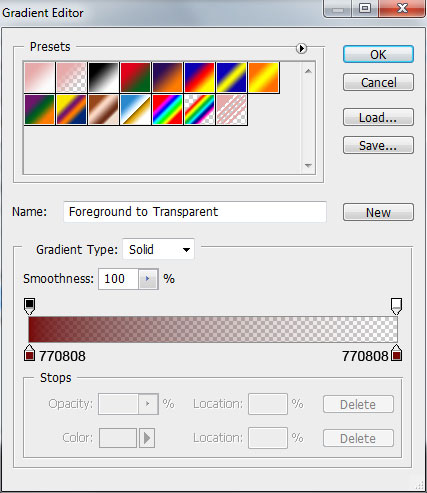
Gradient’s parameters:

Click on the bottom part of the layers’ panel on Create new fill or adjustment layer>Curves
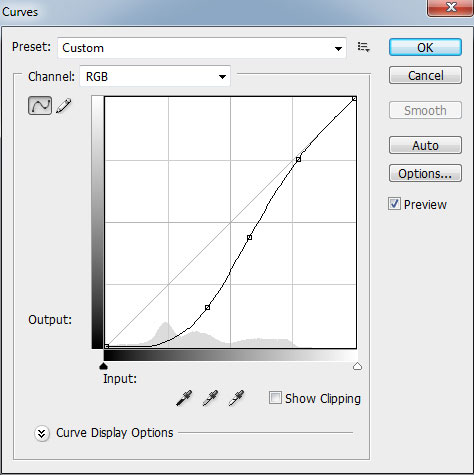

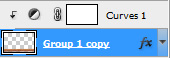
Press Alt button and click between the Curves layer and the layer with the planks’ texture.

Click once again on the bottom part of the layers’ panel on Create new fill or adjustment layer>Hue/Saturation
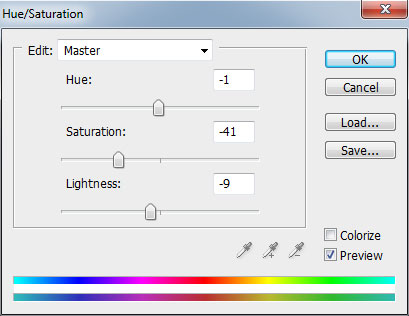

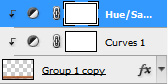
Press Alt button and click between the layers (on the layers’ panel)

Create a new layer and choose the Gradient Tool (G) to apply it here with the color #F50300
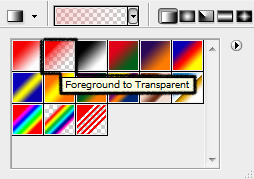
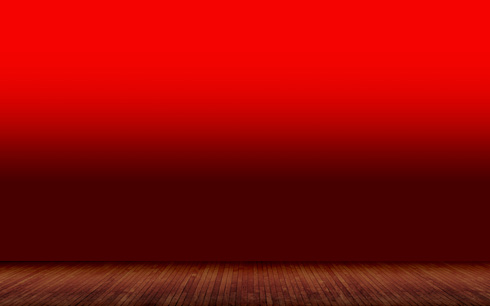
Select for the layer with the red gradient the next option: Filter>Distort>Wave
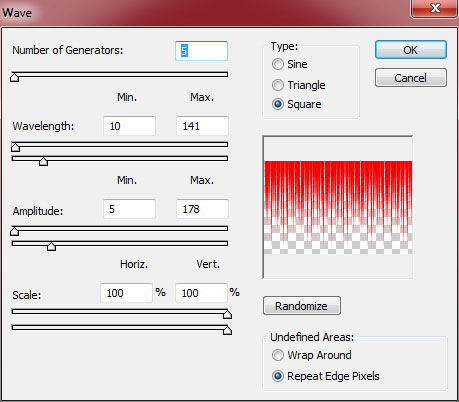
 Using the Free Transform option, try to stretch out a little the layer with the red rays until the lowest edge.

Select the next styles for the layer: Blending Options>Inner Shadow
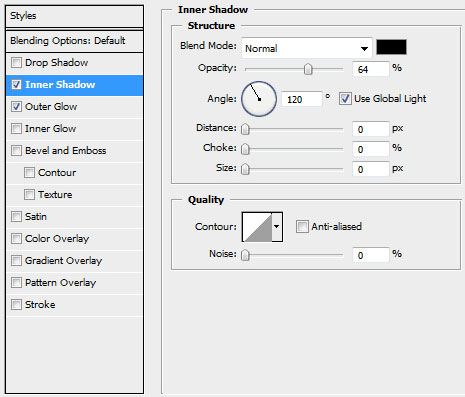
Blending Options>Outer Glow
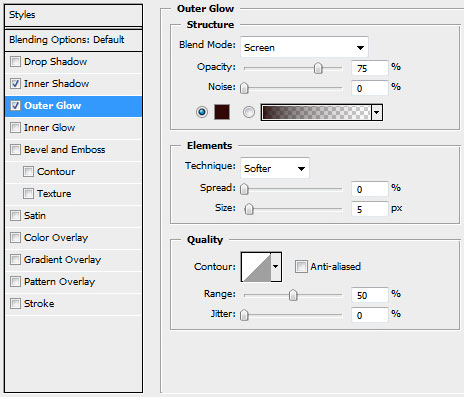

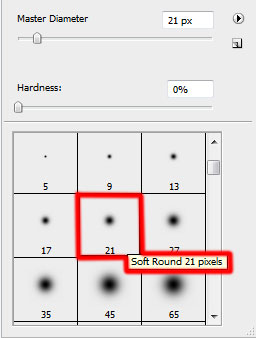
Make a mouse click on the same layer on the bottom part of the layers’ panel on Add a Mask selection and choose a standard brush of black color (Opacity 15%) to clean out the rays on the top part and along the edge of the planks’ texture, getting the effect of the reflection.

Make a copy of the layer containing the red rays and choose Free Transform option to turn over the copy, placing it the same way as below:

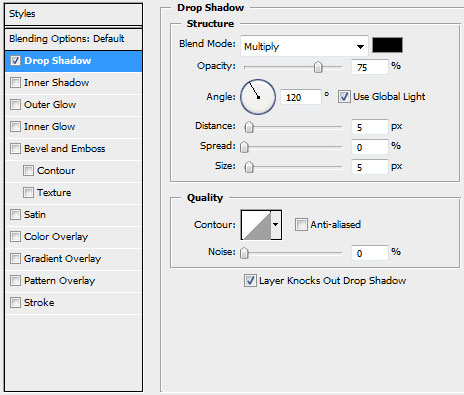
The layer’s styles: Blending Options>Drop Shadow

Page: 1 2
Comments