Photoshopping Aqua Wallpaper
September 7th, 2009 by ART-D Posted in Adobe Photoshop, Designing, Text Effects
In this tutorial you’ll learn how to recreate the famous Aqua wallpaper in just a few minutes using Photoshop. It’s actually very easy!
Final Image Preview

Create a new file (File>New) of 1920×1200px/72 dpi.
In this case we’ll select the Paint Bucket Tool (G) and fill our primary layer with blue color. The color’s code is #17CBFF

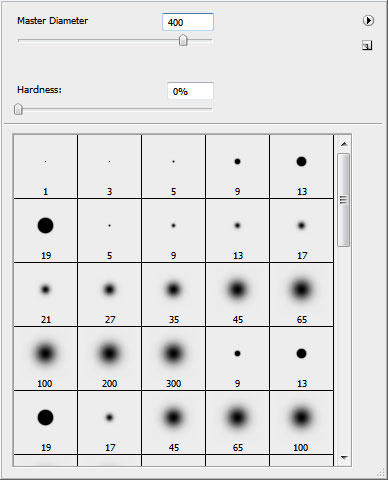
Select now the Brush Tool (B) with the next demonstrated parameters. Opacity 30% and the color’s code is #0499E6
Paint the blue background on its lateral sides.


… and on the bottom part.

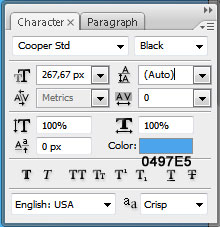
Take the Horizontal Type Tool (T) and type the word ‘aqua’ by separate letters. All the letters have the same next demonstrated parameters, except Q.
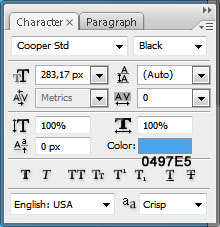
The parameters for the Q letter.
Place the word the same way demonstrated below:

Mark out the letters on the layers’ panel and press Shift button while left clicking on the appropriate layer. Then press Ctrl+J and the marked layers will be copied. Move them lower, using the Move Tool (V) and change their colors - #084DA2

Select now Blending Options - Outer Glow for each letter. Make a double click on the necessary layer on the layers’ panel.
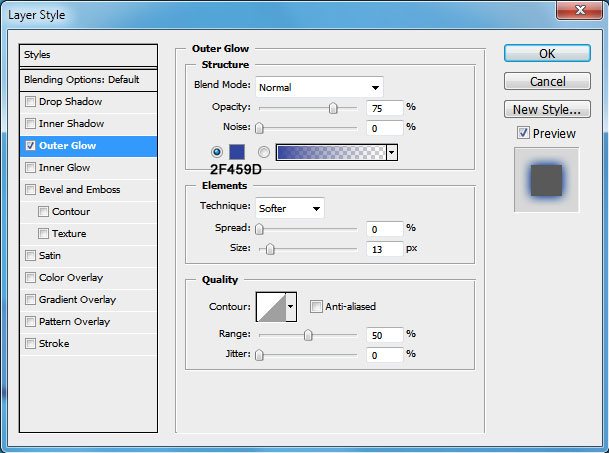
It’s the result you should get:

Now choose the next Blending Options - Inner Shadow for all the letters, except the last one.
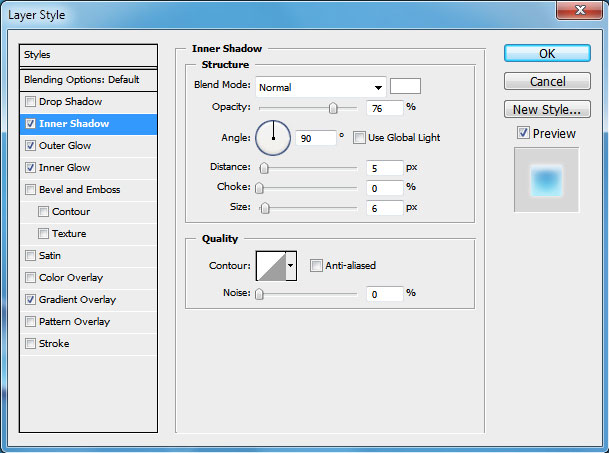
Blending Options - Outer Glow

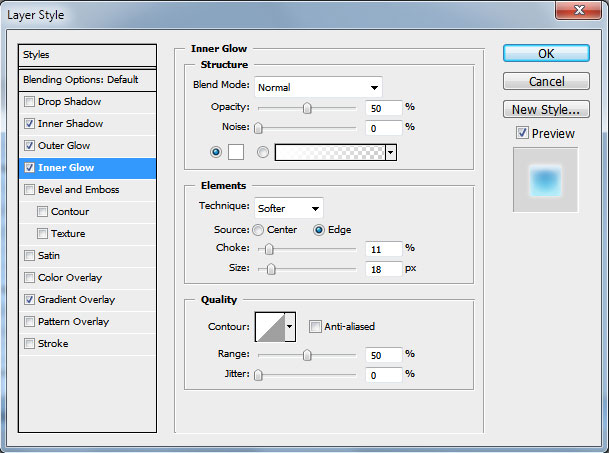
Blending Options - Inner Glow

Blending Options - Gradient Overlay

Gradient Editor

The letters start to get a kind of marine nuance:


Post Pages: 1 2
Tags: aqua, cs3, Photoshop, text-effect, wallpaper


Twitter Scribbles
09.07.09
Excellent tutorial! You make it look so easy to create a background that would look great on twitter.
qwkhdkv
09.07.09
Where is the blending option?
Dewonsawa
09.07.09
Hi My Friend , I Read Your Tutorials Every time and Your Web page Is My Home Page Thanks For This Site .
gasman
09.07.09
very good, nice effects. like the screenshots.
Ricky
09.07.09
i like it….excellent……i will always read your tutorials every time
pavan
09.07.09
i like all ur tutorials . very nice……….. and easy to learn. thanks a lots..
منتديات ماى بكتشرز
09.07.09
i like all ur tutorials . very nice…
C
09.07.09
Stuck on highlights part, starting with Ellipse tool, done everything it says and do not get the highlight effect.
C
09.07.09
figured it out, have to make sure fill pixels is selected for the Ellipse tool options
SID
09.07.09
to: qwkhdkv
at the LAYERS PALETTE, just beside the OPACITY…clikie on the little arrow and there will be a drop down menu of the blending option…good luck!
________________________________________________
hmm…i’m having a problem, too…i can’t seem to locate the Gradient Editor…can someone please help me out?
thanks.
SID
09.07.09
Found it! =D
homyakus
09.07.09
Excellent lesson for novice!
SimonKP
09.07.09
Dahm, this is sick. And its soo easy. Thanks dude!
BeckyW
09.07.09
This is a really good tutorial, I have to admit I got stuck in a few areas, but that was all my own fault. Just have to say that at the end (doing the air bubbles) for scaling them town with the free transform you have put ctrl+T, when its actually cmd+T, just thought I would let you know incase someone didn’t know how to do it :3
wan2911
09.07.09
i cant press the button for representing the mask layer.
help me please!!
bnaughty
09.07.09
rasterized the elipse shape after you make the fx, … nice tutorial, i will credit you to my work Mr. ART-D, thanks…
Johan
09.07.09
I can’t press the mask layer button either, after making the ellipse.
Ltdgruenden
09.07.09
very cool
smafghahi
09.07.09
HELLO.
THANKS…….:)