Photoshopping Aqua Wallpaper

September 7th, 2009 by ART-D Posted in Adobe Photoshop, Designing, Text Effects

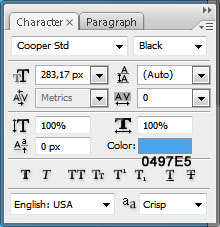
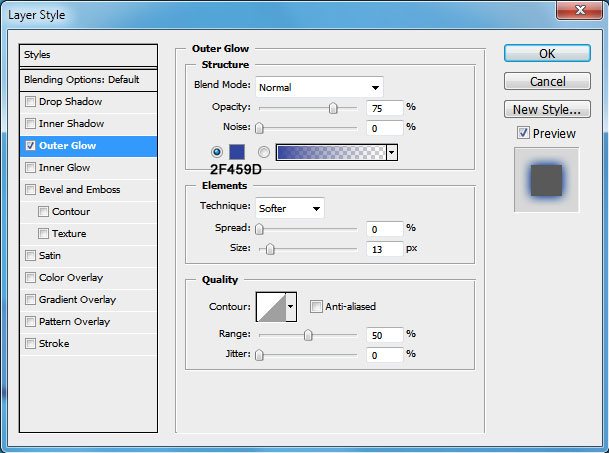
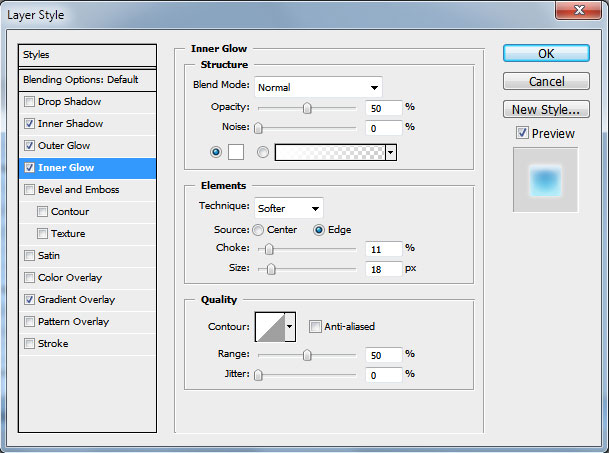
The last letter has all the parameters with the rest of the others, plus the next from below Blending Options – Satin:

Create the famous Aqua wallpaper in just a few minutes using Adobe Photoshop CS3
You may see on the picture that the last letter is a little darker than the others.

Create the famous Aqua wallpaper in just a few minutes using Adobe Photoshop CS3
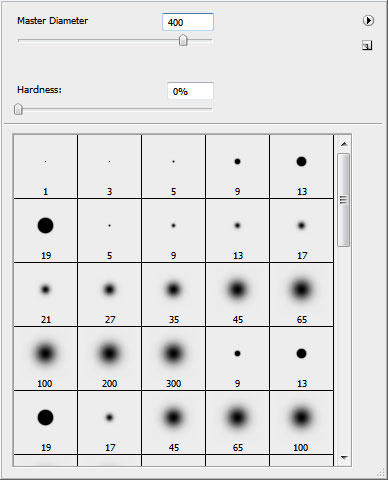
On a new layer we’ll create the shadow coming from the letters. The brush’s parameters are the same with those from the beginning of the lesson.

Create the famous Aqua wallpaper in just a few minutes using Adobe Photoshop CS3
Take the Ellipse Tool (U) and represent an ellipse like the next from below:

Create the famous Aqua wallpaper in just a few minutes using Adobe Photoshop CS3
Set the Fill parameter as it is shown below:

Create the famous Aqua wallpaper in just a few minutes using Adobe Photoshop CS3
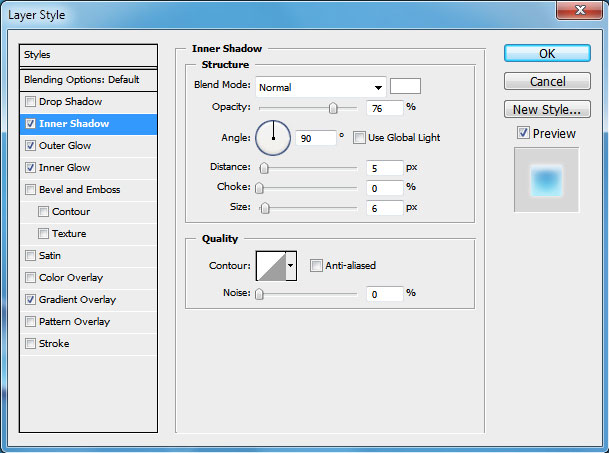
…. and the parameter Blending Options>Inner Shadow

Create the famous Aqua wallpaper in just a few minutes using Adobe Photoshop CS3
Check it out with the picture from below:

Create the famous Aqua wallpaper in just a few minutes using Adobe Photoshop CS3
Continue working with the same layer. Mark out the first letter by pressing Ctrl+Left mouse click on the letter’s layer. When the letter’s marking is ready, press the button for representing the mask layer.

Create the famous Aqua wallpaper in just a few minutes using Adobe Photoshop CS3
Finally we’ll get the highlight only on the necessary zone.

Create the famous Aqua wallpaper in just a few minutes using Adobe Photoshop CS3
Do the same operation with each letter.

Create the famous Aqua wallpaper in just a few minutes using Adobe Photoshop CS3
On the final stage we’ll represent air bubbles. In this case we’ll select the Ellipse Tool (U) and represent a circle.

Create the famous Aqua wallpaper in just a few minutes using Adobe Photoshop CS3
Fill 0% on the layer. Then set the next Blending Options.

Create the famous Aqua wallpaper in just a few minutes using Adobe Photoshop CS3
We’ll get a transparent sphere:

Create the famous Aqua wallpaper in just a few minutes using Adobe Photoshop CS3
Insert another circle. Fill 0% on this layer too.

Create the famous Aqua wallpaper in just a few minutes using Adobe Photoshop CS3
Select the next Blending Options.

Create the famous Aqua wallpaper in just a few minutes using Adobe Photoshop CS3
We’ll get an air bubble:

Create the famous Aqua wallpaper in just a few minutes using Adobe Photoshop CS3
Then make a copy of the new bubble we’ve got and change its size (Ctrl+T) to represent air jets, as it is demonstrated below:

Create the famous Aqua wallpaper in just a few minutes using Adobe Photoshop CS3
The final result!

View full size here.

  •  

  •    
  •  


Post Pages: 1 2

Tags: , , , ,

  • Twitter Scribbles

    08/09/2009

    Excellent tutorial! You make it look so easy to create a background that would look great on twitter.

  • qwkhdkv

    09/09/2009

    Where is the blending option?

  • Dewonsawa

    10/09/2009

    Hi My Friend , I Read Your Tutorials Every time and Your Web page Is My Home Page Thanks For This Site .

  • gasman

    14/09/2009

    very good, nice effects. like the screenshots.

  • Ricky

    23/09/2009

    i like it….excellent……i will always read your tutorials every time

  • pavan

    11/10/2009

    i like all ur tutorials . very nice……….. and easy to learn. thanks a lots..

  • منتديات ماى بكتشرز

    14/10/2009

    i like all ur tutorials . very nice…

  • C

    27/10/2009

    Stuck on highlights part, starting with Ellipse tool, done everything it says and do not get the highlight effect.

  • C

    27/10/2009

    figured it out, have to make sure fill pixels is selected for the Ellipse tool options

  • SID

    22/11/2009

    to: qwkhdkv
    at the LAYERS PALETTE, just beside the OPACITY…clikie on the little arrow and there will be a drop down menu of the blending option…good luck! :)
    ________________________________________________

    hmm…i’m having a problem, too…i can’t seem to locate the Gradient Editor…can someone please help me out? :(

    thanks.

  • SID

    23/11/2009

    Found it! =D

  • homyakus

    19/12/2009

    Excellent lesson for novice!

  • SimonKP

    23/12/2009

    Dahm, this is sick. And its soo easy. Thanks dude!

  • BeckyW

    31/12/2009

    This is a really good tutorial, I have to admit I got stuck in a few areas, but that was all my own fault. Just have to say that at the end (doing the air bubbles) for scaling them town with the free transform you have put ctrl+T, when its actually cmd+T, just thought I would let you know incase someone didn’t know how to do it :3

  • wan2911

    31/12/2009

    i cant press the button for representing the mask layer.
    help me please!!

  • bnaughty

    04/01/2010

    rasterized the elipse shape after you make the fx, … nice tutorial, i will credit you to my work Mr. ART-D, thanks…

  • Johan

    15/01/2010

    I can’t press the mask layer button either, after making the ellipse.

  • Ltdgruenden

    18/01/2010

    very cool

  • smafghahi

    19/01/2010

    HELLO.

    THANKS…….:)

  • risecin

    23/02/2010

    great work… and realllllllly easy

  • bibi

    02/03/2010

    thanks for the tutorials… really interesting.

  • DJ Marik

    15/03/2010

    Woot! I’m finally finished with this one. The only thing I had trouble with was the bubbles around the text, so I did my own thing lol. Either way, this is an awesome tut, & hope you like me results!!! THANKS FOR THIS TUTORIAL!!! lol ^_^

    http://blakkenshin.deviantart.com/art/Aqua-Bubbles-Wallpaper-157323114

  • ric

    08/05/2010

    -Finally we’ll get the highlight only on the necessary zone.

    How do I do this? I’ve set up the mask layer but how do I highlight only the portion I want and make the rest disappear?

    Thanks

    R

  • Dragonfly_die

    14/05/2010

    Great one ! thanks

  • sling bag

    28/06/2010

    great work… and realllllllly easy

  • vijay

    05/08/2010

    very nice tutorial

    freser student also rewind

  • asad

    27/08/2010

    hi guyz

  • lol

    04/09/2010

    not a very good tutorial…very confusing…

  • coco

    31/12/2010

    Not so good tutorial. Very confusing and unclear. For instance, why exclude the last letter when applying all the effects to the others but on the next page say “Apply all the previous effects to the last letter and satin”

  • Emu

    07/02/2011

    Can’t get the highlights – can make an ellipse and set the blending options, but when I Ctrl click the letter layer, I can’t set a mask :( my letters look pretty goos still without it though

  • Pravin

    07/05/2011

    its realy cool and sexy text effects

  • Kathlyn Adriano

    05/06/2011

    Excellent article over again! Thanks a lot:)

  • abhinav

    08/01/2012

    gr8 it help me lot

  • Mary

    29/03/2012

    Can you tell me how to do the eclipse highlights on a Mac?

  • Nikki

    28/06/2012

    I can’t get the mask to work every time I click on both the mask grey’s out…HELP!!! I really want to finish this

  • Noah Alexander Hernadnez

    29/07/2012

    Your tutorial was an is very useful. Thanku very much.

  • Friency

    31/07/2012

    This is cute. thanks :) Great tutorial

  • Md. ziauddin

    11/09/2012

    very useful and fantastic!!!!!!

  • Bassam

    16/10/2012

    FANTASTIC

  • Dak_Trolls

    08/12/2012

    I like your text style so much !!
    Here is my work ^^ :
    http://image.noelshack.com/fichiers/2012/49/1354919349-dak-aqua.jpg

  • campret

    24/03/2013

    btw, what kind of font type you used ???

  • Rexlin

    26/03/2013

    plz mention how to create the bubbles
    and less the violet color value (292793) in the “GRADIENT EDITOR” image.

  • Bree

    05/04/2013

    Sweet tutorial. Easy instructions and a sweet final product. Thank you so very much!!!

  • Joyce

    13/04/2013

    Uhm,, but where’s the text tutorial?