Create Fantasy Wallpaper in Photoshop

September 27th, 2009 by ART-D Posted in Adobe Photoshop, Designing, Photo Editing

Now we’ll apply the Custom Shape Tool (U) to fill the ornament with several butterflies. They need to be turned over with Free Transform option.

Create magical fantasy wallpaper in Adobe Photoshop CS4

Create magical fantasy wallpaper in Adobe Photoshop CS4

Create magical fantasy wallpaper in Adobe Photoshop CS4
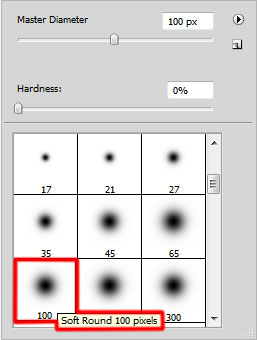
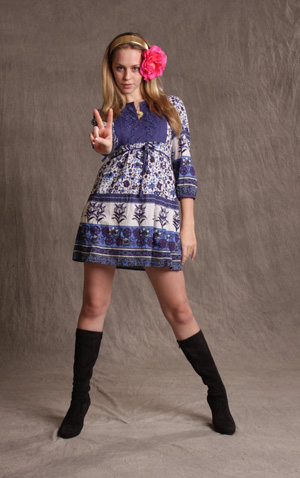
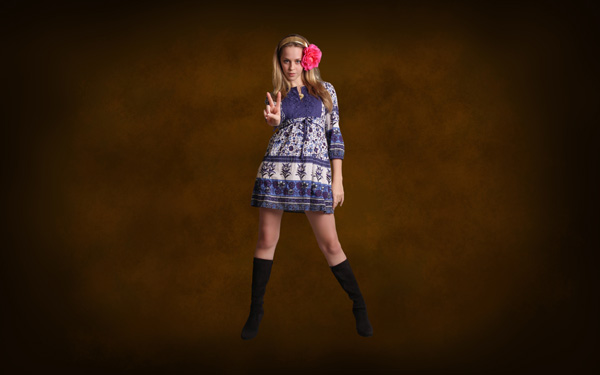
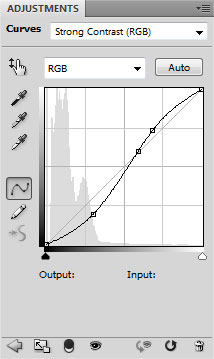
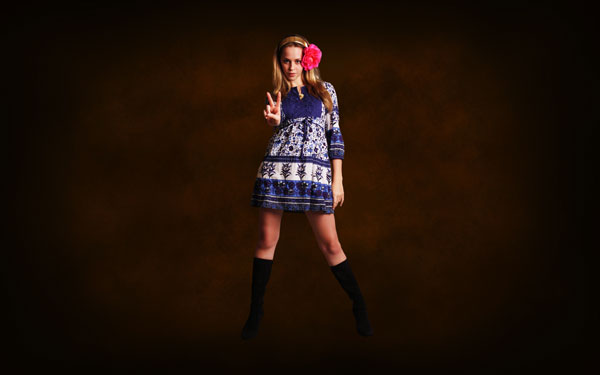
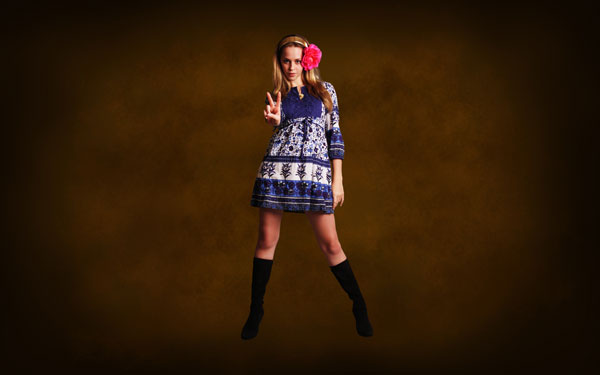
Use the standard brush (Opacity 10%) on a new layer (Create new layer) and select the Eyedropper Tool (I). This way we’ll take samples of colors out of near situated objects around the girl’s body and represent the highlights on her body. This layer will be situated above the layer with the Curves adjustments.

Create magical fantasy wallpaper in Adobe Photoshop CS4

Create magical fantasy wallpaper in Adobe Photoshop CS4
Set the next parameters for the last made layer:
Blending mode-Hard Light

Create magical fantasy wallpaper in Adobe Photoshop CS4
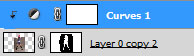
Press Alt button and click between the highlights’ layers and the layer containing the Curves adjustment (on the layers’ panel)

Create magical fantasy wallpaper in Adobe Photoshop CS4

Create magical fantasy wallpaper in Adobe Photoshop CS4
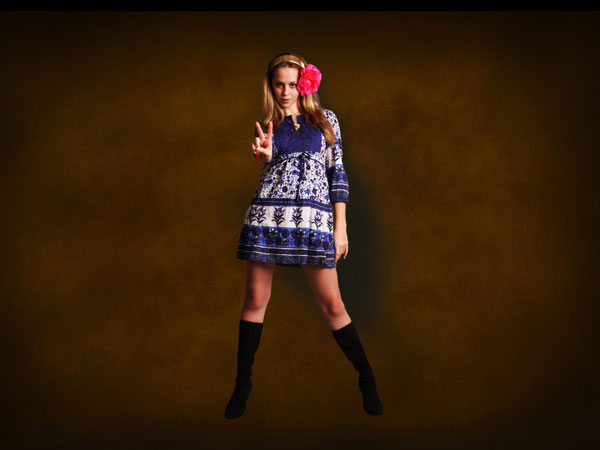
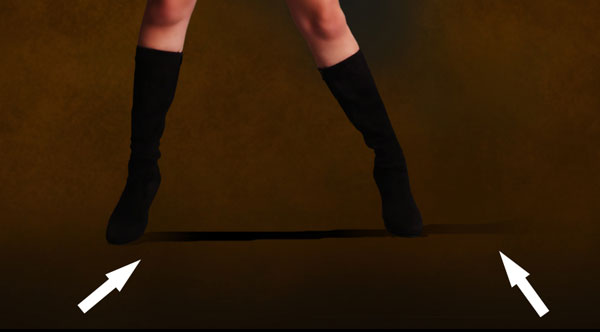
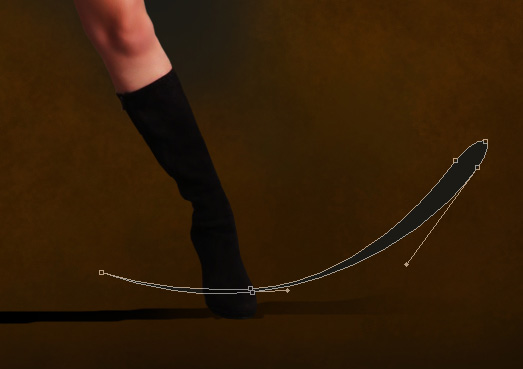
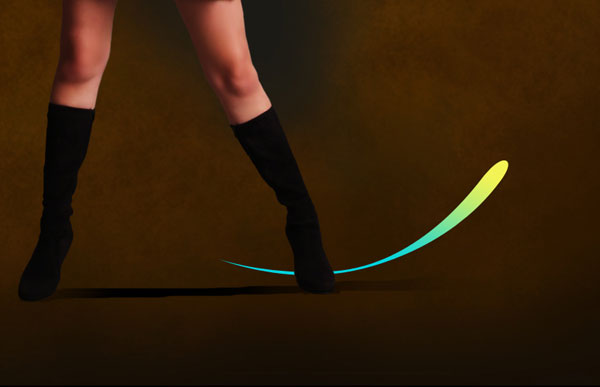
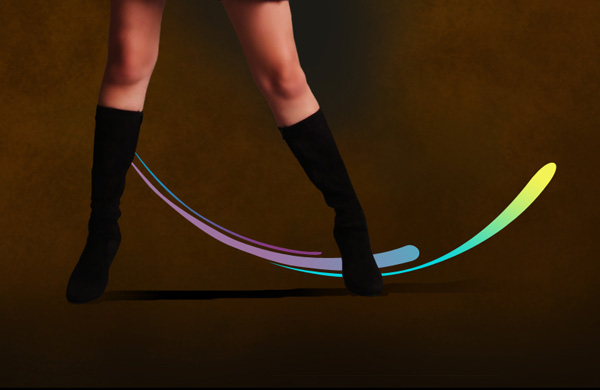
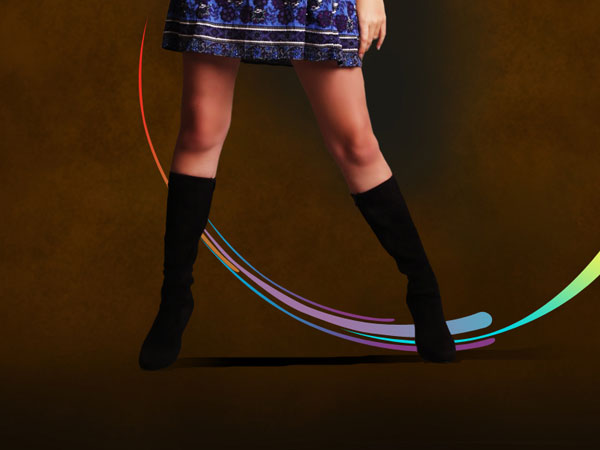
Create a new layer and select a standard brush of yellow color (Opacity 30%) to represent a train behind the girl’s boots and ornament’s luminescence, as it is demonstrated on the picture. This layer will be placed lower than the girl’s layer (on the layers’ panel).

Create magical fantasy wallpaper in Adobe Photoshop CS4

Create magical fantasy wallpaper in Adobe Photoshop CS4
Choose the Smudge Tool (R) to blur out the train’s layer to get the same result as it shown below:

Create magical fantasy wallpaper in Adobe Photoshop CS4
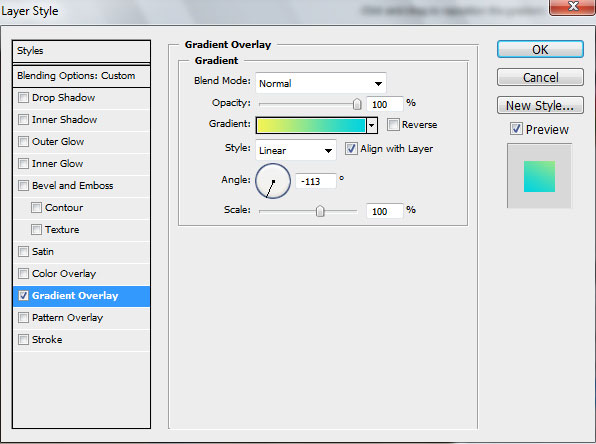
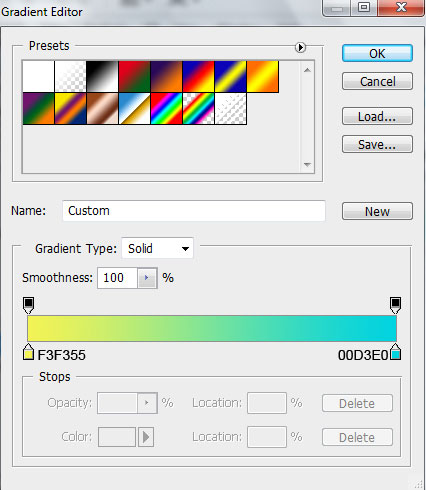
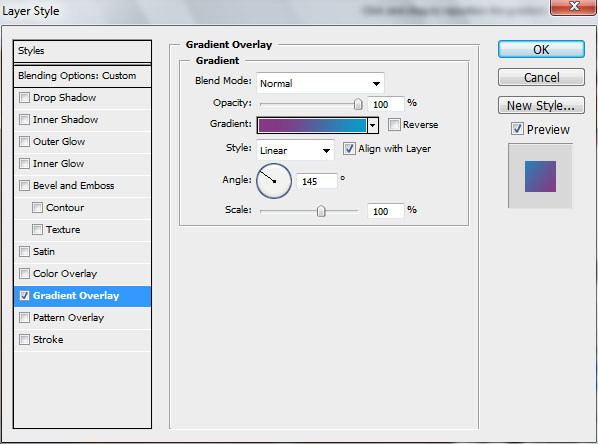
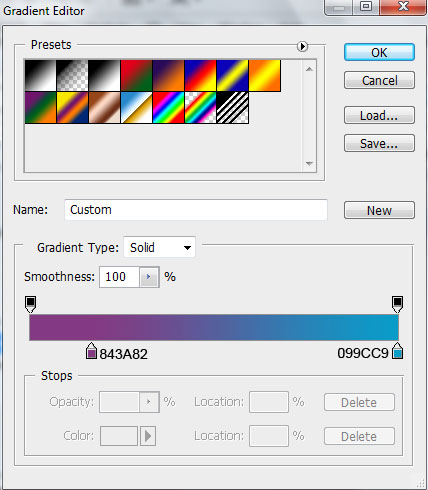
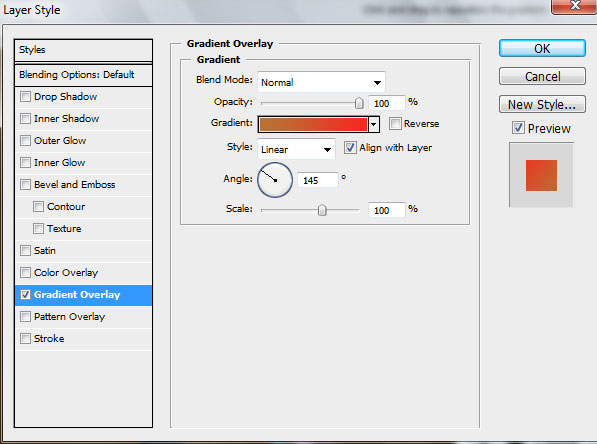
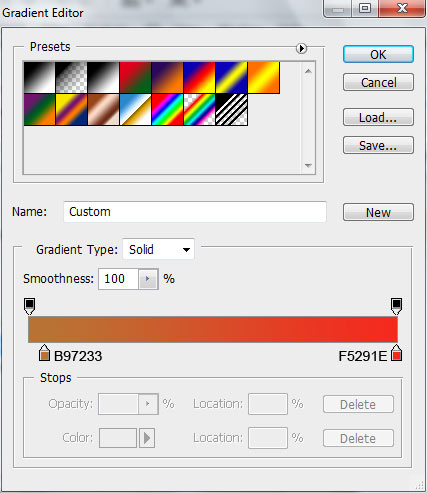
The Layer Style:
Blending mode-Hard Light

Create magical fantasy wallpaper in Adobe Photoshop CS4
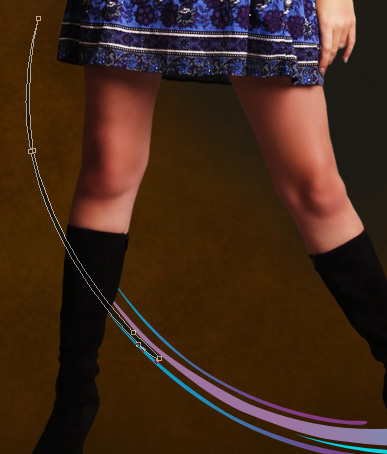
On a new layer (Create new layer) we’ll choose a standard brush of black color to represent by line along the left boot’s contour and the left skirt’s edge. Then we’ll apply the Smudge Tool (R) to blur out the black color to the left side of the picture.

Create magical fantasy wallpaper in Adobe Photoshop CS4

Create magical fantasy wallpaper in Adobe Photoshop CS4
On the last stage we’ll represent a shining ball in the girl’s hands. This time we’ll select the standard brush to represent the ball in three stages. Firstly it is recommended to use the brush on a new layer and press it multiply to represent the shining effect. The layer’s color is #B69650 (Opacity 10%)

Create magical fantasy wallpaper in Adobe Photoshop CS4

Create magical fantasy wallpaper in Adobe Photoshop CS4
On the next new layer (Create new layer) we’ll apply a standard brush of the color #CBAC60 (Opacity 20%) to represent more intensively the shining effect.

Create magical fantasy wallpaper in Adobe Photoshop CS4

Create magical fantasy wallpaper in Adobe Photoshop CS4
On the next new layer (Create new layer) we’ll choose a standard brush of white color (Opacity 20%) to represent a bright nucleus.

Create magical fantasy wallpaper in Adobe Photoshop CS4

Create magical fantasy wallpaper in Adobe Photoshop CS4
Now we’ll combine in a group all the layers composing the shining ball (press Ctrl button and mark out the necessary layers. Then hold on the left mouse’s button while moving the marked layers on Create a new group selection).

Make a copy of the last got group and choose Free Transform option make the copy smaller, placing it the same way from below.

Create magical fantasy wallpaper in Adobe Photoshop CS4
The final result!

View full size here.

  •  

  •    
  •  


Post Pages: 1 2 3 4 5

Tags: , , , , ,

  • Devi

    28/09/2009

    Great… U know, it’s a very nice presentation of study…

    kip moving.. u rock…

  • Amro

    28/09/2009

    Awesome tutorial.Good job and thanks a lot for sharing

  • ruby

    30/09/2009

    Good……… but very difficult with pan tool….

  • Elza

    08/10/2009

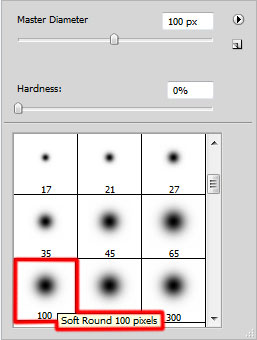
    A pattern brush (100 px, hardness 0%) in color # FF9100 and Opacity 20% in Ex PS CS4 is not even similar to what is displayed in the tutorial.
    Use Windows Ultimate, PS with 3D features enabled (updated driver) and 4 GB of Ram.
    Missing detail to achieve the same effect.

  • Mim

    08/10/2009

    OMG, I suck. I havn’t used photoshop in 4 years and now find myself scratching my head trying to find the Paint Bucket tool! omfg, where is it??

  • Adri_rory

    19/10/2009

    Very nice design ! I never used Pen Tool so much in one design, until now :)

    But I think is good for practice.

    Thank you for sharing !

  • drk

    28/10/2009

    this is making me realize how noob I am with the pen tool. it takes me so long just to get the shapes you’re making! lol.

  • stan

    05/11/2009

    Nice tut! Easy to follow and understand. I’ll do it with pleasure

  • hshwewa

    10/11/2009

    i like very much. Amazing. Unbelievable design.

  • ffelix

    30/11/2009

    i really love this thank guy for showing me the magic that i need.
    thanks, please i need more of this please send to me when u have a new design tutotial.
    thanks felix

  • ranveer

    03/01/2010

    Hey i like this website bt i like this tutorial on my mails can i subscibe this tutorials in my mail…. ??????

    my email id is itgujarat288@aol.com

  • bilawal

    22/02/2010

    ohhh i just hate pen tool…..!!
    it makes me crazy :/

  • Madhavi

    23/02/2010

    I didnt knew that photoshop could b soooo much fun…!!!! Its totally awesome software and thanx 2 u guys…..for creating such unique and amazing textures and all that stuff….!!! hats off..!! :)

  • Leo

    25/03/2010

    technicolor Fart!

  • yohanes

    25/03/2010

    pemikiran yang luar biasa. Amazing! i like it

  • silveria

    31/03/2010

    photoshp for what number is thisit’s done with CS2?

  • novartdesign

    08/04/2010

    nice tutorial, thanks a lot brader

  • Mino elgendy

    14/08/2010

    thank yo for such a gd tutorial :) )

  • creative2gether

    28/08/2010

    A color is beautiful, and an effect of light seems to be good. :)

  • Mikaela

    26/03/2011

    Hey thats pretty cool! where yoou do it?

  • Shane Shaw

    24/07/2011

    Great tutorial, thanks for sharing.

  • lavanya.B.S

    06/10/2011

    wow … really i learned so much 4m tis tutorial…:)

  • zoug

    24/01/2012

    Perfect choice of stock used (e.g., the lady) which blends well with curly/floral work done with the tedious yet effective pen tool. The background is good too.

    Those who are lazy with the pen tool work, floral vectors can be an alternative. You can work with the BG using noise and cloud filters, then gaussian blur.

  • Teddy Hang Vu

    01/02/2012

    This is so nice :) thanks!