Abstract Glowing Background

October 26th, 2009 by ART-D Posted in Adobe Photoshop, Designing

Create a new layer and apply here a brush to paint the ornament’s branches. Choose the color #F0A7D3 (Opacity 10%)

Create an abstract glowing background in Adobe Photoshop CS4
Use the same brush on a new layer (Create new layer) to represent the spots and paint the ornament with the color #A8D196

Create an abstract glowing background in Adobe Photoshop CS4

Create an abstract glowing background in Adobe Photoshop CS4
Next we’ll download a set of ready to use brushes for Adobe Photoshop named: fmask, Floral_vector_2_by_madsatsuki.

Create a new layer and apply here a brush out of the set fmask of white color.

Create an abstract glowing background in Adobe Photoshop CS4

Create an abstract glowing background in Adobe Photoshop CS4
Set the Fill to 65% for this layer and change Blend mode to Overlay.

Create an abstract glowing background in Adobe Photoshop CS4
Create a new layer and use a brush out of the same fmask set to represent several butterflies of white color.

Create an abstract glowing background in Adobe Photoshop CS4

Create an abstract glowing background in Adobe Photoshop CS4
On the next new layer we’ll apply the brushes from Floral_vector_2_by_madsatsuki set of white color.

Create an abstract glowing background in Adobe Photoshop CS4

Create an abstract glowing background in Adobe Photoshop CS4
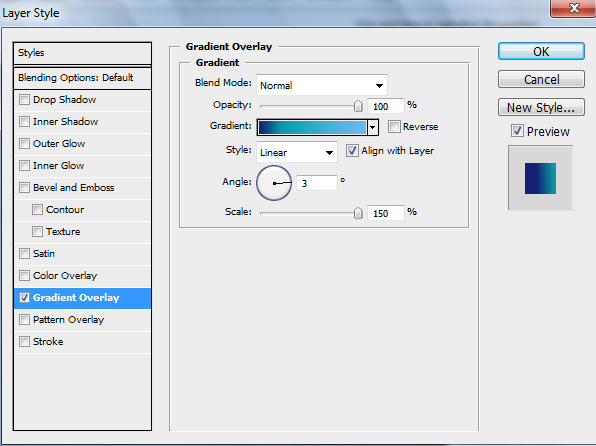
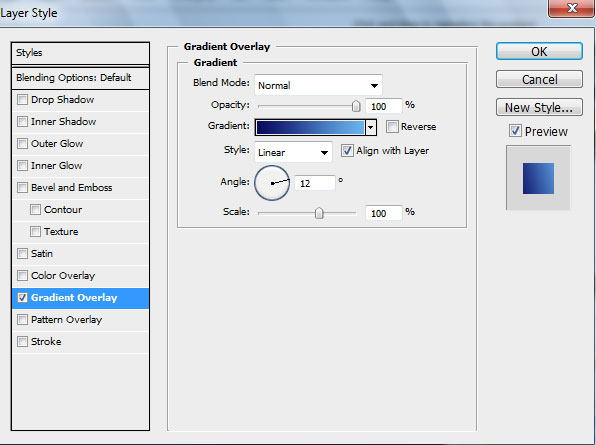
Set for this layer Blend mode to Overlay and go to Layer Style > Inner Glow by clicking on this layer in Layers panel:
Create an abstract glowing background in Adobe Photoshop CS4

Create an abstract glowing background in Adobe Photoshop CS4
Create another new layer, use here a brush to represent several spots of white color and smudge the spots with Smudge Tool (R). Then apply the brush from the smaller diameter to the bigger one on the ornament’s ends (indicated below) to represent the effect of luminescence of white color (Opacity 10%).

Create an abstract glowing background in Adobe Photoshop CS4

Create an abstract glowing background in Adobe Photoshop CS4

Create an abstract glowing background in Adobe Photoshop CS4
Set the Blend mode to Soft Light for this layer

Create an abstract glowing background in Adobe Photoshop CS4
Make a copy of the layer containing the Floral_vector_2_by_madsatsuki brushes and choose Free Transform option to turn over the copy, placing it, like on the picture below:

Create an abstract glowing background in Adobe Photoshop CS4
Create a new layer again and select for it a brush of white color to represent many dots of different diameters:

Create an abstract glowing background in Adobe Photoshop CS4

Create an abstract glowing background in Adobe Photoshop CS4
Click on the same layer on the bottom part of the layers’ panel on Add a Mask selection and choose a brush of black color (Opacity 20%) to clean out a little the white dots.

Create an abstract glowing background in Adobe Photoshop CS4

Create an abstract glowing background in Adobe Photoshop CS4
Click on the bottom part of the layers’ panel on Create new fill or adjustment layer>Curves to add some color correction.

Create an abstract glowing background in Adobe Photoshop CS4

Create an abstract glowing background in Adobe Photoshop CS4
The final result!

View full size here.

  •  

  •    
  •  


Post Pages: 1 2 3

Tags: , , , , , , ,

  • Saskia

    28/10/2009

    GREAT TUT.. Love it..Thanks
    Byeeeee

  • lola

    29/10/2009

    ummmm theres no paintbucket in photoshop…?

  • Xaby

    02/11/2009

    nice nice nice. great tutorial there!

  • ayya

    06/11/2009

    wow… i love it

  • Gift3

    10/11/2009

    Awesome!!

  • vasu

    11/11/2009

    its very good

  • Lee

    16/11/2009

    Paint Bucket is under Gradient Tab

  • jinno

    19/11/2009

    I have a question when u make ur shapes they r a little jagged but in the next step they r very smooth wat did u do to make that happen. great tut btw

  • SCHNUFFLER SMITH

    01/12/2009

    WHAT THE HELL I HATE THIS THING ITS TO COMPLICATED @$#!@?#!@#!@#!#@$!#@%!#$^%$&#%^(*$#$#@$#$#@$#$#

  • Svenn

    01/12/2009

    Very, very nice! :)

  • Sam

    04/12/2009

    That’s cool

  • hassan

    08/12/2009

    That’s cool

  • nadia

    16/12/2009

    Awesome tutorial to learn. Very easy and well defined . thanks for sharing this nice post.

  • romulo

    14/01/2010

    sensacional este tetorial, muito bom mesmo, aprendi bastante com ele, ta de parabens

  • tutorial blog

    19/01/2010

    thank for tutorial

  • sys

    20/01/2010

    thanks. but I or someone can’t show their work and it’s bed

  • sys

    20/01/2010

    bad*

  • الصفحة العربيه

    23/01/2010

    very cool! thanks

  • steven

    27/01/2010

    pretty good

  • aryan

    29/01/2010

    simple and peauty

  • Madhavi

    23/02/2010

    awesome, wonderful, amazing, beautiful, pretty, nice, unique, cool, gr8, and…..and…..i need more good words……..just totally….u noe……HATS OFF to this guy…!! and thnxx a lot….u’ve really helped for my exam…!!!! :D
    THNXX A TRILLION…!!!!!

  • ximena

    17/04/2010

    en pocas palabras basico pero me parecio genial

  • purushoth

    23/04/2010

    easy to work. thank u

  • riju

    28/04/2010

    Thanks………..for shairing dis…………Rocking

  • Kostss

    05/05/2010

    Wow! It`s a great and very nice tut.

  • Ahmed

    26/05/2010

    Thank you..

    I do it and it’s very beautiful!!

  • Adithya

    27/06/2010

    wooowww.. tats awsum..

  • Designer Renji

    17/03/2011

    Nice………Thanks………..for shairing

  • Info Plus

    02/05/2011

    Thanks for sharing. good tutorial.

  • IT Conseltant

    29/06/2011

    Thanks for Sharing Very nice Tuts… Very good …