
Design a Colorful Illustration
In this tutorial we will be learning how to design a colorful illustration. This will be created by using Ellipse Tool, Pen Tool, Brushes and Layer Masks. Let’s get started!
Start working by creating a new file (File>New) of 1920×1200 px and 72 dpi. Using the Paint Bucket Tool (G), fill the new background layer with black color.

Find a stock photo with a model represented on it, I used this photo from deviantart. I would like to thank the author of this photo:

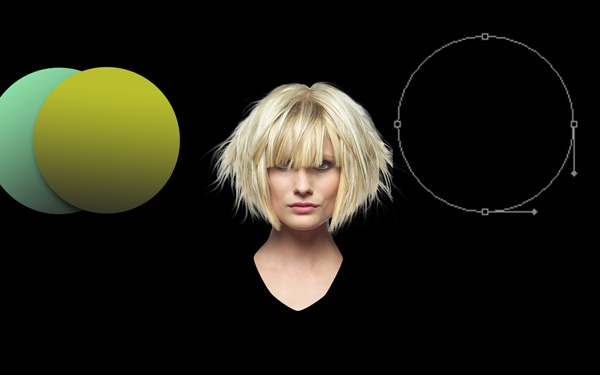
Cut out very accurately the girl’s head and her neck using your favorite tools like Pen Tool (P), Magic Wand Tool (W), Magnetic Lasso (L) or even a simple Filter>Extract. Insert them on a new layer. The head’s size may be changed with Free Transform (Ctrl+T) option.

Now apply the Ellipse Tool (U) to represent a sphere which layer must be placed lower than the girl’s layer in Layers panel.
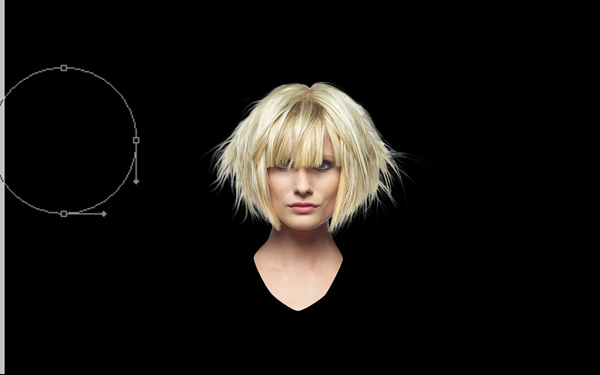
Set Fill to 0% for this layer and go to Layer Style by clicking on this layer on the Layers’ panel.
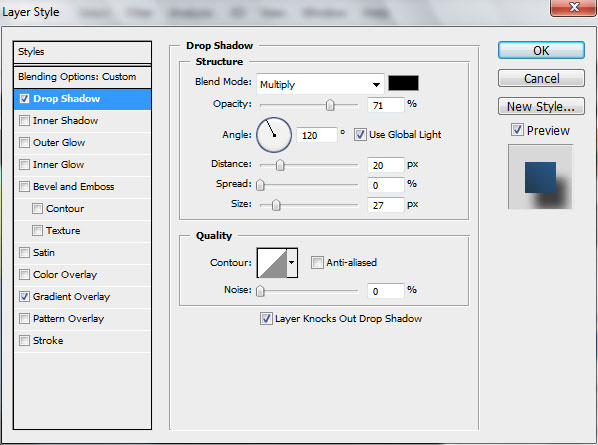
Add Drop Shadow
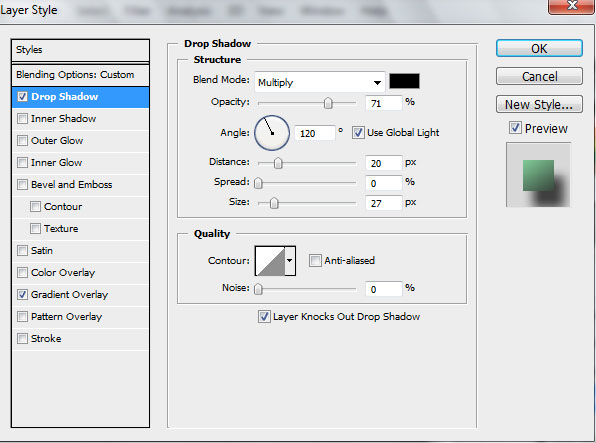
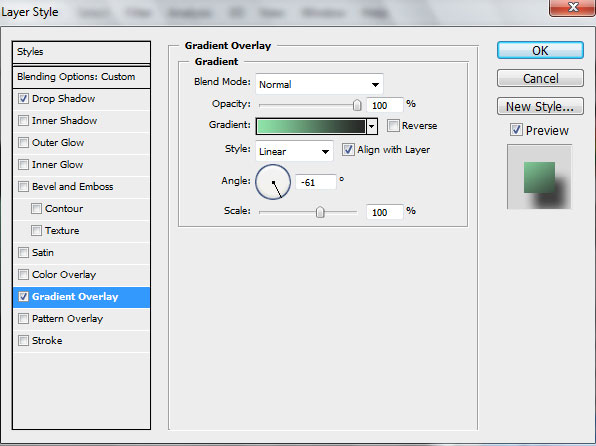
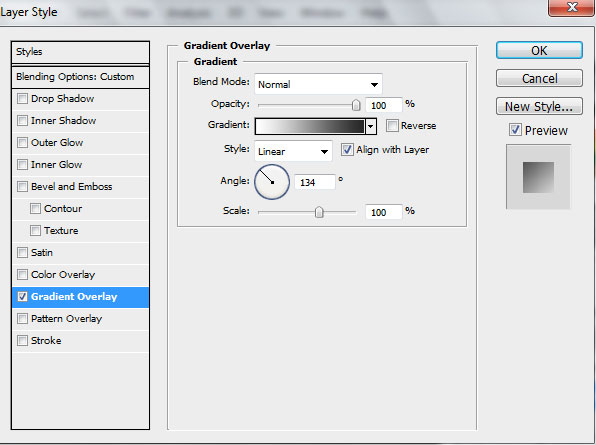
Set the Gradient Overlay

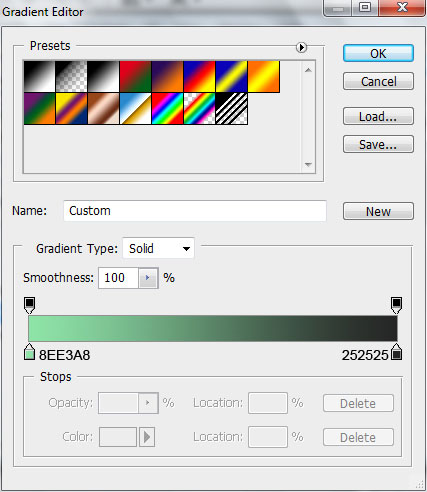
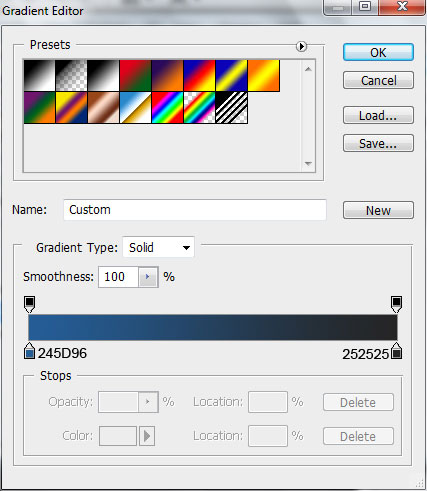
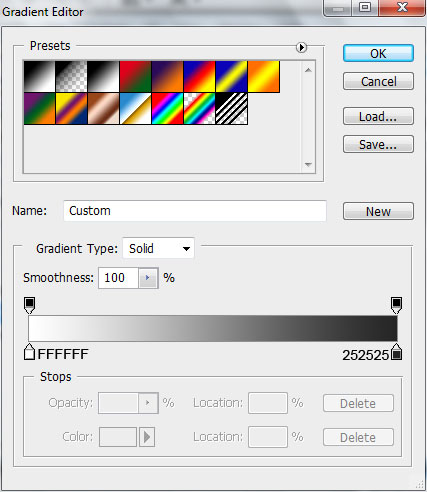
Gradient Editor settings:
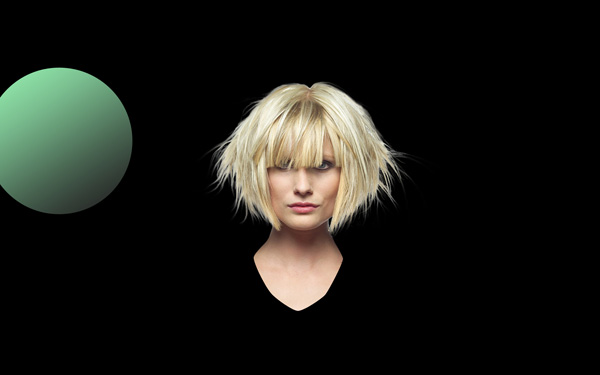
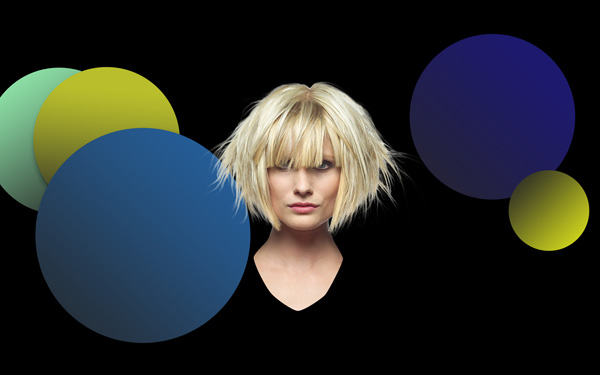
Make copies of the last created layer, changing their sizes with Free Transform (Ctrl+T). Place the copies the same way demonstrated below. This way we’ll represent a lot of ellipses of different sizes. The copies’ layers should be placed lower than the girl’s layer in Layers panel.
Change Layer Style > Gradient Overlay for first copy.
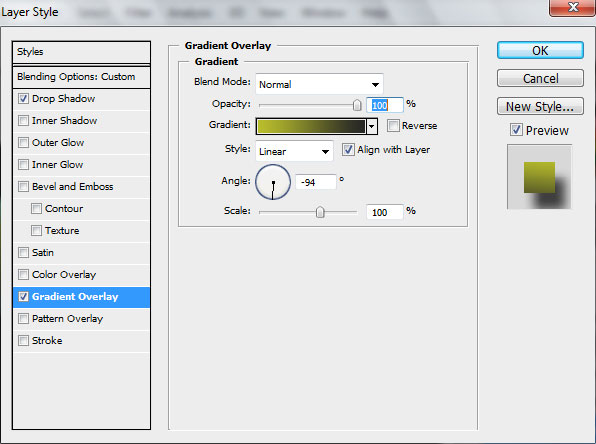
Gradient Editor settings:
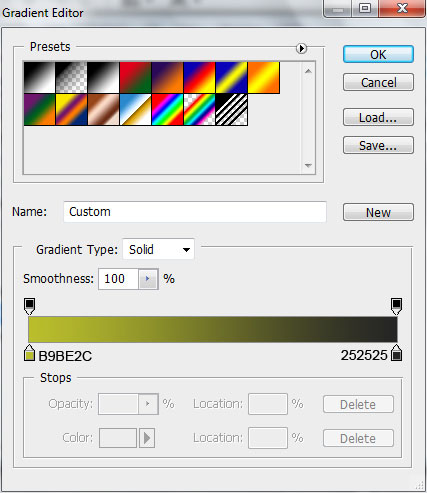
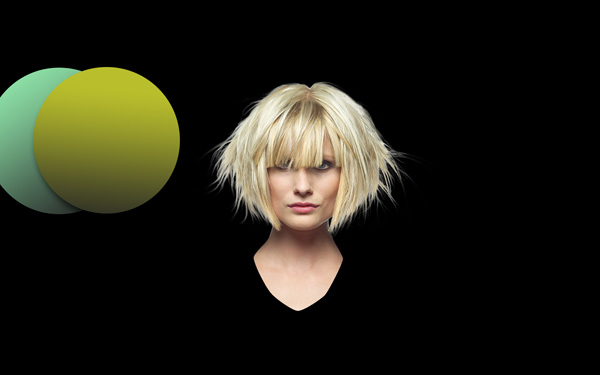
For next copy change size using Free Transform (Ctrl+T)
Set Fill to 0% for this layer and go to Layer Style by clicking on this layer on the Layers’ panel.
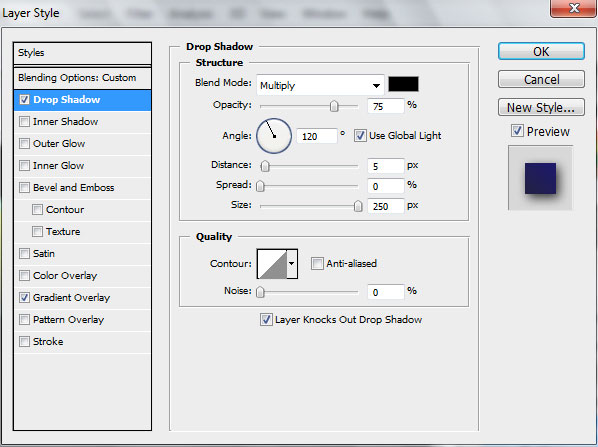
Add Drop Shadow
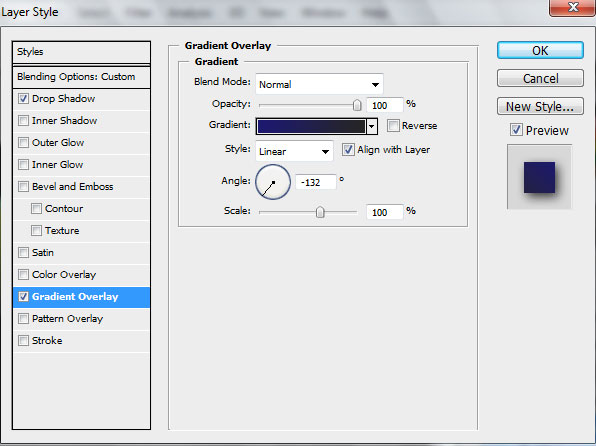
Set Gradient Overlay
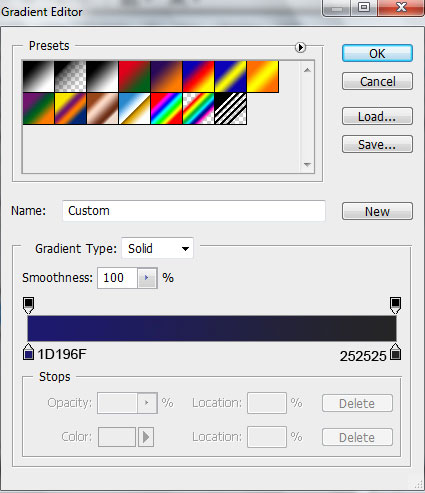
Gradient Editor settings:
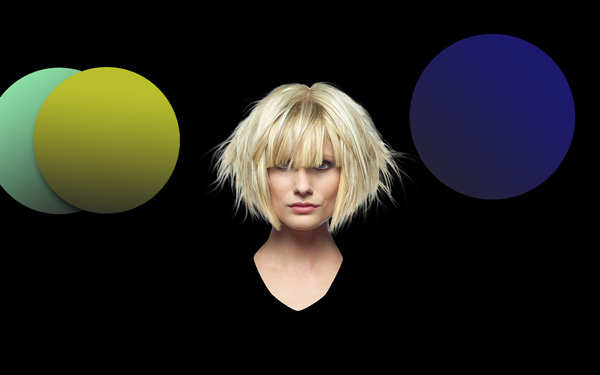
Make another copy and change the size
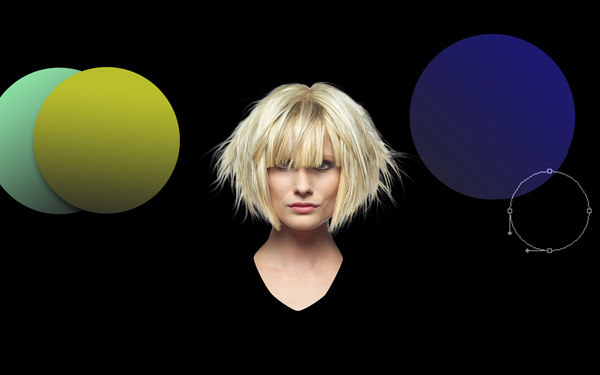
Set Fill to 0% and add a Layer Style > Gradient Overlay
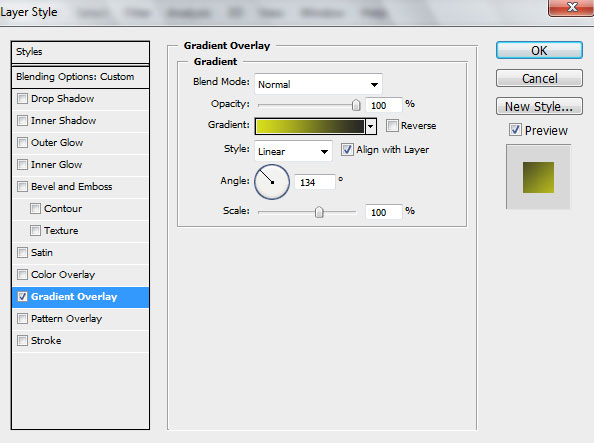
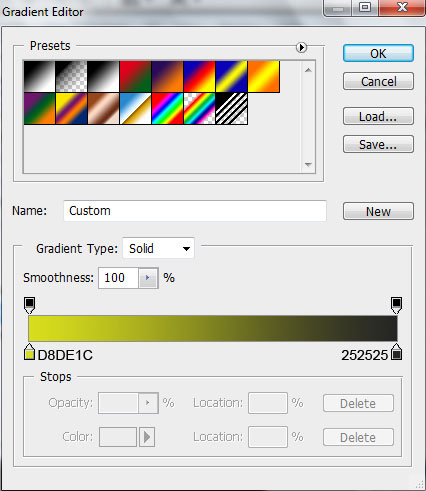
Gradient Editor settings:
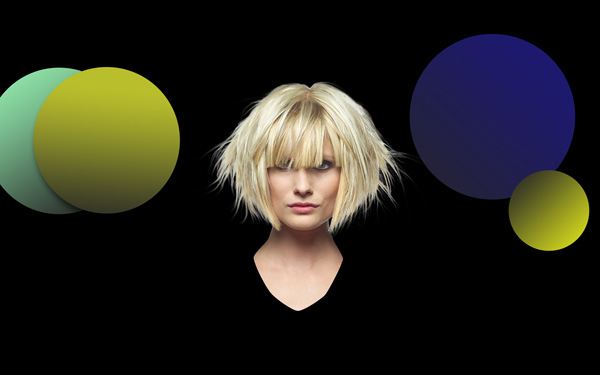
Make and place another ellipse as shown:
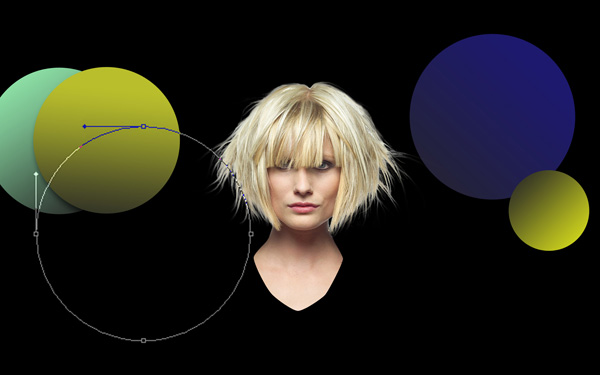
Change Fill to 0%, go to Layer Style > Drop Shadow
Add Gradient Overlay
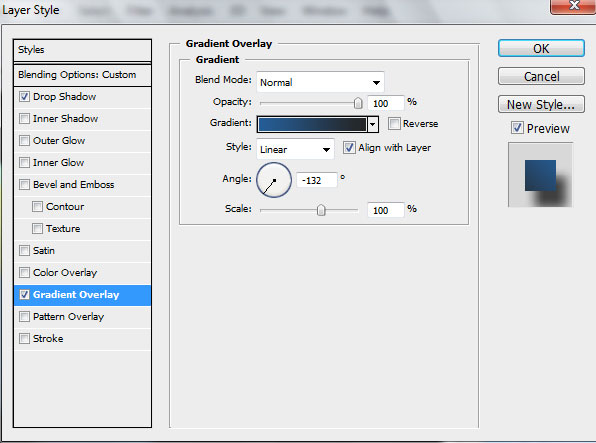
Gradient Editor settings:
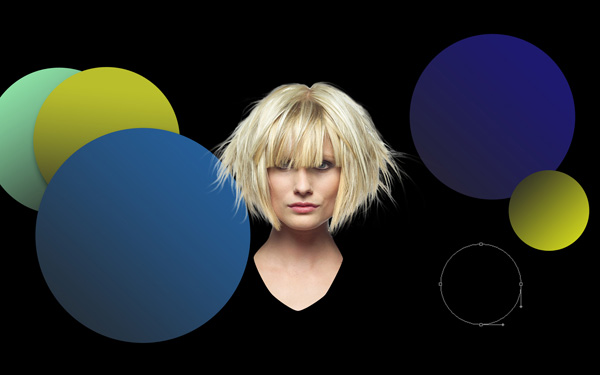
Make another ellipse
Set Fill to 0% and select from Layer Style > Gradient Overlay
Gradient Editor settings:
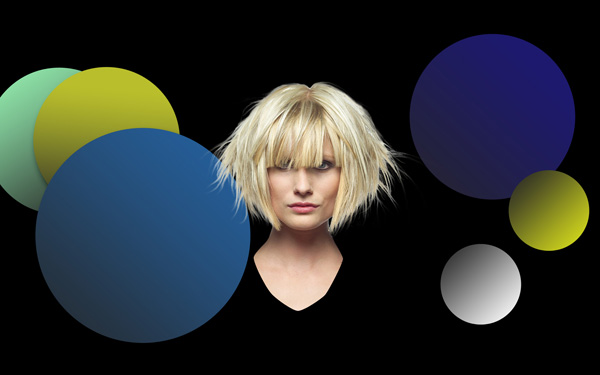
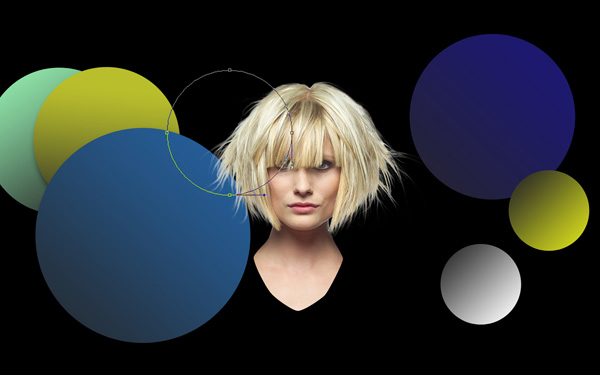
Place another ellipse as shown:
Comments