
Design Christmas card with tree balls in Photoshop
In this tutorial, we are going to design a simple Christmas card in Photoshop. I hope you enjoy this tutorial and that it inspires you to create your own postcard for Christmas!
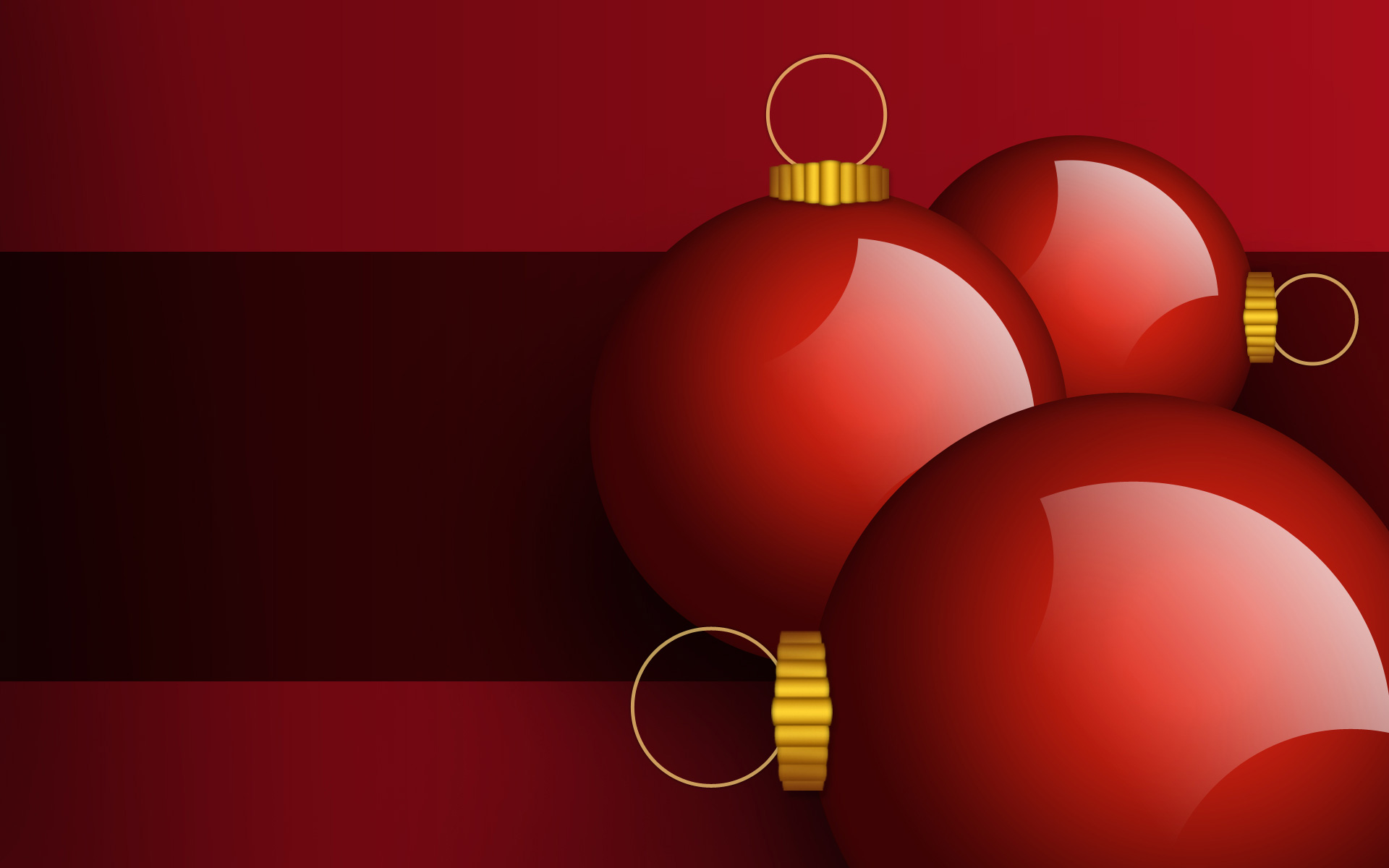
Final Image Preview

Create a new document (Ctrl+N) in Photoshop with the size 1920px by 1200px (RGB color mode) at a resolution of 72 pixels/inch. Using the Rectangle Tool (U), let’s represent a big rectangle reserved for background of the card we want to have.

For this rectangle we’ll use the Layer style > Gradient Overlay by clicking on this layer on the Layers’ panel to open the Layer Style dialog box.

Click in the color bar to open the Gradient Editor and set the color stops as shown. Click OK to close the Gradient Editor dialog box.

We’ve got the next background:

Using the same tool, applied before (Rectangle Tool (U)), create another rectangle on the central part of the canvas, like it is shown below:


Select Add a layer style icon from bottom part of the Layers panel and click to Gradient Overlay:

Click in the color bar to open the Gradient Editor and set the color stops as shown. Click OK to close the Gradient Editor dialog box.

We’ve got the next background:

Next we must represent a Christmas tree ball, using the Ellipse Tool (U).

Go to Layer Style to add Inner Shadow

Set the Inner Glow

Also set the Gradient Overlay

Click in the color bar to open the Gradient Editor and set the color stops as shown. Click OK to close the Gradient Editor dialog box.

We’ve got the next sphere:

Now we must draw the ball’s holder, use the Rectangle Tool (U) to represent the necessary element. Add anchor points on the middle part of each side by one using Add Anchor Point Tool. Shape may be corrected using Convert Point Tool.

Select Add a layer style icon from bottom part of the Layers panel and click to Inner Glow:

Add Gradient Overlay

Click in the color bar to open the Gradient Editor and set the color stops as shown. Click OK to close the Gradient Editor dialog box.

We’ve got the next holder:

Make eight copies of the last made element’s layer and select Free Transform (Ctrl+T) option to change the copies sizes, placing them as below. The copies’ layers situated from the central part to the edge should be placed under the previous one.


Next we’ll combine in a group all the layers composing the ball’s holder (press CTRL button to select the appropriate layers and then hold on the left mouse’s button while dragging the selected layers on Create a new group icon from bottom part of the Layers panel). Select the group and press CTRL+E to Merge Down all the layers. Select Add a layer style icon from bottom part of the Layers panel and click to Drop Shadow:

We’ve got the next holder:

Next we have to draw the ring of the ball’s holder, using the Ellipse Tool (U). Place the layer under the layer containing the ball’s holder.

Set Fill to 0% for this layer and go to Layer Style to add Outer Glow:

Set also the Stroke

We’ve got the next ring:

Next we’ll represent the highlight on the ball. Use the Ellipse Tool (U) to represent for the beginning the reserved zone for the highlight to be and then press Alt button to exclude with the same tool the highlight on its top and lowest part.

Set Fill to 0% for this layer. Select Add a layer style icon from bottom part of the Layers panel and click to Gradient Overlay:

Click in the color bar to open the Gradient Editor and set the color stops as shown. Click OK to close the Gradient Editor dialog box.

We’ve got the next Christmas ball:

Now we have to combine in a group all the layers composing the Christmas tree ball (press CTRL button while selecting the necessary layers and then hold on the left mouse’s button when dragging down the selected layers on Create a new group icon from bottom part of the Layers panel). The new group will be copied out two times. Select then the Free Transform (Ctrl+T) option to change the copies’ sizes. Turn over the copies the same way demonstrated on the next picture. The highlights’ layers won’t be turned over.

Create a new layer again and choose here Soft Round brush of black color (set Opacity to 15%) to draw the shadows coming out of the Christmas balls. The shadows’ layers should be placed under the layers containing the balls themselves.

The final result!
View full size here.
Comments