How to Create and decorate Christmas tree in Photoshop
November 16th, 2009 by ART-D Posted in Adobe Photoshop, Designing
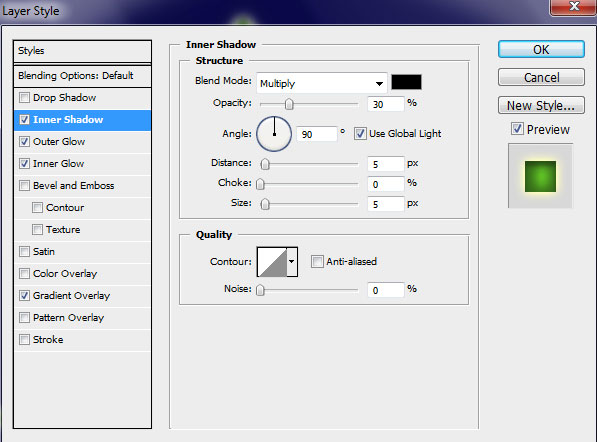
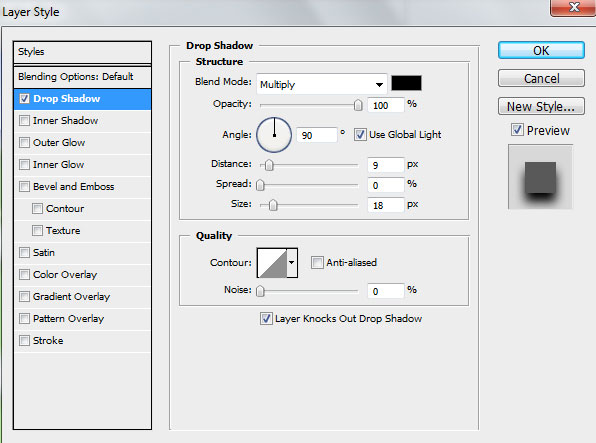
Select Add a layer style icon from bottom part of the Layers panel and click to Drop Shadow:

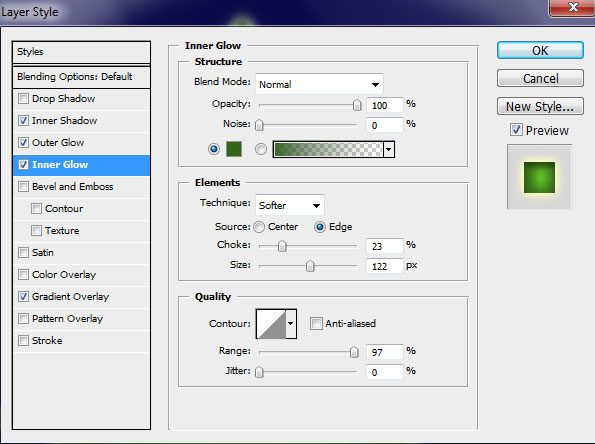
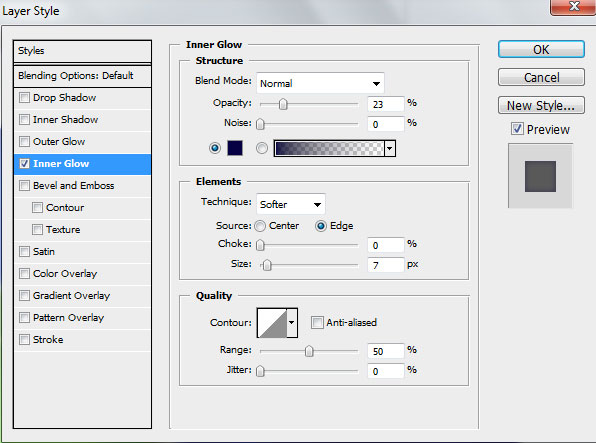
Add the Inner Glow

We’ve got the next sphere:

Now we must draw a highlight on the ball’s surface, applying the same Ellipse Tool (U).

Set the Fill to 0% for this layer and go to Layer Style > Gradient Overlay. Click in the color bar to open the Gradient Editor and select Foreground to Transparent gradient. Click OK to close the Gradient Editor dialog box.

We’ve got the next decoration for our fir tree:

Next we’ll combine in a group all the layers composing the ball (press CTRL button to select the corresponding layers and then hold on the left mouse’s button while dragging the selected layers on Create new group icon from bottom part of the Layers panel). Make several copies of the recently got group, changing the colors of the copies’ layers (the basic color of the ball). Finally apply the Free Transform (Ctrl+T) to place the copies exactly the way represented below:

Next we’ll represent a small star, using the Custom Shape Tool (U), the color is #F5CE28


Using the Convert Point Tool, select the anchor points of the star. Then apply the Free Transform (Ctrl+T) click on Maintain Aspect Ratio and drag the anchor points to the central part of the star to change the shape form.

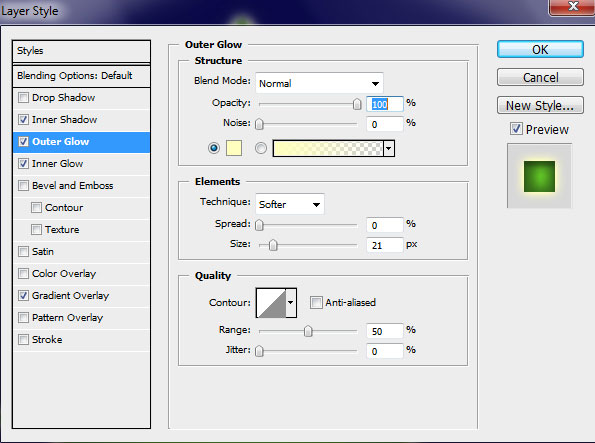
Select Add a layer style icon from bottom part of the Layers panel and click to Outer Glow:

We’ve got the next star:

Select now the Pen Tool (P) to draw next shape on the star.

Set Fill to 0% for this layer and go to Layer Style > Inner Shadow

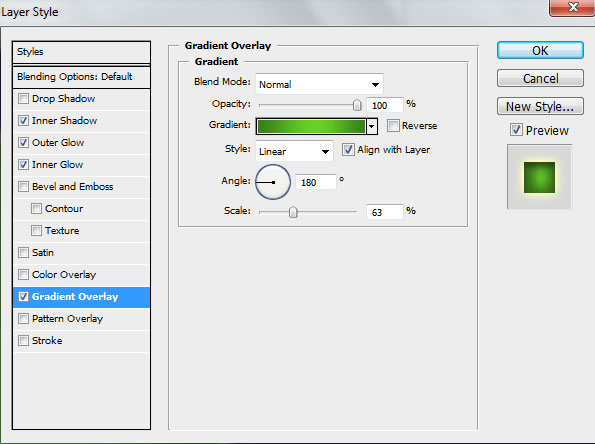
Set also the Gradient Overlay

Click in the color bar to open the Gradient Editor and set the color stops as shown. Click OK to close the Gradient Editor dialog box.
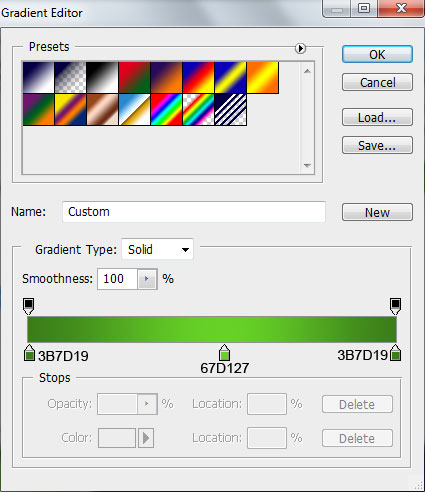
We’ve got the next effect on the star:

Make four copies of the last made layer and choose the Free Transform (Ctrl+T) to place the copies the way it is shown on the next picture.

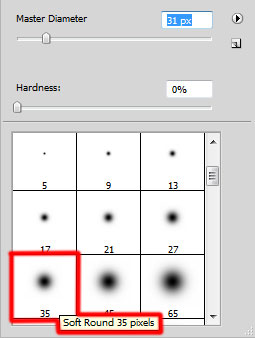
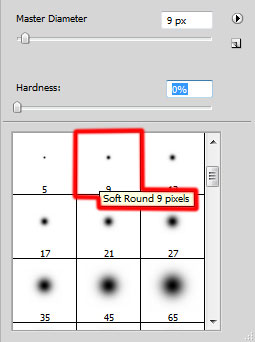
Create a new layer which will be processed with the Soft Round brush of white color.

Draw several highlights on the star.

Press Alt button and click simultaneously between the highlights’ layers and the very first layer of the star (on the Layers’ panel) to apply highlights just for the star.


Next we’ll combine in a group all the layers composing the star (press CTRL button to select the appropriate layers and hold on the left mouse’s button when dragging the selected layers on Create new group icon from bottom part of the Layers panel). Make ten copies of the last made group and select after that the Free Transform (Ctrl+T) to change the copies’ sizes, placing them as below:

Make a copy of one group, on your choice, containing the stars and choose the Free Transform (Ctrl+T) to enlarge the star and place it on the top of the Christmas tree.

Next we have to draw the shining rays coming out of the star on the tree’s top, using the Pen Tool (P).

Set the layer Opacity to 80%. Select Add a layer style icon from bottom part of the Layers panel and click to Outer Glow:
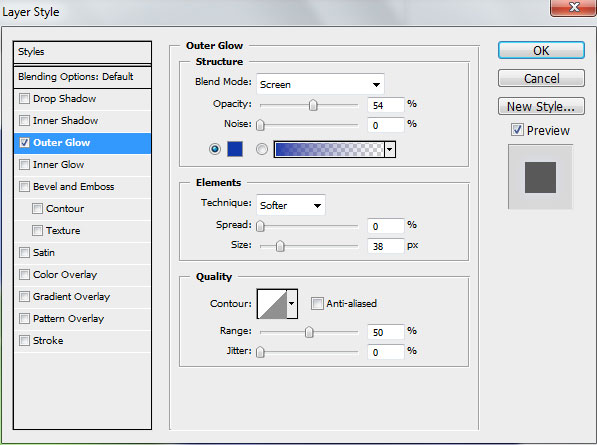
Set the Inner Glow

We’ve got the next effect:

Create a new layer and use on it Soft Round brush of white color to represent this time the luminescence lower than the layer containing the star on the top.


Using the same brush on a new layer we can create a kind of luminescence above the star’s layer.

Set the layer Blending mode to Soft Light on Layers panel.

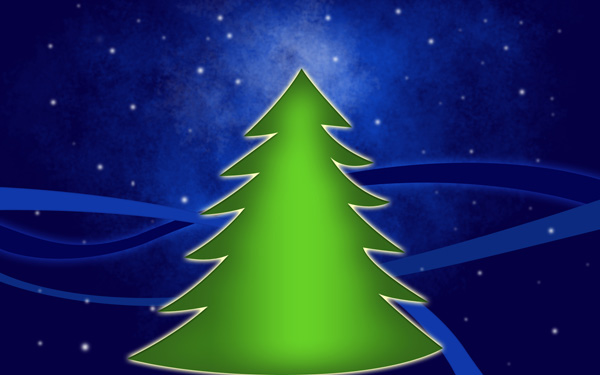
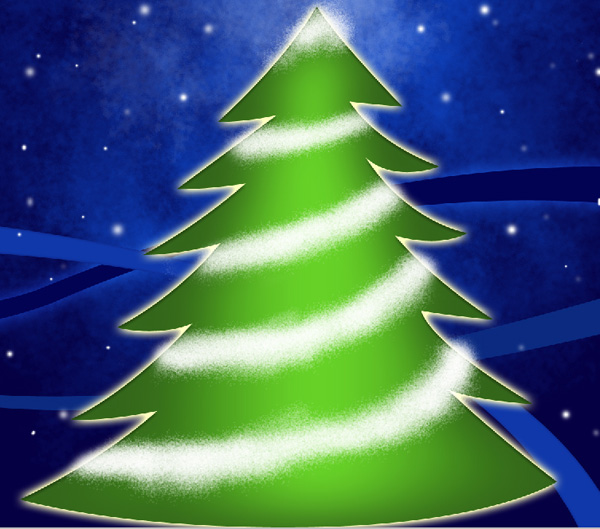
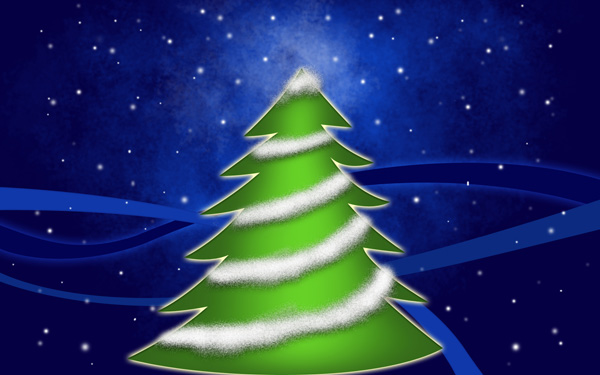
The final result!
View full size here.
Post Pages: 1 2
Tags: background, ball, brushes, card, christmas, Christmas-baubles, cs4, December, design, new-year, Photoshop, snow, snowflake, tree, wallpaper, winter, xmas


Heather
17/11/2009
Great. I learned more about gradients from this tutorial. Thanks
Rj Phipps
18/11/2009
I really enjoyed the tutorial BUT I was completely lost in the doing the star. I could not figure out how to “Using the Convert Point Tool, select the anchor points of the star. Then apply the Free Transform (Ctrl+T) click on Maintain Aspect Ratio and drag the anchor points to the central part of the star to change the shape form.” I tried and tried but it never was easy as this step seems to portray. any direction?
thanks
jimmy
18/11/2009
that is … crazy dude you must have a lot of spare time but is really cool though
tejpal
22/11/2009
hi, this is very fine i learn more in photoshop
XD
23/11/2009
Look 88%
http://img52.imageshack.us/img52/5707/10973811.jpg
Original= 1600 x 1200
Thanks
Nice!
29/11/2009
I really enjoyed this tutorial.
I took me a few hourd but it was well worth it!
I’m using this as my wallpaper now =)
tracy reed
01/12/2009
this is so hard to do mann lol!!!
I GIVE UPP……….. HEHEHEHEHHEHEHEHEHHEHEHHE
JULIE
01/12/2009
I LOVE VINA LOL HEHEHEHEHEHEHEHEHEHHEHEE!
beverlea
01/12/2009
hay these all look nice but i perfure the way we do our one lol.lololooloololpolo
beverlea
01/12/2009
hay all you peoples out there we so should have these as our walpaper because its well werth it lolz
Michael Garmahis
10/12/2009
This tutorial is featured on Top 50 Christmas Photoshop Tutorials
Michelle
12/12/2009
totally amazing tutorial, I will add it to Kaplang
Prince Zul
23/12/2009
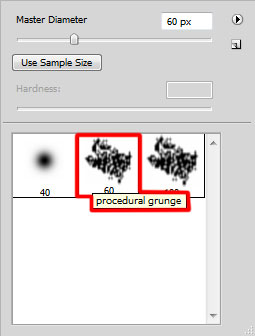
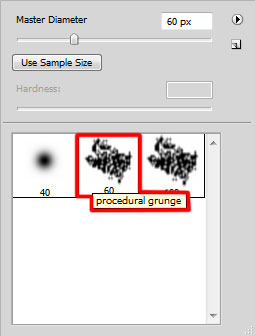
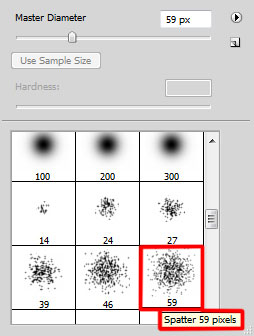
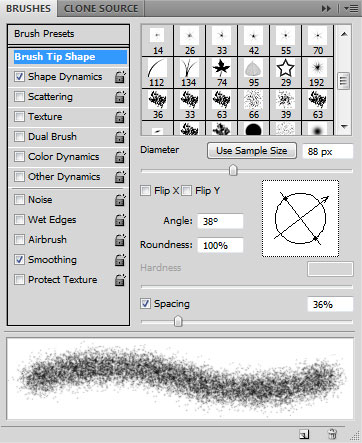
great Stuff but I got stuck when I had to download the brush I couldn’t find it anywhere. Then when i designed the shape it remained on top of the tree and not behind it. Maybe I got mixed up with the layers Please I welcome any support.
Thanks again for a great stuff
Anonymous
27/12/2009
uuhhmmm, I don’t understand, how can you draw such a good drawing just only using Pen Tool, I really don’t get it….
Adnan Shahzad
22/03/2010
wowowowowo
its amazing design i love it
thanks for the tutorial…
MarkSpizer
03/05/2010
great post as usual!
DH
27/11/2010
I couldnt download the brushes on the link which is given?
Any idea how to make it?
Thanks
admin
08/12/2010
@DH,
link to download working fine …
rakesh pal
03/04/2011
hi this is a very easy way learn to photo shop thank full to u hi u are a wall guy and all time help every body when learning photo shop but please how to make easay step in photo shop
kingsley godwin gbemu
03/11/2011
so beautiful,much to learn.thanks
MMS
22/12/2011
This tutorial is very useful in Christmas.
Thank a lot.
Vedat Osman Korkut
21/01/2012
This tutorial is very useful in Christmas.
greats
lilygracia
08/05/2012
amazing tutor.
Claire
16/11/2012
I’m completely lost after the first bit. When I create the tree shape (and yes I ‘close off’ the shape by selecting the first point as the location for the last) it doesn’t turn white – it stays blue. Then when I apply the styles it does it to the whole page – so the edges change but the tree just stays blue. What am I doing wrong?
Odessit
06/12/2012
Well, that’s because you should have chosen “Shape” rather than “Path” in the Pen tool option. A path can’t do anything by itself unless you turn it into a selection filling it with a color of your choice later on or apply a stroke to it. You should read some tutorials on this vital photoshop tool. This is not an in-depth step by step tutorial for absolute beginners but it does provide great advice for those with basic skills like me and I thank author heartfully for time and effort in creating it.