
How to Create a Silver Text Effect with Photoshop
In this tutorial, you’ll learn how to create a New Year 2010 silver text effect completely from scratch using several Photoshop tools, different Blending modes, and more. Let’s get started!
Final Image Preview

Create a new document (Ctrl+N) in Adobe Photoshop with the size 1920px by 1200px (RGB color mode) at a resolution of 72 pixels/inch, Background Contents – Black.

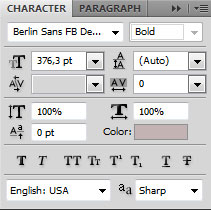
Click the Horizontal Type tool (T). Select a font, size and color in the Character panel.
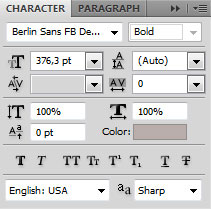
Click in the image and type some text. Press Enter to apply the text.

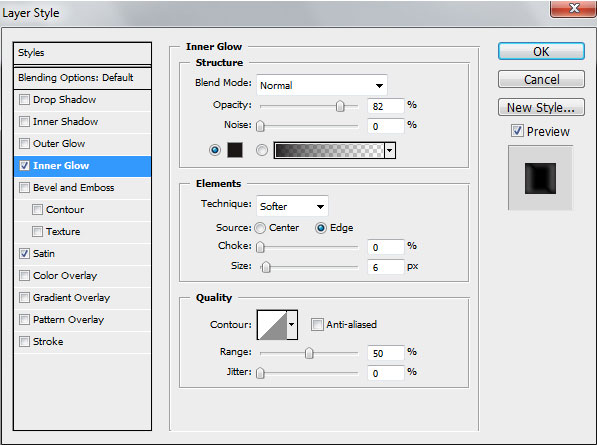
Select Add a layer style icon from bottom part of the Layers panel and click to InnerGlow:
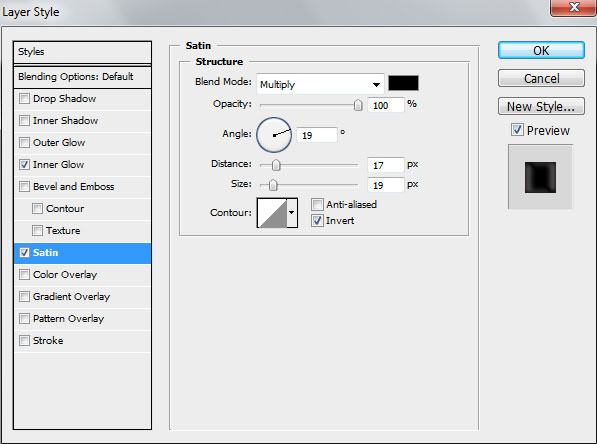
Also set Satin

We’ve got the next effect:

Make a copy of the recently made layer and select the Free Transform (Ctrl+T) to move the copy upper. We should also change the text color to white and remove the Layer Style:

Make a copy of the last made layer and move again the copy the same way demonstrated below, applying Free Transform (Ctrl+T). Its color is #C3B3B5
We’ve got the next layers:

Go to Layer Style by clicking on the layer we work on the Layers’ panel to add Drop Shadow:
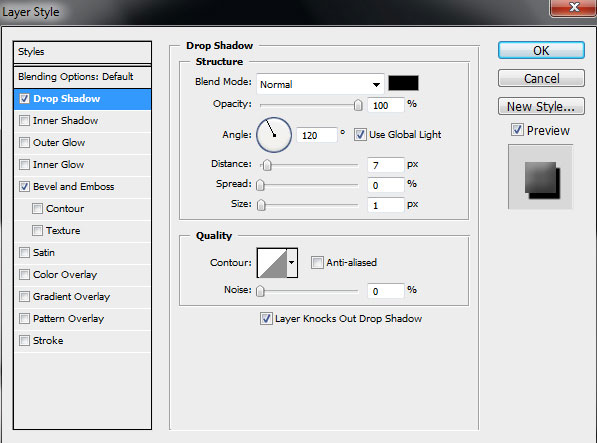
Add Bevel and Emboss
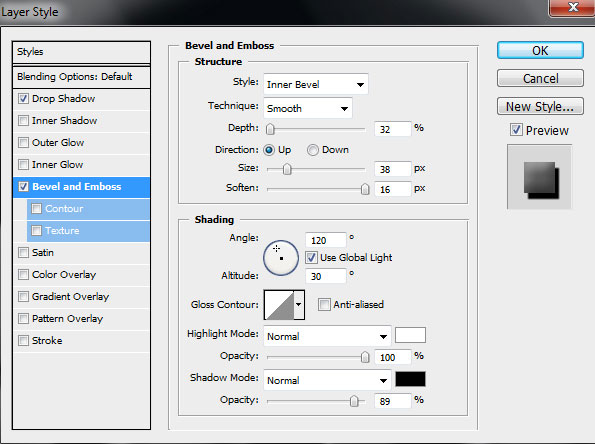
We’ve got the next effect:


Create a new layer and select here a Soft Round brush of white color from Brush Tool (B) to represent the snow.
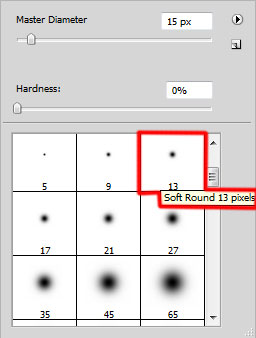
This layer will be situated lower than the layers containing the year text.

On the next new layer (Create new layer) we’ll paint with Soft Round brush as show. The brush color is #26201E and Opacity – 15%.
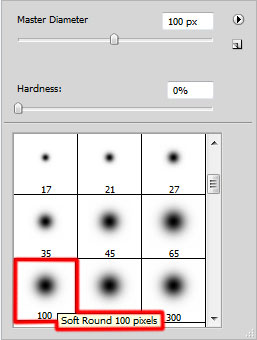
The layer will be situated also lower than the layers containing the year text.

Page: 1 2
Comments