
How to Create a Christmas card in Photoshop
November 22nd, 2009 by ART-D Posted in Adobe Photoshop, Designing
In this tutorial, you’ll learn how a Christmas card can be designed with Photoshop. You will learn, how to create Christmas ball, draw snowflakes, customize brushes etc. Let’s get started!
Final Image Preview

Create a new document (Ctrl+N) in Photoshop with the size 1920px by 1200px (RGB color mode) at a resolution of 72 pixels/inch. Using the Rectangle Tool (U), let’s represent a big rectangle reserved for background of the card we want to have.
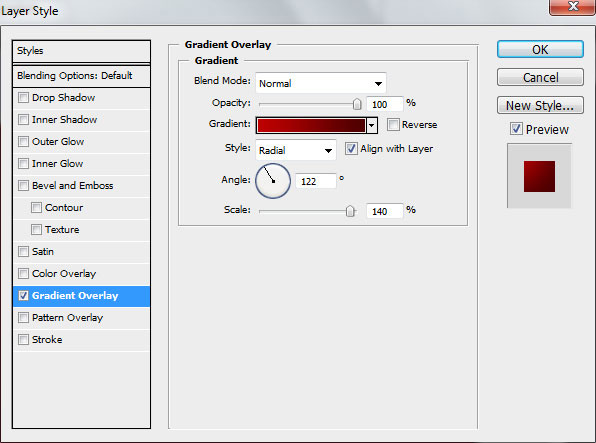
For this rectangle we’ll use the Layer style > Gradient Overlay by clicking on this layer on the Layers’ panel to open the Layer Style dialog box.
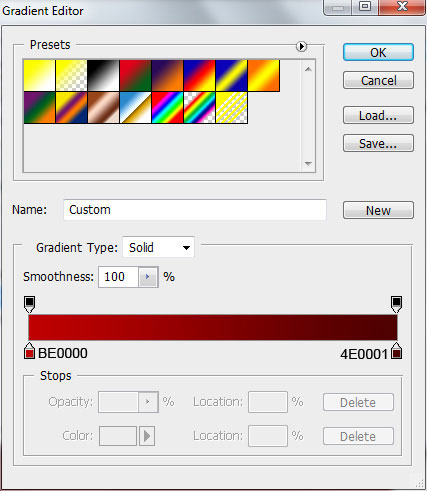
Click in the color bar to open the Gradient Editor and set the color stops as shown. Click OK to close the Gradient Editor dialog box.
We’ve got the next background:

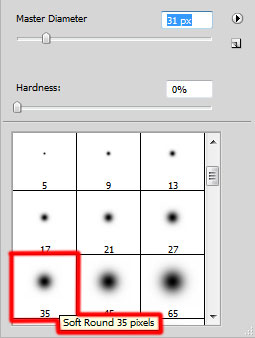
Create new layer and select Soft Round brush from Brush Tool (B).

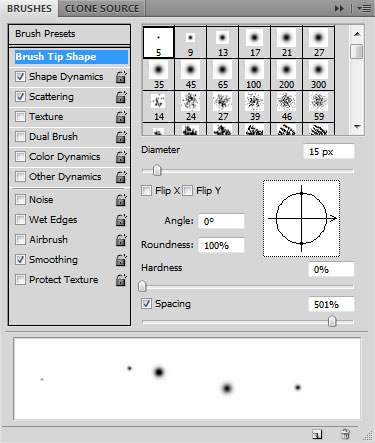
We need to customize our brush in Brushes panel (F5), select the Brush Tip Shape. Click and drag any of the sliders to change the Size, the Hardness and brush Spacing as show. The Preview window displays the changed brushstroke.
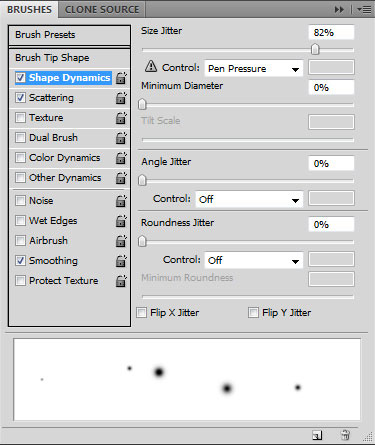
Go to Shape Dynamics:
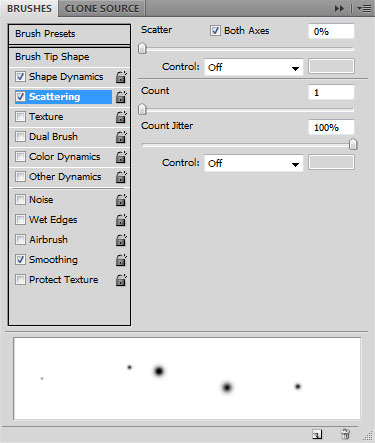
Also set the Scattering settings:
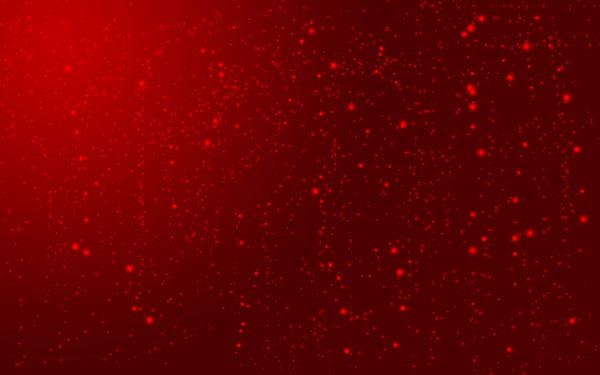
Change the Foreground color to #CE0000 and using our brush represent the snowflakes:

On the next new layer we’ll apply the earlier brush, but of bigger diameter and the same color to represent the background of the picture to be.
On the central part of the document we’ll insert the year 2010 using Horizontal Type tool (T). Select a font, size and color in the Character panel.
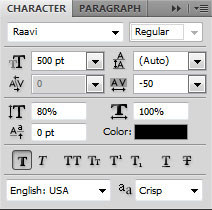
Click in the image and type the year. Press Enter to apply the text.

Set Fill to 40% for this layer and select Add a layer style icon from bottom part of the Layers panel and click to Outer Glow:
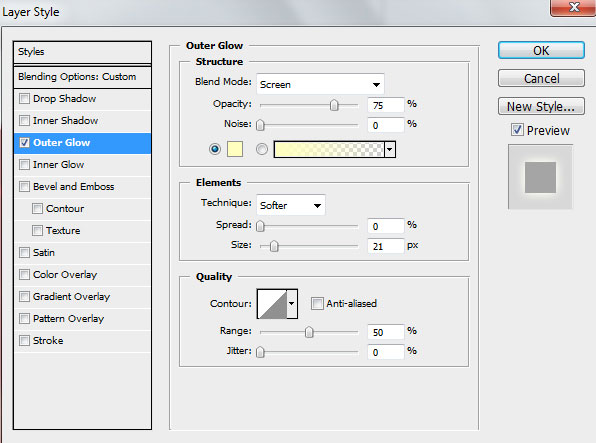
We’ve got the next effect:

Next step we’ll download a set of brushes for in Adobe Photoshop, named: Floral ornaments . Create a new layer and go to Brush Tool (B), select the next brushes from downloaded set.
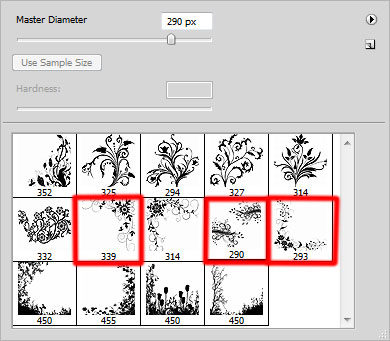
Change the Foreground color to white and using brushes represent the next ornaments:

Create a new layer and select Soft Round brush used before and white color to use it on the picture’s edges:

Set the Fill to 60% for this layer.

Create a new layer, using here the same brush of white color to apply it again around the picture:

Choose now the Ellipse Tool (U) to draw a Christmas tree ball:

Post Pages: 1 2
Tags: background, ball, brushes, card, christmas, Christmas-baubles, cs4, December, design, new-year, Photoshop, snow, snowflake, text-effect, winter, xmas


ashwin
29/11/2009
nice tutorial
igner
02/12/2009
nice tutor
adrian
02/12/2009
Hello, for the guy who explained the Christmas card making : I am sorry but you don’t have any idea about how to explain to someone how to work on a task in Photoshop. Your explanation is awful ! It’s imposible to make this card, by your explanation. I tried with Photoshop 7.
Please be so kind use your ideas in a better way for others.
Thanks.
Adrian
Chris
05/12/2009
How do you download the brush?
graeme
06/12/2009
tbh the post above is crap. its easy to follow and if you have any basic knowledge of PS, the steps are easy to follow.
good tut.
Sumit
07/12/2009
This tutorial is nice….I like it. It is not too easy but can be worked on provided some concentration is there…the above comment by Adrian is so much not true.
Best,
sumit
tutorial blog
08/12/2009
thank for post
cojogo
09/12/2009
Not bad thanks..
And to Adrian read, have patients and practice.
all good things crash with bad operators
Dom
09/12/2009
I was thinking of buying a few cards on Zazzle but I definitely will use your tutorial to create my own cards! You did a great job and many thanks for the help.
Have a merry christmas!
Michael Garmahis
10/12/2009
This tutorial is featured on Top 50 Christmas Photoshop Tutorials
Chris
14/12/2009
please can someone tell me howto download the brushes
shravni
14/01/2010
nice tutorial
Saiful Alam
14/01/2010
It’s helpful for graphic students. Good !!
SRINATH
23/01/2010
nice tutorial and how to download brush
and how to create a greeting card to girlfriend
Sejal
15/02/2010
pls will anyone tell that do we need to but the brushes or just download them!…pls help me!
Sejal
15/02/2010
buy*
khaing nyein thu
17/03/2010
Nice tutorial………
XyphQ
23/11/2010
really thanks a lot!!
Thunderous71
07/12/2010
Done my own video on how to do this too inspired by this excellent tutorial
http://www.crashtutorials.com/?p=4
MervynDG
11/12/2010
But where can I get blank card stock that has one quarter glossed for the image on the front outside of the folded sheet only (and threequarters matte)? And is there a printer that will take a commercial weight of card [assuming a) I can get some and b) there is a printer to handle it. Oh and finally, what is the ‘normal’ weight for commercial cards?
nt23
15/12/2010
Brushes only for mac?
John
17/12/2010
After duplicating the Christmas ball, you can change the angle of the ring to match the angle of the ball.
joyrjw
19/12/2010
Thank you very much for this tutorial.
It’s very
@Sejal,
there should be a tiny blue link in the sentence that you can right click on to open another window so that you can download the brushes.
shameer
21/10/2011
how to download more Brush?
zlorenz
06/12/2011
I can’t download the brush. I control click on it to save it as…Also do download it in another window but all I get is gibberish text. How do I download the brushes onto my mac?
Katcv
13/12/2011
Actually, Adrian, every aspect of what you need to do is explained, you are probably just poor at Photoshop. Sorry you cannot understand it.
Shell
15/12/2011
I’m not able to download the brush set. Is there any other way.
TR
19/12/2011
I am having trouble with getting the “radial” design to start from the top left corner. How is anyone getting this done? I am following the directions word for word but my radial design is in the center.
emily
21/12/2011
Took me a while to understand but I got there in the end!! Thanks for this brilliant tutorial!
Tarique
23/12/2011
hey, for all those who want to download the brushes…. read the tutorial n u will find BRUSH highlighted in blue. just click on it and u will get to download the brush used in this tutorial. to download more brushes just type on google which type of brush you want like fire brushes, smoke brushes, bubble brushes for photoshop and u wil get it.
help
29/12/2011
Hi, how to make that ball with radial gradient overlay. i have tried all ways and nothing…
Socorra
07/12/2012
I thought it was awesome….You did a great tutorial.