How to Create a Colorful Photo Manipulation in Photoshop

December 14th, 2009 by ART-D Posted in Adobe Photoshop, Designing, Photo Editing

Make a copy of this layer, placing it as below:

How to Create a Colorful Photo Manipulation in Photoshop CS4
Then take the Ellipse Tool (U) and represent a circle:

How to Create a Colorful Photo Manipulation in Photoshop CS4
Select Add a layer style from bottom part of the Layers panel and click to Drop Shadow:

How to Create a Colorful Photo Manipulation in Photoshop CS4
Set also the Gradient Overlay

How to Create a Colorful Photo Manipulation in Photoshop CS4
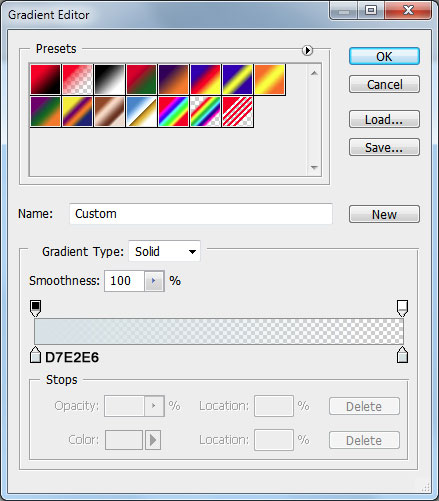
Click in the color bar to open the Gradient Editor and set the color stops as shown. Click OK to close the Gradient Editor dialog box.
How to Create a Colorful Photo Manipulation in Photoshop CS4
We’ve got a voluminous circle:

How to Create a Colorful Photo Manipulation in Photoshop CS4
Make another one:

How to Create a Colorful Photo Manipulation in Photoshop CS4
… applying the next Layer Style > Drop Shadow for it:

How to Create a Colorful Photo Manipulation in Photoshop CS4
Set the Gradient Overlay

How to Create a Colorful Photo Manipulation in Photoshop CS4
Click in the color bar to open the Gradient Editor and set the color stops as shown. Click OK to close the Gradient Editor dialog box.

How to Create a Colorful Photo Manipulation in Photoshop CS4
Click on Stroke options

How to Create a Colorful Photo Manipulation in Photoshop CS4
We’ve got the next circle:

How to Create a Colorful Photo Manipulation in Photoshop CS4
Let’s represent the circles of different sizes and placement. The color’s is #F3E6B2. We need to change in some cases the Fill to 50%.

How to Create a Colorful Photo Manipulation in Photoshop CS4
Let’s represent one more rectangle, as it is shown below:

How to Create a Colorful Photo Manipulation in Photoshop CS4
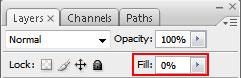
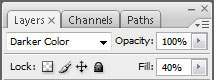
Set Fill to 0% on the layer:

How to Create a Colorful Photo Manipulation in Photoshop CS4
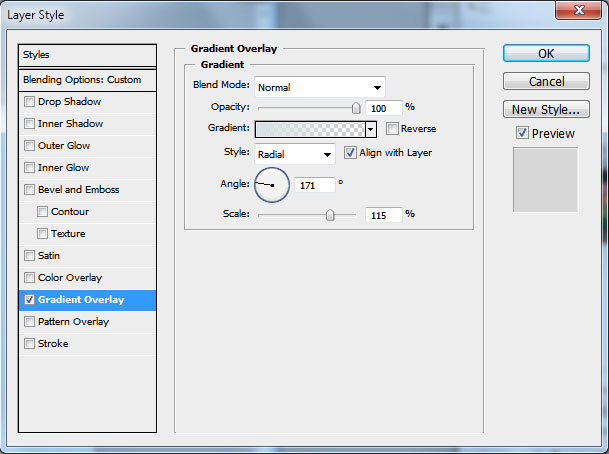
Select Add a layer style from bottom part of the Layers panel and click on Gradient Overlay. Set Foreground color to white and select from Gradient Editor the Foreground to Transparent gradient.

How to Create a Colorful Photo Manipulation in Photoshop CS4
We’ve got the next line. Create a new layer, select both with the line’s layer, pressing Ctrl+left mouse click. Then Merge Down pressing Ctrl+E.

How to Create a Colorful Photo Manipulation in Photoshop CS4
The new layer should be turned over using Free Transform (Ctrl+T), as it is indicated below:

How to Create a Colorful Photo Manipulation in Photoshop CS4
Make a copy of it and place it the same way shown below, moving it with the Move Tool (V).

How to Create a Colorful Photo Manipulation in Photoshop CS4
Put together the layers by Merge Down (Ctrl+E) and make a copy of it. The copy should be made smaller and placed the same way demonstrated below:

How to Create a Colorful Photo Manipulation in Photoshop CS4
Next represent a new layer, choosing the Butterfly brush from Special Effect Brushes set:

How to Create a Colorful Photo Manipulation in Photoshop CS4
We need to customize our brush in Brushes panel (F5), select the Brush Tip Shape. Click and drag any of the sliders to change the size, the roundness and brush angle as show. The Preview window displays the changed brushstroke.

How to Create a Colorful Photo Manipulation in Photoshop CS4
Go to Shape Dynamics:

How to Create a Colorful Photo Manipulation in Photoshop CS4
Set also the Scattering settings:

How to Create a Colorful Photo Manipulation in Photoshop CS4
Other Dynamics settings:

How to Create a Colorful Photo Manipulation in Photoshop CS4
The Foreground and Background colors on the tools’ panel should be the same with those indicated below:

How to Create a Colorful Photo Manipulation in Photoshop CS4
Let’s make a line of butterflies:

How to Create a Colorful Photo Manipulation in Photoshop CS4
Changing the brush’s sizes with the buttons [ and ], represent one more line:

How to Create a Colorful Photo Manipulation in Photoshop CS4
… and one more:

How to Create a Colorful Photo Manipulation in Photoshop CS4
The final result!

View full size here.

  •  

  •    
  •  


Post Pages: 1 2

Tags: , , , , ,

  • Abrar

    18/12/2009

    please tel me how to apply this code#EBF4F3?

  • !important

    21/12/2009

    Hi, this is fine, basic composite tutorial, but with one major flaw. The girl reflection is not set correctly. It looks like she is standing on her toes, but instead with entire foot.

  • TheWebTuts

    27/12/2009

    Tutorial added to thewebtuts.com

  • shin thant

    27/01/2010

    very thank

    very good turtorial

  • aryan

    29/01/2010

    nice! very usefull

  • mustapha usman

    10/02/2010

    i like d design keep it up

  • Moe Nassar

    11/02/2010

    This Tutorial is Fantastic and easy, i really liked it, i had fun doing it,

  • JB

    26/02/2010

    Im trying to do this tutorial, I cant get the floor to work… Can anyone help??

  • Beatrice

    26/02/2010

    Fantastic tutorial! I don’t have PS so I did it in GIMP, worked perfect ^-^ Beautiful pic!

  • Nishan

    11/03/2010

    Fantastic! Very very useful tutorials.

  • maryam

    13/03/2010

    Was really good
    Thanks

  • nafis

    13/03/2010

    very thank

  • 7pop.net

    18/03/2010

    Thats’ cool! thanks for sharing

  • ibil

    09/04/2010

    hmm… i seem to have problems.

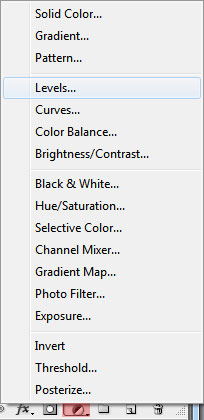
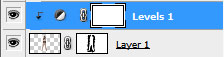
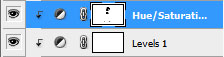
    1) the levels layer when pressing alt+mouse. i don’t have a mask in the same layer as my girl pic.

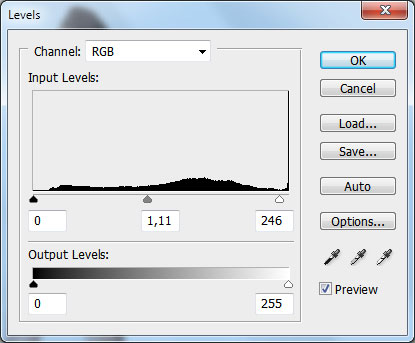
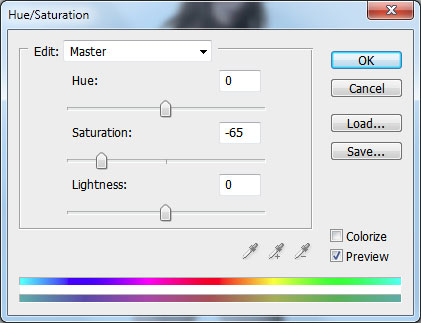
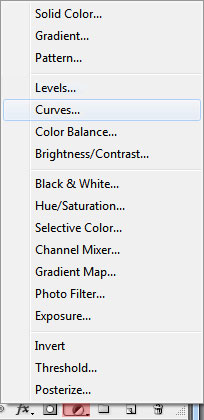
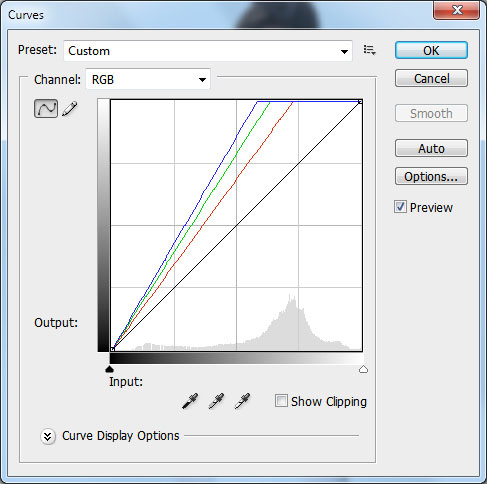
    2) my curves, of which i followed the rgb lines, seemed to have a brighter contrast effect on my girl image.

    i don’t know if the version of PS (i’m using cs4 PS) has an effect on the brightness or the layers and stuff.

    besides these problems this tutorial still helped me a lot!
    i finished the image ,though a little brighter than the original xp

  • 17ps8

    05/05/2010

    i like it very much i have done it

  • jun ADANZA

    29/05/2010

    hey nice design!… =)

  • Al Kamal Md. Razib

    29/05/2010

    Thanks. Good work !

  • Subhash Khatri

    04/06/2010

    Very Nice, Thanks for share…GOOD LUCK!

  • Mohammad

    04/07/2010

    nise. very very good

  • รับทำเว็บไซต์

    10/08/2010

    Awesome tutorial as I ever seen.

  • รับทำเว็บไซต์

    17/08/2010

    very good turtorial

  • idjy

    26/08/2010

    so nice, so strong

  • Nasser

    06/09/2010

    Thanks for great photoshops
    Good Luck.

  • gagamo

    19/09/2010

    Very nice tutorial thanks for sharing I done it and it’s awesome. good luck

  • รับทำเว็บไซต์

    07/03/2011

    It’s so good tutorial , This article very nice ! so I love it

  • mk

    08/03/2011

    thank you! good tutorial!

  • SEO

    19/03/2011

    wow !! thank you for share…

  • โมนาวี

    13/05/2011

    I will try create this follow you.

  • เพลงใหม่

    22/05/2011

    very nice thank

  • kena boo

    31/05/2011

    hey i like this website

  • Zeedan

    15/08/2011

    Cool Stuff!!

  • Chetan hemke

    14/05/2012

    Good…..aaaa very not much but good……

  • azeem

    07/09/2012

    what a beautiful work
    thank you very much
    will you make web templates in photoshop please

  • duxair

    11/09/2012

    your alll tutorial is
    superbbbbbbbbbbbbbbbbbbbbbbbbbbbb

  • aman longi

    19/02/2013

    thanx