
How to create Pink Lady Photo Manipulation in Photoshop
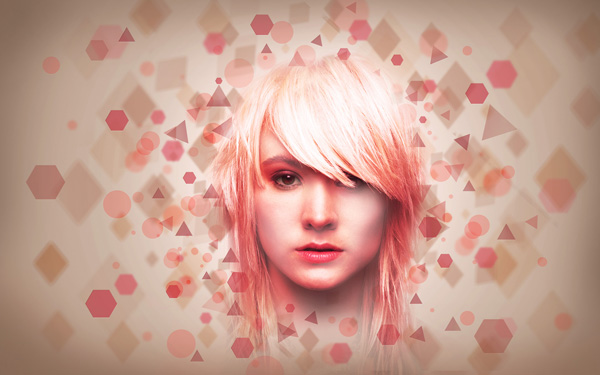
Today, I’m going to show you how to transform a simple lady photo into a pink lady photo manipulation using Photoshop techniques. In this tutorial, you will learn how to retouch a face and create a pink background from different shapes. Layered PSD file included. Let’s get started!
Final Image Preview
Create a new document (Ctrl+N) in Adobe Photoshop with the size 1920px by 1200px (RGB color mode) at a resolution of 72 pixels/inch. Use the Paint Bucket Tool (G) to fill with #B9ABA0 color the new background layer.

Next we’ll create a new layer and select Soft Round brush from Brush Tool (B)


Use this brush to paint the middle part of the background. The brush’s color is #FFF0EC

Find a stock photo with a model represented on it, I used this photo from deviantart. I would like to thank the author of this photo:

Remove the background using your favorite tools like Pen Tool (P), Magic Wand Tool (W), Magnetic Lasso (L) or even a simple Filter>Extract and insert it on a new layer in our main document.

Create a new layer and fill it using the Paint Bucket Tool (G) with #DA2B62 color

Set Fill to 47% for this layer and change Blending mode to Overlay

Hold down Alt (Windows) or Option (Mac OS) and click between the girl’s layer and the layer filled with pink color (on the Layers panel) to create a clipping mask

Now we have the content of the pink layer only visible within the content of the layer containing the girl

Click on the same layer on the bottom part of the layers’ panel on Add layer mask icon and select the Soft Round brush of black color (Opacity 20%)

Paint in the mask to hide the zone of the eyes and the cheeks.

Click Create new fill or adjustment layer from bottom part of the Layers panel and select Photo Filter to change the color balance. In the Adjustments panel, select the Color option, click the color square, and use the Color Picker to specify the pink color for a custom color filter.

To adjust the amount of color applied to the image, use the Density slider or enter a percentage in the Density box.

Hold down Alt (Windows) or Option (Mac OS) and click between the girl’s layer and the Photo Filter adjustment layer (on the Layers panel) to create a clipping mask

Now we have the Photo Filter adjustment layer only visible within the content of the layer containing the girl

Click Create new fill or adjustment layer from bottom part of the Layers panel and select Curves to adjust the curve shape as shown to make a little color corrections.


Hold down Alt (Windows) or Option (Mac OS) and click between the girl’s layer and the Curves adjustment layer (on the Layers panel) to create a clipping mask

Now we have the Curves adjustment layer only visible within the content of the layer containing the girl

Create a new layer and choose the Soft Round brush of white color (Opacity 15%)

Use this brush to make lighter the girl’s face.

Set the Blending mode to Lighter Color for this layer

Next we’ll represent one more new layer and apply the Soft Round brush mentioned below and white color (Opacity 20%) to retouch more the girl’s face and her hair.

Click on the same layer on the bottom part of the Layers panel on Add layer mask icon and select the Hard Round brush of black color

Paint in the mask to get color on the girl’s lips..

Set the Blending mode to Luminosity for this layer


Next we’ll represent a small ellipse of the color #FF3030, using the Ellipse Tool (U).

Set Fill to 15% for this layer

Make many copies of the layer containing the small ellipse and apply the Free Transform (Ctrl+T) command to change the copies’ sizes, placing them as it is indicated below.

Combine in a group all the layers composing the ellipses (press CTRL button to select the necessary layers and hold on the left mouse’s button while dragging the selected layers on Create a new group icon from bottom part of the Layers panel). Put the group layers into a single layer. Select the group firstly and then press CTRL+E to Merge Down.
Set Fill to 69% fro this layer and click on Add a layer style icon from bottom part of the Layers panel and select Drop Shadow

Add Inner Shadow

We’ve got the next effect on the ellipses:

Make a copy of the last represented layer and choose Free Transform (Ctrl+T) command to turn over the copy, applying here Filter>Blur>Gaussian blur

Set the Blending mode to Linear Light for this layer

Page: 1 2
Comments