How to create abstract colorful background with bokeh effect in Photoshop

April 26th, 2010 by ART-D Posted in Adobe Photoshop, Designing

In today’s tutorial, you’ll learn how to create an abstract colorful background with bokeh effect using Photoshop’s drawing tools, blending modes, and lighting techniques. Layered PSD file included. Let’s get started!

Final Image Preview

How to create abstract colorful background with bokeh effect in Photoshop CS4

Inspired from Hexillus by Miniman.

Create a new document (Ctrl+N) in Adobe Photoshop with the size 1920px by 1200px (RGB color mode) at a resolution of 72 pixels/inch. Use the Paint Bucket Tool (G) to fill with #010E1F color the new background layer.

How to create abstract colorful background with bokeh effect in Photoshop CS4
To create a fiber background we’ll download Spiderman Pattern from brusheezy.com. Copy the pattern file and paste it into, C:/Adobe/Photoshop/Presets/Patterns.
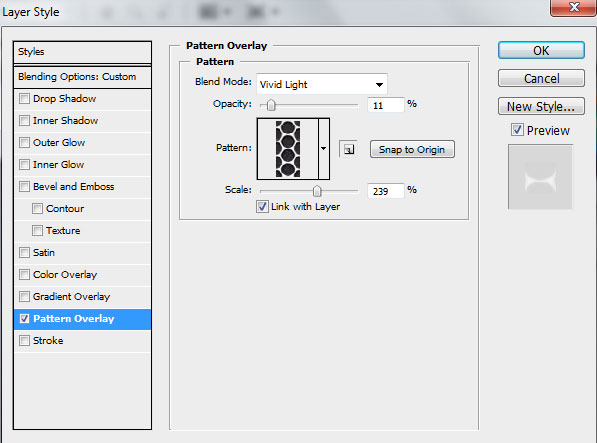
Create a new layer and fill it with black color, click to Add a layer style icon from bottom part of the Layers panel and select Pattern Overlay. Go to Pattern Picker, and additional Spiderman Pattern can be added by loading them from the Picker’s submenu.
How to create abstract colorful background with bokeh effect in Photoshop CS4
We’ve got the next effect:

How to create abstract colorful background with bokeh effect in Photoshop CS4
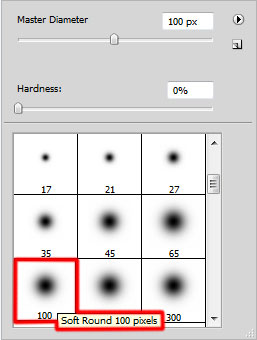
Click on the same layer on the bottom part of the Layers panel on Add layer mask icon and choose a Soft Round brush of black color from Brush Tool (B)( set the Opacity to 10% in Options bar)
How to create abstract colorful background with bokeh effect in Photoshop CS4
Use Soft Round brush to paint in the mask to hide a little the document’s edges:

How to create abstract colorful background with bokeh effect in Photoshop CS4
Create a new layer and select again the Soft Round brush
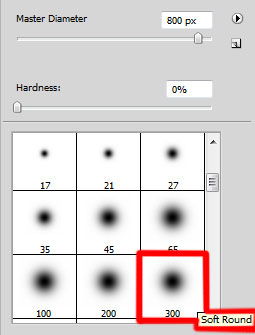
How to create abstract colorful background with bokeh effect in Photoshop CS4
Use the Soft Round brush to paint the central part of the document with the #003173 color

How to create abstract colorful background with bokeh effect in Photoshop CS4
On the next new layer we’ll apply again Soft Round brush to paint more the same part of the picture with the next color - #0F6FBC

How to create abstract colorful background with bokeh effect in Photoshop CS4
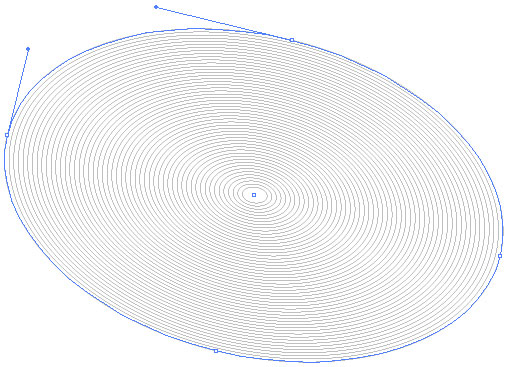
Next pass on Adobe Illustrator program and choose here the Ellipse Tool (L) to draw two ellipses of black color.
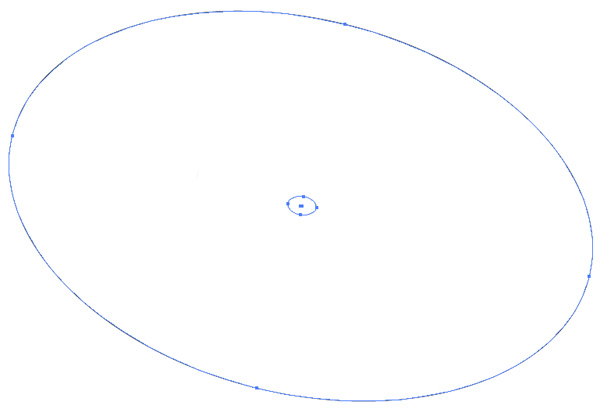
How to create abstract colorful background with bokeh effect in Photoshop CS4
Using the Direct Selection Tool (A), select both ellipses and apply here the next option: Object>Blend>Blend Options
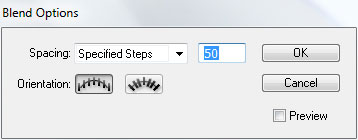
How to create abstract colorful background with bokeh effect in Photoshop CS4
We’ve got the next result:

How to create abstract colorful background with bokeh effect in Photoshop CS4
Select the ellipses and press CTRL+C(Copy). Pass on Adobe Photoshop program after that and press CTRL+V (Paste As - Pixels).

How to create abstract colorful background with bokeh effect in Photoshop CS4
Select for this layer CTRL+I (Inverse)

How to create abstract colorful background with bokeh effect in Photoshop CS4
Set the Blending mode to Soft Light for this layer and click Add a layer style icon from bottom part of the Layers panel to select Drop Shadow:
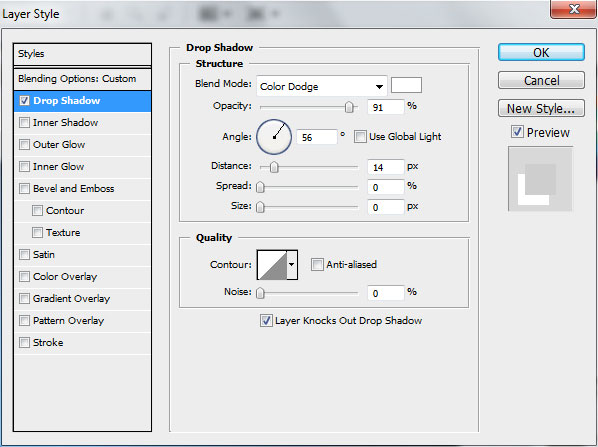
How to create abstract colorful background with bokeh effect in Photoshop CS4
We’ve got the next result:

How to create abstract colorful background with bokeh effect in Photoshop CS4
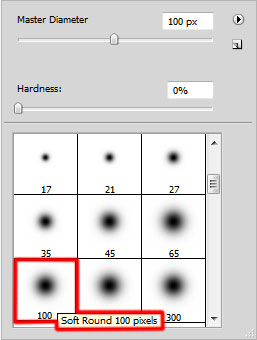
Click on the same layer on the bottom part of the Layers panel on Add layer mask icon and choose the Soft Round brush (Opacity 20%) of black color
How to create abstract colorful background with bokeh effect in Photoshop CS4
Use Soft Round brush to paint in the mask to hide the ellipses edges.

How to create abstract colorful background with bokeh effect in Photoshop CS4
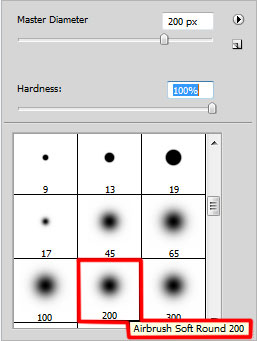
Create a new layer and select the Airbrush Soft Round brush of white color
How to create abstract colorful background with bokeh effect in Photoshop CS4
Use Airbrush Soft Round brush to draw several small circles by changing the Opacity, Hardness value and the brush’s size

How to create abstract colorful background with bokeh effect in Photoshop CS4
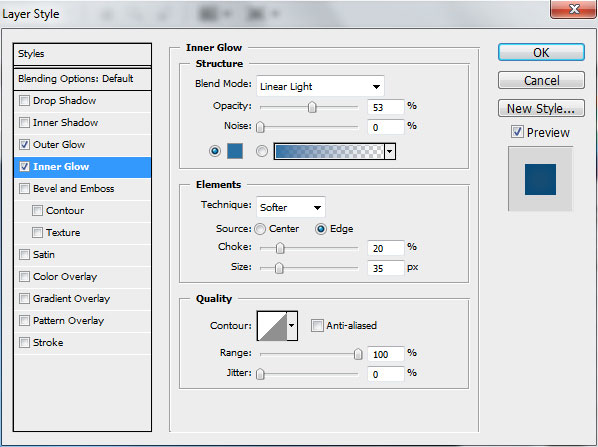
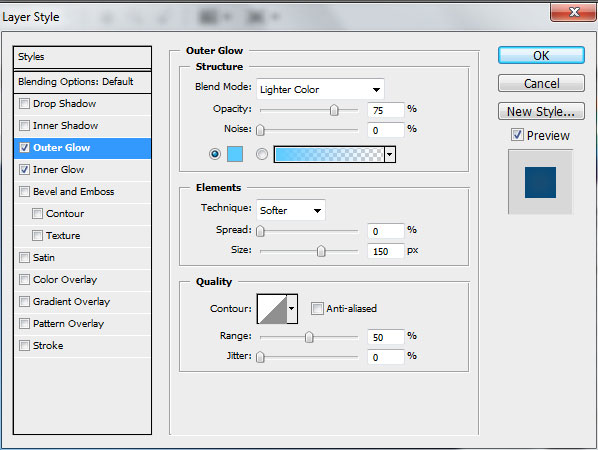
Click on Add a layer style icon from bottom part of the Layers panel to select Outer Glow
How to create abstract colorful background with bokeh effect in Photoshop CS4
Add Inner Glow

How to create abstract colorful background with bokeh effect in Photoshop CS4
We’ve got the next result:

How to create abstract colorful background with bokeh effect in Photoshop CS4
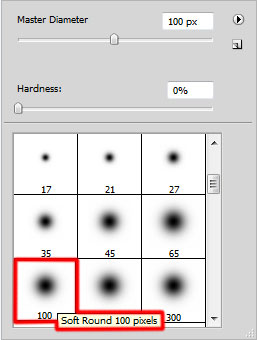
Create the next new layer and select the Soft Round brush
How to create abstract colorful background with bokeh effect in Photoshop CS4
Draw a spot of the color #FF00FF (set the Opacity to 10% in Options bar)

How to create abstract colorful background with bokeh effect in Photoshop CS4
Use the same Soft Round brush for a new layer to paint the shown part below with the color #4AC1E4

How to create abstract colorful background with bokeh effect in Photoshop CS4
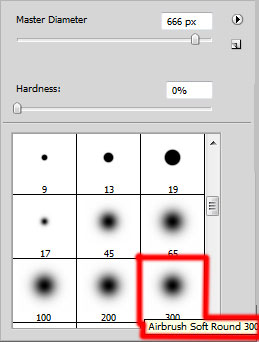
Create a new layer and select the Airbrush Soft Round brush and white color (Opacity 30%)
How to create abstract colorful background with bokeh effect in Photoshop CS4
Use the Airbrush Soft Round brush to represent a spot on the central part of the canvas.

How to create abstract colorful background with bokeh effect in Photoshop CS4
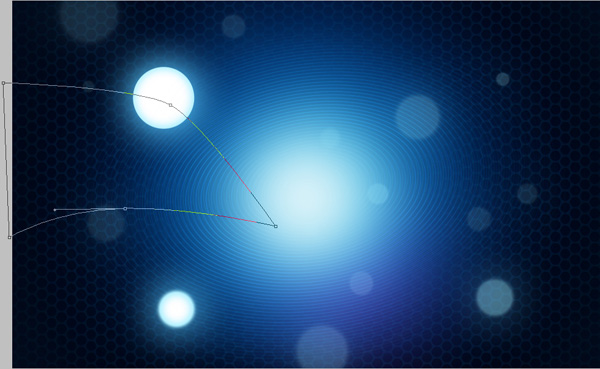
Next choose the Pen Tool (P), set the drawing mode on Shape Layers in Options bar and draw many shapes as shown.
How to create abstract colorful background with bokeh effect in Photoshop CS4
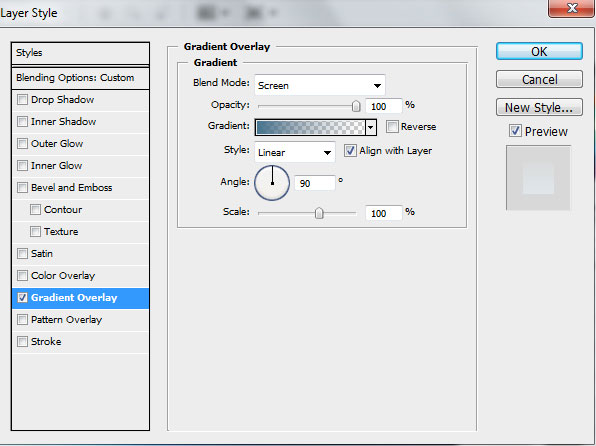
Set Fill to 0% for this layer and click Add a layer style icon from bottom part of the Layers panel to select Gradient Overlay:
How to create abstract colorful background with bokeh effect in Photoshop CS4
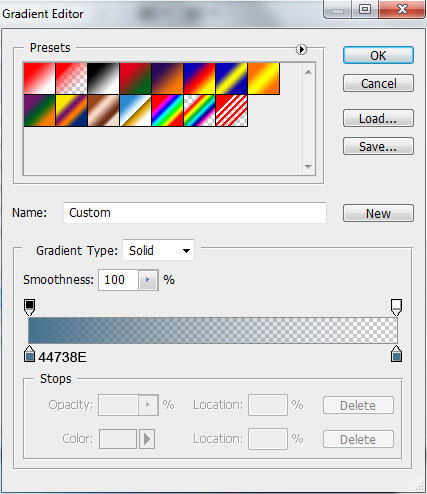
Click in the color bar to open the Gradient Editor and set the color stops as shown. Click OK to close the Gradient Editor dialog box.
How to create abstract colorful background with bokeh effect in Photoshop CS4
We’ve got the next gradient on the shape:

How to create abstract colorful background with bokeh effect in Photoshop CS4
Draw another shape

How to create abstract colorful background with bokeh effect in Photoshop CS4
Set Fill to 0% and go to Layer Style >Gradient Overlay
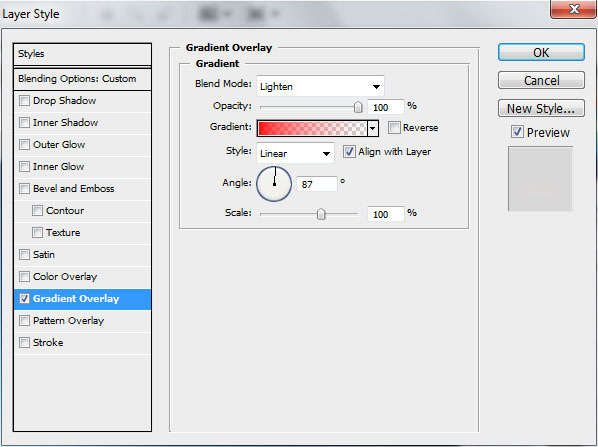
How to create abstract colorful background with bokeh effect in Photoshop CS4
Open the Gradient Editor and set the color stops as shown. Click OK to close the Gradient Editor dialog box.
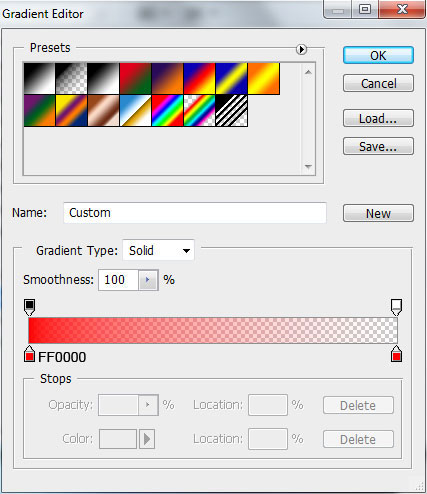
How to create abstract colorful background with bokeh effect in Photoshop CS4
We’ve got the next effect:

How to create abstract colorful background with bokeh effect in Photoshop CS4
Draw another shape:

How to create abstract colorful background with bokeh effect in Photoshop CS4
Set Fill to 0% and click Add a layer style icon from bottom part of the Layers panel to select Gradient Overlay:
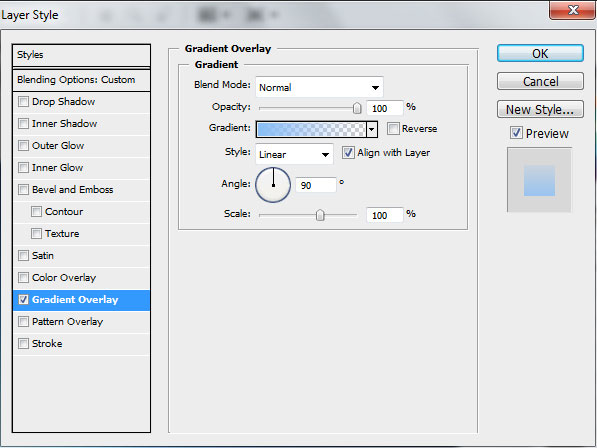
How to create abstract colorful background with bokeh effect in Photoshop CS4
Open the Gradient Editor and set the color stops as shown. Click OK to close the Gradient Editor dialog box.
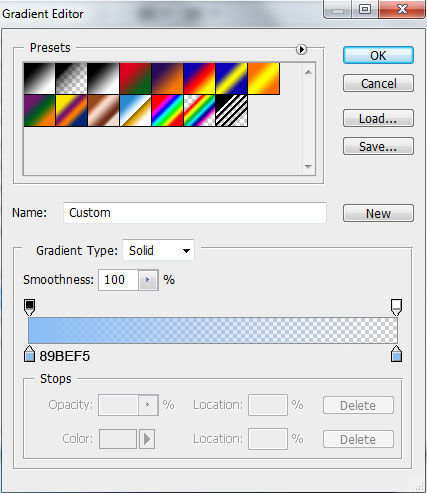
How to create abstract colorful background with bokeh effect in Photoshop CS4
We’ve got the next result:

How to create abstract colorful background with bokeh effect in Photoshop CS4
Represent another shape using Pen Tool (P)

How to create abstract colorful background with bokeh effect in Photoshop CS4
Set Fill to 0% and go to Layer Style>Gradient Overlay
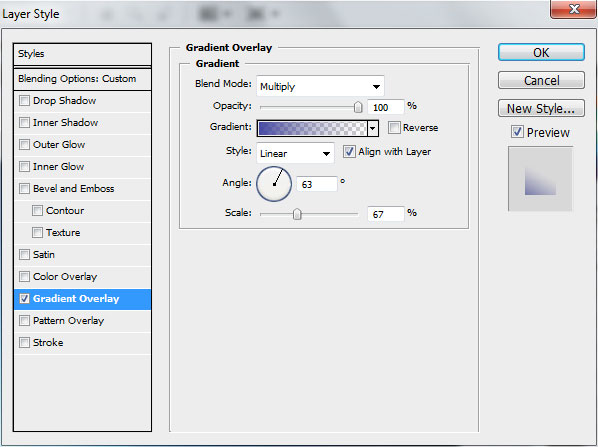
How to create abstract colorful background with bokeh effect in Photoshop CS4
Open the Gradient Editor and set the color stops as shown.
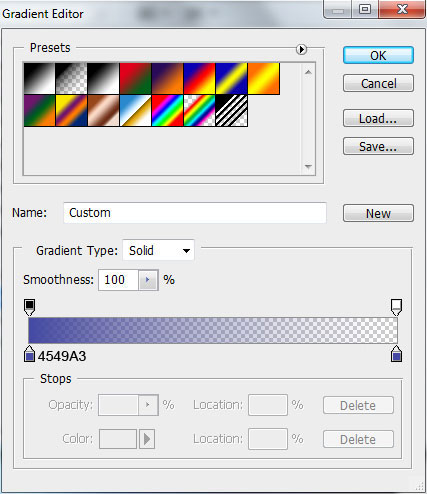
How to create abstract colorful background with bokeh effect in Photoshop CS4
We’ve got the next result:

How to create abstract colorful background with bokeh effect in Photoshop CS4
Draw another shape:

How to create abstract colorful background with bokeh effect in Photoshop CS4
Set Fill to 0% and click Add a layer style icon from bottom part of the Layers panel to select Gradient Overlay:
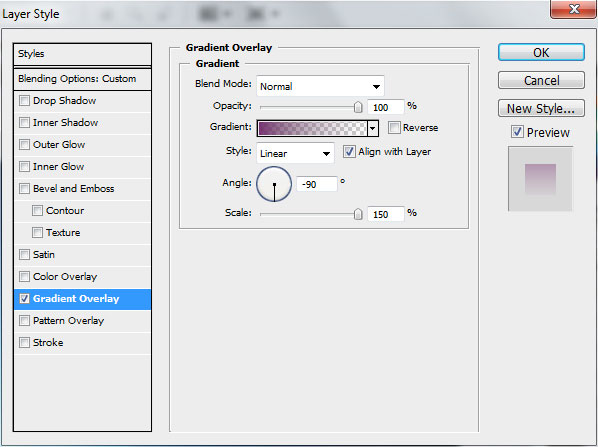
How to create abstract colorful background with bokeh effect in Photoshop CS4
Click in the color bar to open the Gradient Editor and set the color stops as shown. Click OK to close the Gradient Editor dialog box.
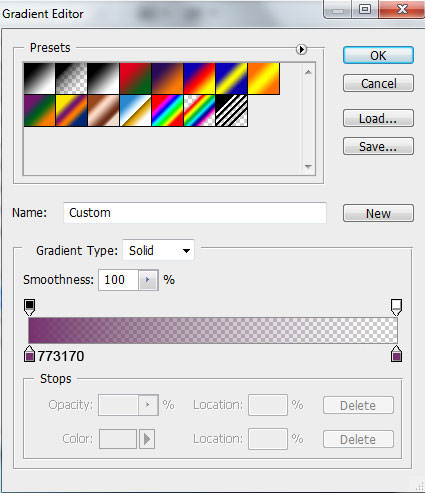
How to create abstract colorful background with bokeh effect in Photoshop CS4
We’ve got the next gradient on the shape:

How to create abstract colorful background with bokeh effect in Photoshop CS4
Represent another shape:

How to create abstract colorful background with bokeh effect in Photoshop CS4
Set Fill to 0% in Layers panel, add Layer Style>Gradient Overlay
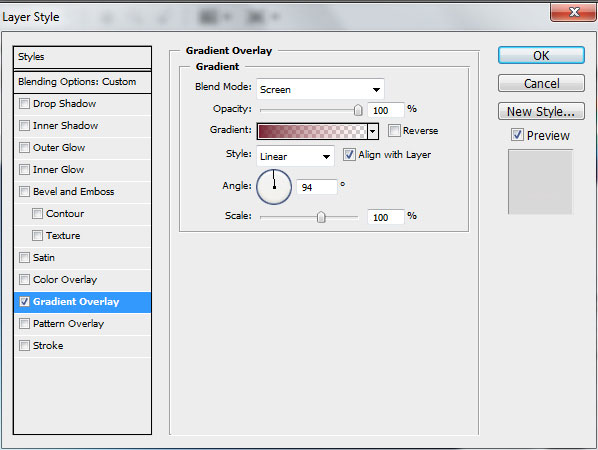
How to create abstract colorful background with bokeh effect in Photoshop CS4
Open the Gradient Editor and set the color stops as shown. Click OK to close the Gradient Editor dialog box.
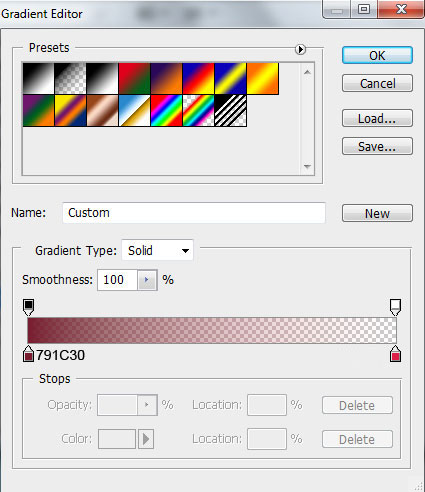
How to create abstract colorful background with bokeh effect in Photoshop CS4
We’ve got the next result:

How to create abstract colorful background with bokeh effect in Photoshop CS4
Represent another shape on the right part

How to create abstract colorful background with bokeh effect in Photoshop CS4
Set Fill to 0% for this layer and click Add a layer style icon from bottom part of the Layers panel to select Gradient Overlay:
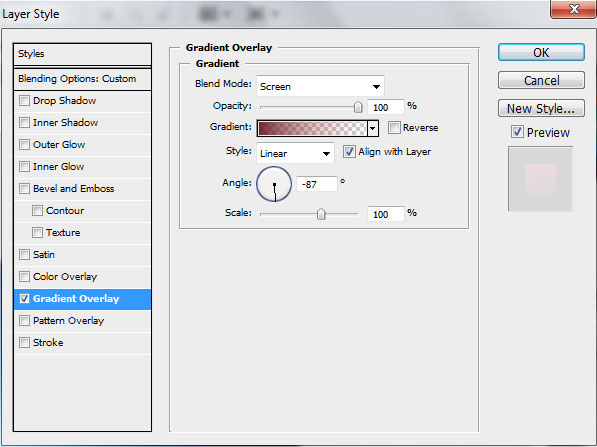
How to create abstract colorful background with bokeh effect in Photoshop CS4
Click in the color bar to open the Gradient Editor and set the color stops as shown. Click OK to close the Gradient Editor dialog box.
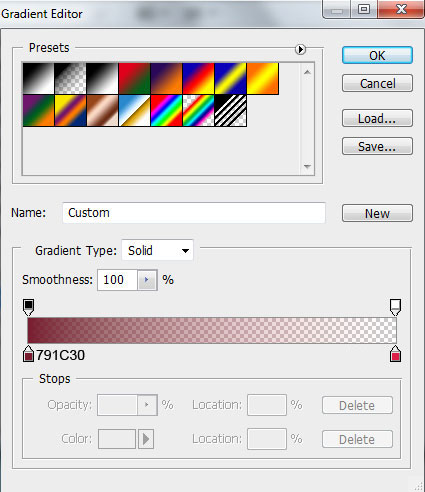
How to create abstract colorful background with bokeh effect in Photoshop CS4
We’ve got the next effect:

How to create abstract colorful background with bokeh effect in Photoshop CS4

Post Pages: 1 2 3

Tags: , , , , , , , ,

  • Hian Battiston

    26/04/2010

    Great tutorial!
    Thanks!

  • Alex Flueras

    27/04/2010

    Great tutorial, thanks for sharing!

  • Rozairo

    27/04/2010

    Nice tute dude, i thinklittle bit glow in middle should make it perfect.

  • Michael

    27/04/2010

    Fantastic Tutorial!

  • abeedo21

    27/04/2010

    cool one
    thanks

  • Suneil

    27/04/2010

    Lovely!

  • xpmsa

    28/04/2010

    Great tutorial, thanks for sharing!

  • wiyono

    28/04/2010

    Really nice and great… thank fo rsharing, i love this stuff

  • Dignity

    29/04/2010

    Excelent tutorial! I Will try it now :D

  • The Web Tuts

    30/04/2010

    Tutorial added to The Web Tuts

  • gajendra

    01/05/2010

    Nice Background

  • TomPier

    04/05/2010

    great post as usual!

  • Laura

    12/05/2010

    Fab! Amazing!

  • Manjula

    17/05/2010

    Great very nice background and very helpful tutorial

  • Vinicius

    18/05/2010

    Great Tutorial!!!

    Thanks!!!!

  • ela

    18/05/2010

    oh I cant find Blend>Blend Options> in cs2 ? help me

  • Rohit

    28/05/2010

    Nice Tutorials,
    I am visiting this site first time and I think its very useful and really good collection thanks.

  • kusum

    11/06/2010

    very nice,, very impressive design

  • priya

    03/07/2010

    i am visiting this site first time and i think its very useful..

  • HARRY

    03/07/2010

    nice work

  • deden

    20/07/2010

    amazing tutorials

  • PSnoob

    20/07/2010

    very niceeeee tutorial!!!

  • Simri

    21/07/2010

    Waooooooooooooo….. So great. Love it. Thank’s for sharing.

  • Oviyambalu

    30/07/2010

    Vanakkam
    Sir,
    Useful tips and i have idea to more and more thank you for your class

    Nandri
    Vanakkam

    regards
    oviyambalu
    chennai, tamilnadu

  • K1.MORTEZA

    13/08/2010

    very nice.

  • arshad khalid

    22/08/2010

    very very nice touter