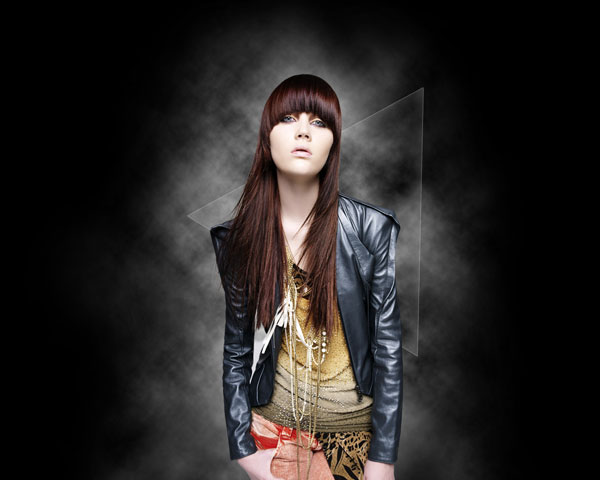
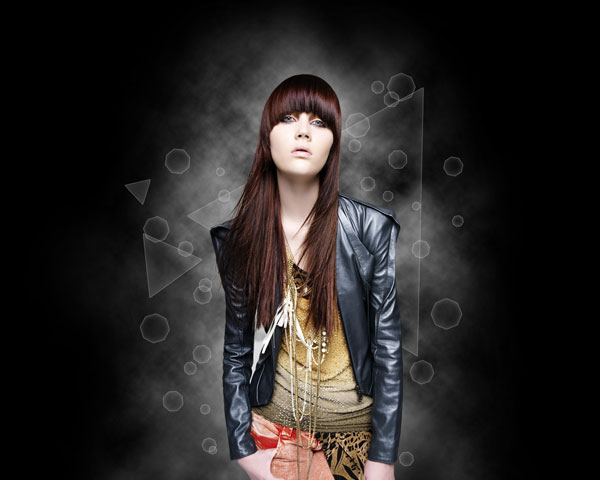
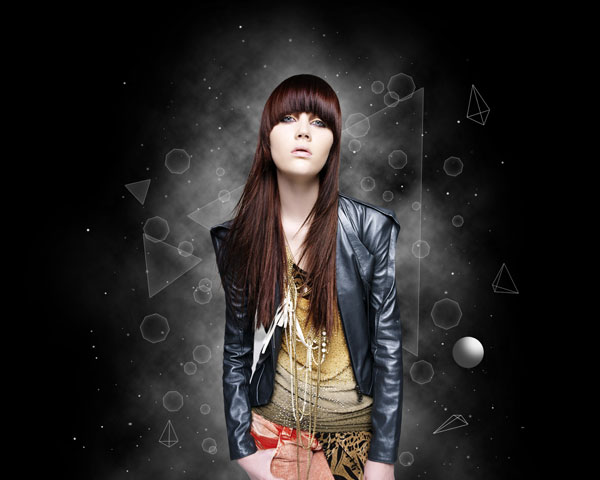
Create a Dark and Surreal Geometric Space Poster using Photoshop

May 31st, 2010 by ART-D Posted in Adobe Photoshop, Photo Editing

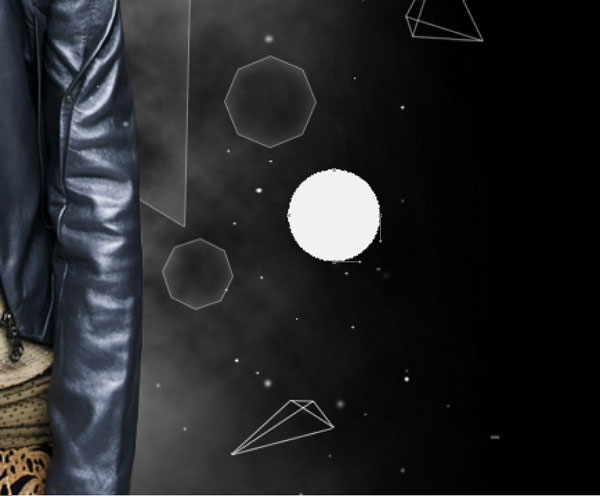
Using the same tool, try to represent another ellipse of white color too.

Create a Dark and Surreal Geometric Space Poster using Adobe Photoshop CS4
Click on Add a layer style icon from bottom part of the Layers panel and select Pattern Overlay. Go to Pattern Picker, and recent created pattern can be added by loading them from the Picker’s sub-menu.

Create a Dark and Surreal Geometric Space Poster using Adobe Photoshop CS4
We’ve got the next result:

Create a Dark and Surreal Geometric Space Poster using Adobe Photoshop CS4
Create a new layer above the recently made one and select both layers in Layers panel, press CTRL+E to Merge Down into one single layer. Apply the next filter for the rasterized layer: Filter>Distort>Spherize.

Create a Dark and Surreal Geometric Space Poster using Adobe Photoshop CS4
Using the Free Transform (Ctrl+T) command, place the layer on the bottom part of the canvas.

Create a Dark and Surreal Geometric Space Poster using Adobe Photoshop CS4
Click Add a layer style icon from bottom part of the Layers panel to select Gradient Overlay

Create a Dark and Surreal Geometric Space Poster using Adobe Photoshop CS4
Click in the color bar to open the Gradient Editor and set the color stops as shown. Click OK to close the Gradient Editor dialog box.

Create a Dark and Surreal Geometric Space Poster using Adobe Photoshop CS4
We’ve got the next result:

Create a Dark and Surreal Geometric Space Poster using Adobe Photoshop CS4
Using the Free Transform (Ctrl+T) command, we have to make the sphere smaller and situate it as on the picture below:

Create a Dark and Surreal Geometric Space Poster using Adobe Photoshop CS4
Take now the Rectangle Tool (U) to draw several rectangles of white color:

Create a Dark and Surreal Geometric Space Poster using Adobe Photoshop CS4
Combine in a group all the layers with the rectangles (press CTRL button to select the necessary layers in Layers panel and then hold on the left mouse’s button to drag the selected layers on Create a new group icon fro bottom part of the Layers panel). Use the Free Transform (Ctrl+T) command to incline the rectangles as on the next picture:

Create a Dark and Surreal Geometric Space Poster using Adobe Photoshop CS4
Take the Ellipse Tool (U) to represent another ellipse under the rectangles’ layer. Set Fill to 0% for this layer.

Create a Dark and Surreal Geometric Space Poster using Adobe Photoshop CS4
Let’s create a clipping mask to make the content of the layer containing the rectangles only visible within the content of the layer containing the ellipse. Hold down Alt (Windows) or Option (Mac OS) and click between layer with rectangles and the layer with ellipse (on the Layers panel).

Create a Dark and Surreal Geometric Space Poster using Adobe Photoshop CS4
We’ve got the next result.

Create a Dark and Surreal Geometric Space Poster using Adobe Photoshop CS4
Put both layers into a single layer by selecting them firstly (press CTRL+E to Merge Down). Apply the next filter for this layer: Filter>Distort>Spherize

Create a Dark and Surreal Geometric Space Poster using Adobe Photoshop CS4
We’ve got the next result.

Create a Dark and Surreal Geometric Space Poster using Adobe Photoshop CS4
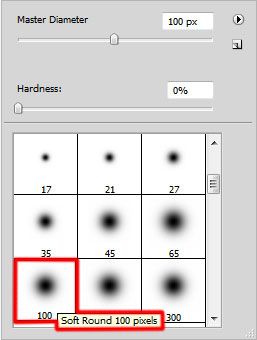
Create a new layer and apply on it the Soft Round brush of black color (set Opacity to 20% in Options bar).

Create a Dark and Surreal Geometric Space Poster using Adobe Photoshop CS4
Use this brush to dark out the sphere’s edges.

Create a Dark and Surreal Geometric Space Poster using Adobe Photoshop CS4
Put together all the layers (Merge Down) containing the sphere to get a rasterized layer the same way we did before. Make a copy of the layer we’ve got and choose Free Transform (Ctrl+T) command to enlarge the copy’s layer, placing it on the left side.

Create a Dark and Surreal Geometric Space Poster using Adobe Photoshop CS4
Combine in a group all the layers, except the black background’s one (press CTRL button to select the corresponding layers in Layers panel and then hold on the left mouse’s button while dragging the selected layers on Create a new group icon from bottom part of the Layers panel). Rasterize the group by selecting it firstly and then press CTRL+E to Merge Down.
Choose the Rectangular Marquee Tool (M) to represent on the rasterized layer a selection:

Create a Dark and Surreal Geometric Space Poster using Adobe Photoshop CS4
Right click inside the selection to select Transform Selection and place it the same way demonstrated next picture:

Create a Dark and Surreal Geometric Space Poster using Adobe Photoshop CS4
Use also inside the selection the Move Tool (V) and move the line as on the picture below:

Create a Dark and Surreal Geometric Space Poster using Adobe Photoshop CS4
Click Create new fill or adjustment layer from bottom part of the Layers panel and select Hue/Saturation.

Create a Dark and Surreal Geometric Space Poster using Adobe Photoshop CS4
Drag the slider to the left to decrease the Saturation of the color range.

Create a Dark and Surreal Geometric Space Poster using Adobe Photoshop CS4
Select once again Create new fill or adjustment layer from bottom part of the Layers panel and click to Curves to adjust the curve shape as shown to make a little color corrections.

Create a Dark and Surreal Geometric Space Poster using Adobe Photoshop CS4
We’ve got the next result.

Create a Dark and Surreal Geometric Space Poster using Adobe Photoshop CS4
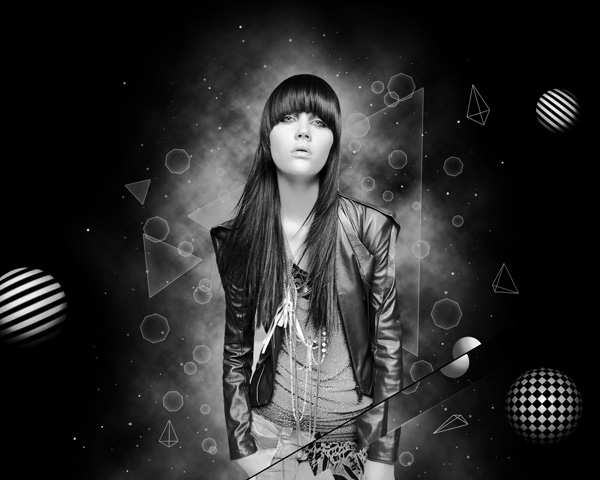
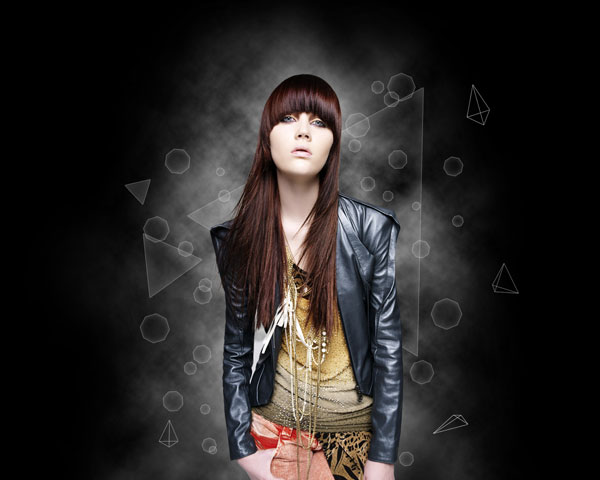
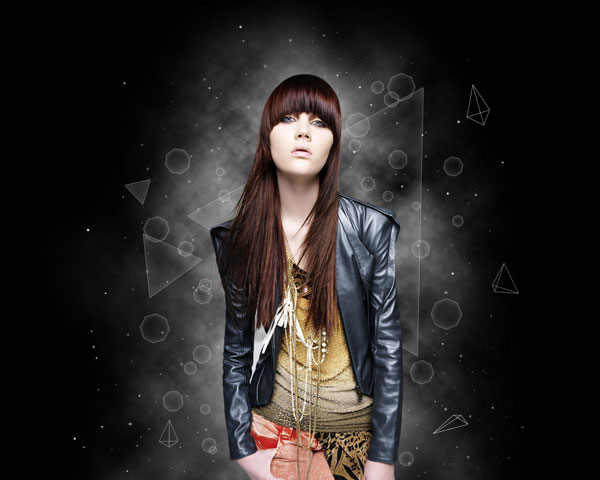
Finished!

View full size here.

Download free Layered PSD file.

  •  

  •    
  •  


Post Pages: 1 2

Tags: , , , , , , , , , , , , , ,

  • andre

    31/05/2010

    THANKKK YOUU!
    It’s perfect… (:

  • budiman

    01/06/2010

    thank you…
    learn many from this tut,

  • Tasha

    01/06/2010

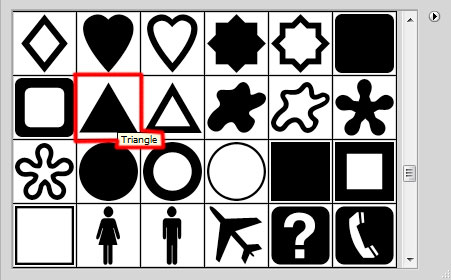
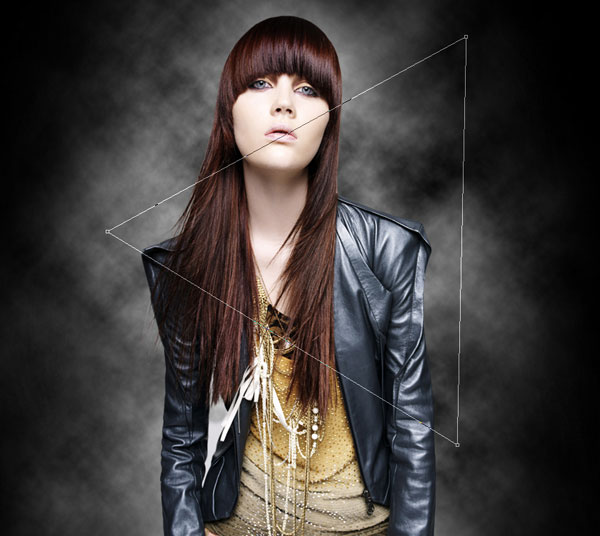
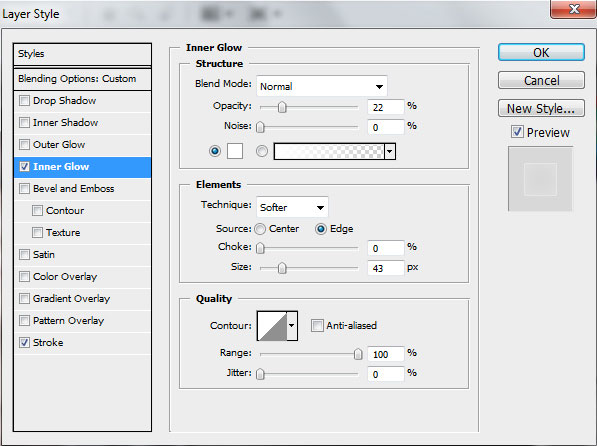
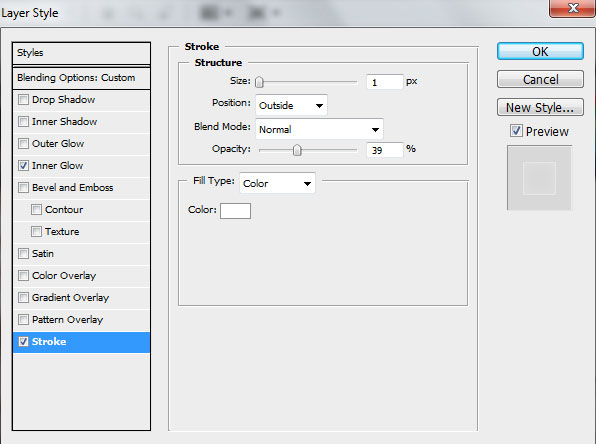
    The Shape part isn’t working for me… Nothing happens… i draw the triangle and the inner glow and stroke don’t appear :/ what am i doing wrong?

  • Rex

    08/06/2010

    I’m with Tasha. I have the triangle but it doesn’t do anything when you apply the layer styles…

    A little clarfication, please?

  • Rex

    08/06/2010

    Susses it. When you add the triangle shape it must be set on ‘fill pixels’. Top left of the screen, three little square icons, third one .

  • THE ONE

    12/06/2010

    Thank you so much for these great tutorials, this is my try at this tutorial.http://i213.photobucket.com/albums/cc291/eyezoftiger/darkandsurreal.jpg

  • THE ONE

    12/06/2010

    sorry about double post internet keeps dropping

  • Kristie

    15/06/2010

    Hey, thanks for a thoroughly enjoyable tutorial. Here’s my version:

    http://s299.photobucket.com/albums/mm284/kristie-cam/?action=view&current=GeometricGirl.jpg

  • photo editor

    21/06/2010

    Simply but effective. I like it ! :)

  • deden

    20/07/2010

    that right… it’s like easy steps.. i like it..

  • Foudhil

    24/07/2010

    Great tuto.

    Thank you.

  • Corey

    21/10/2010

    I don’t quite understand the part where it says “Click on the same layer on the bottom part of the Layers panel on Add layer mask icon.” Your would would be much appreciated in advance.

  • shawn

    11/11/2010

    this is by far the realest of tutorials….thanks a bunch!

  • kenny lee

    14/01/2011

    aaaaaaahhh!!!ok so i’ve done everything perfect so far and i just can’t get the spherize thing to work..any tips or something i might be missing.like if i don’t put the circle in one of the corners then it chops off parts,but when they’re in the corners they don’t change how they look at all.

  • katie may

    17/01/2011

    for some reason after i try and make the triangle it wont let me apply the layer style it never shows. :/ idk exactly what im doing wrong. ive tried trouble shooting with it but help would be highly appriciated :)

  • niklord

    19/01/2011

    thnx . :D i got it :) )

    add me facebook to watch my work . Mr.Niklord@yahoo.com

  • Gelo

    11/02/2011

    Good tutorial i have a problem “/ i cant put the triangles under de girl layer y cant y move the layer under the girl but doesnt effect how i cant do it !

    Pdc:Sorry for mi english :)

  • Nick

    10/04/2011

    I cant do the group and clipping mask :S i group the rectangles but when i group them i see the icon of a folder, meanwhile ur group looks just like a normal layer icon and it wont do it right…anyhelp

    my FB : NickBboyBasixPolanco

  • indri

    11/06/2011

    thank youu! it’s very useful

  • kurabica

    05/09/2011

    i’m having a problem with the Spherize. filter ..
    i’ve tried so many times but it didn’t work ! :(
    any help !?

  • almamun

    23/10/2011

    Wow. Its amazing and easy (lol)

  • yas

    24/11/2011

    very nice, thanks