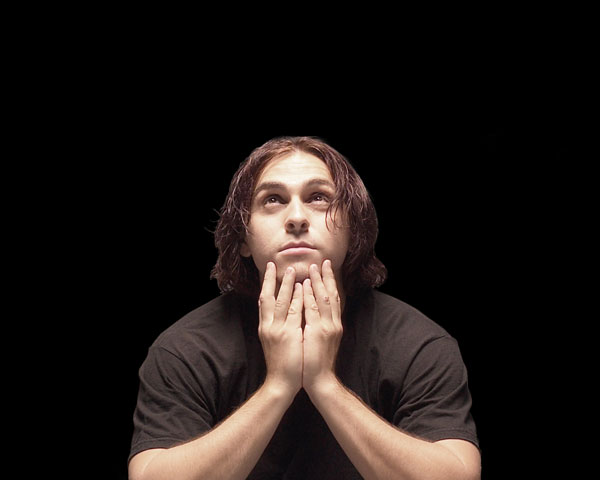
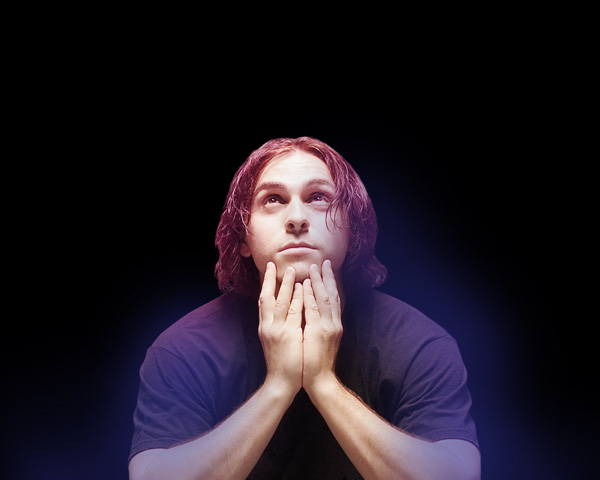
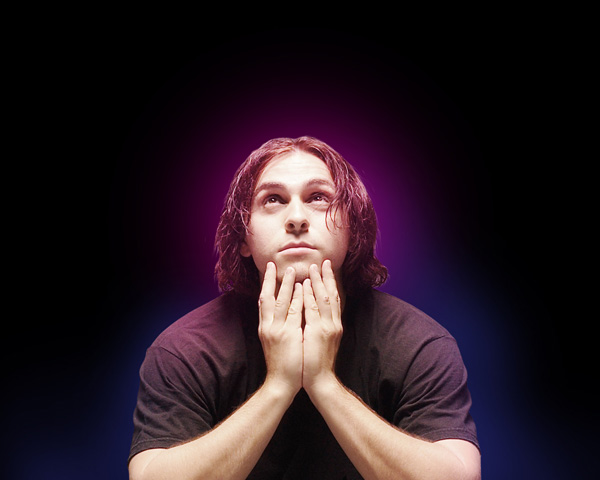
Create an Abstract Light Streaks poster in Photoshop CS5
June 16th, 2010 by ART-D Posted in Adobe Photoshop, Photo Editing
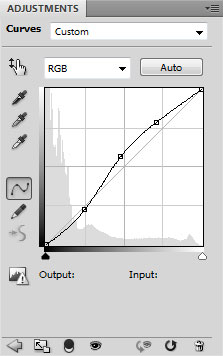
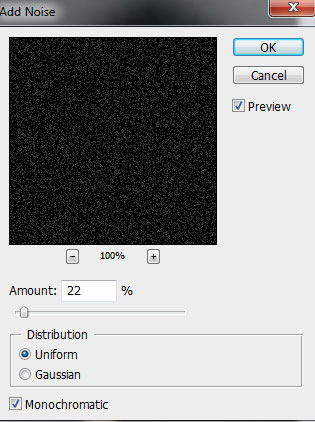
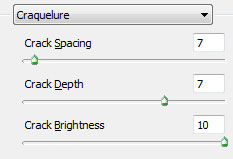
Press CTRL+M (Curves) to adjust the curve shape as shown to make a little color corrections.

We’ve got the next result:

Set the Blending mode to Linear Dodge for this layer.
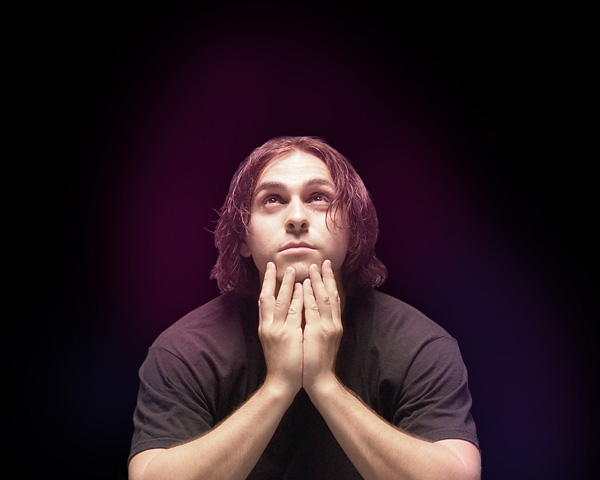
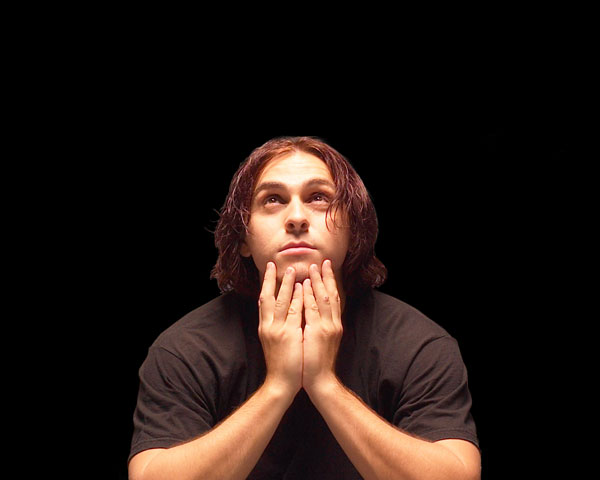
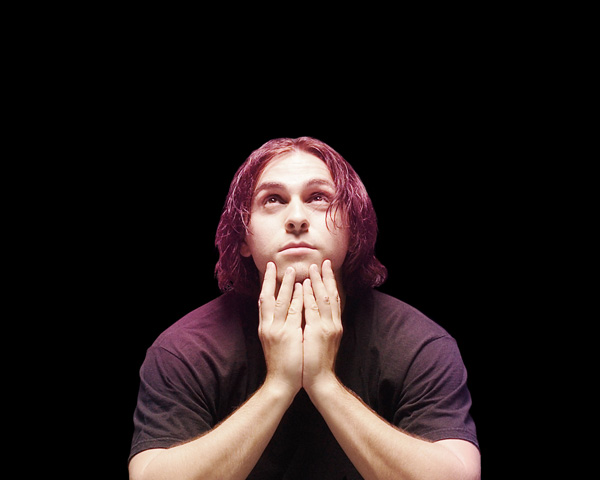
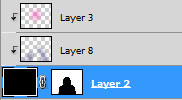
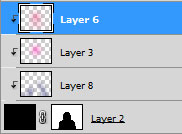
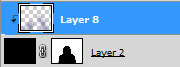
Let’s create a clipping mask to make the content of the layer containing the noise only visible within the layer containing the black background around man. Hold down Alt (Windows) or Option (Mac OS) and click between layers in the Layers panel.
We’ve got the next result:
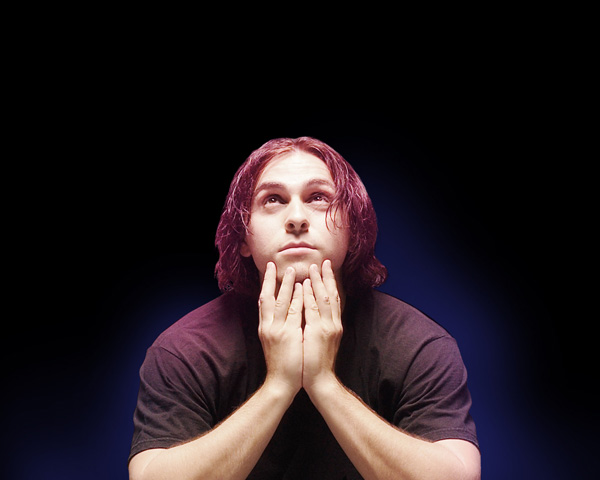
Make a copy of the last made layer and use the Free Transform (Ctrl+T) command to put the copy’s layer the same way demonstrated below:

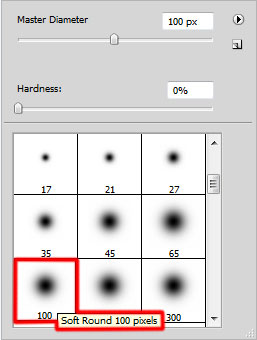
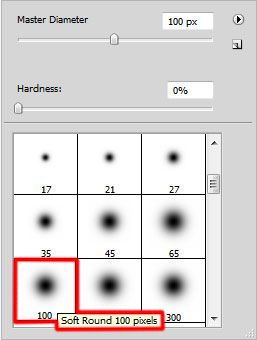
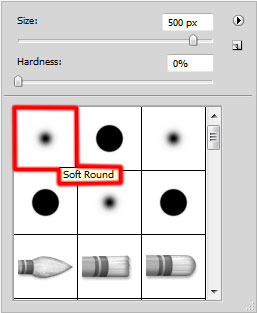
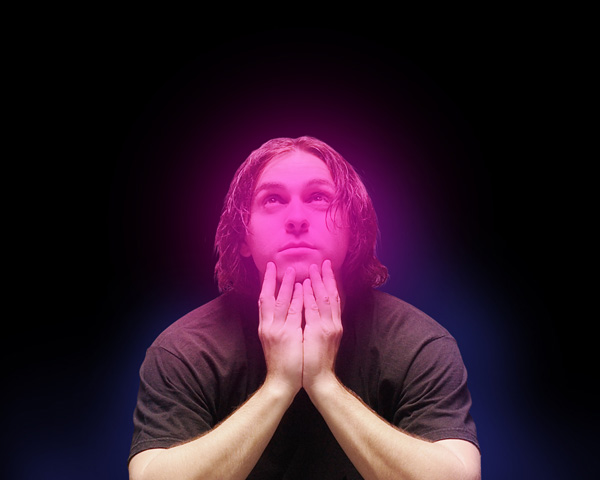
Create a new layer and select the Soft Round brush of black color (Opacity 20%).

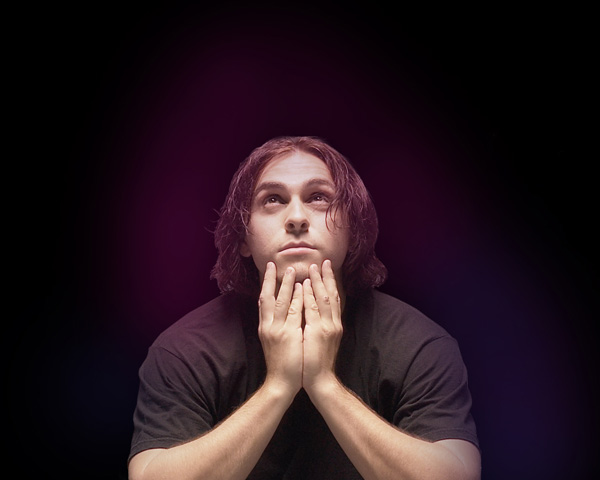
Use this brush to make darker the shown zones on the next picture.

Create a new document (Ctrl+N) in Adobe Photoshop CS5 with the size 1280px by 1200px (RGB color mode) at a resolution of 72 pixels/inch. Take the Gradient Tool (G) and open the Gradient Editor from Options Bar. Choose the Black, White gradient and apply the gradient from the top to down.

Apply now on this layer Filter>Distort>Wave.

We’ve got the next result:

Use Free Transform (Ctrl+T) command to scale by dragging the got waves to have the same result as on the next picture:

Make a copy of the made layer and choose the Free Transform (Ctrl+T) command to flip vertical this layer. Insert the mask on the copy’s layer by selecting the Add layer mask on the bottom part of the Layers panel.

Select the Soft Round brush of black color.

Use this brush to paint in the mask the bottom part of the copy’s layer. Put together both layers by selecting them firstly in the Layers panel and then press CTRL+E to Merge Down.

Insert the waves’ layer in the main document. Using the Free Transform (Ctrl+T) command, we can change the size and incline the layer to get the same result as below.

Set Fill to 78% for this layer and change the Blending mode to Lighten. Click on Add a layer style icon from bottom part of the Layers panel and select Inner Shadow.

Add Gradient Overlay:

Click in the color bar to open the Gradient Editor and set the color stops as shown. Click OK to close the Gradient Editor dialog box.

We’ve got the next effect:

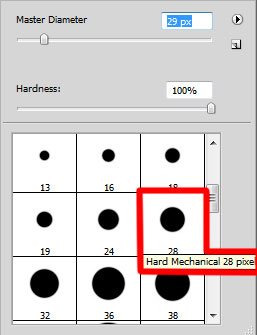
Click on the same layer now on the bottom part of the Layers panel on Add layer mask icon and choose the Hard Mechanical brush of black color (set Opacity to 80% in the Options bar).

Use this brush to paint in the mask to hide the waves’ layer on the man’s head and on his shoulder.

Make a copy of the last made layer and apply the Free Transform (Ctrl+T) command to turn over the copy’s layer, creating a small displace. Insert also the mask on the copy’s layer and choose the Hard Mechanical brush to hide the waves passing on the man’s head and shoulder. Set Fill to 100% for this layer and change the Blending mode to Lighter Color.

Next on the new layer we’ll select the Hard Mechanical brush.

Use this brush to add more small dots of white color.

Set the Blending mode to Hard Mix for this layer and click on Add a layer style icon from bottom part of the Layers panel and select Outer Glow.

We’ve got the next result:

Make a copy of the last made layer and change the Blending mode to Linear Light for this layer.

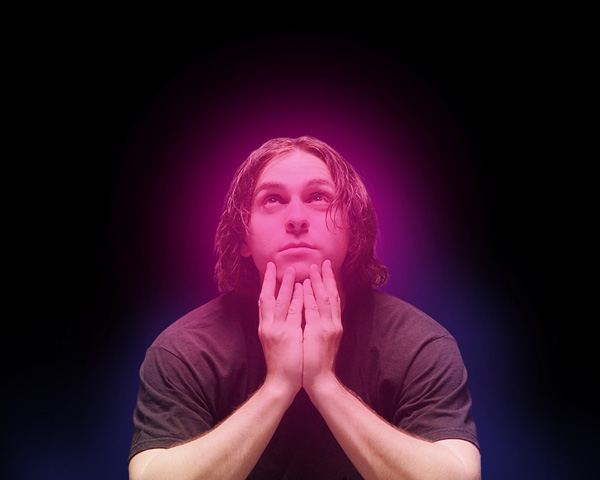
Create a new layer and use this time for it the Paint Bucket Tool (G) to fill the layer with orange color.

Set Fill to 16% for this layer in Layers panel and change the Blending mode to Color Dodge.

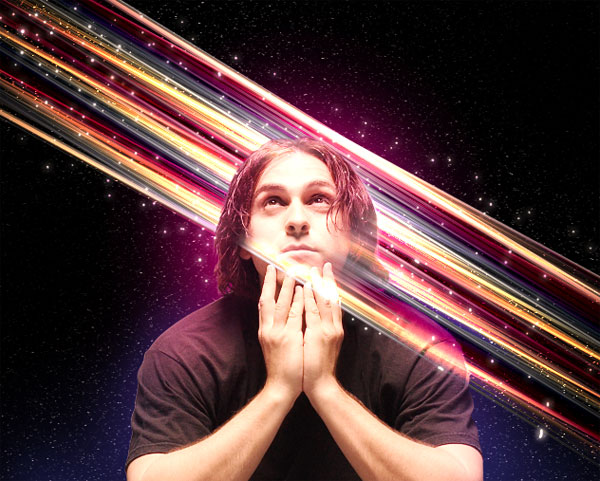
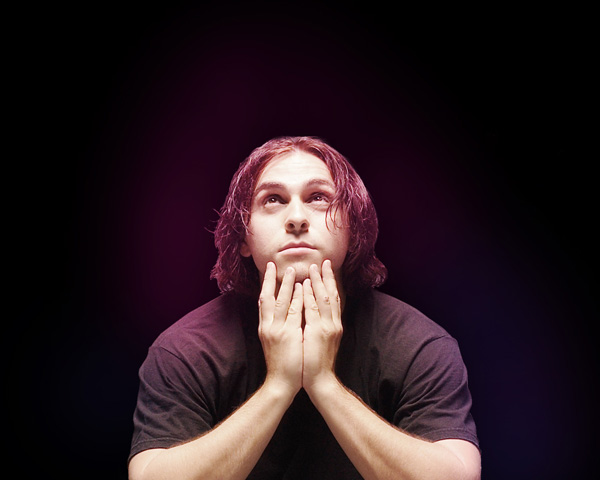
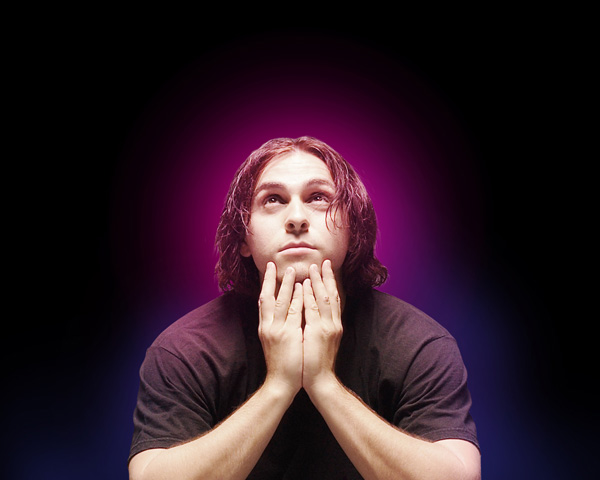
Finished!
View full size here.
Download free Layered PSD file.
Post Pages: 1 2
Tags: abstract, background, cs5, design, effect, filter, free, light, photo-manipulation, Photoshop, poster, psd, streak


Juhnior Day-EL
17/06/2010
Massa! muito bom irmão,Parabéns…
Chelsea
19/06/2010
Thanks so much for this tutoria; I had a lot of fun doing it.
svlo531
20/06/2010
This is awesome!! I thought the rainbow stripes part was going to used a wallpaper or something but it actually can be created by hands!! Bravo!
Kristie
21/06/2010
Thanks for the tutorial
Here’s my shot at it:
http://s299.photobucket.com/albums/mm284/kristie-cam/?action=view¤t=Quirkygirl.jpg
Bob From Tampa
27/06/2010
Thanks I learned a lot. I used a picture of a guy I had taken and it turned out amazing. Thanks again.
Yurbasik
30/06/2010
very nice! i like the lines))
HAISHAN
15/07/2010
HEY, PERFECT AND CONGRATULATIONS!
deden
20/07/2010
it’s very cooll i like it… nice tutorial… thank you..
fresh business cards
26/07/2010
super handy tutorial for work
Federico Totti
31/07/2010
WOW! Just WOW! Thank you. I think this is going in the site I’m working on right now
Sabin
04/08/2010
Very nice Tutorial. I liked the way you used photoshop tools to build that stunning image.
Thanks
paq
05/08/2010
Love it, big thx for this tutorial, amazing effect.
angie
07/08/2010
this is amazing. now I can build an gorgeous icon myself!
tu marido
10/08/2010
Esta de la conchesumare….
afrim
11/08/2010
very hard
Deko Web
13/08/2010
Thank you, really nice article…
Satyanarayan
17/08/2010
I am a computer operator in Banaras Hindu University, Uttar Pradesh, India
I saw your tutorial notes. Your suggestion system are too good. I want know about toolbox with full reference. please
help me.
narayan101@gmail.com
N- 4/84, Karoundi, B.H.U., Pin-221005,
Varanasi, Uttar Pradesh, India
Anub Patel
18/08/2010
Dude this is awesome
eugenio abeso
19/08/2010
i really like the way you design,,,,,,,,,,,,, thanks alot for the tutorials
inah
28/08/2010
i love this site. thank you! =)
ghkjgh
15/09/2010
No use for starters or dummies like me, but thanks.
Irfan
23/09/2010
wow, thats very cool tuts…
i like very much..
thanks…
somyadeep
01/10/2010
gr8 work done !!….
bala
06/10/2010
thans u very much for this tuts..
Mattias
12/10/2010
Unbelievable stuff! Thanks
bibou
12/11/2010
thank you !!
web tasarım fiyatları
05/12/2010
very very very good dude thank you so much for the idea… XD thats the real talent you got ^^
Taz
15/12/2010
Hey I can get the colours you get on the gradient bar.
how are u doing that
someone help.
alimed74
01/01/2011
Thank you very much a wonderful tutorial which i really enjoyed doing.
Khatrijiya
04/02/2011
Wow!! Excellent tutorial…
Thank you very much!!
WW
04/02/2011
An absolutely impossible tutorial for a newbie. No details at all.
I’m stuck at “Insert the mask on the layer by choosing Add layer mask on the bottom part of the Layers panel. Select also the Hard Mechanical brush of black color.”
After doing this I don’t see the subject.How will I be able to hide the background around the man then.
Arshinov
08/02/2011
Wow….nice tutorial…thanx for your kind heart of sharing….we really appreciate
wdkhan
26/02/2011
where is this gradiant located the orange one. given in blending options
Lola
10/04/2011
Merci de partager ce site si inspirant et débordant de créativité, pour ma part, en tant qu’un infographiste ça m’aide beaucoup, puisque il faut à chaque user de son imagination pour trouver des idées originales!
bonne continuation
Lola
10/04/2011
great tutorial! very inspiring, thanks for sharing it!
am!t bajaj
12/04/2011
yo , ma man
thnk u very very much
awesome
i really need this
yo
Gwen W.
18/07/2011
I am also stuck on the add layer mask. It turns black and I can’t see the man to brush out the surrounding colors. I will redo to make sure I followed the tutorial correctly. But other than that, this design is exceptional!!!!
Yvette
18/07/2011
This was a nice tutorial but I am stuck. Everything went wrong after adding the layer mask and filling it with black. How do you do that???? Can someone please help me????????
Behairy
20/07/2011
can you please put the explanation on a video on youtube?!!
fabian
28/07/2011
yess …. I got lost on the first 3 layers
… damn I don’t get it, I cant figure it out how to proceed … I’ve got a mess with the layers :@
Srinivas Gowda
01/08/2011
Neat stuff, implementing the same in Gimp right now…
Riley Drover
13/08/2011
very nice tutorial! thanks I attempted by making this: http://i249.photobucket.com/albums/gg225/rimorox/CHICK.png haha I had to make mine much larger to fit my computer screen
ismaeel youssef
08/10/2011
very cooooooool work !
keisha
22/10/2011
can u suggest for a design that to be made at Photoshop CS 3 Extended.. thanks
Byronbas
03/11/2011
Thanks so much….it’s cool .
Nusrat
22/12/2011
Nice..
hisea
23/12/2011
a wonderful tutorial.
thanks.
Kamila
27/01/2012
It’s cool, i must try (y)