Apply a Fantastic Lighting and Coloring Effect on Images with Photoshop CS5
March 23rd, 2011 by ART-D Posted in Adobe Photoshop, Photo Editing
Today I will be showing you how to take a stock image and turn it into a futuristic composition that uses various Photoshop techniques. We will be doing some work with Brush tool and implementing color and light effects to achieve the end result. If you are ready then start up Photoshop and let’s get started.
Check this infographic if you want to know what to do in Chicago.
Final Image Preview

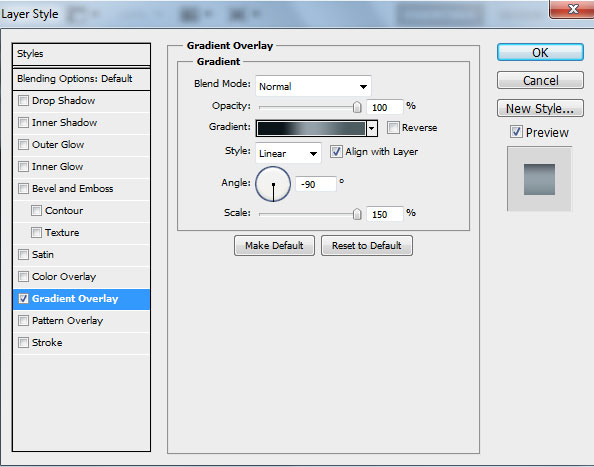
Start working by creating a new document (Ctrl+N) in Adobe Photoshop with the size 1024px by 1280px (RGB color mode) at a resolution of 72 pixels/inch. Select the background layer in Layers panel and click on Add a layer style icon from bottom part of the Layers panel to select Gradient Overlay.
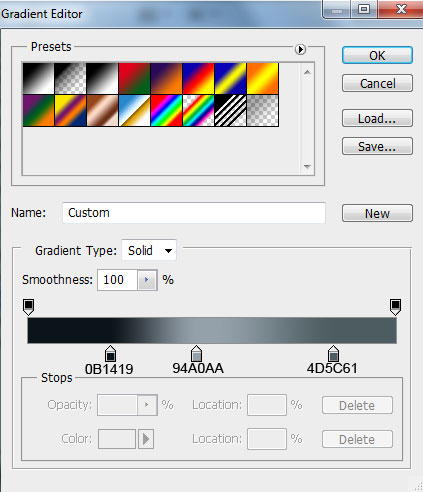
Click in the color bar to open the Gradient Editor and set the color stops as shown. Click OK to close the Gradient Editor dialog box.

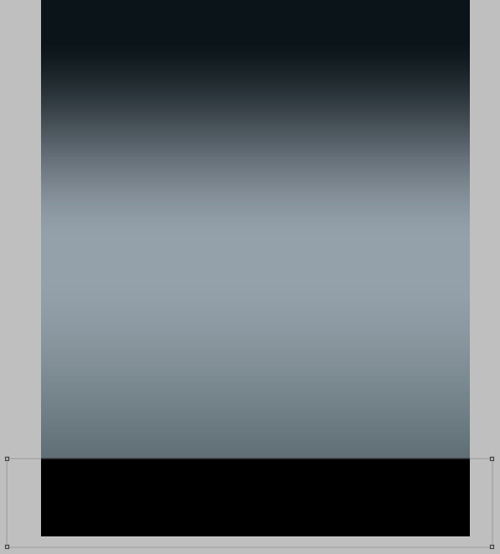
We’ve got the next background:

Use now the Rectangle Tool (U) to represent a kind of surface like the next one:
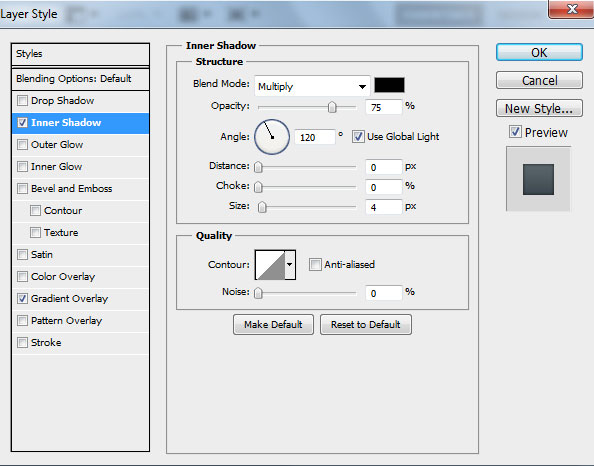
Click on Add a layer style icon from bottom part of the Layers panel and select Inner Shadow.
Add Gradient Overlay:
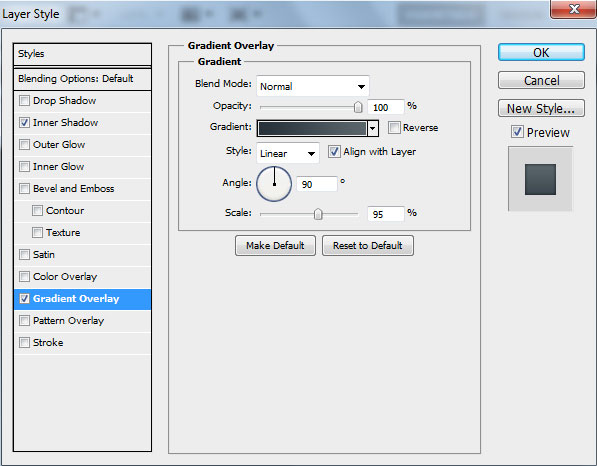
Click in the color bar to open the Gradient Editor and set the color stops as shown. Click OK to close the Gradient Editor dialog box.
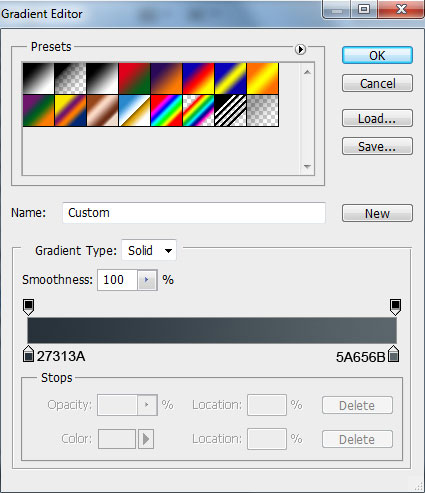
We’ve got the next result:

Create a new layer which must be filled using the Paint Bucket Tool (G) with #BBBCBA color.

Apply for this layer the enxt filter: Filter>Noise>Add Noise.
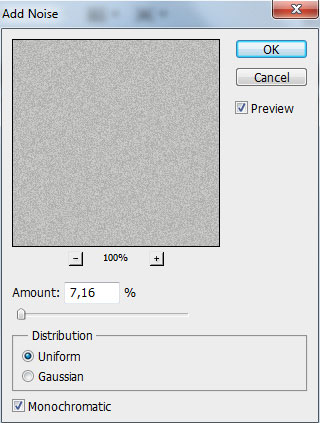
We’ve got the next result:

Set Fill to 39% for this layer and change the Blending mode to Divide.

Create a new layer and select for it the Soft Round brush of black color (set Opacity to 20% in Options bar).
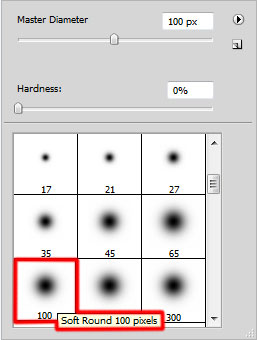
Use this brush to make darker the surfaces’ edge as it is demonstrated on the next picture:

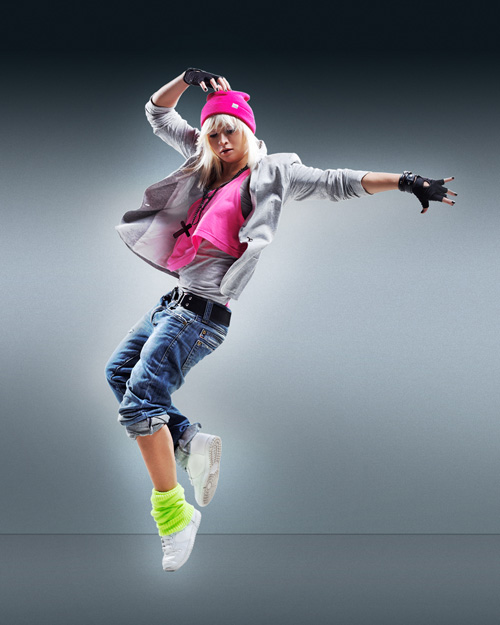
Find a stock photo, I used this photo from Shutterstock. I would like to thank the author of this photo, or if you prefer, you can substitute similar image of your own.
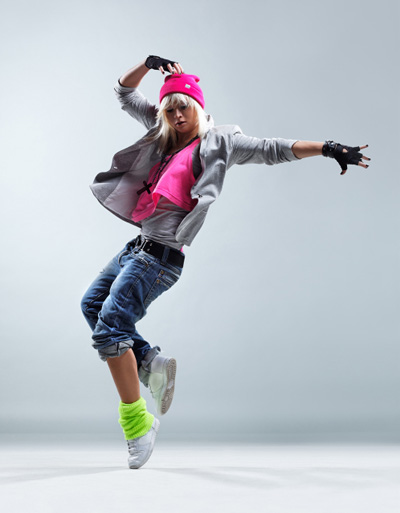
Remove the background using your favorite tools like Pen Tool (P), Magic Wand Tool (W), Magnetic Lasso (L) or even a simple Filter>Extract and insert it on a new layer in our main document.
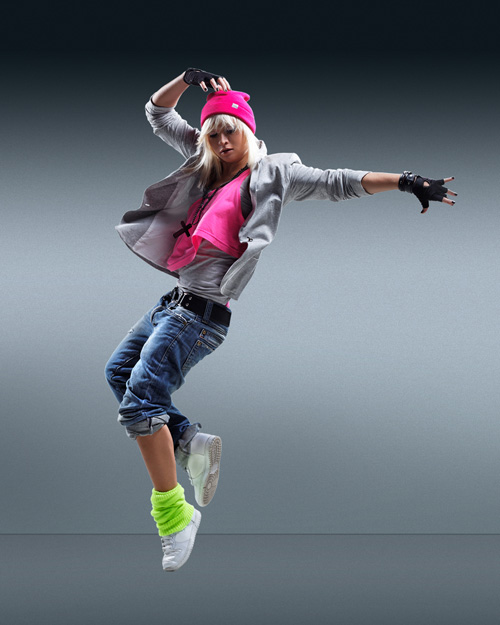
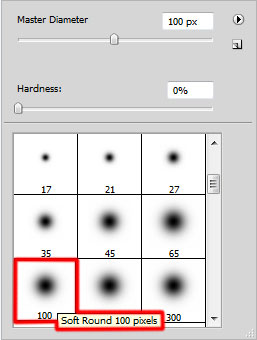
Create the next new layer and select for it the Soft Round brush of white color (set Opacity to 20% in Options bar).
Use this brush to paint on the girl’s image the certain indicated zones.
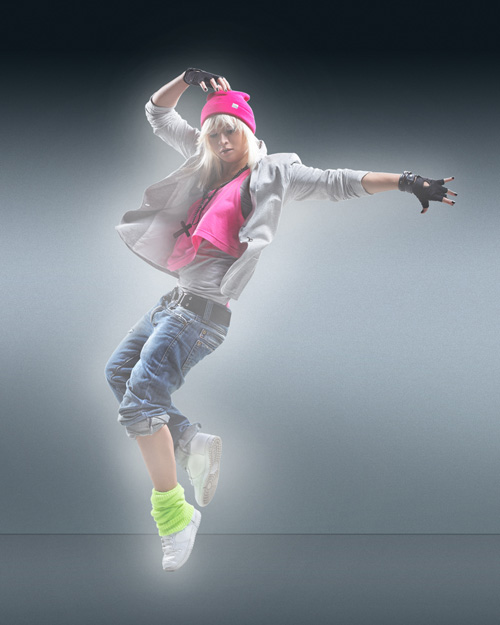
Set the Blending mode for this layer to Overlay.
Post Pages: 1 2
Tags: abstract, artwork, background, colorful, cs5, effect, fashion, free, light, photo-effect, photo-manipulation, photography, Photoshop, poster, psd, shapes


Ann
23/03/2011
Very nice! Thanks for the inspiration.
tirath
24/03/2011
Awesome tutorial with nice Coloring Effect
Nice trick
You make Photoshop more interesting & enjoyable
Your all tutorials are wonderful
I learn so much from them
keep up good work
god bless you
megkar
24/03/2011
thnx for the color dynamic tip men…great tut
söve
25/03/2011
thank u for post
Lee Fuller
25/03/2011
Really nice effect and your tutorial was really easy to follow.. thanks for sharing..
photoshop
28/03/2011
tanks alot for the tutorial , it’s so helpful
Adrian
01/04/2011
Love bokeh effect, thanks for share this tip.
Kat
01/04/2011
great tutorial… i have a stupid question… how did you create the bokeh effect its wicked awesome and i cant seem to replicate it. thanks!
Website Design and Development
17/04/2011
Wow, very nice articles. Photoshop is really interesting.I like it
jurusphotoshop
13/05/2011
I like it..
ben
26/05/2011
superbbb…nice,it give us inspiration,and your tutorial is easy to follow,thnx for sharing
Mainual
26/05/2011
Magic!
heshomoney
16/06/2011
The tutorial is awesome it really help me thanks for sharing
WadeSta
10/08/2011
Amazin ur hard work inspires me bro keep going
WadeSta
10/08/2011
Amazin ur hard work inspires me bro keep going, lookin forward to seeing more of your work
ess
24/08/2011
how do i add a layer effect in the begining to a background layer?
vista
27/09/2011
psd file pls
vista
27/09/2011
tutorial is awesome it really help me thanks for sharing
psd file pls
PS
17/10/2011
Why this tutorial didn’t complete?
PS
17/10/2011
how to create those bubbles..?
ehrie
23/10/2011
can we have a copy of the psd file please? so i can study it more closely.. besides im using cs3.. i dunno how to make the bubbles there.. i really want to do this one..
yomi don
21/11/2011
Wooow! Dat was a very very interesting Tutorial. Phew! Been wondering how people come up with all those stuffs. Thanx!
pandora
29/11/2011
thanks for u r gift
ali moazzam
27/01/2012
really out class tutorial
its indeed a very nice attempt.. please keep it up
CH
02/03/2012
Thanks..really helpful.I learn so much from it. thanks a lot..
FAb
27/07/2012
How can i download this page
vaibhav
16/09/2012
Awesome workkk……..Keep it up guys….
colman nick
06/12/2012
i like it
Sadeekali
15/03/2013
Fantastic Work… Amazing….
goergez
13/06/2013
psd file,plzzz…..