
Create bright abstract diagonal lines background in Photoshop CS5
In this tutorial, I will teach you how to easily create a bright abstract diagonal lines background in Adobe Photoshop CS5 using gradients, brushes and Hue/Saturation adjustments. Layered PSD file included. Let’s create this abstract illustration!
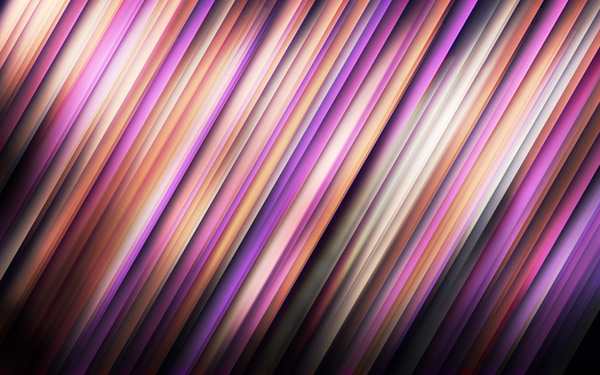
Final Image Preview
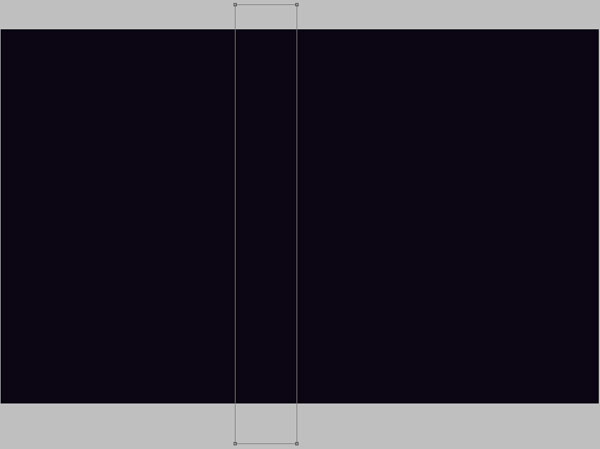
Start working by creating a new document (Ctrl+N) in Adobe Photoshop with the size 1900px by 1200px (RGB color mode) at a resolution of 72 pixels/inch. Use the Paint Bucket Tool (G) to fill with #0B0513 color the new background layer.

Using the Rectangle Tool (U), let’s draw the next rectangle.

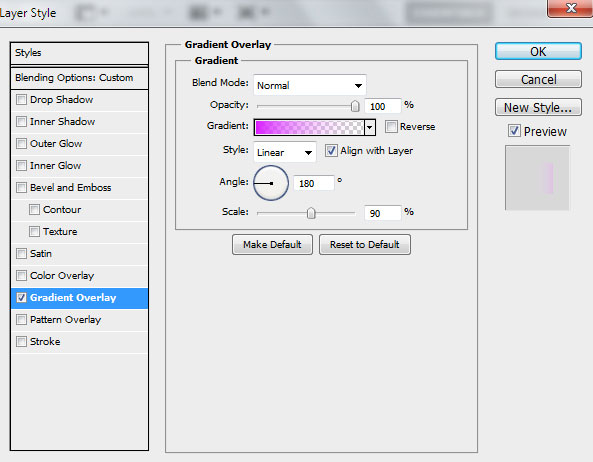
Set Fill to 0% for this layer and click on Add a layer style icon from bottom part of the Layers panel to select Gradient Overlay.
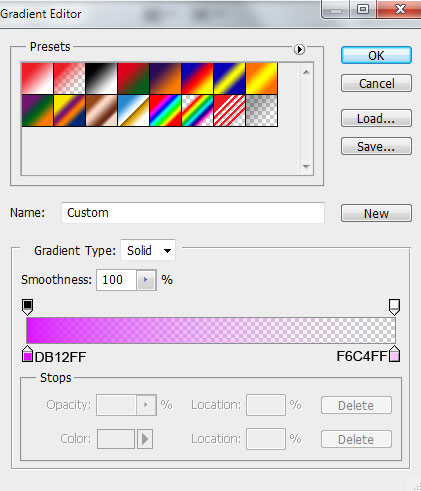
Click in the color bar to open the Gradient Editor and set the color stops as shown. Click OK to close the Gradient Editor dialog box.
We’ve got the next result:

Next we have to rasterize the layer with the rectangle on it. In this case create a new layer above the one’s processed and select both layers in Layers panel by holding Ctrl button and then press CTRL+E to Merge Down. Applying the Free Transform (Ctrl+T) command we may incline the rectangle on 45 degrees.

Insert the mask on the layer by choosing Add layer mask on the bottom part of the Layers panel and choose the Soft Round brush of black color.
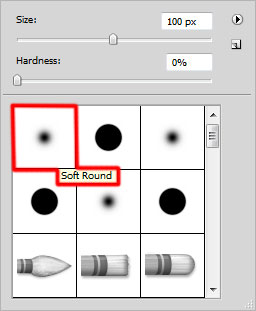
Paint in the mask using this brush to hide the lines edges as shown.

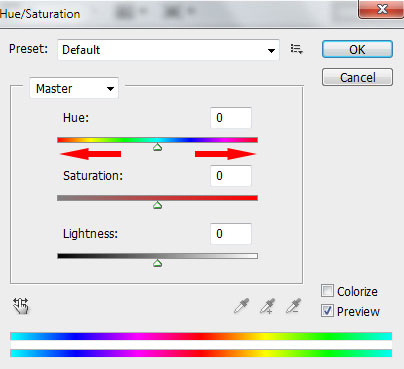
Next we’ll make many copies of the layer containing the line and change the position of the layers with the Free Transform (Ctrl+T) command. On each copy’s layer we’ll hide differently the lines’ edges on the mask. Also adjust the colors of the lines by changing the Hue value using Image > Adjustments > Hue/Saturation (Ctrl+U).
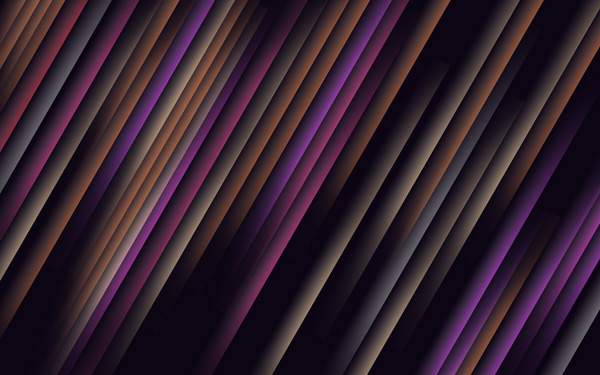
We’ve got the next result:
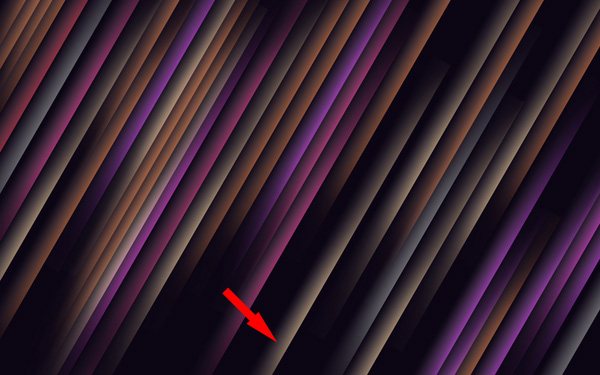
Now we have to make a copy with the indicated line.
Select for the copy’ s layer the next filter: Filter>Blur>Gaussian blur.
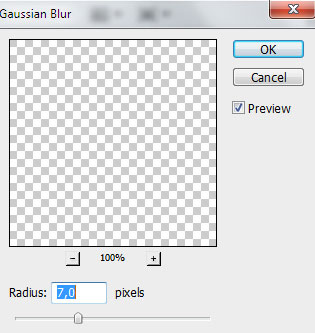
We’ve got the next result:
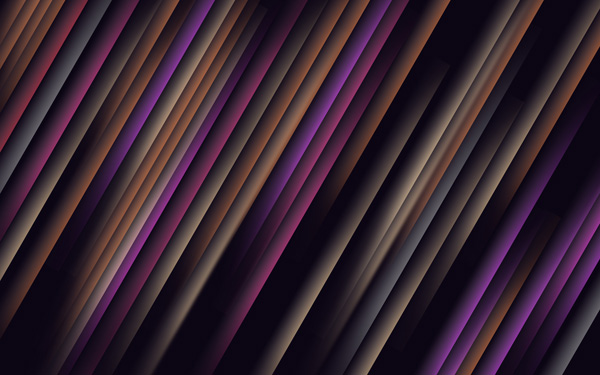
Make a copy of one of the lines containing the Gaussian blur effect. Set the Blending mode for this layer to Color Dodge and change the position with Free Transform (Ctrl+T) command. The line gets red color.
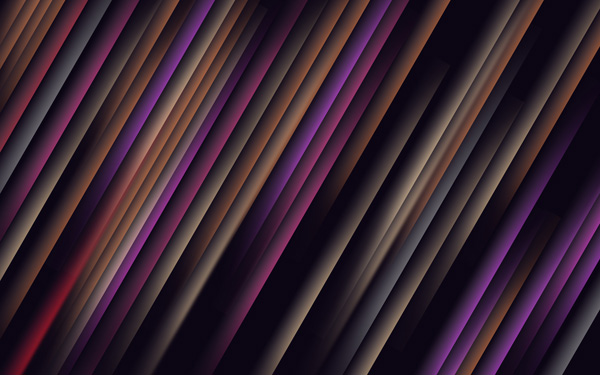
Make several copies of the red line’s layer and choose the Free Transform (Ctrl+T) command to place the copies as on the next picture it is demonstrated. On several copies we’ll have to change the color, using Hue/Saturation (CTRL+U).
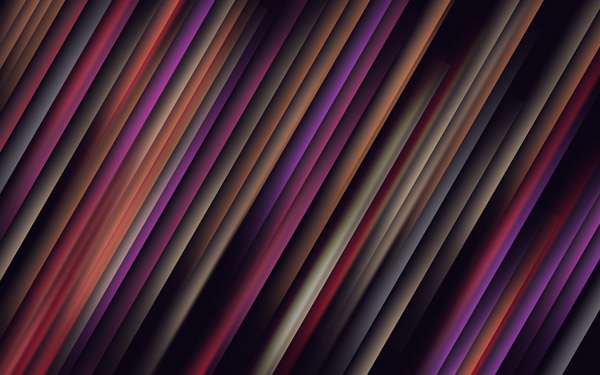
Next we’ll insert several more copies of the lines. The copies without the Gaussian blur effect and Color Dodge mode. Change the color of the lines using Hue/Saturation (CTRL+U) and place the layers of the copies using the Free Transform (Ctrl+T) command. We’ll also clean out the edges of the lines on the mask where it is necessary.
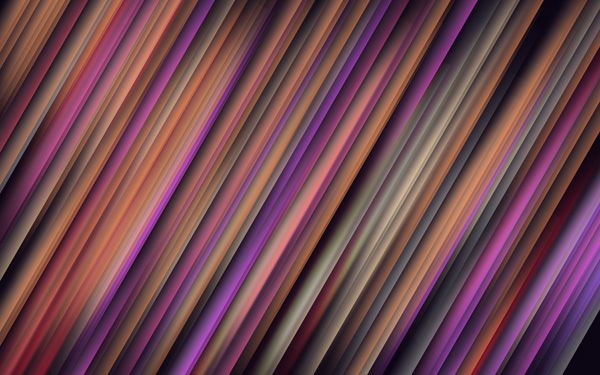
Next we’ll insert one more copy of the line and click on Add a layer style icon from bottom part of the Layers panel and select Outer Glow.
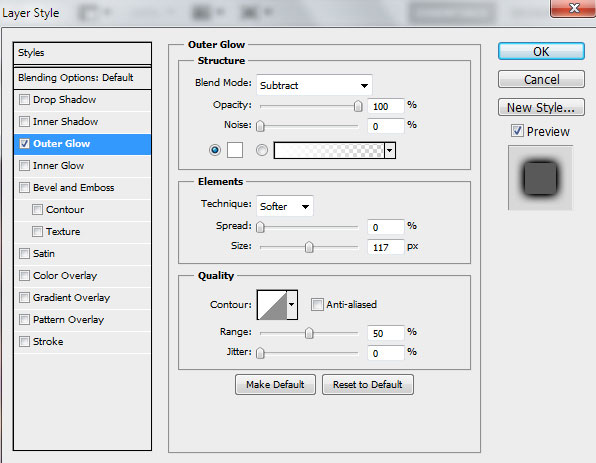
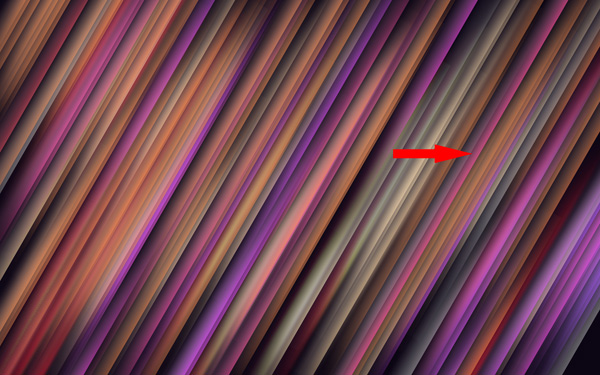
The line containing the Outer Glow style is mentioned below:
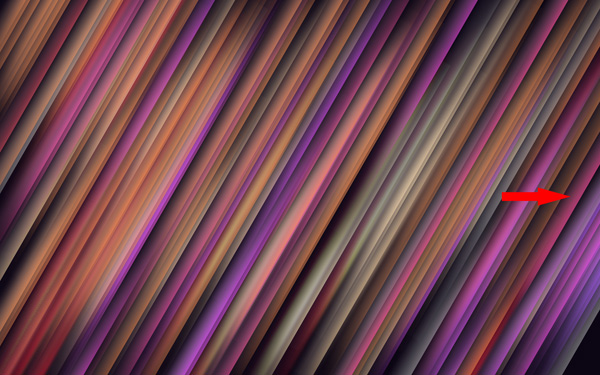
Make a copy of the recently made line and select the Free Transform (Ctrl+T) command to place the copies as it is shown below:
Page: 1 2
Comments