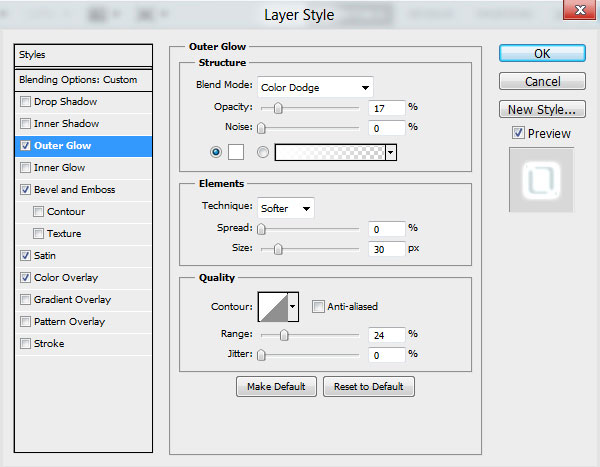
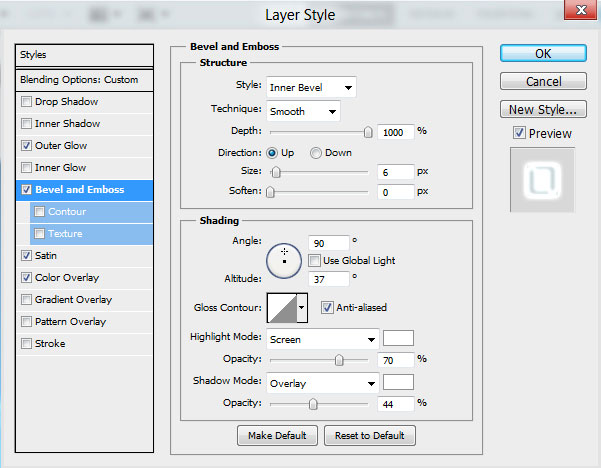
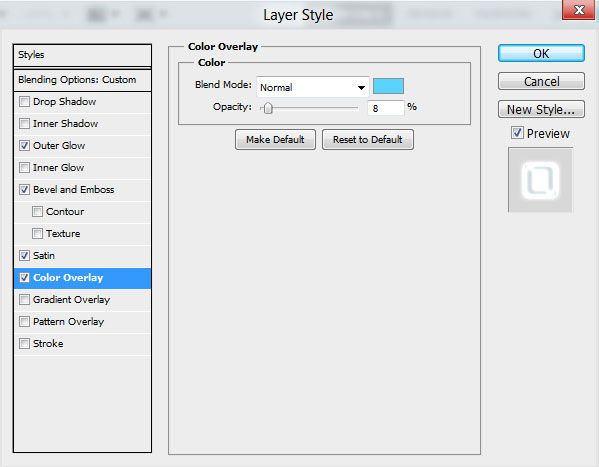
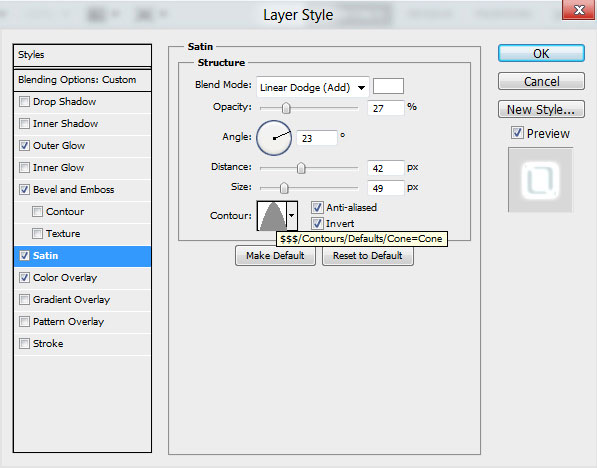
How to create an Impressive New Year 2012 card with Neon text in Photoshop CS5

November 13th, 2011 by admin Posted in Adobe Photoshop, Designing, Text Effects

Set the Blending mode for this layer to Hue.

How to create an Impressive New Year 2012 card with Neon text in Photoshop CS5

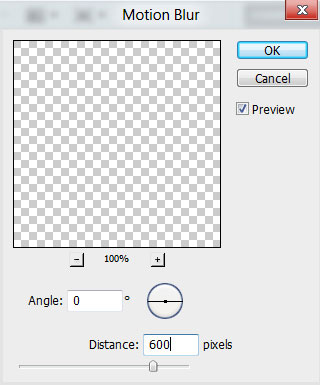
Make a copy now of the layer containing the digits, rasterize it (create a new layer above the copy’s layer and hold CTRL button to select both layers in Layes panel. Finally press CTRL+E to Merge Down. Using the Free Transform (Ctrl+T) command, turn around the rasterized layer and place it the same way demonstrated below:

How to create an Impressive New Year 2012 card with Neon text in Photoshop CS5

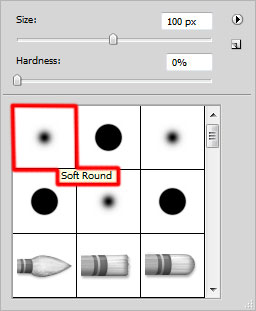
Insert the mask on the layer by choosing Add layer mask on the bottom part of the Layers panel and choose the Soft Round brush of black color (set Opacity to 30% in Options bar). Use this brush to paint in the mask to hide the next zones on reflection’s layer as it is shown below:

How to create an Impressive New Year 2012 card with Neon text in Photoshop CS5

Next we’ll represent the highlight on the top upper half of the 2012 digits. Take now the Rectangle Tool (U) and draw the next rectangle.

How to create an Impressive New Year 2012 card with Neon text in Photoshop CS5

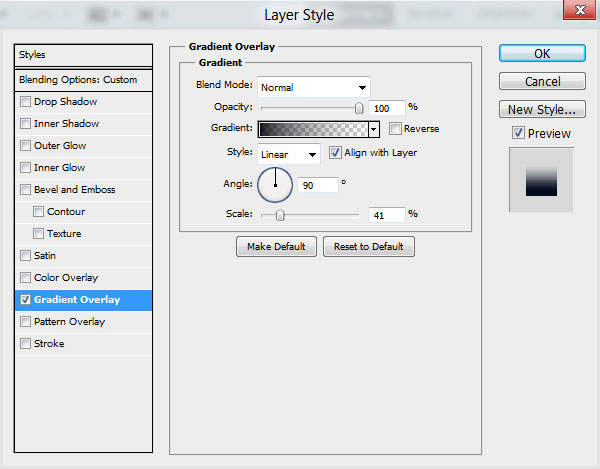
Set Fill to 0% for this layer and click on Add a layer style icon from bottom part of the Layers panel to select Gradient Overlay.
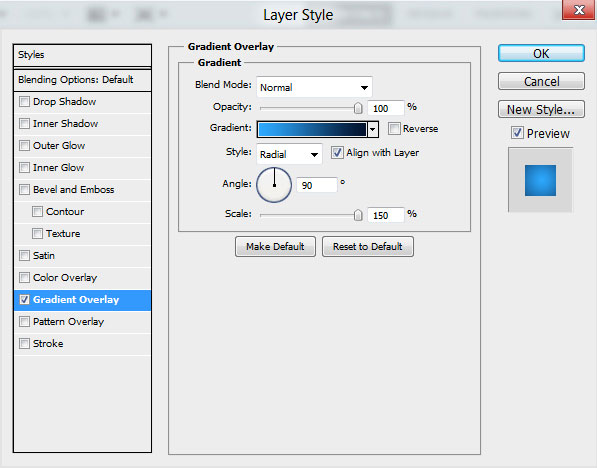
How to create an Impressive New Year 2012 card with Neon text in Photoshop CS5

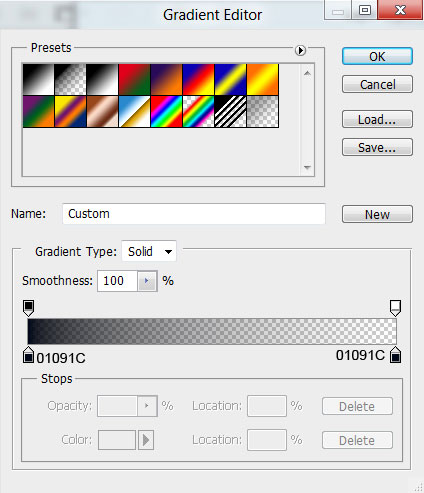
Click in the color bar to open the Gradient Editor and set the color stops as shown. Click OK to close the Gradient Editor dialog box.
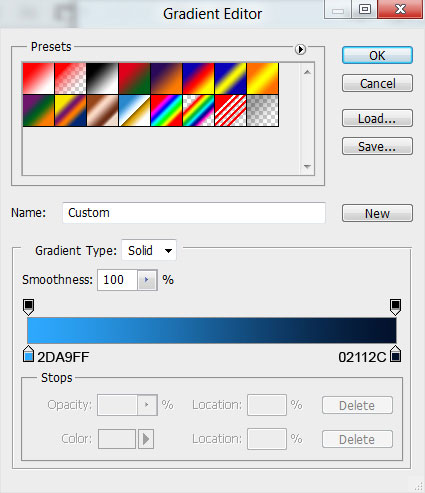

How to create an Impressive New Year 2012 card with Neon text in Photoshop CS5

We’ve got the next result:

How to create an Impressive New Year 2012 card with Neon text in Photoshop CS5

Hold Ctrl button and click on digits’ layer in Layers panel to get the next selection.

How to create an Impressive New Year 2012 card with Neon text in Photoshop CS5

Make sure that highlight’s layer is active and click on Add layer mask on the bottom part of the Layers panel .

How to create an Impressive New Year 2012 card with Neon text in Photoshop CS5

Create a new layer and select the Hard Round brush of white color.

How to create an Impressive New Year 2012 card with Neon text in Photoshop CS5

Use this brush to represent many small circles as shown. Choose different Brush Sizes and different Opacity value.

How to create an Impressive New Year 2012 card with Neon text in Photoshop CS5

Set the Blending mode for this layer to Overlay.

How to create an Impressive New Year 2012 card with Neon text in Photoshop CS5

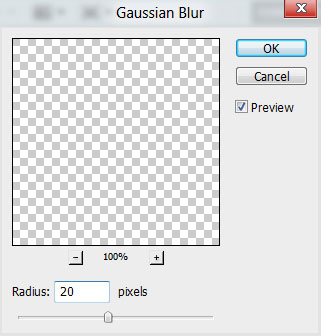
Make a copy of the layer containing the made small circle. Apply on this layer the next filter: Filter > Blur > Gaussian blur.

How to create an Impressive New Year 2012 card with Neon text in Photoshop CS5

We’ve got the next result:

How to create an Impressive New Year 2012 card with Neon text in Photoshop CS5

Insert the mask on the layer by choosing Add layer mask on the bottom part of the Layers panel and choose the Hard Round brush of black color.

How to create an Impressive New Year 2012 card with Neon text in Photoshop CS5

Paint in the mask using this brush to hide the blur effect on several circles, as it is show below:

How to create an Impressive New Year 2012 card with Neon text in Photoshop CS5

Set the Blending mode for this layer to Soft Light.

How to create an Impressive New Year 2012 card with Neon text in Photoshop CS5

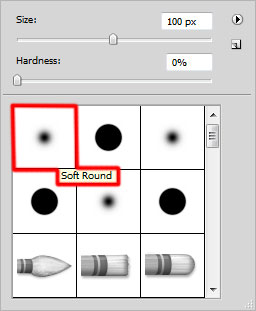
Create a new layer and select the Soft Round brush and Hard Round brush of white color to represent other circles.

How to create an Impressive New Year 2012 card with Neon text in Photoshop CS5

How to create an Impressive New Year 2012 card with Neon text in Photoshop CS5

Apply different brushes, also different Brush Sizes and different Opacity value.

How to create an Impressive New Year 2012 card with Neon text in Photoshop CS5

Set the Blending mode for this layer to Overlay.

How to create an Impressive New Year 2012 card with Neon text in Photoshop CS5

Hold Ctrl button and click on digits’ layer to get the next selection.

How to create an Impressive New Year 2012 card with Neon text in Photoshop CS5

Use the Soft Round brush of white color on the new layer to paint the digits’ edges.

How to create an Impressive New Year 2012 card with Neon text in Photoshop CS5

We’ve got the next result:

How to create an Impressive New Year 2012 card with Neon text in Photoshop CS5

Set the Blending mode for this layer to Overlay.

How to create an Impressive New Year 2012 card with Neon text in Photoshop CS5

Click Create new fill or adjustment layer from bottom part of the Layers panel and click to Curves to adjust the curve shape as shown to make a little color corrections.

How to create an Impressive New Year 2012 card with Neon text in Photoshop CS5

We’ve got the next result:

How to create an Impressive New Year 2012 card with Neon text in Photoshop CS5

Our Greeting card with Neon Digits is finished!

Merry Christmas and Happy New Year!

View full size here.

Download free Layered PSD file.

  •  

  •    
  •  


Post Pages: 1 2

Tags: , , , , , , , , , , , , , , , , , , , , , , , , , ,

  • Nora Reed

    14/11/2011

    Nice tutorial, i will try to make this!! Thanks 4 sharing

  • john

    15/11/2011

    First 2012 I saw and it looks beautiful, I was expecting a more apocalyptic design :)

  • Margaret

    15/11/2011

    I can’t help but feel there is something missing in the last step. The edges are so hard and don’t look right on that last layer. I have experimented with a few things and the one that pleases me most is setting the blend mode of the layer to soft light and adding the gaussian blur set to 20px. That softens the edges of that rectangle you painted.

    Also your final image appears to have a duplicate layer to the text rotated and sized to appear like a reflection and you’ve added sparkles to the entire image. Why weren’t those steps included?

    Thanks!

  • Nisha

    15/11/2011

    wow its so awesome!! :)

  • Pusaka

    15/11/2011

    Nice tutorial… I wil try to make it to….. Thanks

  • Van

    17/11/2011

    Great tutorial! Found this one being featured on pixel2life ;)

  • LithiC

    18/11/2011

    I love the style !!!that’s awesome! Thanks for sharing!

  • divix

    18/11/2011

    psd link is not relevant :/

  • Temp

    19/11/2011

    @Margaret – I think you’ve missed the link to the 2nd page at the bottom of the 1st page.

    http://www.adobetutorialz.com/articles/30970807/1/create-an-impressive-new-year-2012-card-with-neon-text-photoshop-cs5/2

    :)

  • Aaron

    23/11/2011

    Hi, i cant do this part “Click in the color bar to open the Gradient Editor and set the color stops as shown. Click OK to close the Gradient Editor dialog box.” because when i try to change the colors it doesnt change!

  • linnthitmyat

    23/11/2011

    @Aaron

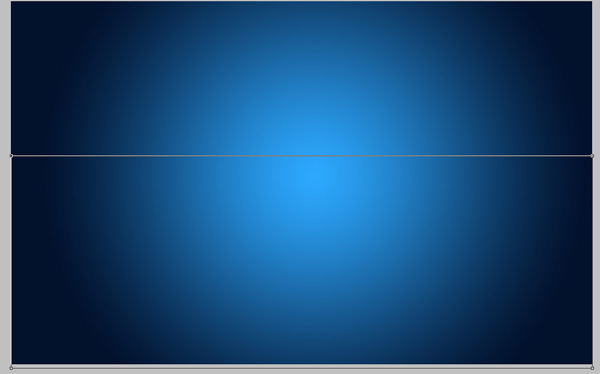
    After U set the colour (2DA9FF & 02112C) u will need to press “Alt+BackSpace” to fill the colour.

  • peter

    29/11/2011

    super good. good looking.

  • willianamy

    02/12/2011

    J’aime beaucoup toutes ces couleur!
    en ce moment, j’aime vraiment toutes tes tenues; les couleurs te vont vraiment bien!

  • PC

    03/12/2011

    The Download free Layered PSD file does not match the tutorial.

  • Link

    04/12/2011

    psd link wrong :(

  • hernan miguel

    05/12/2011

    Maravillosos tutoriales, simplemente esplendidos, gracias por los tutoriales.
    Dios lo bendiga

  • admin

    06/12/2011

    Sorry guys,
    link to PSD file was fixed.

  • Susan

    16/12/2011

    I made it and it’s so beautiful. Thank you!

  • soucer330

    21/12/2011

    good~~~~~~~~~~~~

  • whiteahawk

    15/02/2012

    hii … some part of the tutorials are not able to understand … plzz try to write some more thing with the pic’s …