How to Create Christmas Greeting Card with colorful stars and baubles in Photoshop CS5

December 6th, 2011 by admin Posted in Adobe Photoshop, Designing, Drawing Techniques

Make a copy of the very first star’s layer and select the Free Transform (Ctrl+T) command to make the copy’s layer smaller.

How to Create Christmas Greeting Card with colorful stars and baubles in Photoshop CS5

Set Fill to 0% for this layer and click on Add a layer style icon from bottom part of the Layers panel to select Drop Shadow.

How to Create Christmas Greeting Card with colorful stars and baubles in Photoshop CS5

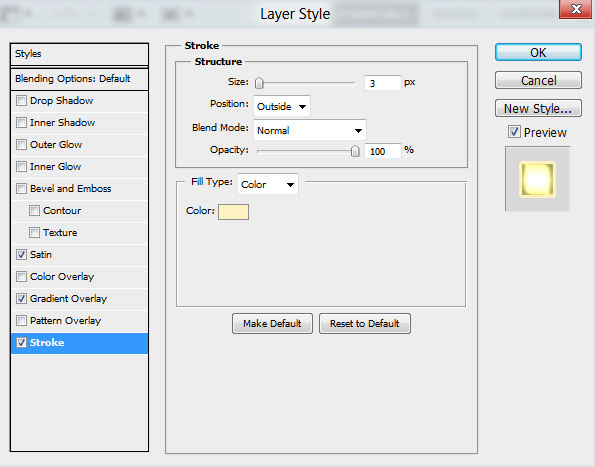
Add Stroke:

How to Create Christmas Greeting Card with colorful stars and baubles in Photoshop CS5

Select Fill Type – Gradient and click in the color bar to open the Gradient Editor, set the color stops as shown. Click OK to close the Gradient Editor dialog box.

How to Create Christmas Greeting Card with colorful stars and baubles in Photoshop CS5

We’ve got the next result:

How to Create Christmas Greeting Card with colorful stars and baubles in Photoshop CS5

Next we have to draw the star’s support element, choose the Pen Tool (P), set the drawing mode on Shape Layers in Options bar and draw the next shape as shown.

How to Create Christmas Greeting Card with colorful stars and baubles in Photoshop CS5

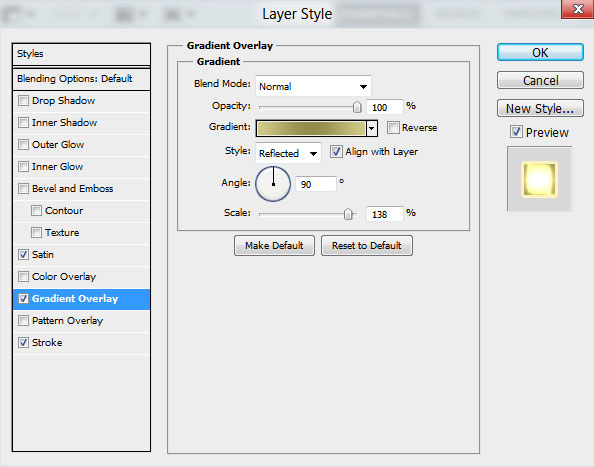
Click on Add a layer style icon from bottom part of the Layers panel and select Gradient Overlay.
How to Create Christmas Greeting Card with colorful stars and baubles in Photoshop CS5

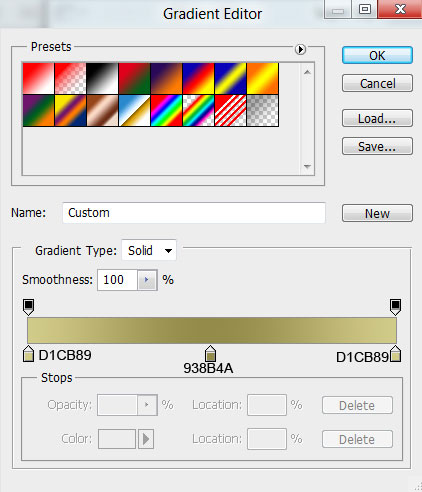
Click in the color bar to open the Gradient Editor and set the color stops as shown. Click OK to close the Gradient Editor dialog box.
How to Create Christmas Greeting Card with colorful stars and baubles in Photoshop CS5

We’ve got the next result:

How to Create Christmas Greeting Card with colorful stars and baubles in Photoshop CS5

Using the Ellipse Tool (U), we may represent the ring, placing the layer under the support’s element layer.

How to Create Christmas Greeting Card with colorful stars and baubles in Photoshop CS5

Set Fill to 0% for this layer and click on Add a layer style icon from bottom part of the Layers panel to select Stroke.

How to Create Christmas Greeting Card with colorful stars and baubles in Photoshop CS5

Select Fill Type – Gradient and click in the color bar to open the Gradient Editor, set the color stops as shown. Click OK to close the Gradient Editor dialog box.

How to Create Christmas Greeting Card with colorful stars and baubles in Photoshop CS5

We’ve got the next result:

How to Create Christmas Greeting Card with colorful stars and baubles in Photoshop CS5

Now our first star was drawing.

How to Create Christmas Greeting Card with colorful stars and baubles in Photoshop CS5

Combine in a group all the layers composing the star and the support element with the ring (press CTRL button to select the necessary layers and hold on the left mouse’s button while dragging the selected layers on Create a new group icon from bottom part of the Layers panel).

Make three copies of the made group and make changes in the copies’ styles on the layer with the blue star. Change the original color on three other colors.

The red color (the layer’s color #EB5738).
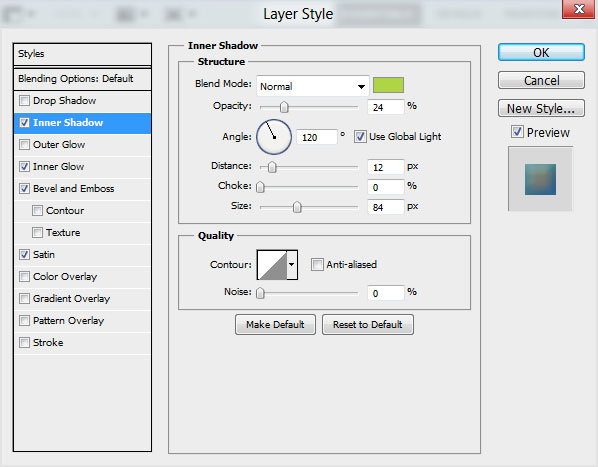
Click on Add a layer style icon from bottom part of the Layers panel and select Inner Shadow.
How to Create Christmas Greeting Card with colorful stars and baubles in Photoshop CS5

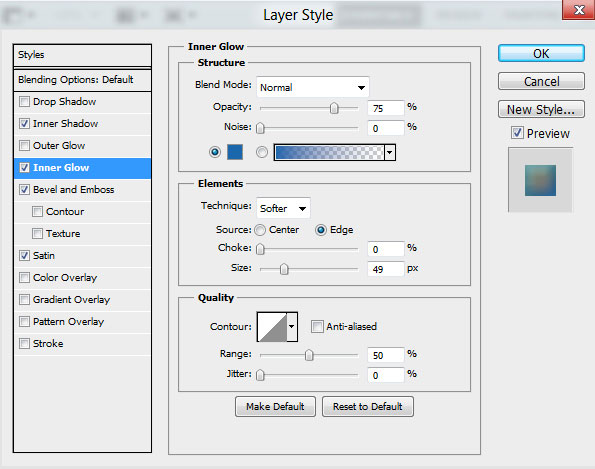
Inner Glow settings:

How to Create Christmas Greeting Card with colorful stars and baubles in Photoshop CS5

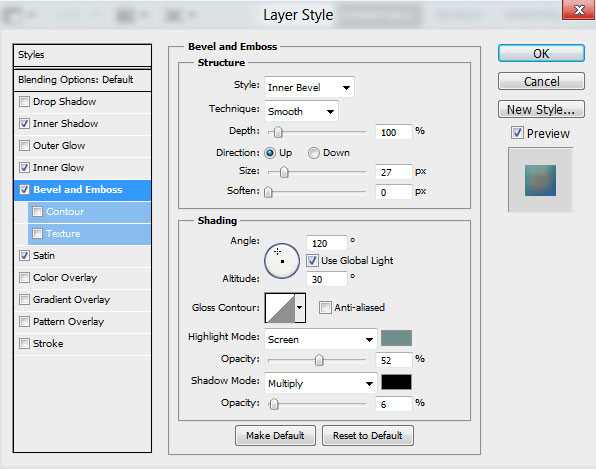
Bevel and Emboss settings:

How to Create Christmas Greeting Card with colorful stars and baubles in Photoshop CS5

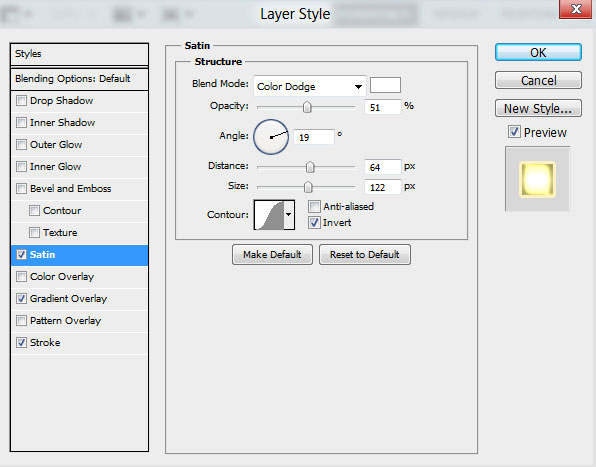
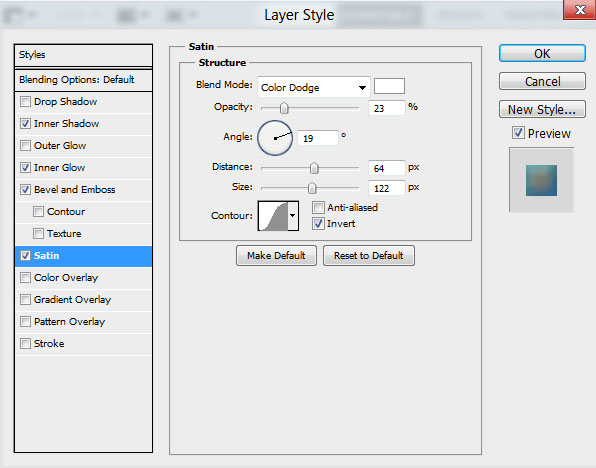
Satin settings:

How to Create Christmas Greeting Card with colorful stars and baubles in Photoshop CS5

We’ve got the next result:

How to Create Christmas Greeting Card with colorful stars and baubles in Photoshop CS5

The yellow color (the layer’s color #FFE155).
Inner Shadow settings:

How to Create Christmas Greeting Card with colorful stars and baubles in Photoshop CS5

Inner Glow settings:

How to Create Christmas Greeting Card with colorful stars and baubles in Photoshop CS5

Bevel and Emboss settings:

How to Create Christmas Greeting Card with colorful stars and baubles in Photoshop CS5

Satin settings:

How to Create Christmas Greeting Card with colorful stars and baubles in Photoshop CS5

We’ve got the next result:

How to Create Christmas Greeting Card with colorful stars and baubles in Photoshop CS5

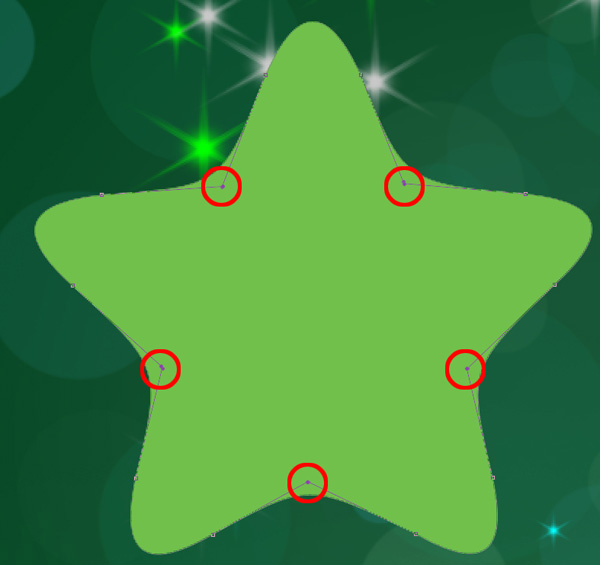
The green color (the layer’s color #71C04C).
Inner Shadow settings:

How to Create Christmas Greeting Card with colorful stars and baubles in Photoshop CS5

Inner Glow settings:

How to Create Christmas Greeting Card with colorful stars and baubles in Photoshop CS5

Bevel and Emboss settings:

How to Create Christmas Greeting Card with colorful stars and baubles in Photoshop CS5

We’ve got the next result:

How to Create Christmas Greeting Card with colorful stars and baubles in Photoshop CS5

Now our colorful stars was drawing:

How to Create Christmas Greeting Card with colorful stars and baubles in Photoshop CS5

Using the Free Transform (Ctrl+T) command we can change the copies’ sizes, placing them as it is shown on the next picture. If necessary we can make copies of the stars.

How to Create Christmas Greeting Card with colorful stars and baubles in Photoshop CS5

Using the Ellipse Tool (U), we can represent now a Christmas bauble. Select Ellipse Tool (U) and draw the next ellipse:

How to Create Christmas Greeting Card with colorful stars and baubles in Photoshop CS5

Click on Add a layer style icon from bottom part of the Layers panel and select Inner Shadow.

How to Create Christmas Greeting Card with colorful stars and baubles in Photoshop CS5

Apply Gradient Overlay:

How to Create Christmas Greeting Card with colorful stars and baubles in Photoshop CS5

Click in the color bar to open the Gradient Editor and set the color stops as shown. Click OK to close the Gradient Editor dialog box.

How to Create Christmas Greeting Card with colorful stars and baubles in Photoshop CS5

We’ve got the next result:

How to Create Christmas Greeting Card with colorful stars and baubles in Photoshop CS5

How to Create Christmas Greeting Card with colorful stars and baubles in Photoshop CS5

  •  

  •    
  •  


Post Pages: 1 2 3 4

Tags: , , , , , , , , , , , , , , , , , , , , , , , , , , ,

  • Tirath

    07/12/2011

    Excellent tutorial with Awesome output
    Thanks so much for your kind efforts for making such amazing & creative Photoshop tutorials
    hats off to you
    keep up good works
    God Bless you :D

  • john

    10/12/2011

    lovely design!

  • jan

    15/12/2011

    great tutorial (especially for a beginner like myself); but i cannot download the file for the extra brushes for my mac. any suggestions?

  • Laura

    20/12/2011

    Amazed that such great tutorial info is available for free. Very pleased to be able to create these cards and learn new Photoshop tools at the same time. Thank you

  • maddie

    23/12/2011

    i cant download anything to my computer any free trials?

  • Martha

    30/12/2011

    Que belleza de tarjeta, y que lindo tutorial, me encanto como se le iba cambiando del color a las esferas!!!! bravo

  • cute

    17/04/2012

    weldone nice work

  • jenny

    17/04/2012

    I really wanted to learn new design using adobe… this site is great.. It help me to learn… thank you

  • Heba Ashraf

    01/01/2013

    What the meaning of the ” #00C962 ” in Foreground color
    and how can i make that ?