
How to Create a Colorful Abstract Photo Manipulation in Photoshop CS5
In this tutorial, I will show you the steps I took to Create a Colorful Abstract Photo Manipulation in Adobe Photoshop CS5. We will apply some basic Photo Manipulation techniques such as layer blending and masking, we will also practice some drawing techniques with Pen Tool and Elilipse Tool.
Final Image Preview

Start working by creating a new document (Ctrl+N) in Adobe Photoshop with the size 1280px by 1024px (RGB color mode) at a resolution of 72 pixels/inch. Use the Paint Bucket Tool (G) to fill with #856D55 color the new background layer.

Create a new layer and take again the Paint Bucket Tool (G) to fill the new layer with grey color.


Apply on the grey layer the next filter: Filter > Noise > Add Noise.
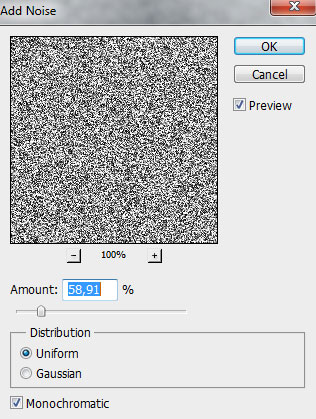
We’ve got the next result:
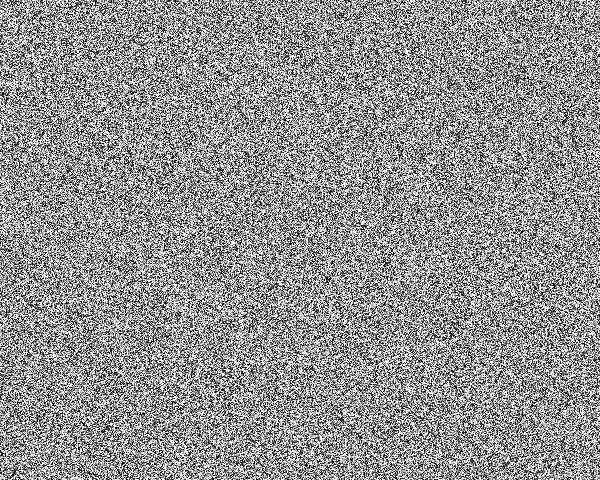
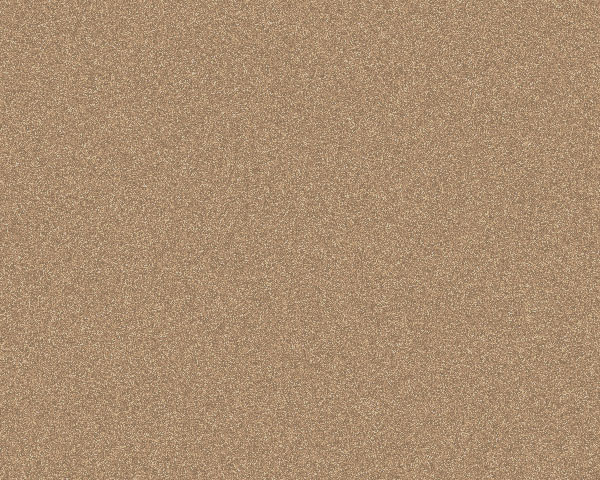
Set Fill to 60% for this layer and change the Blending mode to Divide.
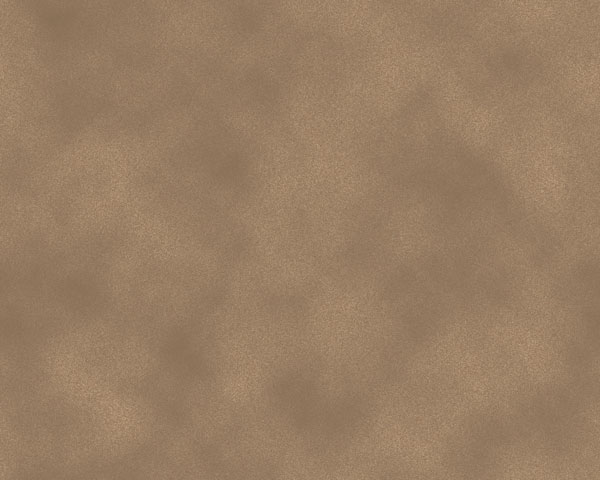
Insert the mask on the layer by choosing Add layer mask on the bottom part of the Layers panel and apply th next filter on the mask: Filter > Render > Clouds.
Find a stock photo with a model represented on it, I used this photo from Shutterstock. I would like to thank the author of this photo, or if you prefer, you can substitute similar image of your own.

Remove the background using your favorite tools like Pen Tool (P), Magic Wand Tool (W), Magnetic Lasso (L) or even a simple Filter>Extract and insert it on a new layer in our main document.

Create a new layer and select the Soft Round brush from Brush Tool (B).
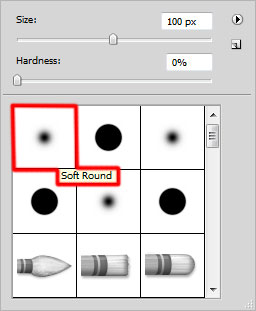
Use this brush to paint the background behind the model. The brush’s color is #CDBD9E.

Choose the Pen Tool (P), set the drawing mode on Shape Layers in Options bar and draw the next triangle as shown. The layer must be situated under the model’s layer.
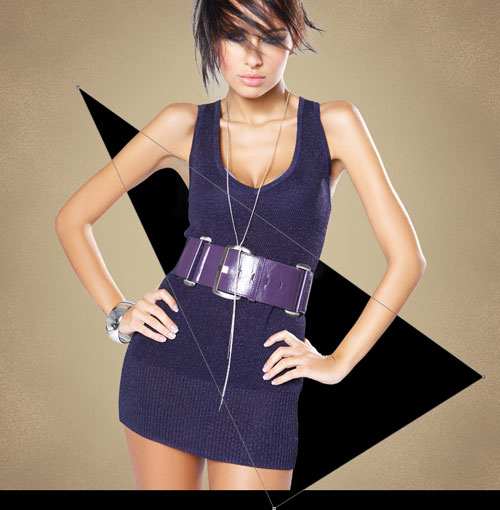
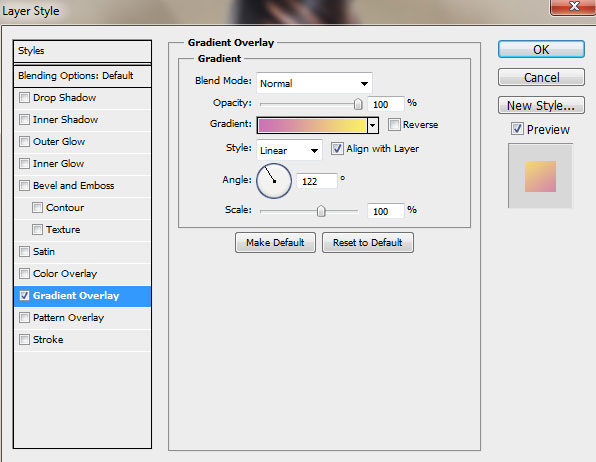
Click on Add a layer style icon from bottom part of the Layers panel and select Gradient Overlay.
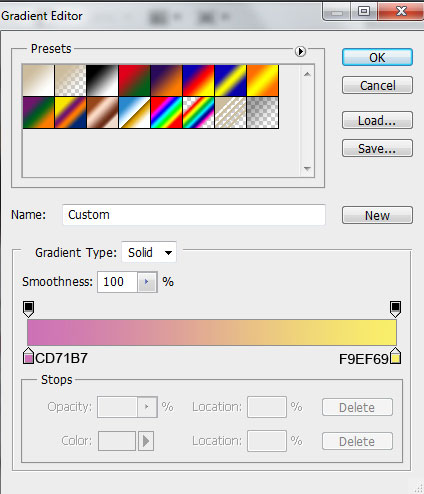
Click in the color bar to open the Gradient Editor and set the color stops as shown. Click OK to close the Gradient Editor dialog box.
We’ve got the next result:

Now select the Ellipse Tool (U) to draw a small ellipse of the color #FEF49B.

Insert the mask on the ellipse layer by choosing Add layer mask on the bottom part of the Layers panel and choose the Soft Round brush of black color.
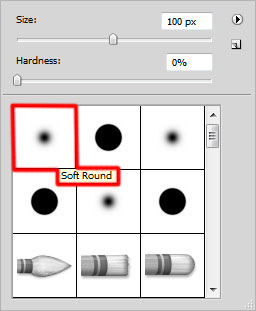
Paint in the mask using this brush to hide the next area on the ellipse to get the same result as on the picture below:

Applying the same methods, try to make two more ellipses of the same color. Place the layers under the model’s layer.

Using the Ellipse Tool (U), we’ll represent another ellipse which layer will be placed under the model’s one.
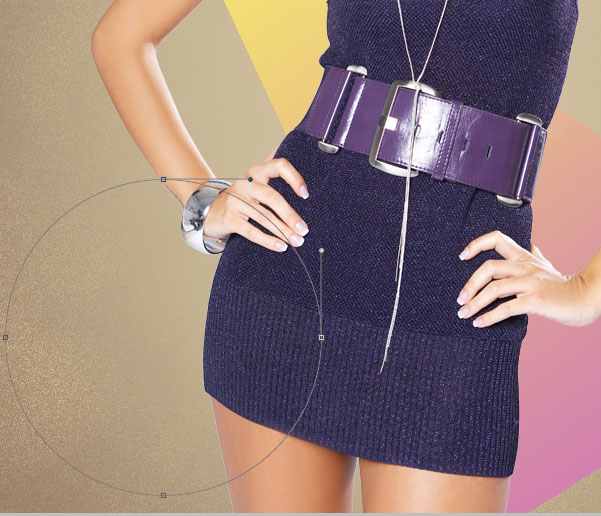
Set Fill to 0% for this layer and click on Add a layer style icon from bottom part of the Layers panel to select Gradient Overlay.
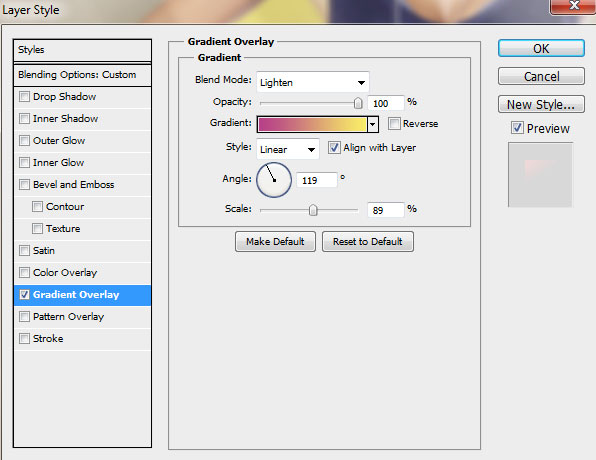
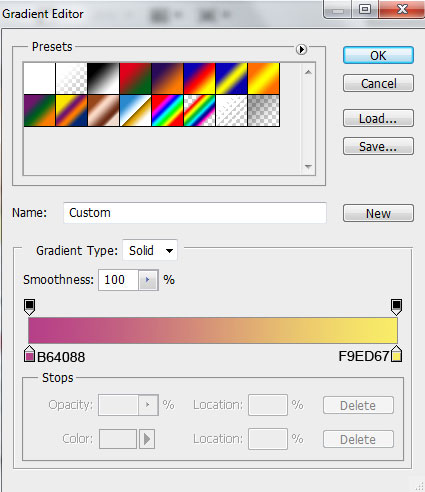
Click in the color bar to open the Gradient Editor and set the color stops as shown. Click OK to close the Gradient Editor dialog box.
We’ve got the next result:

Create a new layer and select the Soft Round brush.
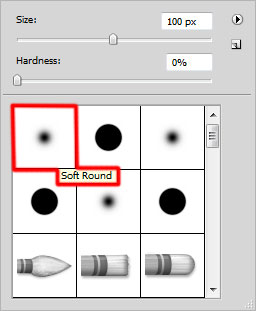
Use this brush to paint the canvas with white color (set brush Opacity to 10% in Options bar).

Create the next new layer and select again the Soft Round brush.
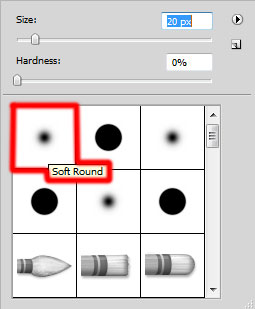
Use this brush to paint on the model several places with #F7EC9B color (brush Opacity – 20%).

Set the Blending mode for this layer to Overlay.

Comments