
Create Dynamic Lighting Effect Using Custom Brushes in Photoshop CS5
We have another great tutorial available for our readers today. I’m going to show you how to create dynamic lighting effect using a stock photo, custom brushes, simple shapes and masks in Adobe Photoshop CS5. Let’s get started!
Final Image Preview

Start working by creating a new document (Ctrl+N) in Adobe Photoshop CS5 with the size 1050px by 1680px (RGB color mode) at a resolution of 72 pixels/inch. Click on Add a layer style icon from bottom part of the Layers panel and select Gradient Overlay.
Blending Options>Gradient Overlay
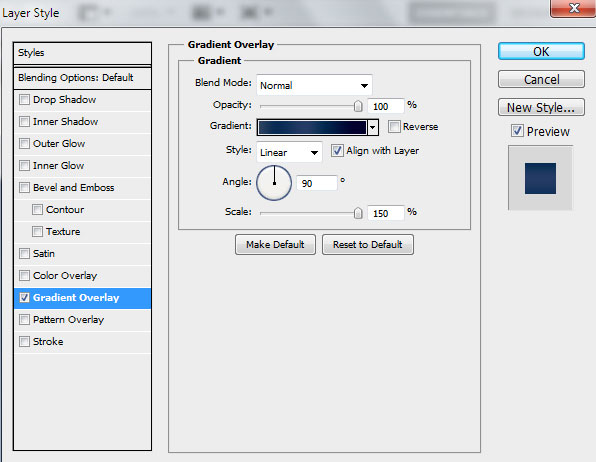
Click in the color bar to open the Gradient Editor and set the color stops as shown. Click OK to close the Gradient Editor dialog box.
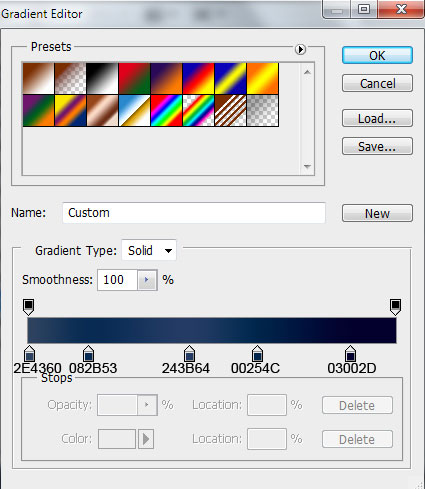

We’ve got the next background:

Create a new layer and select the Paint Bucket Tool (G) to fill the new layer with #3B4E6C color.

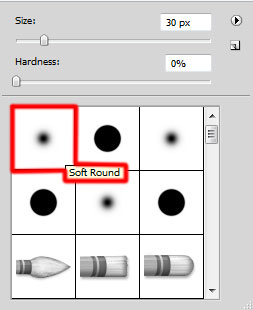
Insert the mask on the layer by choosing Add layer mask on the bottom part of the Layers panel and select after that Filter>Render>Clouds. Select after that the Soft Round brush from Brush Tool (B).
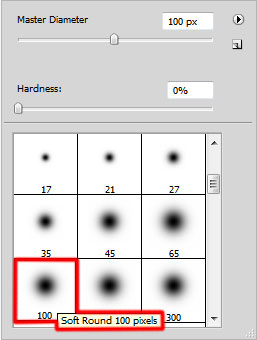
Paint in the mask using this brush to clean up the top part of the canvas as shown. The brush’s color is black.

Create a new layer and select the Soft Round.
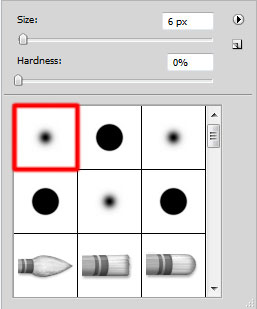
Use this brush to represent many dots with #536874 color.

Find a stock photo with a model represented on it, I used this photo from Shutterstock. I would like to thank the author of this photo, or if you prefer, you can substitute similar image of your own.
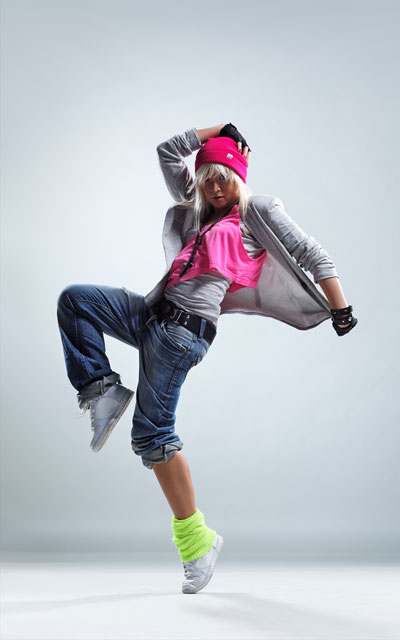
Remove the background using your favorite tools like Pen Tool (P), Magic Wand Tool (W), Magnetic Lasso (L) or even a simple Filter>Extract and insert it on a new layer in our main document.
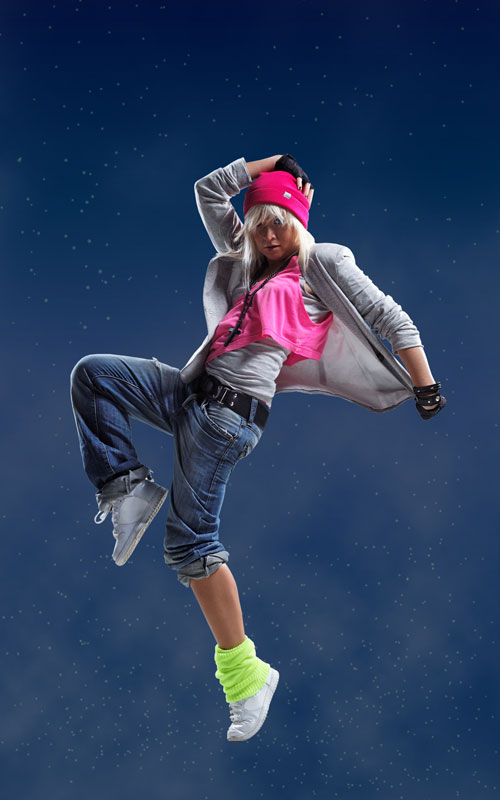
Create the next new layer on which we’ll use again the Soft Round brush.
Use this bush to insert more dots of green color. Place the layer under the layer containing the model’s image (on the Layers’ panel).
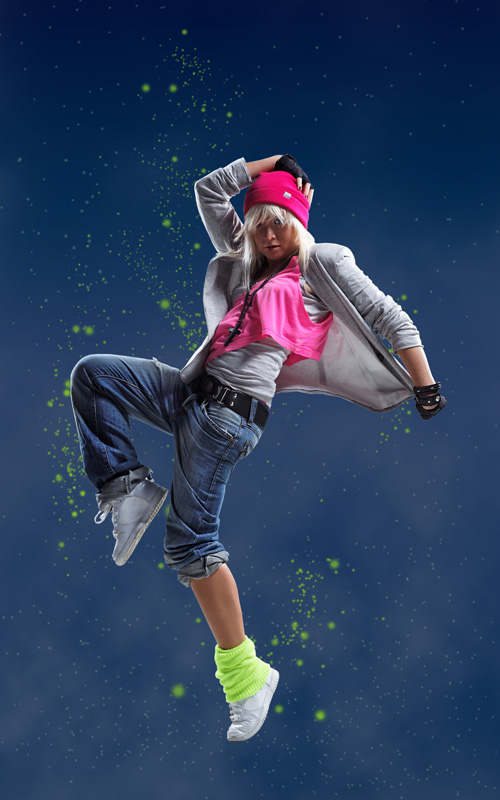
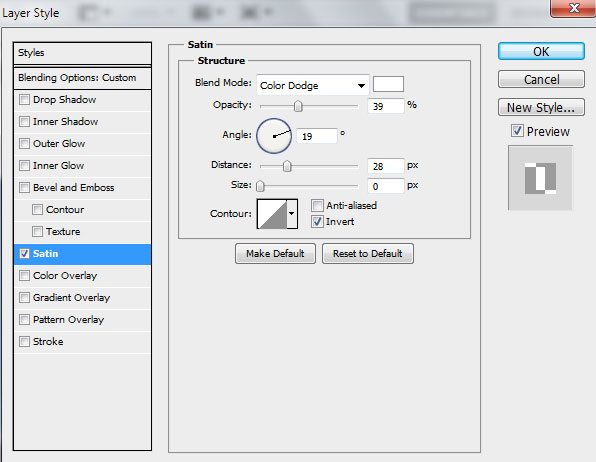
Set Fill to 48% for this layer and click on Add a layer style icon from bottom part of the Layers panel and select Satin.
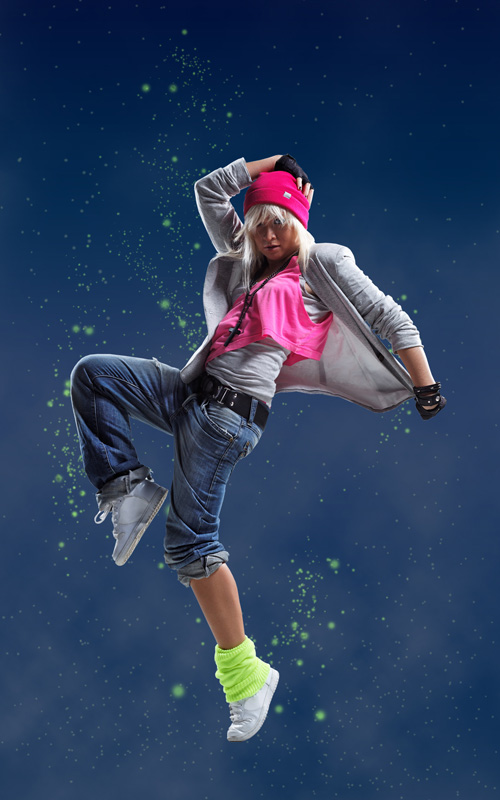
We’ve got the next result:
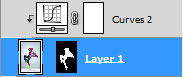
Make sure now that the layer with the model is selected and click on the bottom part of the Layers panel to Create new fill or adjustment layer, select from the list Curves.
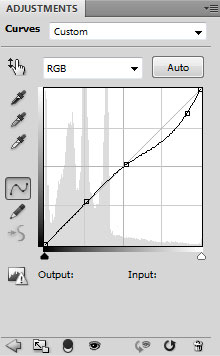
Adjust the curve shape as shown to make a little color corrections.
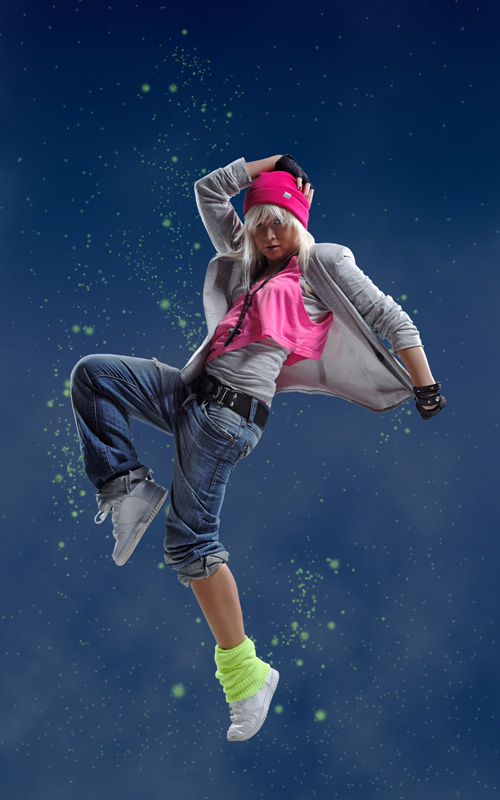
Hold down Alt (Windows) or Option (Mac OS) and click between the model’s layer and the Curves adjustment layer in the Layers panel to create a clipping mask.
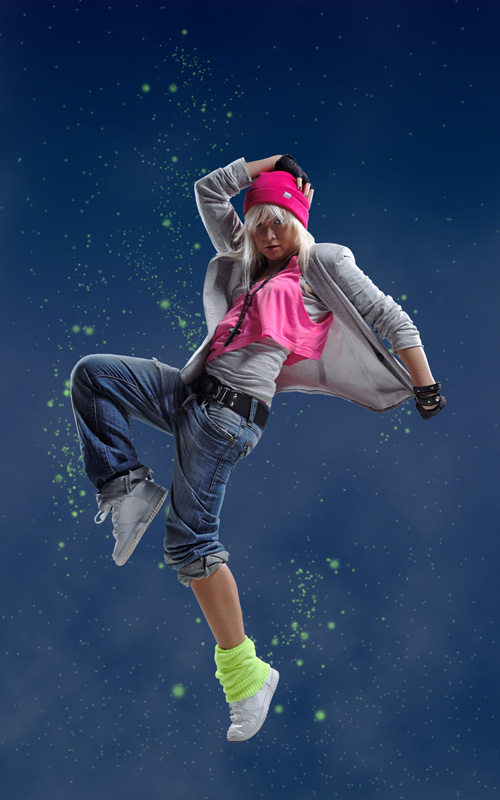
We’ve got the next result:
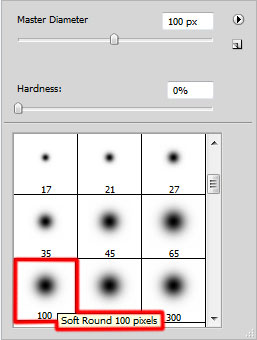
Create a new layer and select the Soft Round brush.
Use this brush to paint on the model certain places as shown. The brush’s color is #070424 (set Opacity to 40% in Options bar).
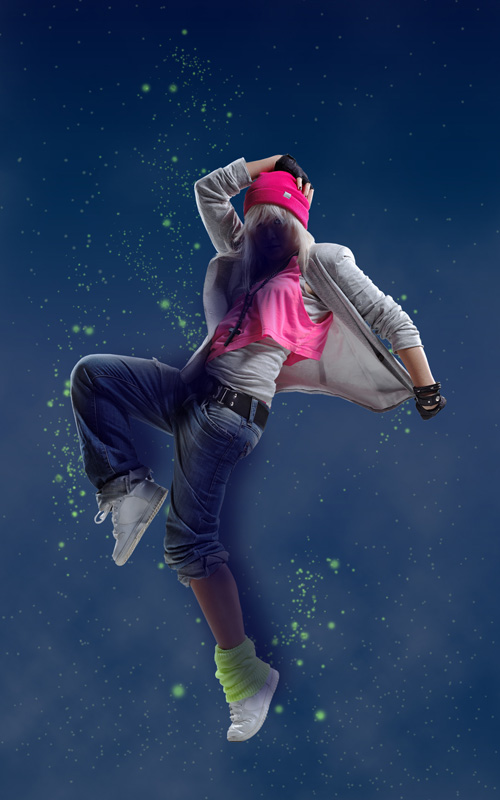
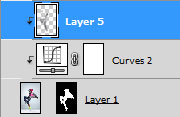
Hold down Alt (Windows) or Option (Mac OS) and click between layers in the Layers panel to create the next clipping mask.
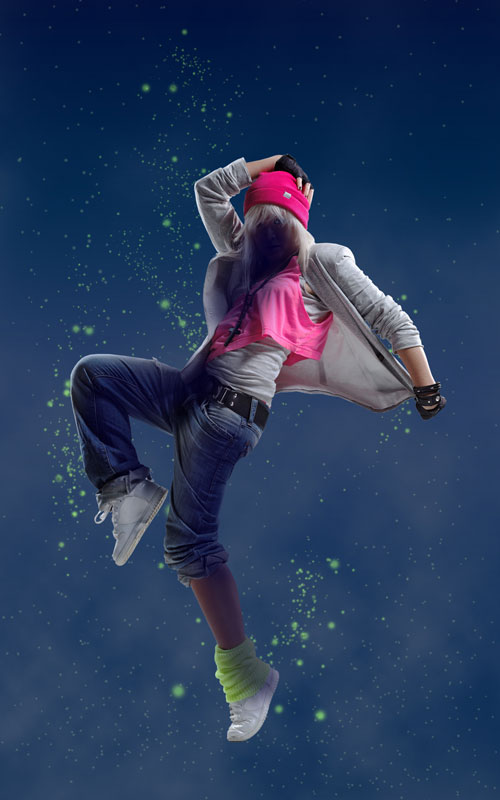
We’ve got the next result:
Comments