
Gassy Splash
Gassy Splash
Author Name: TDW
URL: http://www.thedesignworld.com
1. Make a 400×400 document. Now press “D” on your keyboard to reset the foreground and background colors to black and white. Make sure your background is WHITE.
2. Now apply Filter>Render>Clouds and right after that Filter>Render>Difference Clouds and apply difference cloads one more time.
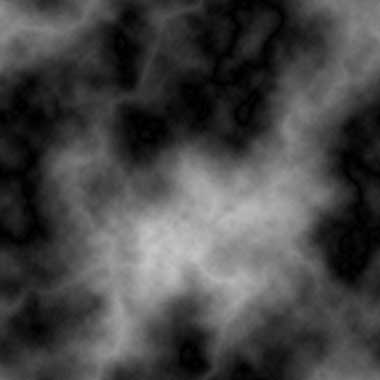
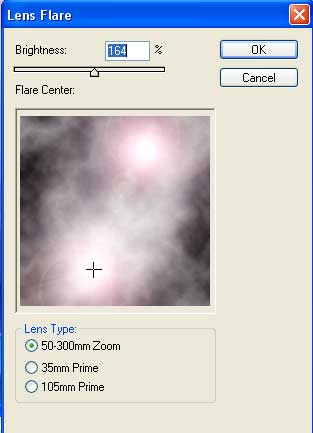
Ok so now we want to add a couple lens flares. Filter>Render>Lens Flare and use these settings:
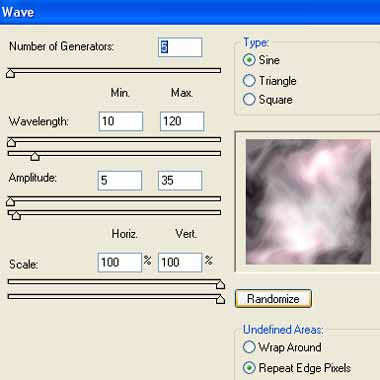
Go to Filter>Distort>Wave and apply these settings aswell:

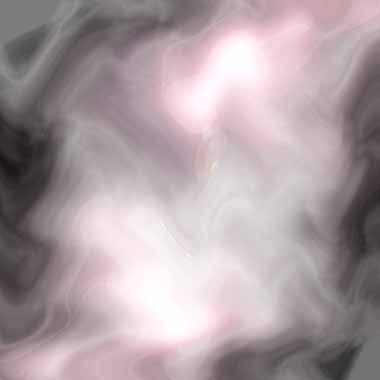
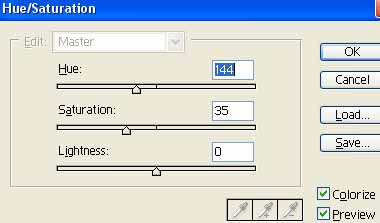
3. Ok now we got a nice gassy effect happening. Time to add some color to it. I used these Hue Settings (CNTRL+U):
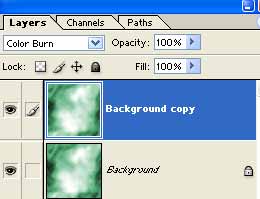
4. Duplicate the layer and add Color Burn as the blending mode:
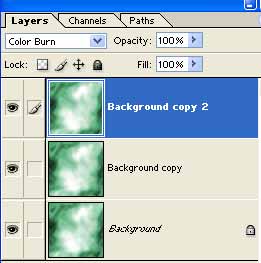
Duplicate the already duplicated layer and keep the layer as color burn:
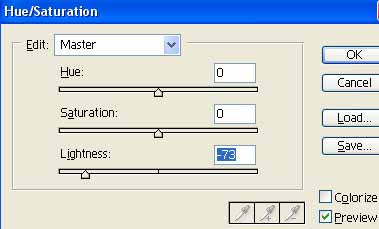
5. Apply these final hue settings to the very top layer:
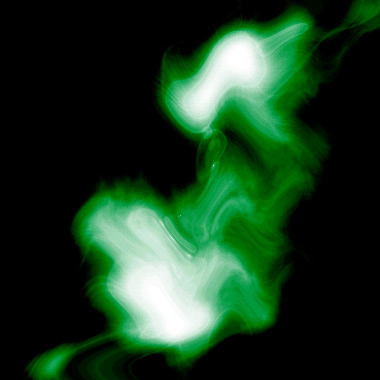
Your final effect should be similar to mine below, also note cloud renders are always different.
Comments