
Burn Paper
May 14, 2006 | 0 comments
| 1. Start with your new doument.Create a New layer and rename it to “Background”. Set your background color to #993300 and foreground color to #663300. Now Select Linear Gradient Tool and Fill this layer with Linear Gradient from Upper Left to Lower Right. |
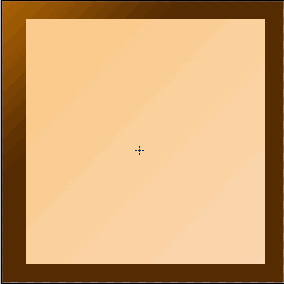
| 2.Create New layer and give it a name “Paper”. Select Rectangular Marquee Tool. Now Draw a Rectangle on a paper layer. Set your foreground color to #FFCC99 and background color to # FFCCCC, fill this with Linear Gradient from Upper Left to Lower Right. |
|
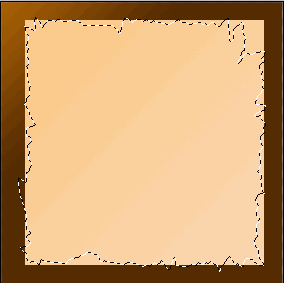
| 3. Select Lasso Tool from the Tool bar, make a selection on a Paper layer like this: |
|
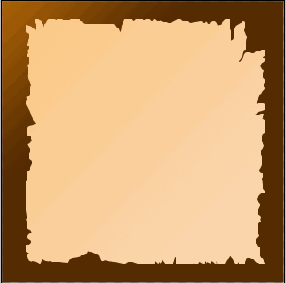
| 4. Delete the Selection by hitting DEL key, Press Ctrl + D to deselect it. Your image should look like this: |
|
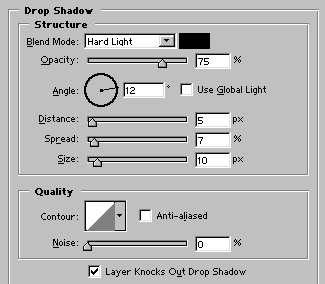
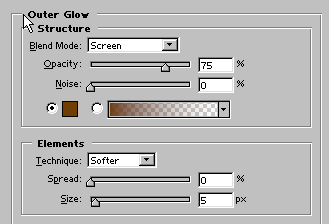
| 5. Add Drop Shadow and Outer Glow to Paper Layer. |
|
|
| 6. Create New Layer. Select Brush Tool and select soft round 21 brush size. Now brushing the edges of the Paper. |
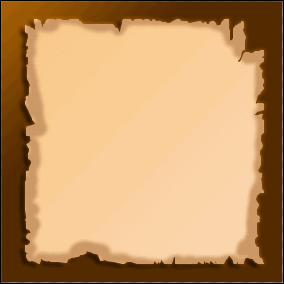 |
| Group this layer with Paper layer layer Layer>>Group with previous or by clicking Ctrl + G. |
| 7. Now again select the brush but this time soft round 300. Create a new layer and apply just two to three brushes on the center of the paper so its look like very old. Down its opacity upto 75%. |

|
Comments