
Create a spinning fire of doom.
1. Make a new image (File > New or Ctrl+N) with 450px in width and 400px in height:
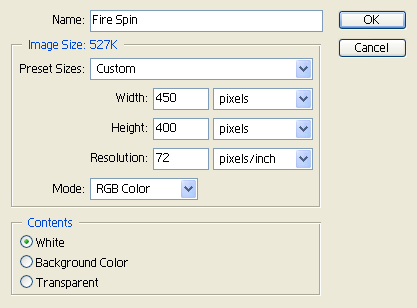
2. Create a new layer (Layer > New > Layer or Shift+Ctrl+N) and then set your foreground color as black and background color as white.
3. Filter > Render > Clouds.
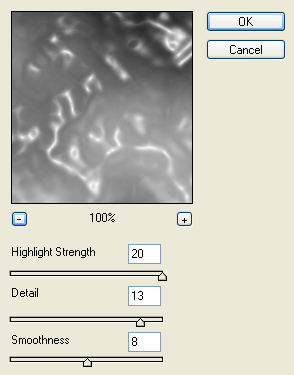
4. Filter > Artistic > Plastic Wrap:
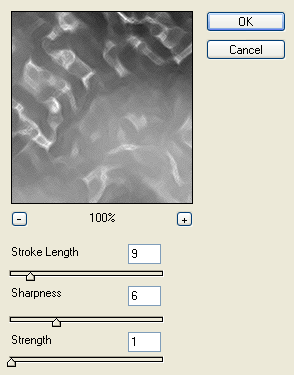
5. Filter > Brush Stroke > Crosshatch:

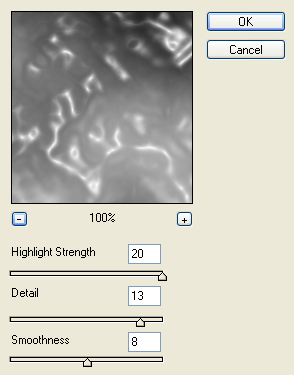
6. Another Filter > Artistic > Plastic Wrap:
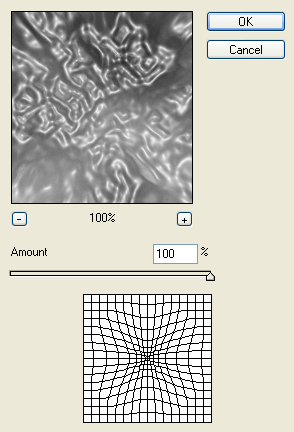
7. Filter > Distort > Pinch:
8. Filter > Stylize > Wind:
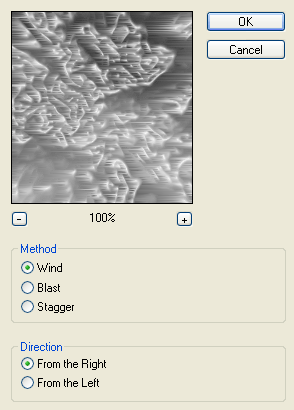
9. Press Ctrl+F on your keyboard to apply the previous step once again.
10. Now apply the Wind effect again but this time from the left, Filter > Stylize > Wind:
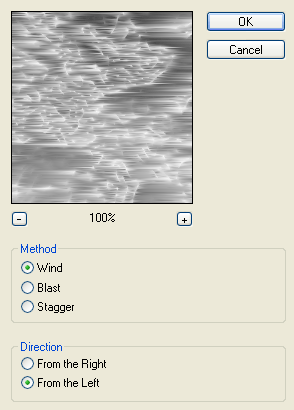
11. Once again press Ctrl+F on your keyboard to apply the previous step once again.
12. Filter > Distort > Twirl:
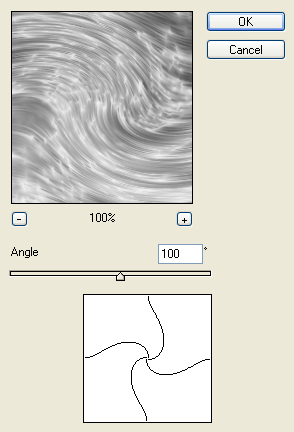
13. Now your image should look similar to the one below:
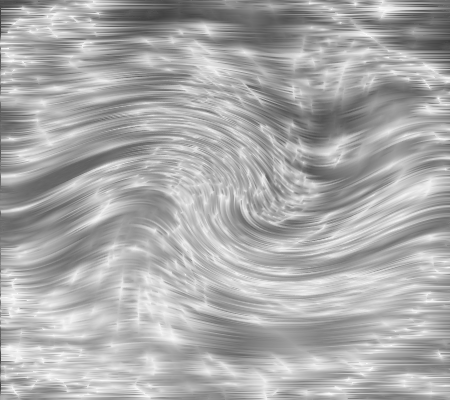
14. Duplicate the layer (Layer > Duplicate Layer), Edit > Transform > Flip Horizontal, and then Edit > Transform > Flip Vertical.
15. Set the blending mode of that layer to Overlay.
16. Filter > Brush Strokes > Dark Strokes:
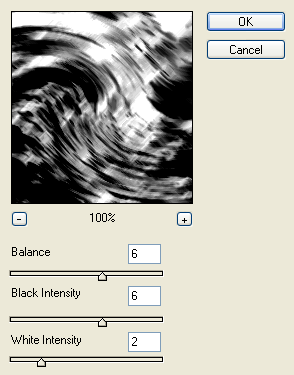
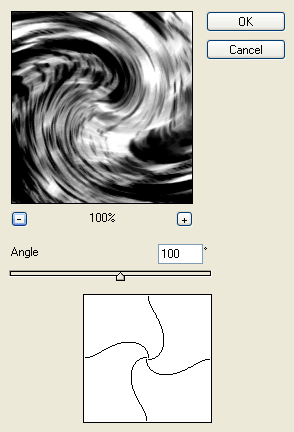
17. Filter > Distort > Twirl:
18. Image > Adjustments > Hue/Saturation or Ctrl+U (make sure Colorize is checked):
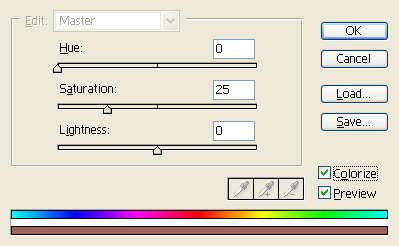
19. Now select the 1st layer we created and add a Hue/Saturation there too (Filter > Adjustments > Hue/Saturation or Ctrl+U and once again make sure Colorize is checked):
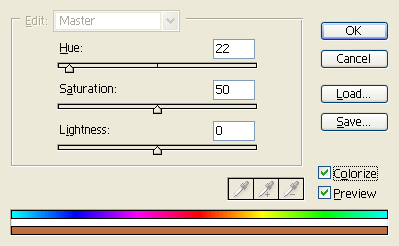
20. Now your image should look similar the one below:
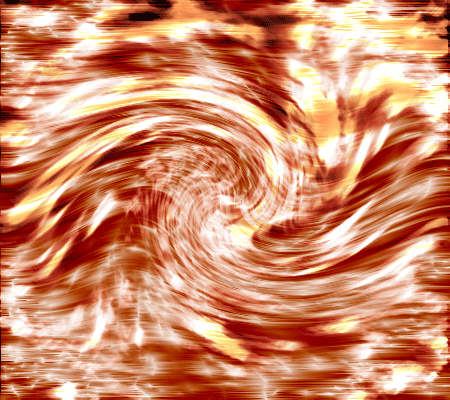
21. Create a new layer (Layer > New > Layer or Shift+Ctrl+N) and drag it to be on top of all the layers.
22. With your foreground color still black and background color still white, go to Filter > Render > Clouds.
23. Filter > Brush Strokes > Crosshatch:
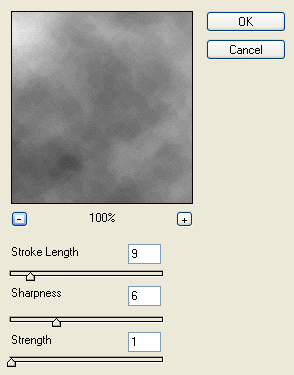
24. Filter > Artistic > Plastic Wrap:
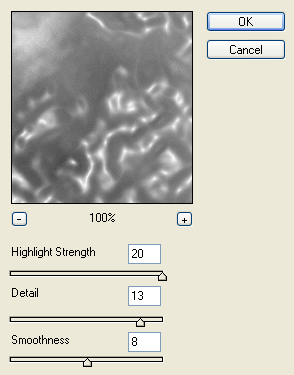
25. Filter > Distort > Twirl:
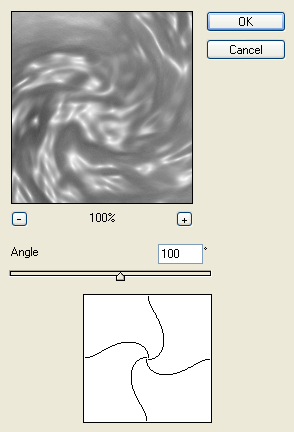
26. Filter > Brush Strokes > Dark Strokes:
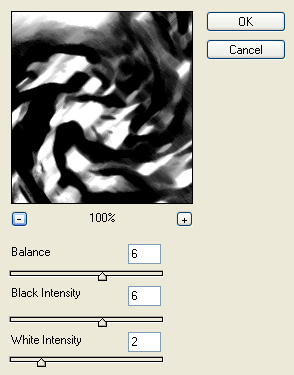
27. Filter > Distort > Twirl:
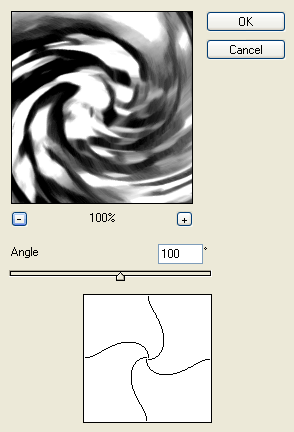
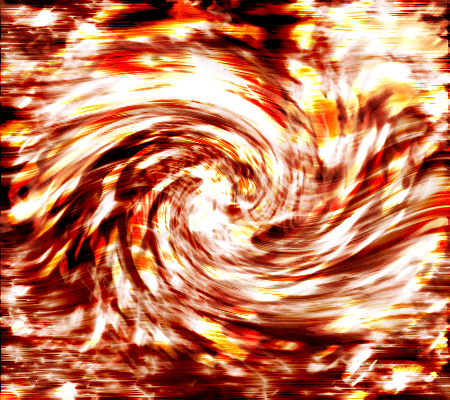
28. Now set the layers blending mode to Overlay. Now you should have your final image. Below is an image of my final result:
Comments