
Create nice and smooth liquid abstract.
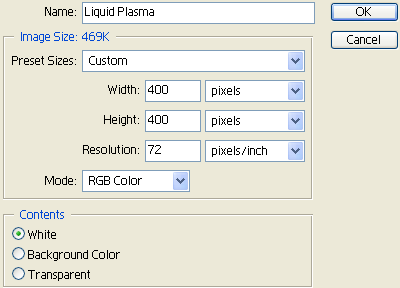
1. Create a new image (File > New or Ctrl+N):
2. Create a new layer (Layer > New > Layer or Shift+Ctrl+N).
3. Press D on your keyboard to reset your colors.
4. Filter > Render > Clouds.
5. Filter > Render > Difference Clouds.
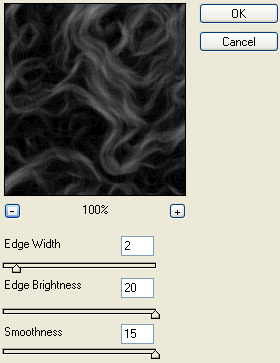
6. Filter > Stylize > Glowing Edges:
7. Filter > Distort > Wave:


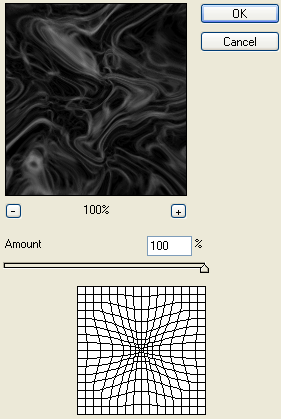
8. Filter > Distort > Pinch:
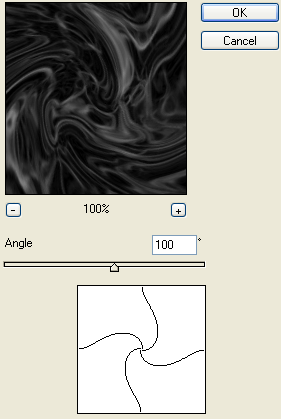
9. Filter > Distort > Twirl:
10. Duplicate the layer (Layer > Duplicate Layer or Ctrl+J).
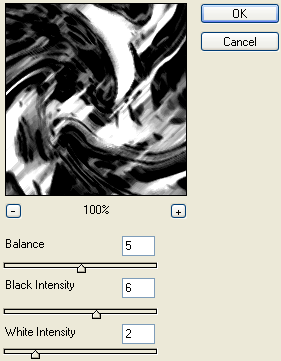
11. Filter > Brush Strokes > Dark Strokes:
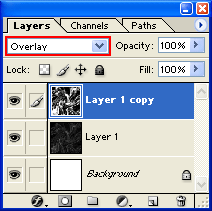
12. Set the layers Blending Mode to Overlay:
13. Lets fuse the 2 layers together (Layer > Merge Down or Ctrl+E).
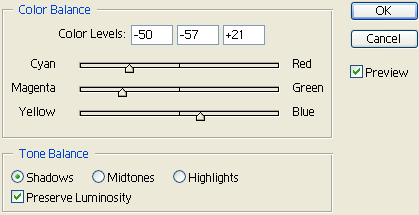
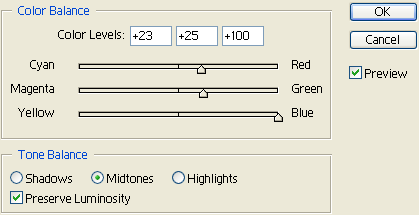
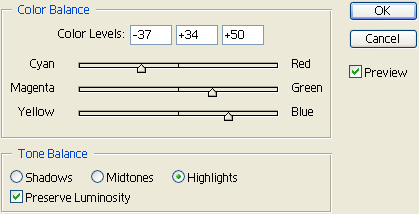
14. Image > Adjustments > Color Balance or Ctrl+B:
Tone Balance – Shadows:
Tone Balance – Midtones:
Tone Balance – Highlights:
15. Your final result should look similar to the image below:

Comments